

Booking links
A booking link is a page you share, by email or on your website, where people choose a free time to meet you. Only times when you’re free are offered. Each booking adds the person to your contacts, puts the meeting in your calendar, sends them an invitation and can start a deal.
Go to Activity, then Booking links.
Your booking links
Section titled “Your booking links”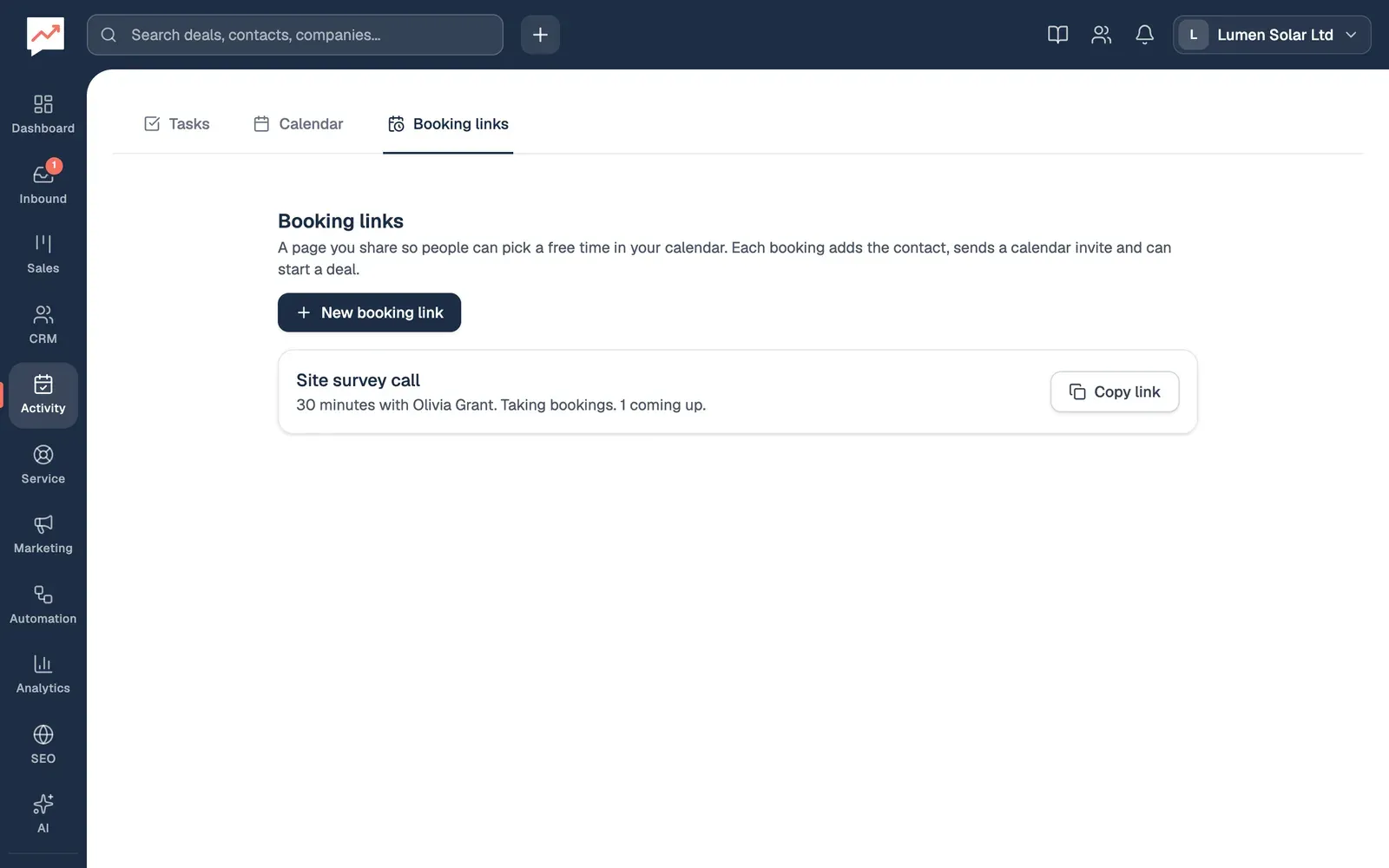
-
New booking link makes a new link. See Make a booking link.
-
Choose a link’s name to open it, change it and see who has booked.
-
Copy link copies the page’s web address, ready to paste into an email or your website.
Each link says how long the meeting is, whose calendar it books, whether it’s taking bookings, and how many meetings are coming up. The list shows every booking link in your company. You can open and change your own links; owners and admins can open and change anyone’s.
Make a booking link
Section titled “Make a booking link”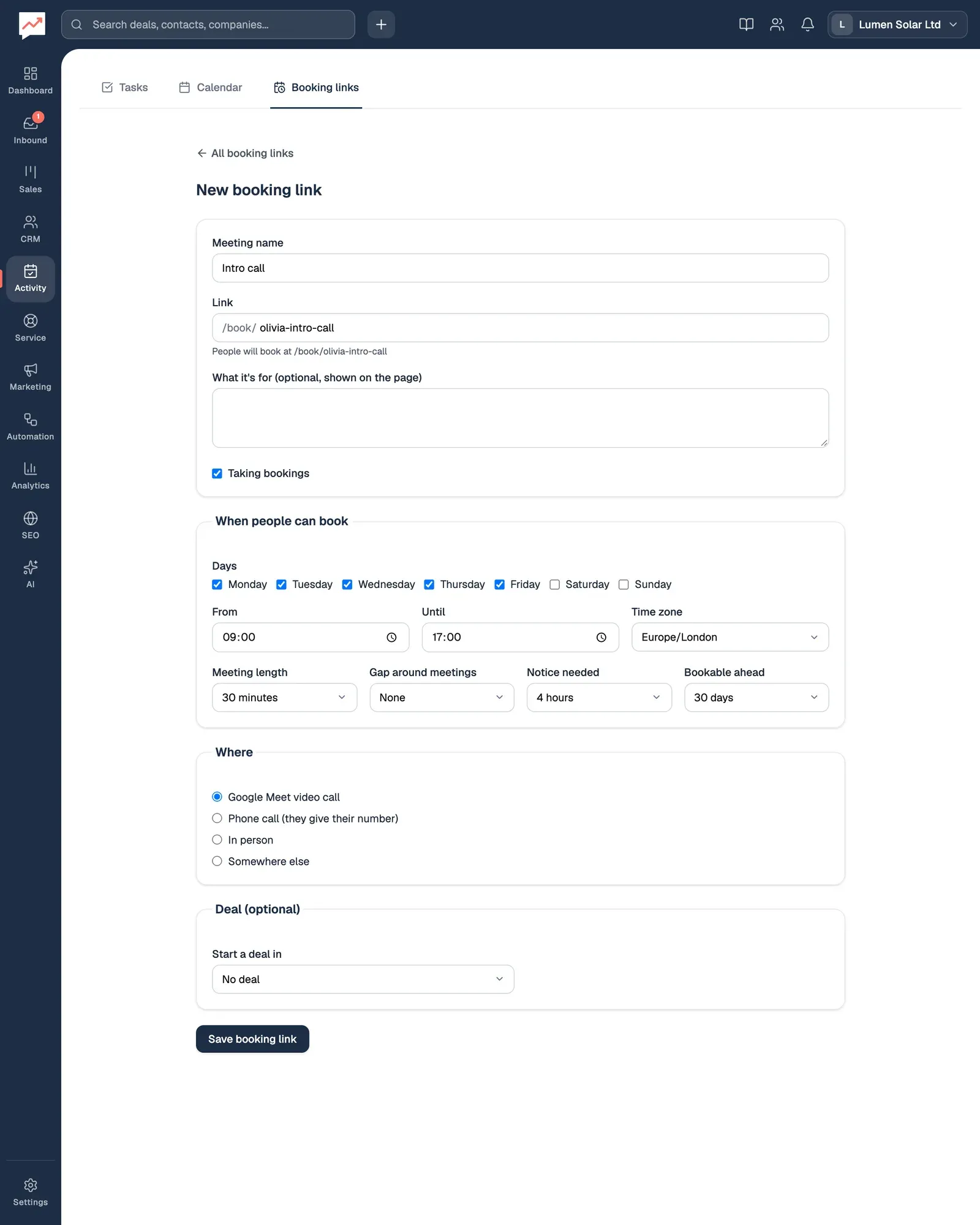
-
Select New booking link, then type the Meeting name, such as “Site survey call”. People see it on the page and in their invitation. Then check the Link under it. It’s made from your first name and the meeting name, such as
/book/olivia-site-survey-call. You can change it, using lowercase letters, numbers and hyphens, at least 3 of them. The line under the box says if it’s already taken. -
Under When people can book, tick the Days, set the hours with From and Until, and check the Time zone, which starts as your computer’s. Then set the Meeting length, any Gap around meetings, how much Notice needed before a meeting, and how far ahead it’s Bookable ahead.
-
Under Where, choose Google Meet video call, Phone call (they give their number), In person (then type the Address) or Somewhere else (then type the Details).
-
Under Deal (optional), choose a pipeline in Start a deal in and a stage in At stage to add a deal for each booking. Leave it on No deal if you don’t want one.
-
Select Save booking link.
You can also say what the meeting is for under What it’s for (optional, shown on the page).
Once it’s saved, Copy link and Open the booking page appear at the top. The page opens in a new tab, so you can see what people will see.
A booking link always books the calendar of the person who made it, even when an admin changes it. A new link starts on weekdays from 9:00 to 17:00, 30 minutes long, with 4 hours’ notice, up to 30 days ahead, on Google Meet.
Which times are offered
Section titled “Which times are offered”- Times are inside your hours on the days you ticked, from the notice you need up to the days ahead you chose.
- A meeting can start every 30 minutes. Shorter meetings can start every 15 or 20 minutes, to match their length.
- Times are left out when you’re busy in your Google Calendar (if it’s connected), when there’s an event in your HeySales Calendar, or when someone has booked you through any of your booking links.
- The Gap around meetings is kept free before and after each of those.
What people see
Section titled “What people see”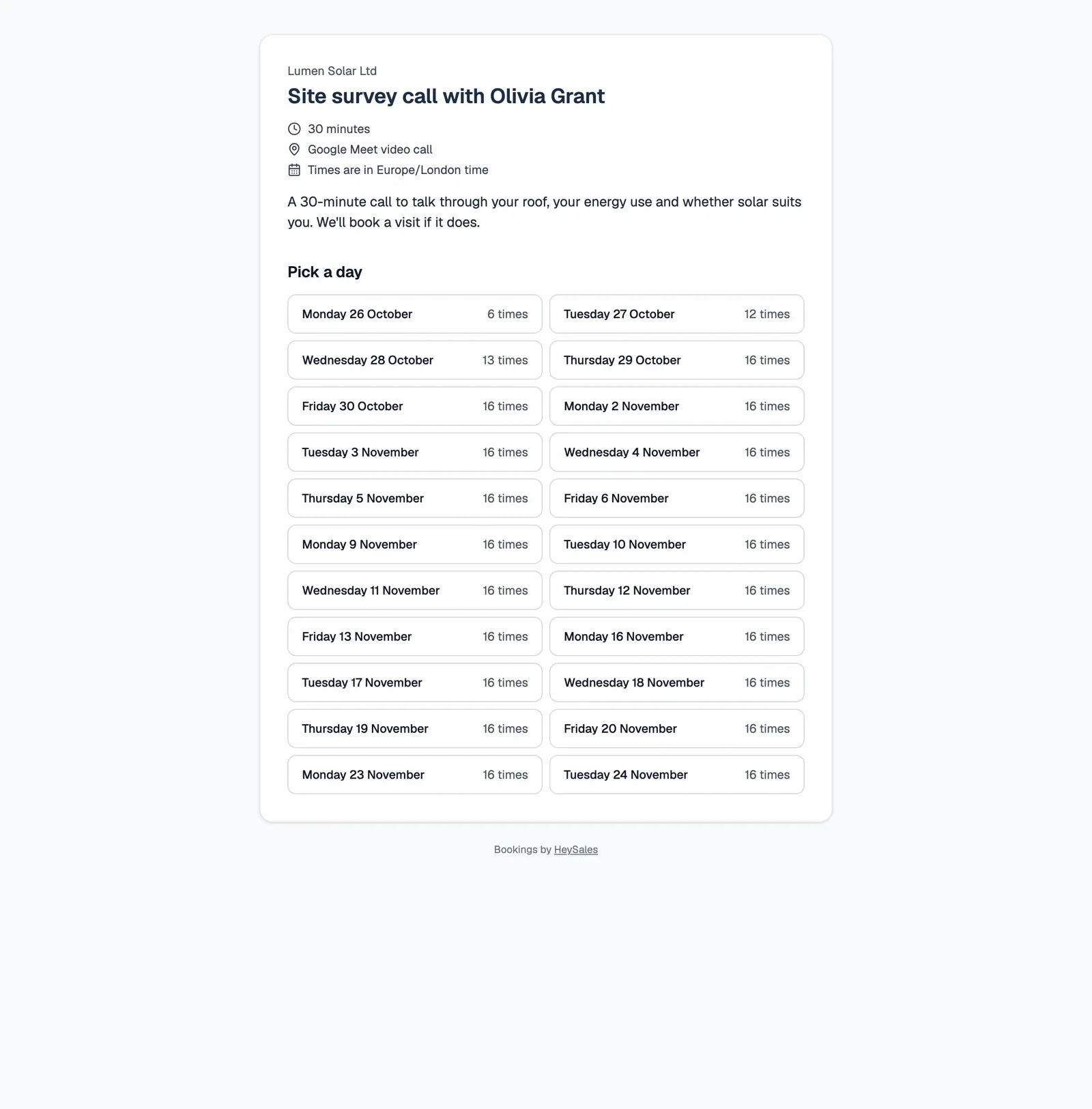
The page shows your company name, the meeting name and who it’s with, how long it is, where it is, the time zone and what it’s for. Under Pick a day, each day with free times is a link, with how many times it has.
-
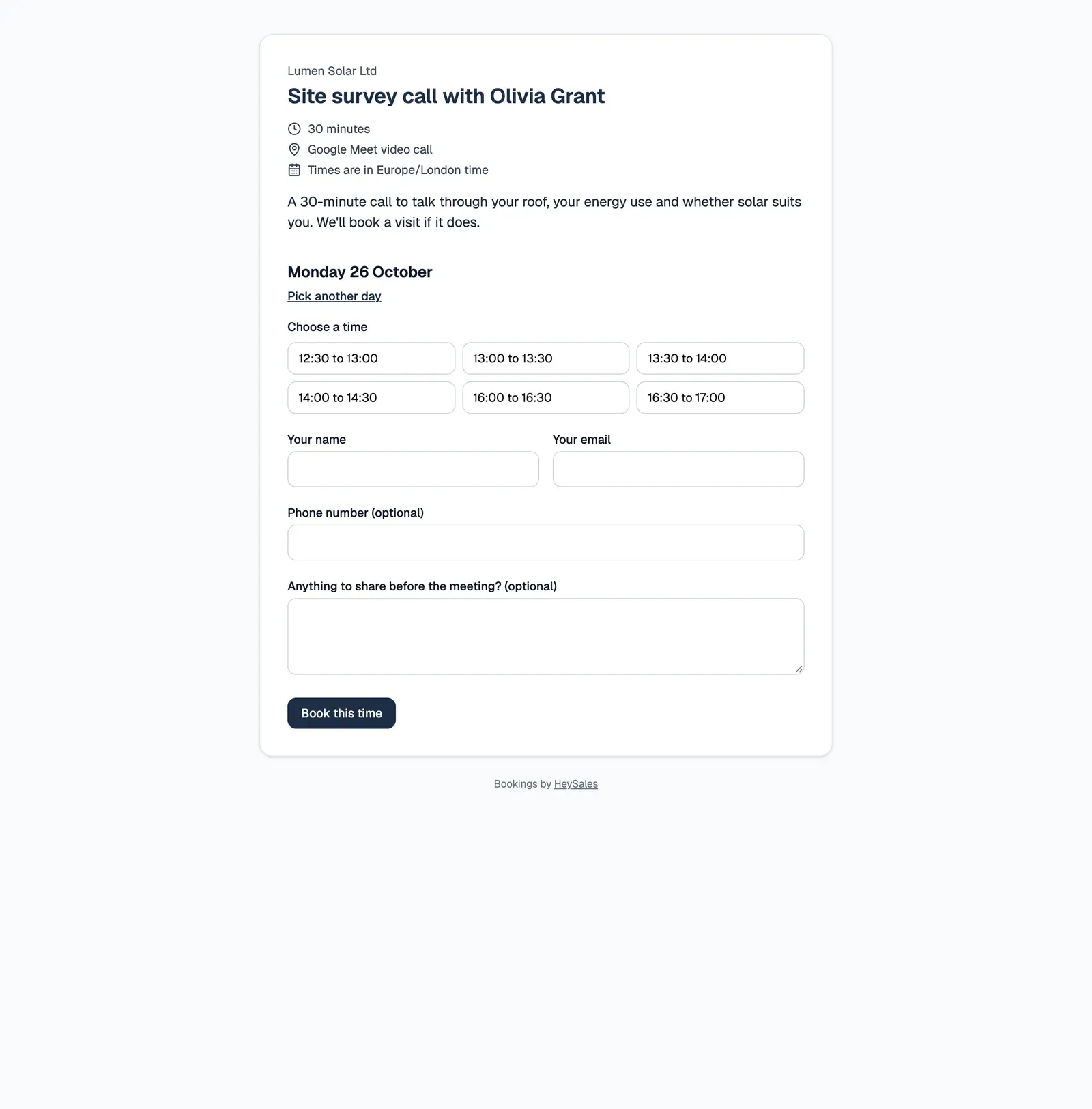
Under Choose a time, the person picks one of the day’s times. Pick another day goes back to the list.
-
They type Your name and Your email.
-
They can add a Phone number (optional) and Anything to share before the meeting? (optional). For a phone call meeting, the phone number has to be filled in.
-
They select Book this time.
A page saying You’re booked in confirms the day and time, and says an invitation is on its way, or that you’ll send one if Google isn’t connected.
If the time was taken while they were choosing, they’re asked to pick another. One email address can make up to three bookings with your company in 24 hours. If there are no free times at all, the page asks them to get in touch with you directly.
The page works with a keyboard and screen reader, and without JavaScript. Search engines are asked not to list it.
What happens when someone books
Section titled “What happens when someone books”- Your calendar: the meeting goes in your HeySales Calendar and, with Google connected, your Google Calendar, named after the meeting and the person, with their message and phone number in the description.
- Their invitation: with Google connected, Google Calendar emails them an invitation. For a Google Meet meeting, it has the video call link.
- Your email: you get an email with their details and a link to them in HeySales. If the invitation couldn’t be sent, it says so, so you can send one yourself.
- The contact: they’re added to your contacts, or matched to the contact with their email address. A phone number they give is added if the contact didn’t have one.
- The deal: if you chose a pipeline and stage, a deal is added there, owned by the link’s owner and called after the person and the meeting.
- Workflows: on Pro, any workflow that begins with Someone books a meeting starts, and adding a contact or deal starts those that begin with A contact is created or A deal is created.
Open a booking link to see its Bookings: who booked, when for, and their email address. Choose a name to open the contact.
Delete a booking link
Section titled “Delete a booking link”Open the link and select Delete booking link, then confirm. The page stops working. Meetings already booked stay in your calendar.
See your booked meetings on the Calendar, or capture leads from your website with Forms.