

Quotes
A quote sets out what you’ll supply and what it will cost. Each deal has one quote, which you write on the deal’s page, then print or save as a PDF to send to your customer.
The Quotes tab
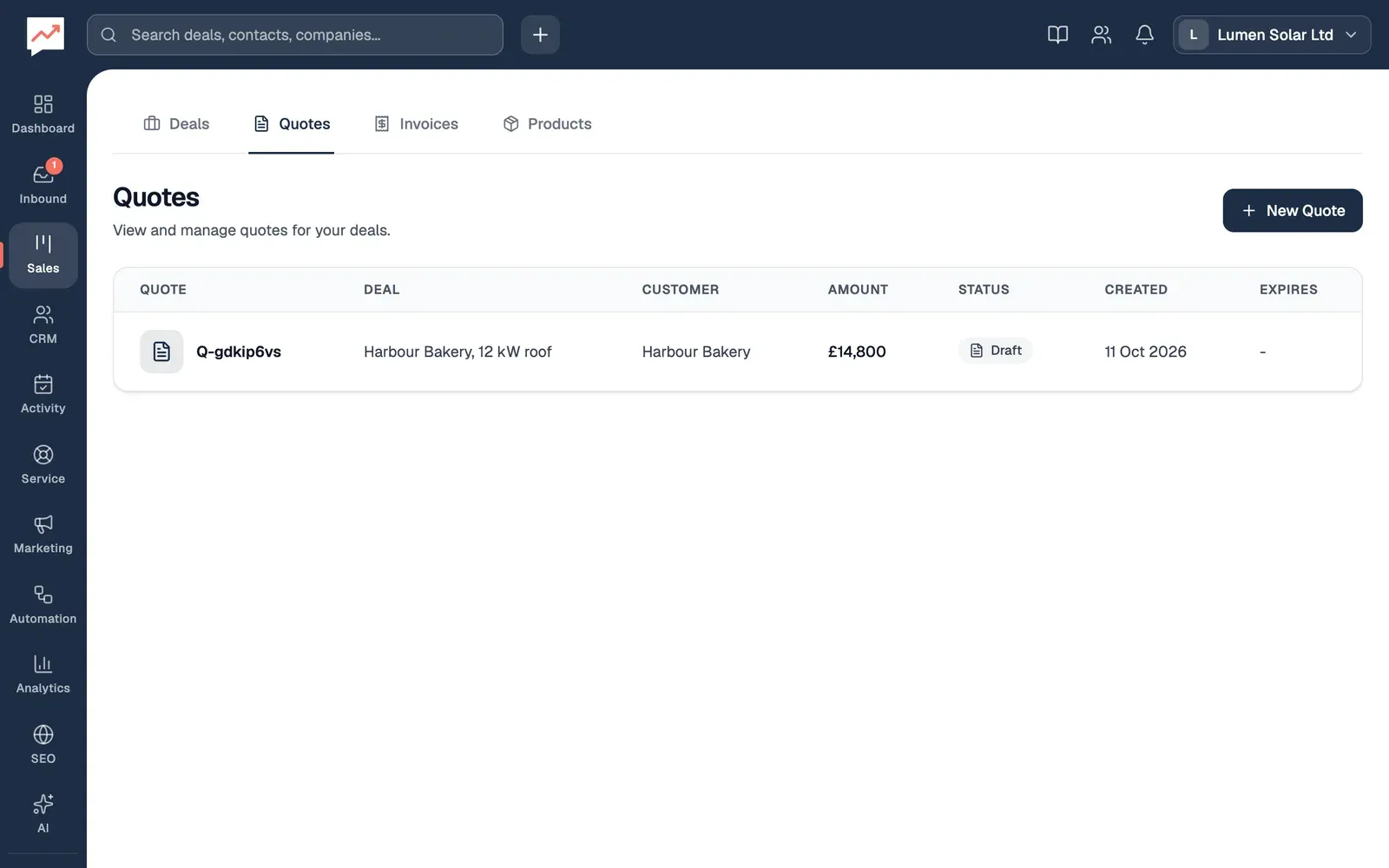
Section titled “The Quotes tab”Go to Sales, then Quotes, to see all your quotes.
-
New Quote takes you to your deals. Open the deal the quote is for, then select its Quotes tab.
-
Choose a quote’s number or its deal to open the deal’s page, where the quote is.
The table shows each quote’s Deal, its Customer (the buyer named on the quote), its Amount before VAT, its Status and when it was Created.
Quotes you make in HeySales show as Draft. Printing or emailing a quote doesn’t change that, and there isn’t a way to mark a quote as sent or accepted yet.
Write a quote
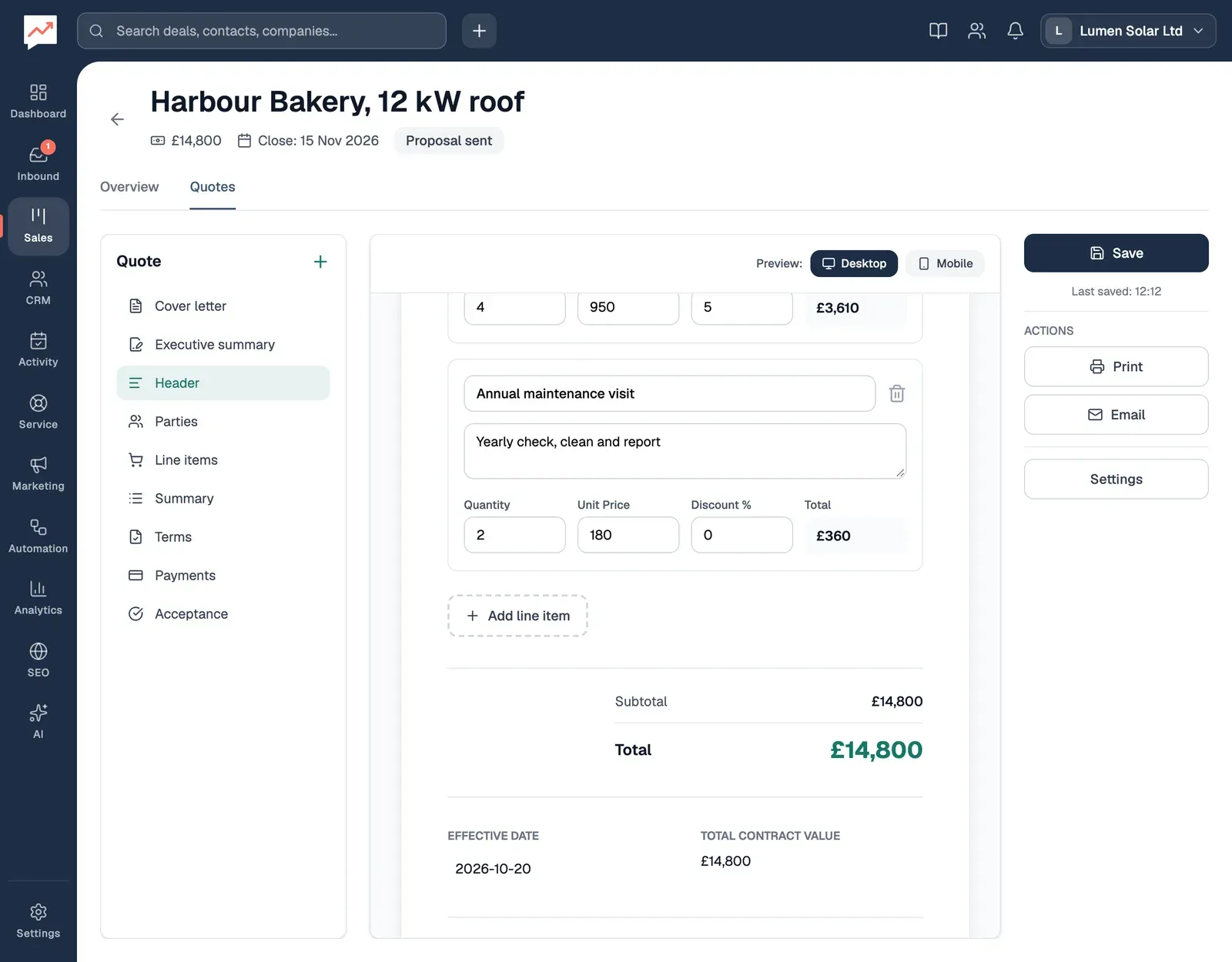
Section titled “Write a quote”Open the deal from the deal board, then select its Quotes tab. The first time you do, HeySales starts the deal’s quote for you, with the deal’s products as its lines, the deal’s owner as the seller and its main contact as the buyer.
-
The list on the left jumps to each part of the quote, from Cover letter to Acceptance.
-
Add line item adds a line to the quote. Each line has an Item name, a Description (optional), a Quantity, a Unit Price and a Discount %, and the quote’s Total adds them up.
-
Save saves the quote. It also saves itself a few seconds after each change, and shows when it was Last saved.
-
Print opens the quote, ready to print or save as a PDF. See Print a quote.
-
Email starts an email to the buyer. See Email a quote.
To write the rest of the quote, select its text and type: the Cover letter, the Executive summary, the seller’s and buyer’s names and emails under Parties, the Effective date, the Terms, Payments and Acceptance. You can change each heading in the same way. Where there’s nothing yet, you’ll see a prompt, such as “Add terms and conditions…”.
The quote’s lines are its own. Changing them doesn’t change the deal’s products or amount, and products you add to the deal later don’t appear on the quote. If the quote has no lines, Select from product library adds an empty line for you to fill in.
Print a quote or save it as a PDF
Section titled “Print a quote or save it as a PDF”Select Print. The quote opens in a new tab, and your browser’s print window opens over it. Choose a printer, or save the quote as a PDF to attach to an email (in most browsers, by choosing Save as PDF in place of a printer).
If the quote hasn’t been saved yet, Print asks you to save it first.
The printed quote has:
- your company’s name and website, and the seller’s name and email
- Bill To: the buyer’s name and email, and the company the deal is with
- the Quotation Date, and an Expiry Date 30 days later
- your executive summary, if you wrote one
- a table of the lines, with each one’s rate, VAT and amount
- the Subtotal, VAT (20%) and Total
- your terms and payment details
- lines for your customer’s signature and the date.
VAT at 20% is added to every line of the printed quote, so its total is higher than the total in the editor. The cover letter and your Acceptance text aren’t printed.
Email a quote
Section titled “Email a quote”Email opens a new email in your own email app, addressed to the buyer, with “Quote:” and the deal’s name as its subject and the quote’s total in the message. That total is before VAT.
HeySales doesn’t attach the quote to the email, so save it as a PDF first, and attach that before you send it.
See your invoices.