

Surveys
A survey asks your customers a few short questions on a page of its own. You email each customer a personal link from your Gmail, or share one public link, and their answers come back to HeySales with a score. Surveys are on the Service page, on the Surveys tab.
Kinds of survey
Section titled “Kinds of survey”When you make a survey, you choose its kind. It decides the questions you start with and the score you see.
| Kind | Starting questions | Score |
|---|---|---|
| Net Promoter Score (0 to 10) | How likely they are to recommend you, from 0 to 10, and the main reason for their score | Your Net Promoter Score |
| Customer satisfaction (1 to 5) | How happy they are with the help they got, from 1 (Very unhappy) to 5 (Very happy), and what you could have done better | The average out of 5, and the share who were happy or very happy |
| Your own questions | One written question | No score, just the answers |
You can change, add and remove questions in any kind. The first 0 to 10 or 1 to 5 question in a survey gives each answer its score.
Your Net Promoter Score is the percentage of people who scored 9 or 10 (promoters), take away the percentage who scored 0 to 6 (detractors). It runs from -100 to 100. People who scored 7 or 8 are passives, and don’t count either way.
Make a survey
Section titled “Make a survey”On the Surveys tab, select New survey.
-
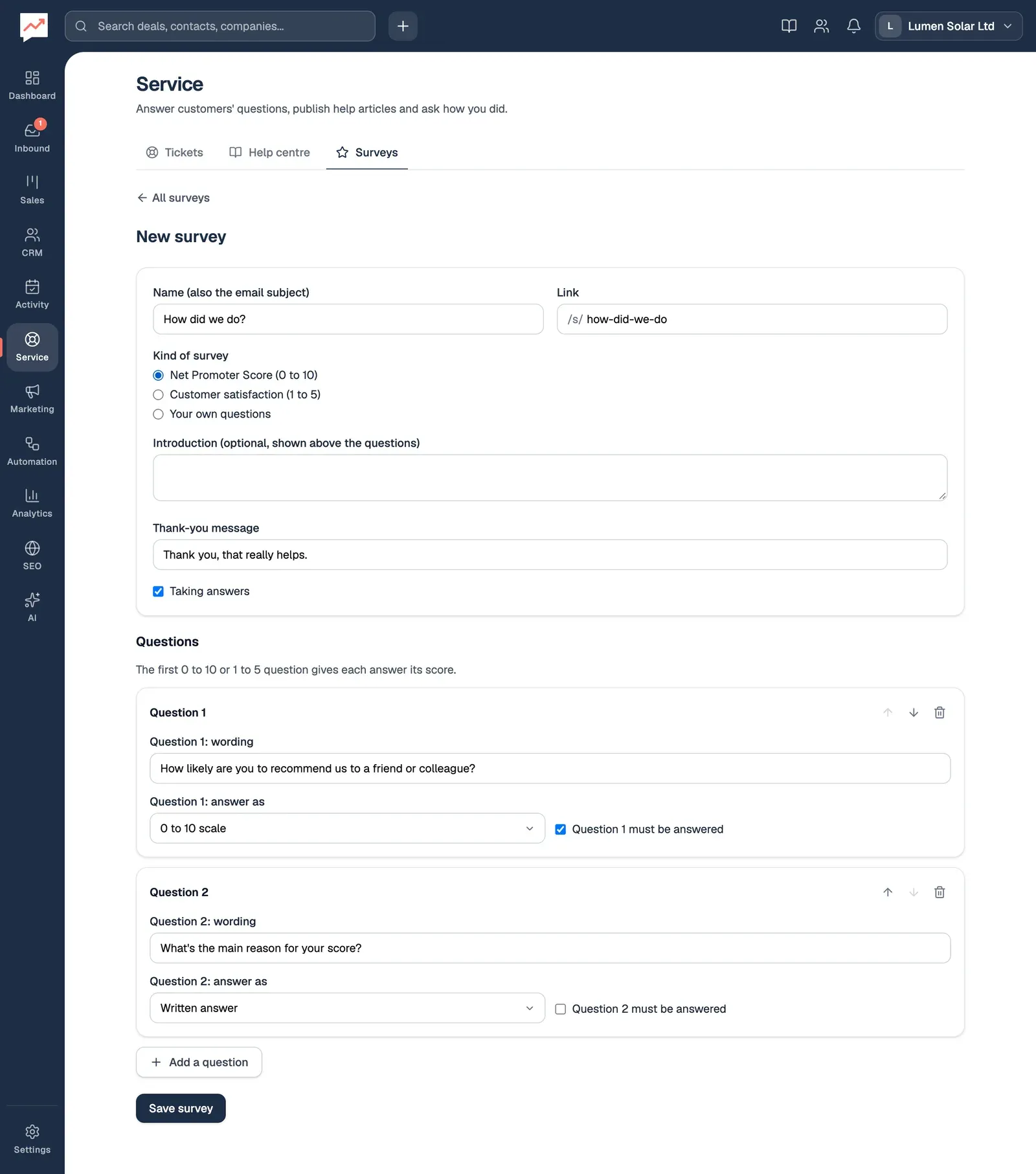
Name (also the email subject) is the survey’s title, and the subject of the emails that ask people to fill it in.
-
Choose the Kind of survey. Choosing a kind replaces the questions with that kind’s starting questions, so choose it first. You can’t change the kind once the survey is saved.
-
Fill in each question. For question 1, Question 1: wording is the question itself, and Question 1: answer as is how people answer: 0 to 10 scale, 1 to 5 rating, Pick one option or Written answer. Tick Question 1 must be answered if it can’t be skipped. For Pick one option, type the options one per line, at least two.
-
Add a question adds a written question at the end. A survey can have up to 20.
-
Select Save survey.
Also on the form:
- Link is the end of the survey’s web address: www.heysales.co.uk/s/ followed by what you type. It fills in from the name until you change it, and each link can only be used once in HeySales.
- Introduction is optional, and shows above the questions.
- Thank-you message shows after someone sends their answers.
- Taking answers: untick it to close the survey. A closed survey’s page shows “not found”, and you can’t send it.
To put the questions in a different order, use the up and down arrow buttons beside each question, named “Move question 2 up” and so on for screen readers. There’s no dragging, and the question you moved keeps the focus. The bin button removes a question.
To change a survey later, open it and select Edit survey.
Send a survey
Section titled “Send a survey”Survey emails go from your Gmail, so you need Google connected. See Connect Google.
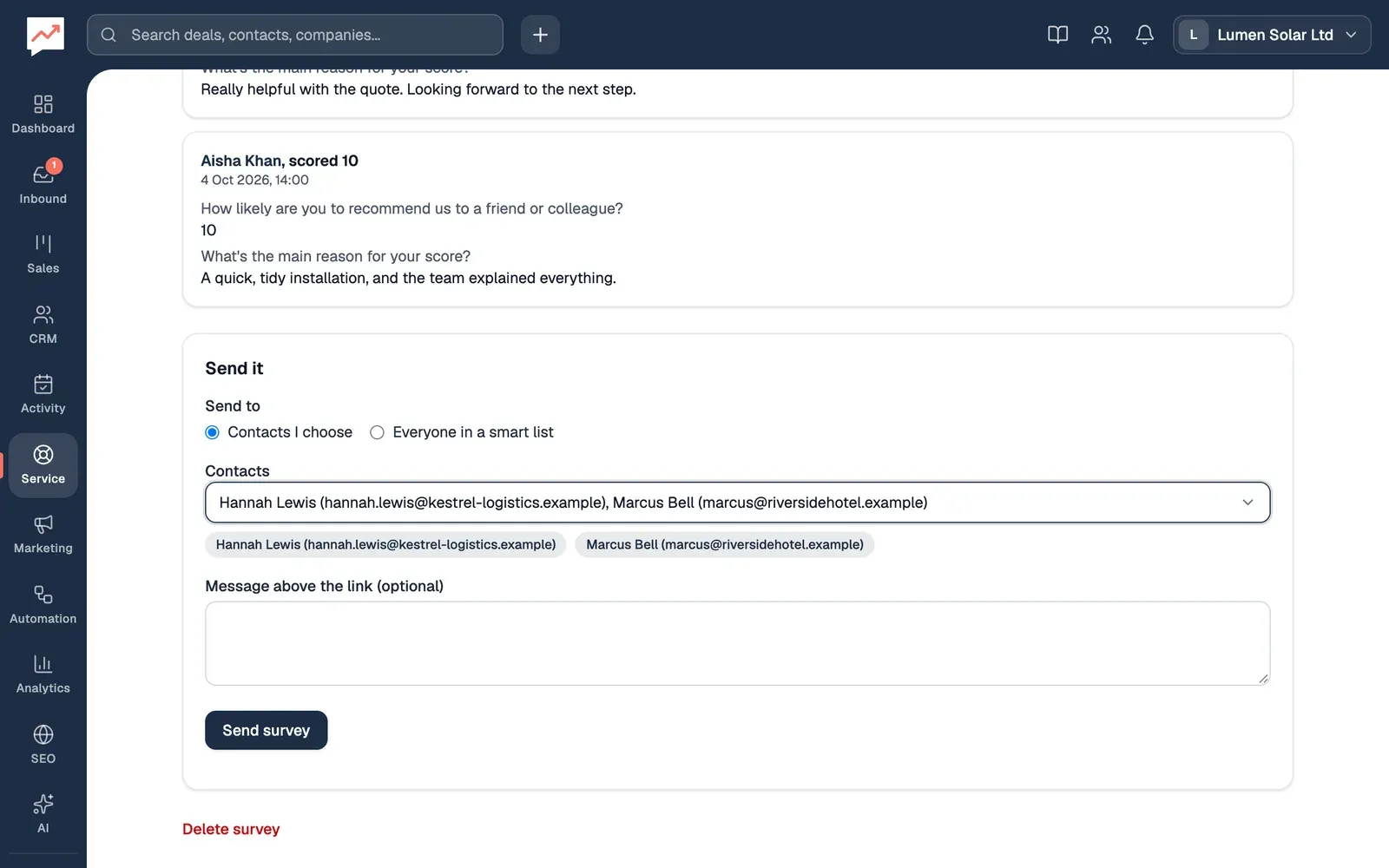
Open the survey from the Surveys tab. The Send it box is under the results.
-
Under Send to, choose Contacts I choose or Everyone in a smart list.
-
Choose the Contacts, or the Smart list. In the contact picker, type to narrow the list and choose as many people as you like. With a keyboard, Enter in the search box picks the first match, and Escape closes the list.
-
Message above the link (optional) replaces the standard words in the email. Leave it empty to use “Could you spare a minute to tell us what you think?”
-
Select Send survey.
Each person gets their own email from your Gmail, with the survey’s name as the subject, “Hi” and their first name, the message, their personal link and your email signature. You see how many emails were sent, and how many were skipped because the contact has no email address or the email couldn’t be sent.
You can send to up to 200 people at a time. For a bigger smart list, split it into smaller ones. See Smart lists.
Each personal link can be answered once. If someone tries to send answers through it a second time, they’re told they’ve already answered, and only their first answers count.
Share the public link
Section titled “Share the public link”Copy public link at the top of the survey copies its address, to put on your website or in a newsletter. Anyone with it can answer, as often as they like. Their answers don’t link to a contact, and show as “Someone with the public link”.
Ask after a ticket
Section titled “Ask after a ticket”When you close a ticket, you can ask the customer how it went, straight from the ticket.
-
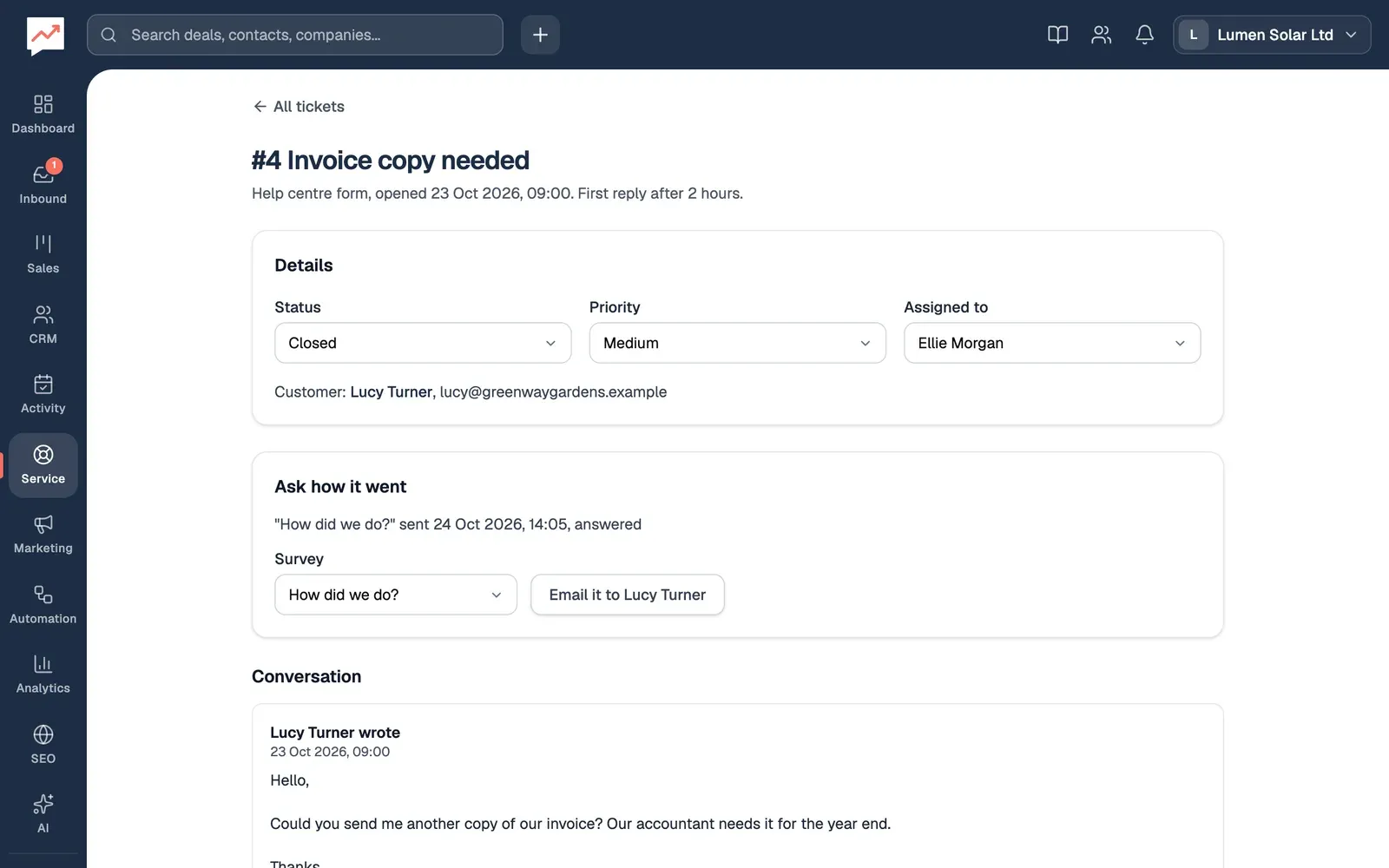
Set the ticket’s Status to Closed. The Ask how it went box appears.
-
Choose the Survey. Only surveys that are taking answers are listed.
-
Select Email it to and the customer’s name.
The email goes from your Gmail with “Thanks for getting in touch. Could you tell us how we did? It takes a few seconds.” The box then lists each survey sent about this ticket, and whether it’s been answered. The box only shows when the customer has an email address and you have at least one survey taking answers.
What customers see
Section titled “What customers see”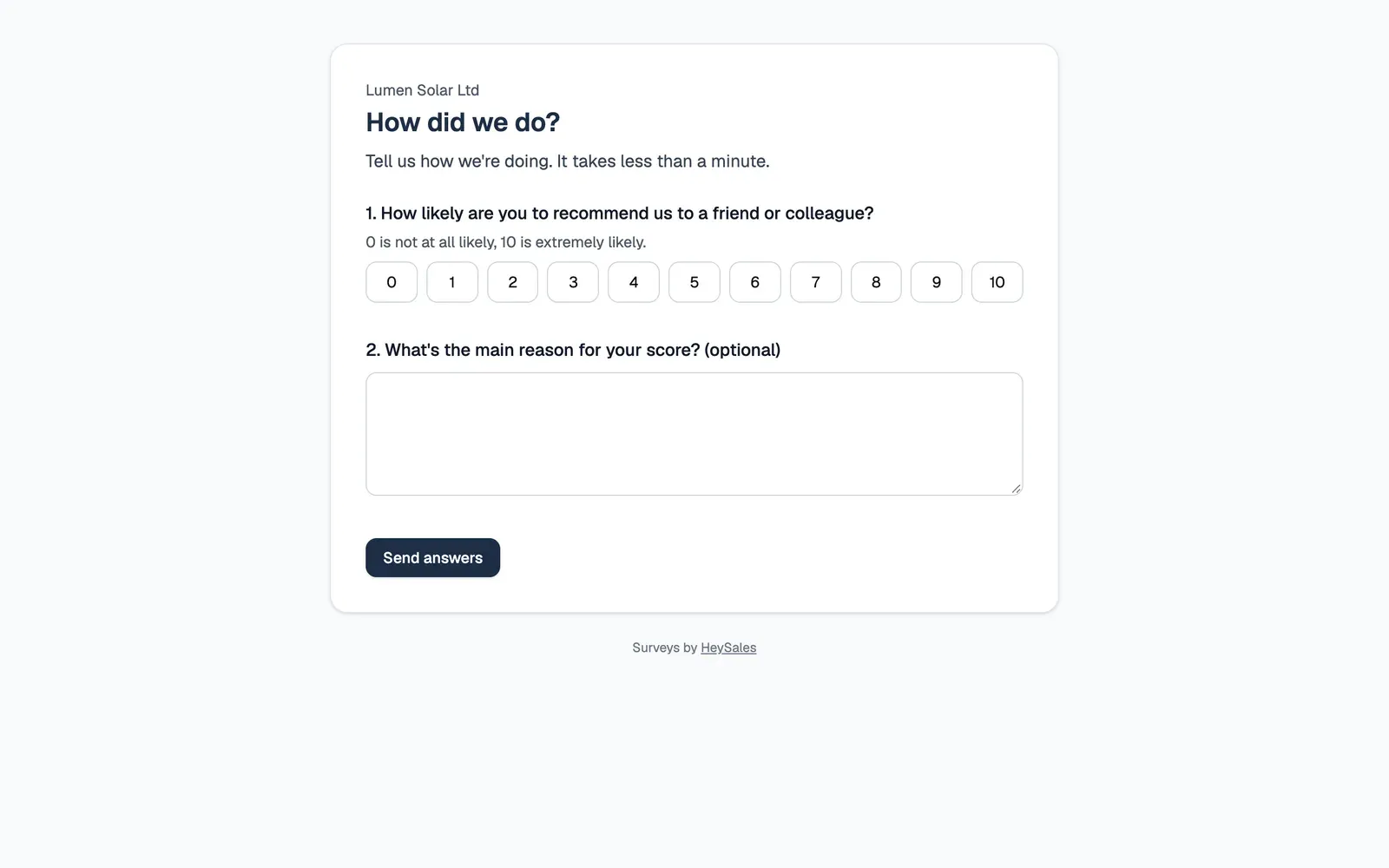
The page shows your company’s name, the survey’s name and introduction, and the questions in order. Optional questions say “(optional)”. Each score is a radio button, so with a keyboard the arrow keys move between scores. A 0 to 10 question explains that 0 is not at all likely and 10 is extremely likely, and each 1 to 5 rating is spelled out, from “1, Very unhappy” to “5, Very happy”.
They select Send answers and see your thank-you message. If they missed a question that must be answered, the page says which, and keeps what they’d filled in. The page works without JavaScript, and search engines are asked not to list it.
Read the results
Section titled “Read the results”Open a survey from the Surveys tab. The list there shows each survey’s answers and score at a glance.
-
Copy public link copies the survey’s address. See Share the public link.
-
Edit survey opens the form to change it.
-
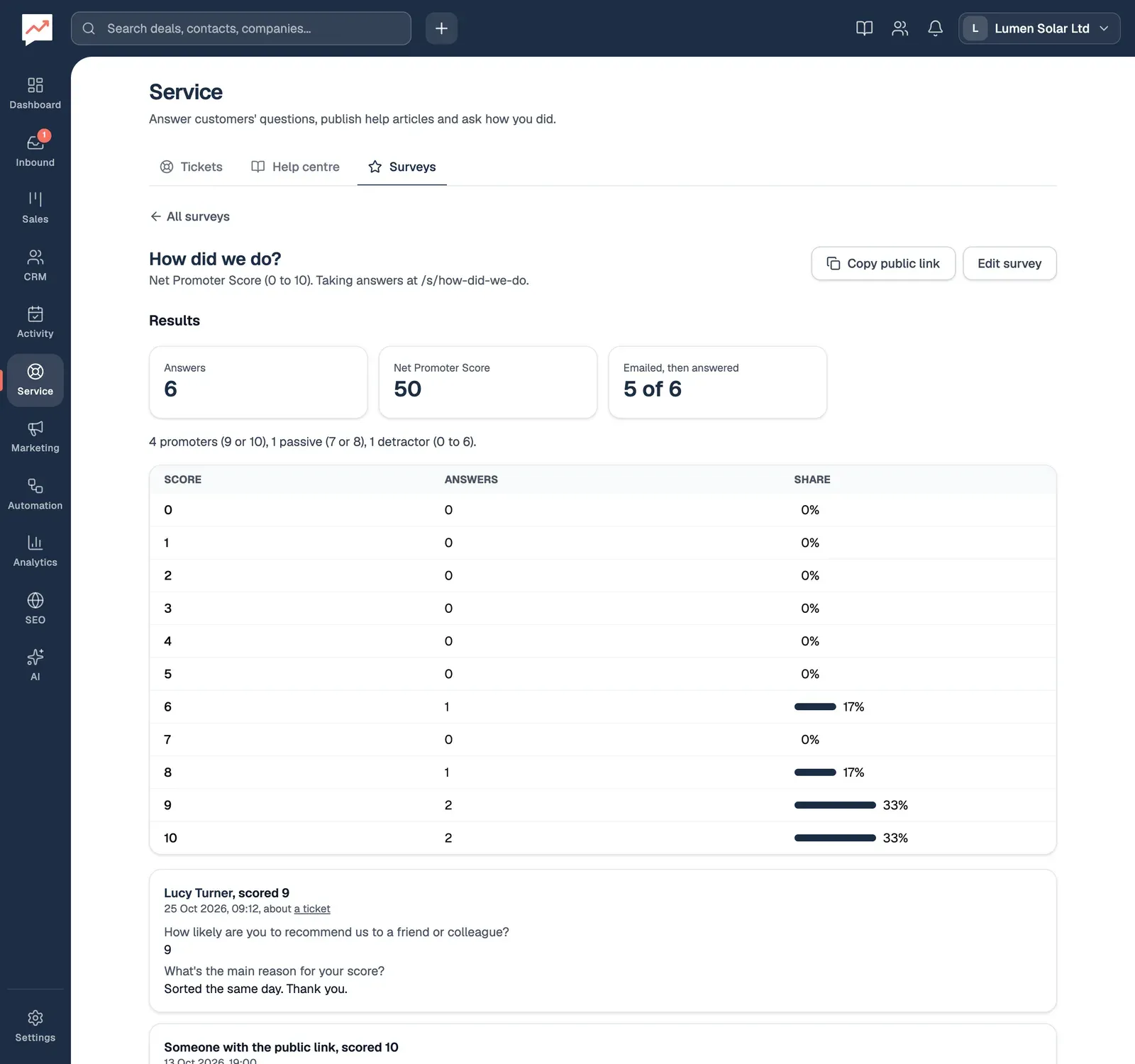
The figures at the top of Results: how many answers, the score (Net Promoter Score, or Average, out of 5 and Happy or very happy), and Emailed, then answered: how many of the people you emailed have answered, out of everyone you emailed, such as 5 of 6.
-
Under the figures, each answer: who gave it, their score, when, and what they wrote. Answers to a ticket survey link to the ticket. Choose a name to open the contact.
For Net Promoter Score surveys, a line counts the promoters, passives and detractors. For both scored kinds, a table shows how many people gave each score, and what share of all answers that is.
Delete a survey
Section titled “Delete a survey”Open the survey and select Delete survey, then confirm.
- Close tickets and ask how it went.
- Make a smart list of the customers to survey.