

Calendar
The Calendar shows your meetings next to the tasks that are due, so you can plan your week in one place. Go to Activity, then Calendar.
Your calendar is your own: your teammates don’t see your events, and you don’t see theirs. The tasks on it are everyone’s, as tasks are shared across your company.
The Calendar
Section titled “The Calendar”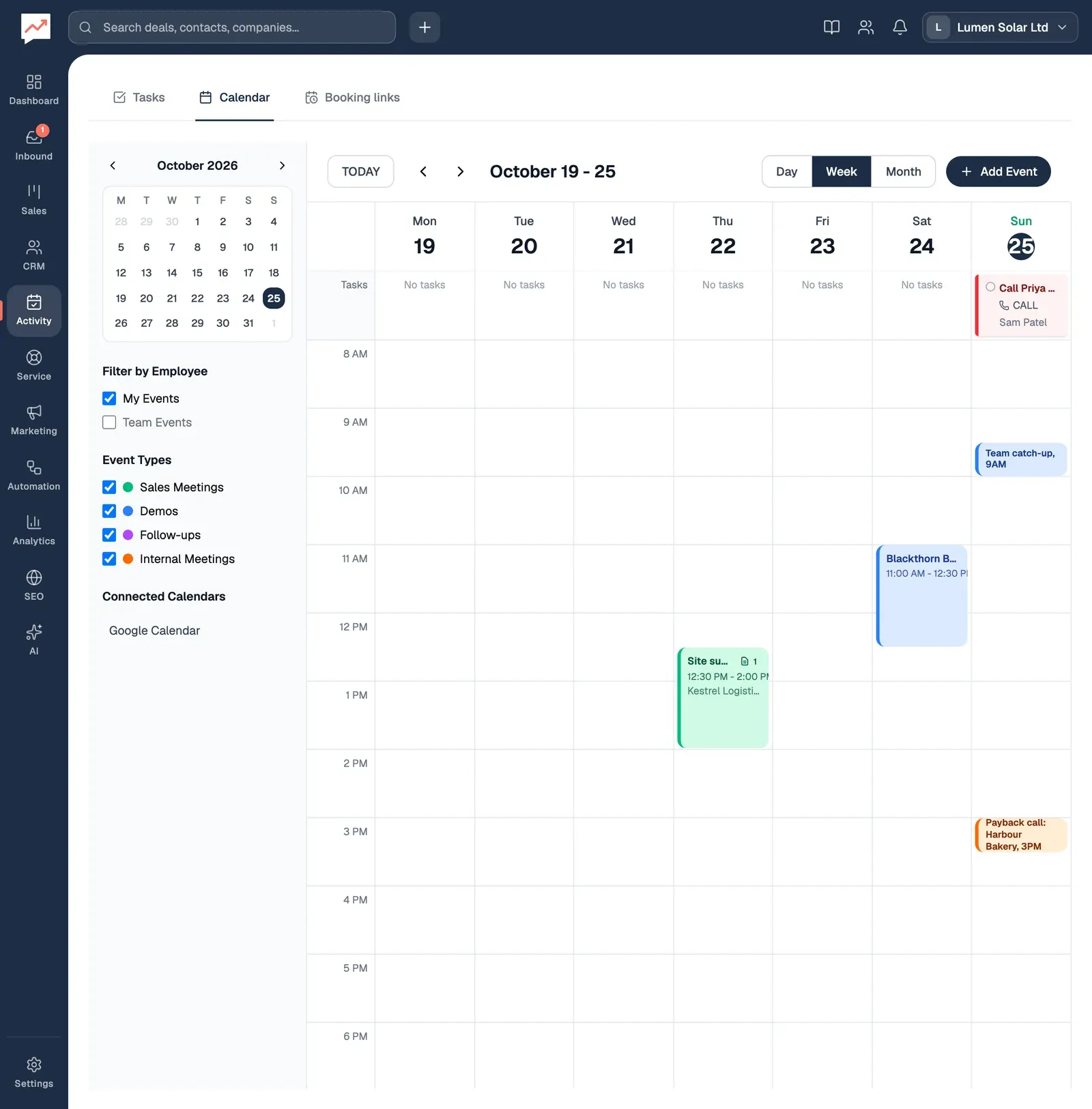
-
TODAY goes back to today. The two arrow buttons after it move back and forward a week in the Week view, or a day in the Day view.
-
Day, Week and Month change the view. The Calendar opens on Week.
-
Add Event adds a meeting or other event. See Add an event.
-
Connected Calendars shows whether Google Calendar is connected, with a Connect button if it isn’t. This panel, and the small calendar above it, only show on a wide screen. Choose a date in the small calendar to go to it.
In the Week and Day views:
- The hours run from 8 AM to 8 PM. Events outside those hours, and all-day events, show only in the Month view.
- The Tasks row at the top lists the tasks due each day, with their type and who they’re assigned to. Completed tasks are crossed out.
- An event of 30 minutes or less shows its title and start time. Longer events show the start and end times, and events of an hour or more show the location too.
In the Month view, each day shows up to two events and one task, then “+2 more” (or however many are left). Choose a day to open it in the Day view.
Google Calendar
Section titled “Google Calendar”When your Google account is connected (see Connect Google), HeySales brings in the events from your main Google Calendar. It reads it when you open the Calendar, then every 30 seconds while the Calendar is open.
- It brings in events from the last 30 days up to 90 days ahead.
- Changes you make to an event in Google Calendar show here at the next check. An event you delete in Google Calendar stays in HeySales until you delete it here too.
- Events you add, change or delete in HeySales are added, changed or deleted in your Google Calendar as well, and Google emails any attendees about it.
Add an event
Section titled “Add an event”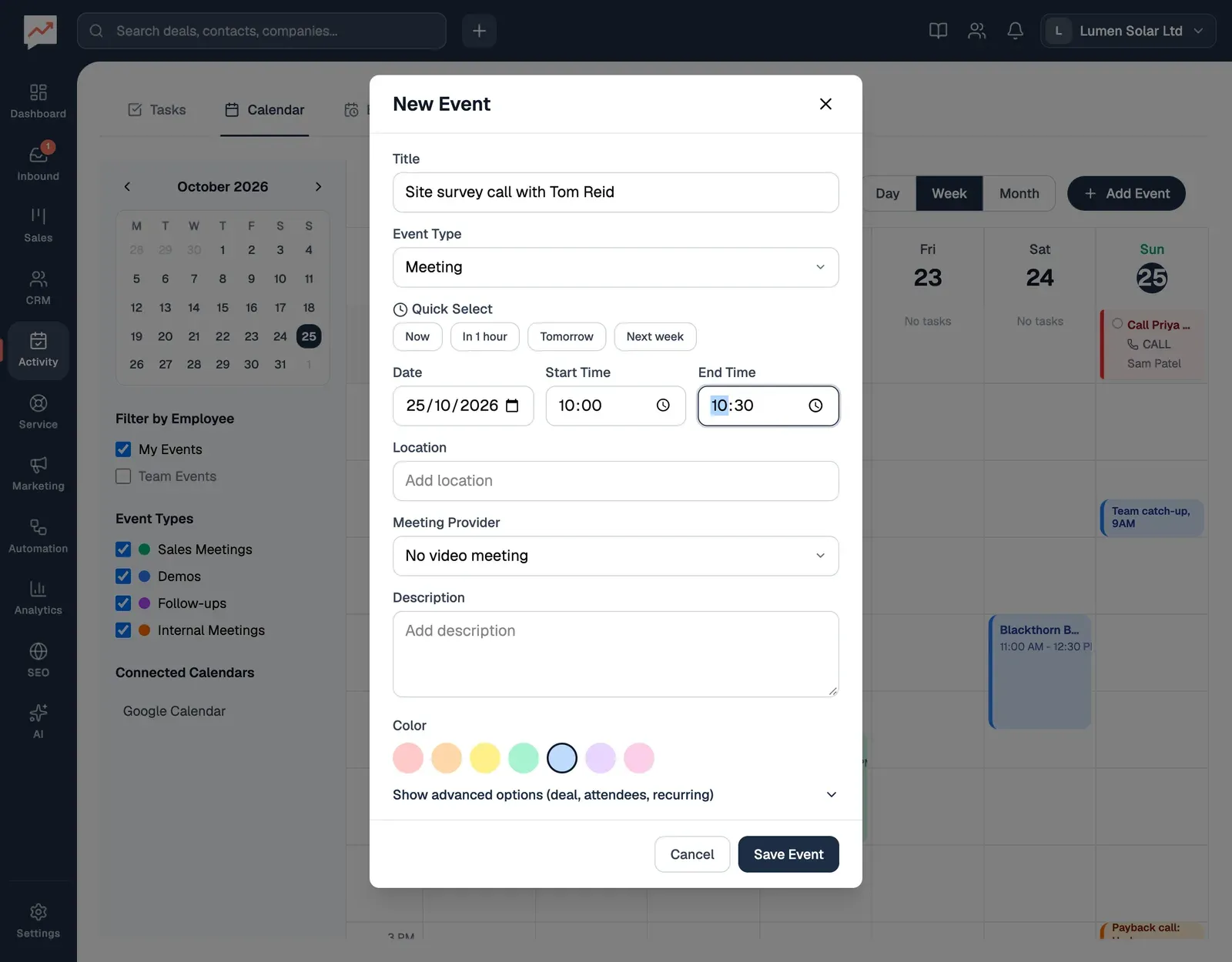
-
Select Add Event, then type a Title.
-
Set when it is. Quick Select fills in the time for you: Now, In 1 hour, Tomorrow (9 to 10 AM) or Next week (9 to 10 AM). Or set the Date, Start Time and End Time yourself. An event starts and ends on the same day.
-
For a video call, choose a Meeting Provider. It shows while Event Type is Meeting, which it is to start with. Choose Google Meet for a Meet link, which then becomes the event’s location.
-
Show advanced options (deal, attendees, recurring) lets you link a deal, invite people or repeat the event. See below.
-
Select Save Event.
You can also add a Location, a Description and a Color: Red, Orange, Yellow, Green, Blue (the one it starts with), Purple or Pink.
Google Meet needs your Google account connected; until then it shows as Google Meet (Not connected). Zoom shows as Zoom (Not connected) and can’t be chosen: Zoom isn’t set up in HeySales yet.
Invite people
Section titled “Invite people”Under Invite Attendees (Optional), type part of a contact’s name or email address, then choose them from the list. Only contacts with an email address are listed. Remove takes someone off.
If your Google account is connected, Google Calendar emails each attendee an invitation when you save. Without Google, the attendees are listed on the event but nobody is invited.
Link a deal
Section titled “Link a deal”Under Attach to Deal (Optional), type part of a deal’s name and choose it. “Deal attached” confirms it, and Remove unlinks it. The event then shows the deal, its stage and value. In the Week and Day views, events longer than 30 minutes have a button for the deal that opens it, and a video button that joins a Google Meet or Zoom call.
Repeat an event
Section titled “Repeat an event”Tick Recurring Event, choose how often under Repeat (Daily, Weekly or Monthly), and the last date under Until. It starts 30 days ahead.
HeySales adds a separate event for each date, so you change or delete each one on its own. With attendees and Google connected, each date sends its own invitation.
Open, change or delete an event
Section titled “Open, change or delete an event”Choose an event to see its date and time, Location, Description, Attached Deal and Attendees. A Google Meet or Zoom link shows as Join Google Meet or Join Zoom Meeting, and opens in a new tab.
- Edit opens Edit Event, with the Title, Date, Start Time, End Time, Location, Description, Color, deal and attendees. Select Save Changes.
- Delete asks you to confirm with Delete event. If the event is in your Google Calendar it’s deleted there too, and this can’t be undone.
To move an event, drag it to another time or day in the Week or Day view. It moves in 15-minute steps and keeps its length. With a keyboard, open the event from the Month view and change its Date and times with Edit.
Meetings that people book through your booking links appear on your Calendar too.
Let people book a time with you: Booking links.