

Companies
Companies are the businesses your contacts work for. Each one has its website, phone number, notes, and a count of the contacts and deals linked to it. Go to CRM, then Companies.
The Companies page
Section titled “The Companies page”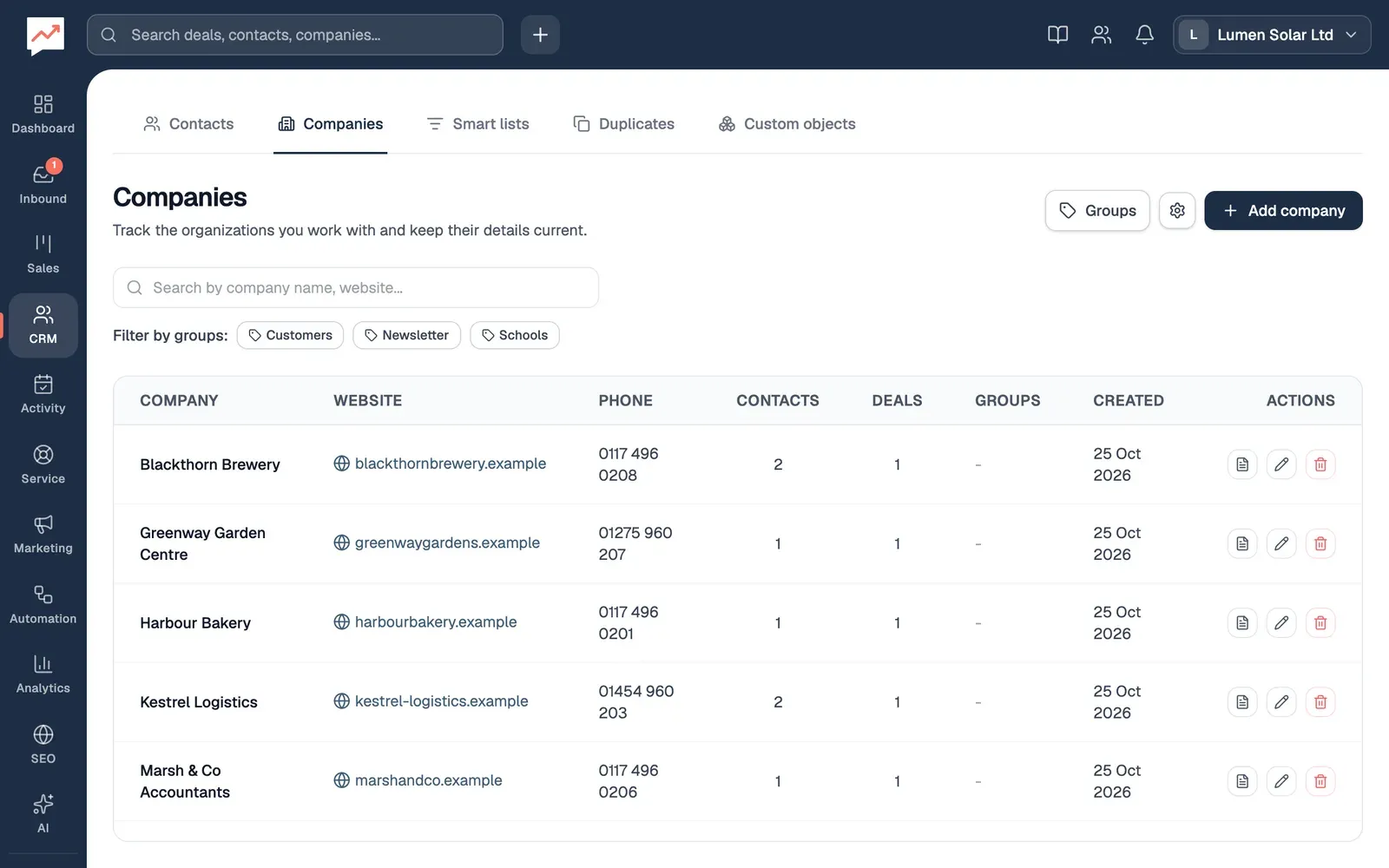
-
Add company opens the form for a new company. See Add a company.
-
The search box finds companies as you type, by name, website or phone number.
-
Choose a company’s name to open its details. See A company’s details.
The table is in order of name. Contacts and Deals count the contacts and deals linked to each company. Filter by groups works as it does on the Contacts tab: choose groups to see only the companies in them, and Clear filters to see them all again.
At the end of each row are buttons for Notes, Edit and Delete. With a screen reader, each one is named for the company, such as “Edit Harbour Bakery”. Each company name is a button too, so with a keyboard you can Tab to it and press Enter.
Groups and the gear button, Manage custom fields, set up groups and extra fields for companies. See Groups and custom fields.
Add a company
Section titled “Add a company”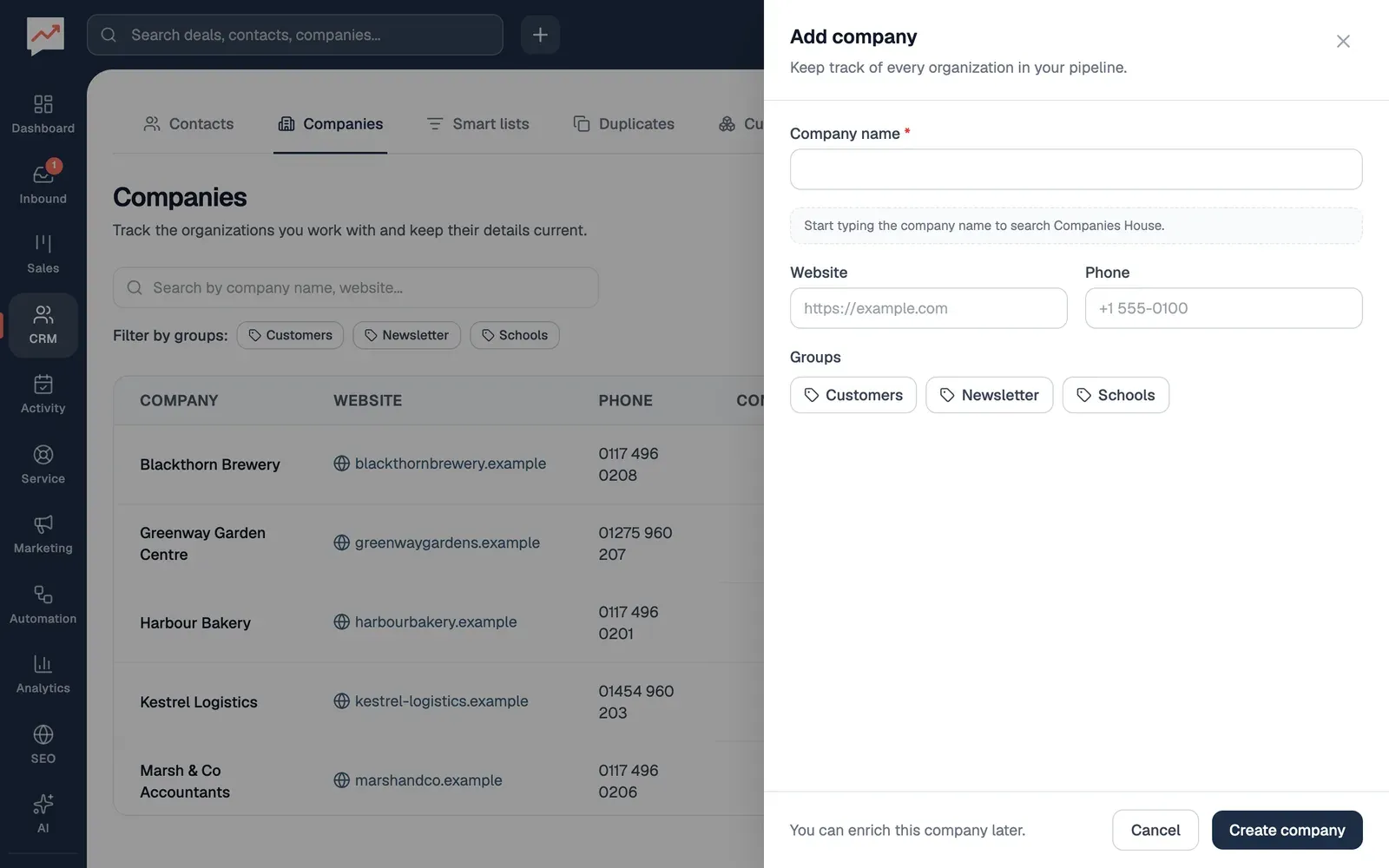
-
Select Add company, then type the Company name. It’s the only thing you have to fill in.
-
As you type, HeySales looks the name up at Companies House and lists the UK companies it finds, with their company number, status and registered address. Use details beside one puts its registered name in Company name. If Website is empty, it also puts in a link to the company’s page on the Companies House website, which you can replace.
-
Add their Website and Phone if you have them. You can leave out the
https://at the start of the website. -
Choose any Groups it belongs in and fill in any custom fields. Then select Create company.
Link contacts to a company
Section titled “Link contacts to a company”You link a person to their company from the person, not the company. Each person can be linked to one company.
-
Go to CRM, then Contacts, and choose the person’s name.
-
Under Company, choose their company, then select Save changes.
The company’s Contacts count goes up by one, and the company shows in the person’s row on the Contacts tab. To see everyone at a company, type its name in the search box on the Contacts tab.
A deal’s company is chosen when you add or change the deal. See Pipelines and deals.
A company’s details
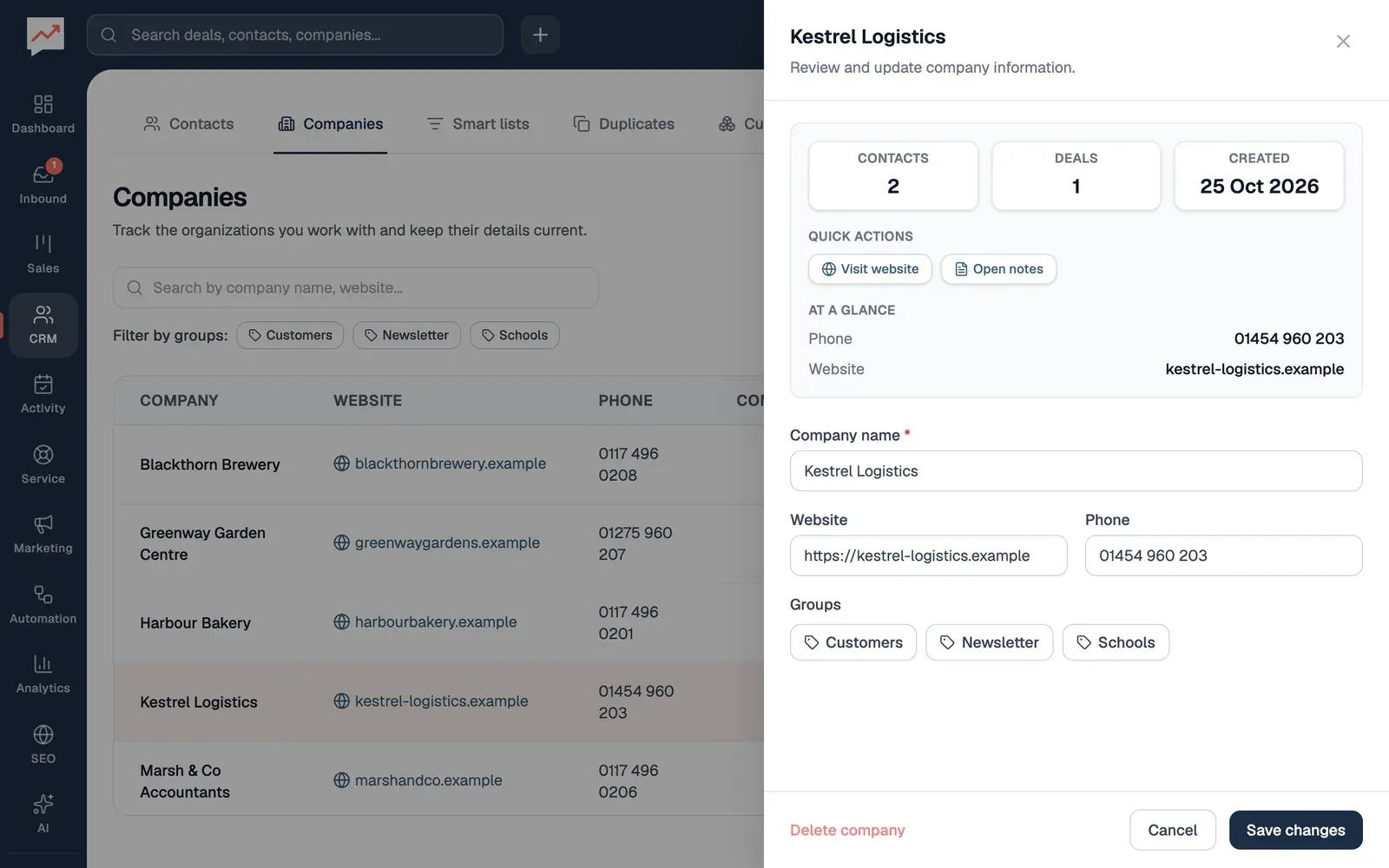
Section titled “A company’s details”Choose a company’s name, or Edit in its row, to open its panel.
-
Visit website opens the company’s website in a new tab. It appears when the company has a website.
-
Open notes opens the company’s notes. They work like a contact’s notes: see Notes. Company notes don’t appear in any activity timeline.
-
Change the details, Groups or custom fields, then select Save changes. Cancel closes the panel without saving.
-
Delete company deletes it, once nothing is linked to it. See below.
When the panel opens, keyboard focus moves into it. Press Escape, or select Close panel, to close it.
Delete a company
Section titled “Delete a company”A company can only be deleted when no contacts and no deals are linked to it. Until then, its Delete and Delete company buttons are greyed out, and HeySales says to “Remove associated contacts and deals before deleting this company.”
-
Move its contacts to another company, or to No company, from each contact’s panel. Change its deals so they’re linked to another company, or delete them: see Pipelines and deals.
-
Select Delete in the company’s row, or Delete company in its panel, then Delete to confirm.
Groups and custom fields: sort contacts and companies into groups, and keep your own details on them.