

Marketing emails
A campaign is one email sent to many people at once, such as a newsletter or an offer. Each person gets their own copy from your Gmail, with their name filled in and a link to unsubscribe. Campaigns are on the Marketing page.
The Marketing page
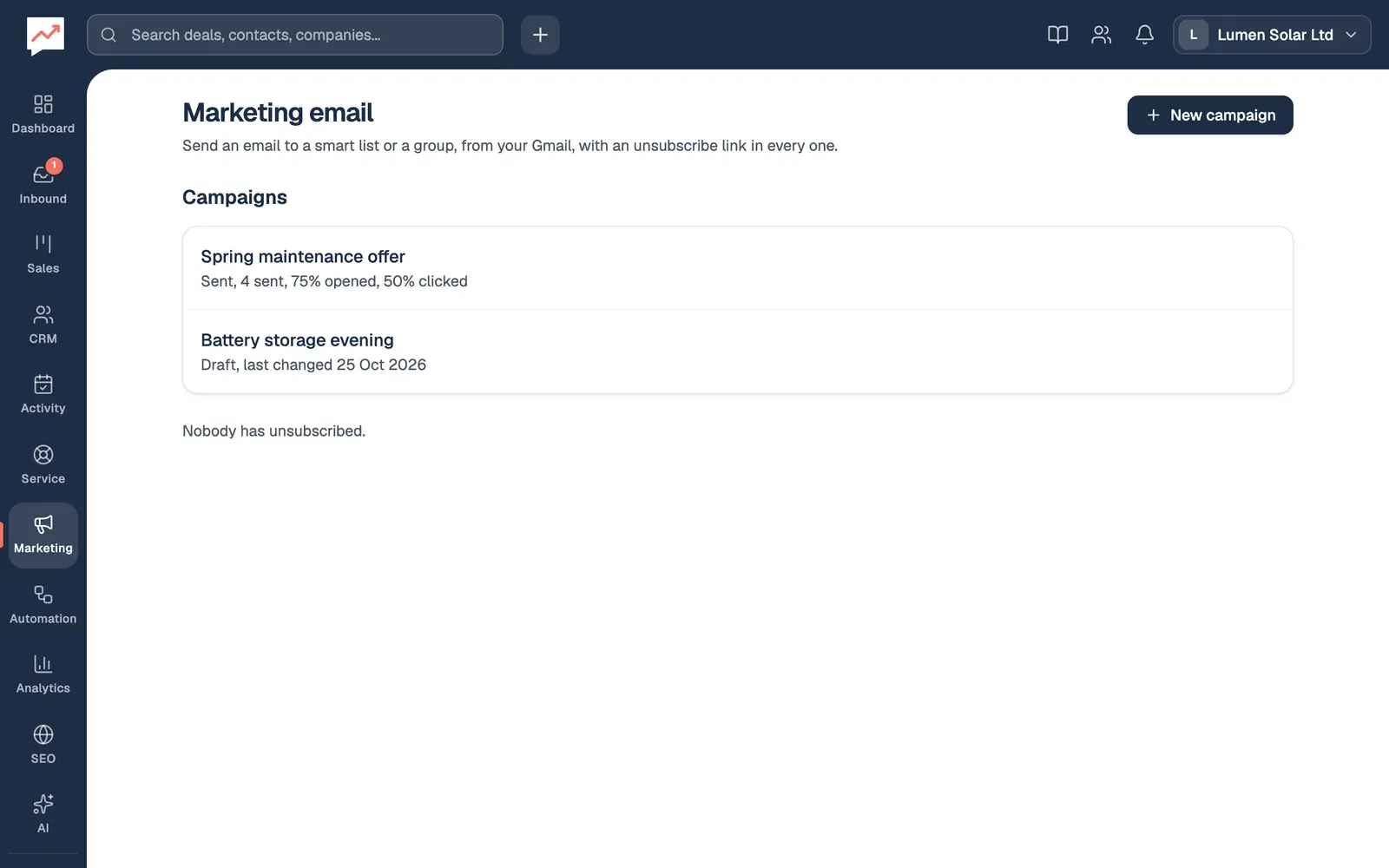
Section titled “The Marketing page”Go to Marketing.
-
New campaign starts a new email. See below.
-
A sent campaign shows how many emails went, what share were opened and clicked, and how many people unsubscribed, if any did. Choose its name to see who it went to.
-
A draft shows when it was last changed. Choose its name to carry on writing it.
The line at the bottom says how many people have unsubscribed from your marketing email. They’re left out of every campaign.
Who gets it
Section titled “Who gets it”A campaign goes to everyone in one smart list or one group. A smart list keeps itself up to date as your contacts change, and HeySales works out who’s in it at the moment the campaign starts sending.
Each email address only gets one copy, even if two contacts share it. Contacts with no email address, and people who’ve unsubscribed, are left out.
Write a campaign
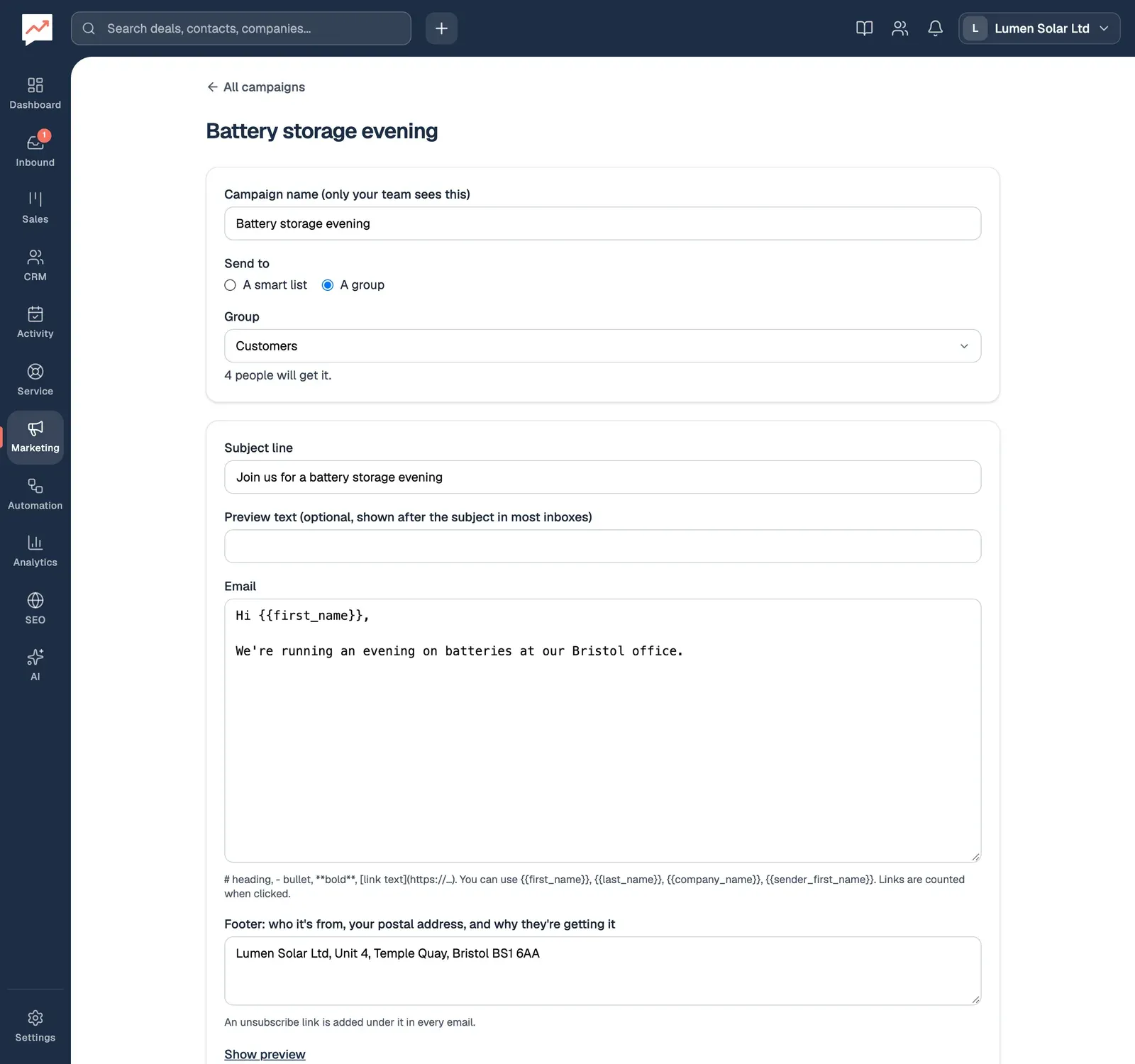
Section titled “Write a campaign”Select New campaign, or open a draft.
-
Under Send to, choose A smart list or A group.
-
Choose the Smart list or Group. Under it, HeySales says how many people will get the email, and how many won’t because they’ve unsubscribed or have no email address.
-
Type the Subject line.
-
Write the Email. See Formatting and merge fields.
-
Write the Footer: who the email is from, your postal address, and why people are getting it. A new campaign starts with your last campaign’s footer. Your first one starts with a line naming your company, for you to add your postal address to. An Unsubscribe link is added under it in every email.
Campaign name is only for your team, to find the campaign later. Preview text is optional: most mail apps show it after the subject, before the email is opened.
A campaign can only be sent with a subject line, an email, an audience and a footer. If one is missing when you send it, HeySales says what to add.
Formatting and merge fields
Section titled “Formatting and merge fields”The email is plain text with a few marks for formatting:
#and a space at the start of a line makes a heading.-and a space at the start of a line makes a bullet point.**words**makes words bold.[link text](https://example.com)makes a link.
Merge fields are filled in for each person:
| Merge field | Becomes |
|---|---|
{{first_name}} |
Their first name |
{{last_name}} |
Their last name |
{{company_name}} |
The company they work for |
{{sender_first_name}} |
Your first name |
They work in the subject line, preview text and footer too. A merge field with nothing to fill it, such as {{company_name}} for a homeowner, is left out, along with the space before it, so the braces never show.
Every link in the email is counted when someone clicks it, and still goes to the same page.
Check it before you send
Section titled “Check it before you send”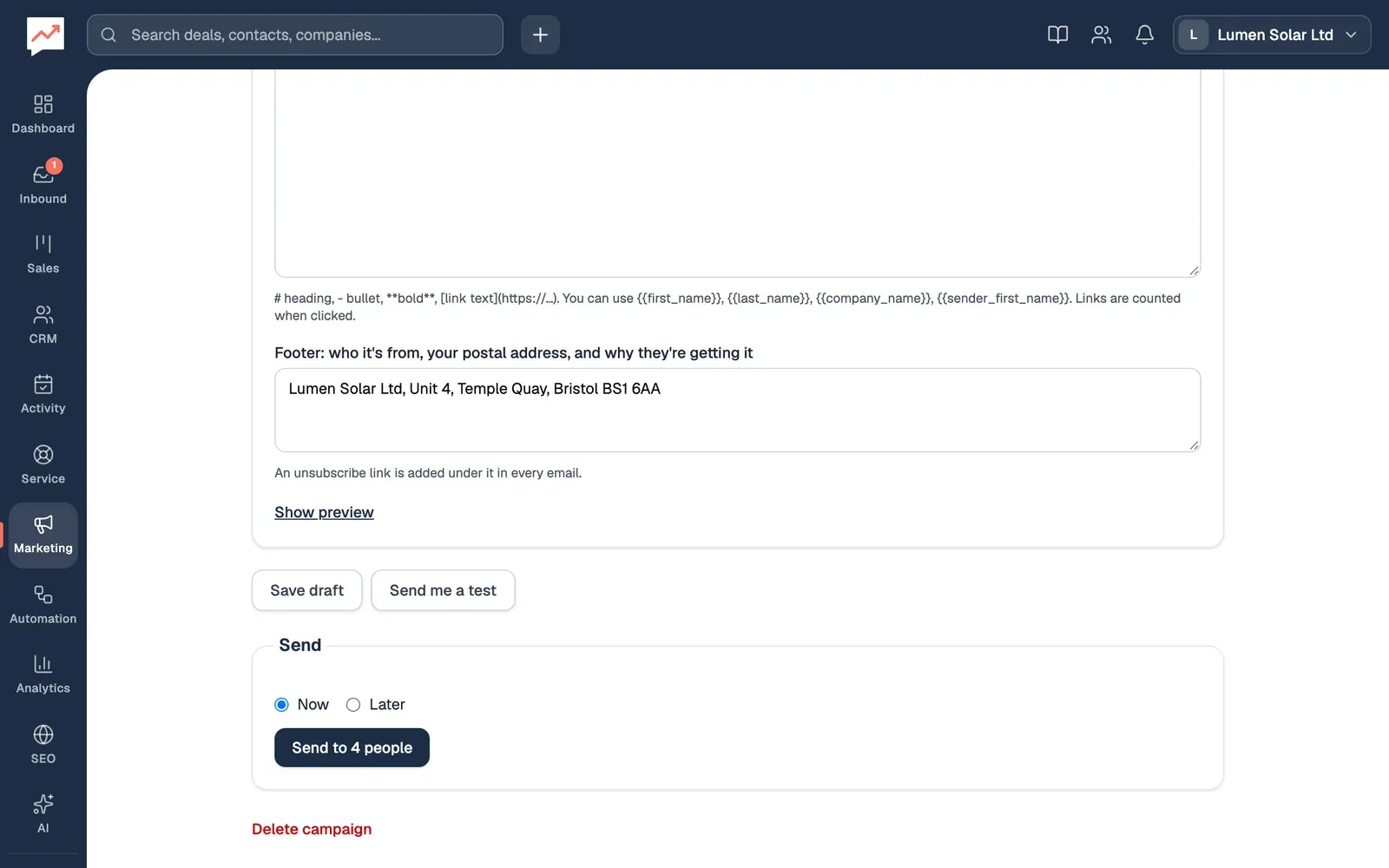
-
Show preview shows the email as it will look, with you in place of the contact.
-
Save draft saves your changes. Nothing is sent.
-
Send me a test saves the campaign and sends it to your own email address, with “[Test]” before the subject. Its Unsubscribe link goes to a page saying it’s a test.
Send it now or later
Section titled “Send it now or later”In the Send box at the bottom:
-
Choose Now, or Later and a Date and time, at least a minute from now.
-
Select Send to and the number of people, or Schedule it.
-
HeySales asks you to confirm, and says which Gmail address it goes from. Select Send or Schedule.
The campaign goes from the Gmail of whoever sends or schedules it, with their name on it. Once it starts sending, it can’t be changed.
A scheduled campaign shows “Scheduled for” and its time at the top. Until then you can still edit it and select Save draft: it keeps its time. Don’t send yet turns it back into a draft that won’t send.
How fast it sends
Section titled “How fast it sends”HeySales sends campaigns a few emails at a time, every minute. Gmail limits how much an ordinary account can send, so HeySales sends at most 400 marketing emails a day from each person’s Gmail, counted over the last 24 hours across all their campaigns. A campaign to more than 400 people takes more than one day, and HeySales tells you about how many days before you send it.
While a campaign sends, its page shows how many have gone so far, and the numbers update by themselves.
If a campaign pauses
Section titled “If a campaign pauses”A campaign pauses if it can’t carry on: for example, the sender’s Google connection has stopped working or needs reconnecting, the sender has left your team, or your company has left Pro. Its page says why. Fix that, then select Carry on sending. The rest of the emails then go from the Gmail of whoever selected it.
Opens, clicks and unsubscribes
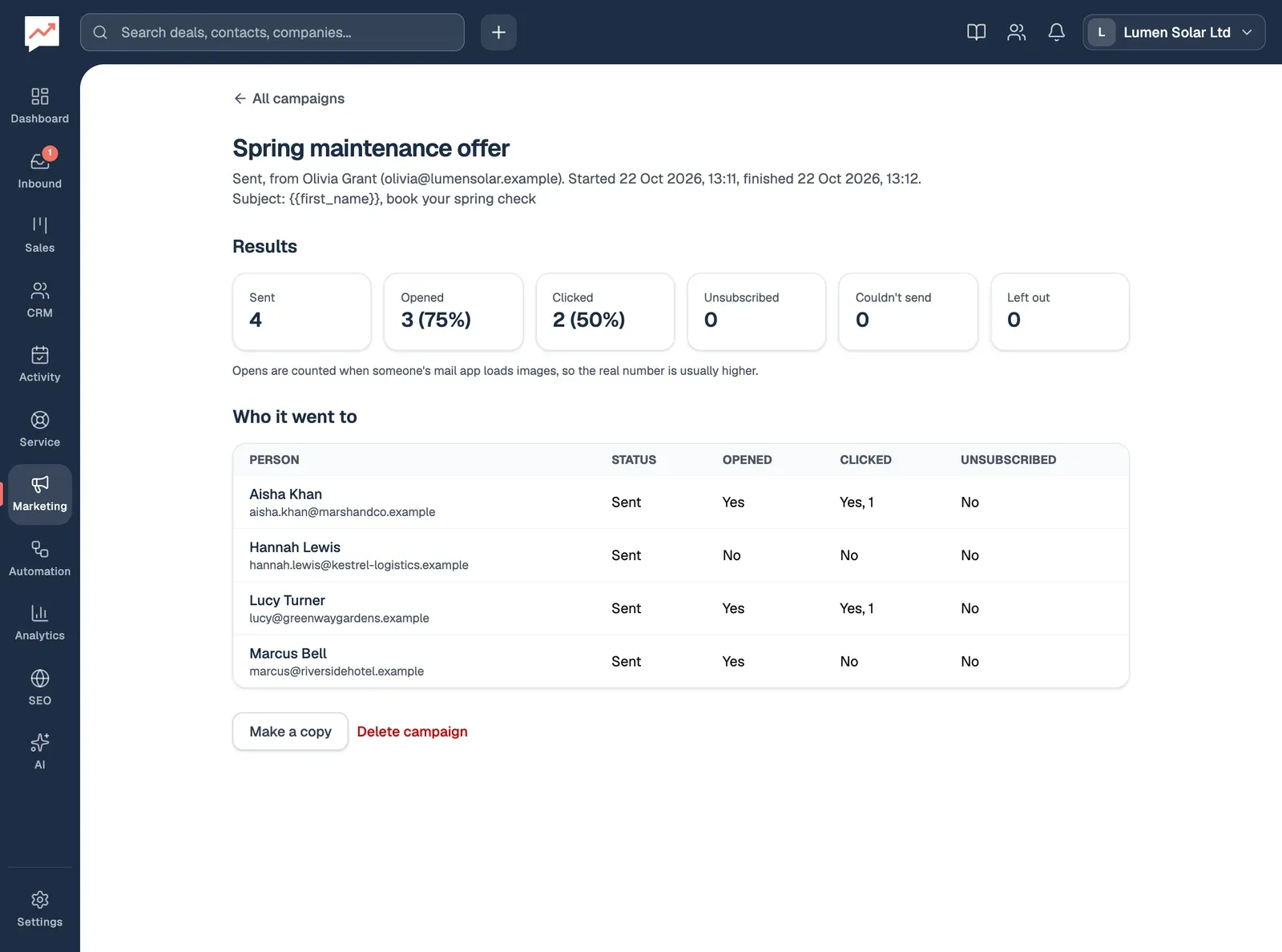
Section titled “Opens, clicks and unsubscribes”Open a sent campaign from the Marketing page.
-
Results gives the totals: Sent, Opened, Clicked, Unsubscribed, Couldn’t send and Left out (people who had unsubscribed, or were still waiting when the campaign was stopped).
-
Who it went to is a table of each person, whether their email was sent, and whether they opened it, clicked a link (and how many times) or unsubscribed. Choose a name to open the contact.
-
Make a copy starts a new draft with the same email, audience and footer, called “Copy of” and the campaign’s name.
-
Delete campaign deletes it and its results, after you confirm. The emails stay in Gmail and on each contact.
An open is counted when someone’s mail app loads the pictures in the email, so the real number is usually higher than the one shown.
While a campaign is sending or paused, Stop sending ends it: the people still waiting don’t get it. You can’t delete a campaign while it’s sending; stop it first. To delete a draft, open it and select Delete campaign at the bottom.
When someone unsubscribes
Section titled “When someone unsubscribes”The Unsubscribe link in each email opens a page asking “Stop marketing email from Lumen Solar Ltd to” their address, with an Unsubscribe button. Just opening the link changes nothing, so a mail program that checks links can’t unsubscribe someone by mistake. Each email also carries the details mail apps use for their own unsubscribe button, where they have one; using it does the same.
Once someone unsubscribes, their email address is left out of every campaign from then on, including campaigns that are already sending. It shows on the campaign’s results and on the contact’s activity timeline.
- Make a smart list of who should hear from you.
- Send follow-up emails that stop when someone replies.