

Smart lists
A smart list is a saved search of your contacts. You set rules, such as “has an open deal” or “nothing in the last 30 days”, and whenever you open the list it shows who matches now. You can download a list, put everyone in it into a sequence, or send it a marketing email. Go to CRM, then Smart lists.
The Smart lists tab
Section titled “The Smart lists tab”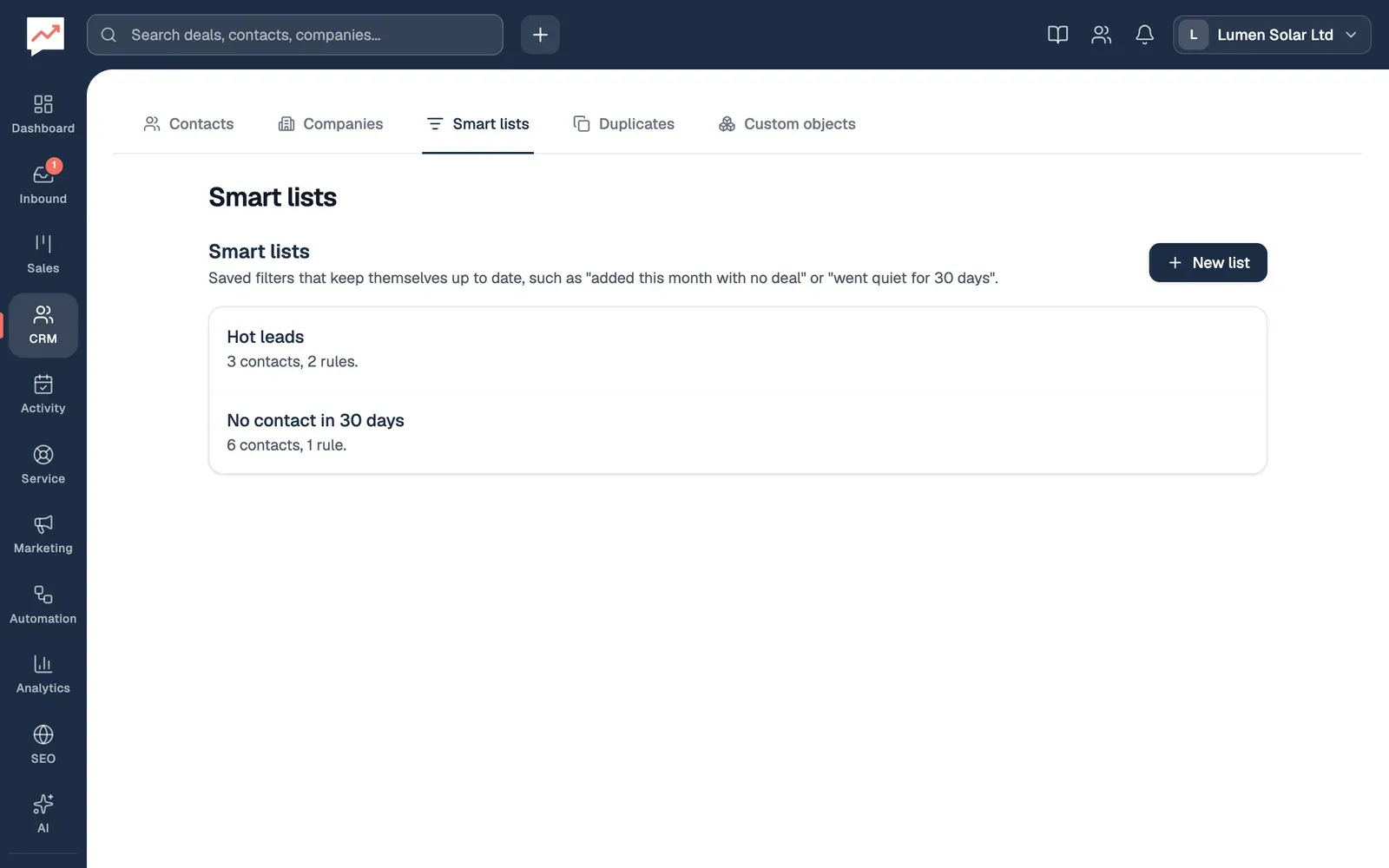
-
New list starts a new smart list. See Make a list.
-
Choose a list’s name to see who’s in it, change its rules or use it.
Everyone in your team sees the same lists, and anyone can change or delete them.
Make a list
Section titled “Make a list”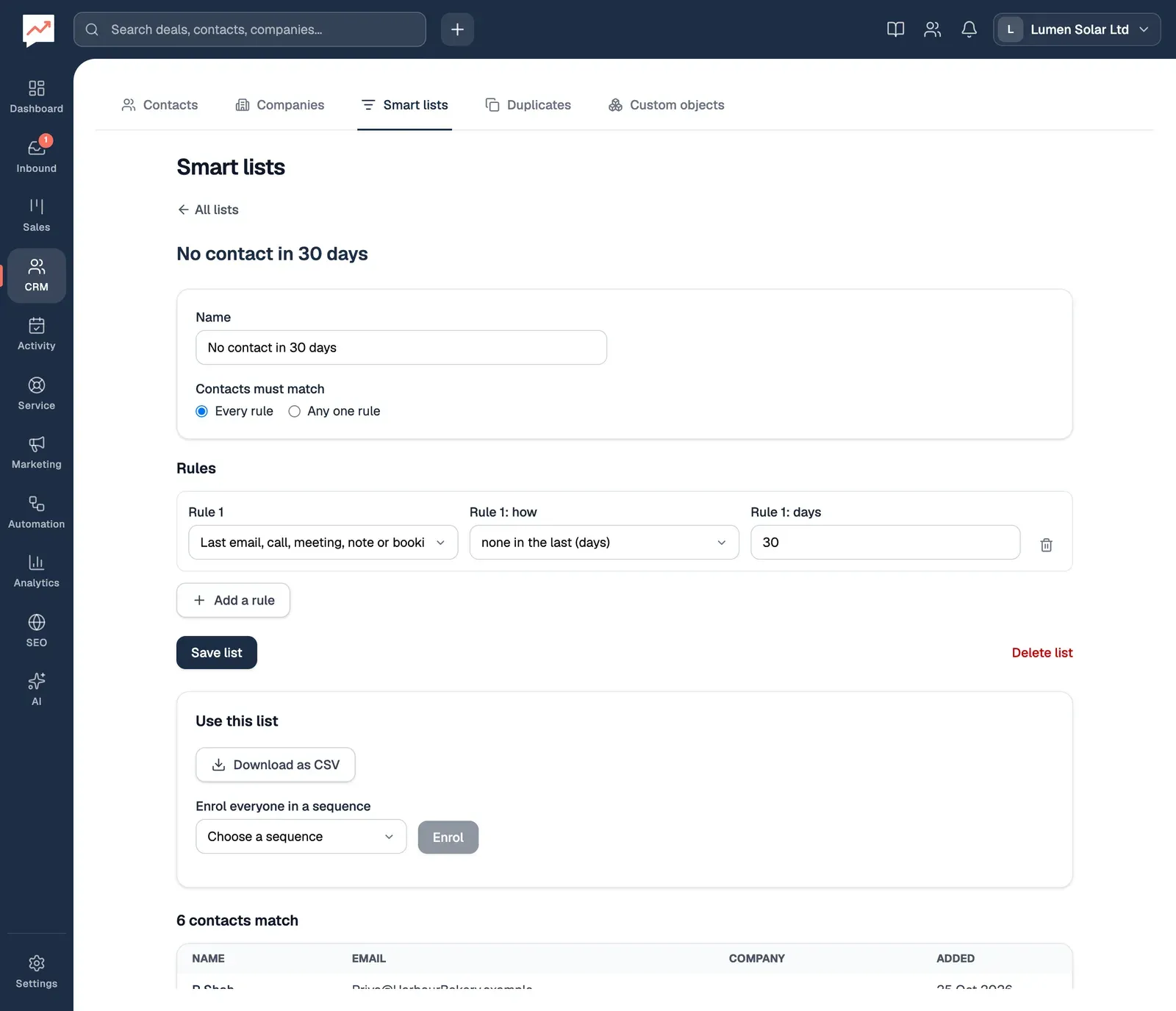
-
Select New list and type a Name for it.
-
Under Contacts must match, choose Every rule to find contacts who match all your rules, or Any one rule to find contacts who match at least one.
-
Set Rule 1: choose what to look at, then how (Rule 1: how), then the value, such as a number of days or a group. A new list starts with Added in the last 30 days, which you can change.
-
Add a rule adds another rule below. Each rule has a bin button, Remove rule, to take it out.
-
Select Save list.
As you change the rules, HeySales shows how many contacts match, such as “6 contacts match”, with a table of them underneath: their name, email, company and when they were added, newest first. Choose a name to open that contact. If there are more than 100, Previous and Next move between pages.
A list with no rules has every contact in it. A list can have up to 20 rules.
Each part of a rule is an ordinary drop-down list or box, so it all works with a keyboard. When you add a rule, focus moves to its first list, and when you remove one, focus moves to the rule that takes its place. With a screen reader, the number of matches is read out when it changes.
What rules can look at
Section titled “What rules can look at”Their details
- First name, Last name, Email, Phone, Job title and Company name: contains, is, starts with, is empty or isn’t empty. Capitals don’t matter.
- Email domain: is or isn’t the part of their email after the @, such as harbourbakery.example.
- Group: is in or isn’t in one of your groups.
When things happened. For these you type a number of days, from 0 to 3650.
- Added: added to HeySales in the last so many days, or more than so many days ago.
- Last email, call, meeting, note or booking: some contact with them in the last so many days, or none in the last so many days. A form they sent counts too.
- Opened an email from you: in the last so many days, or not. HeySales only knows about opens of emails sent from HeySales.
- Emailed you: they sent you an email in the last so many days, or not.
- Booked a meeting: through one of your booking links, in the last so many days, or not.
Deals. These count deals where they’re the main contact or anyone else on the deal.
- Deal stage: has a deal in, or has no deal in, one stage of one of your pipelines.
- Deals: has an open deal, has a won deal, has a lost deal or has no deals.
Everything else
- Form: has sent, or hasn’t sent, one of your forms.
- Sequence: has been in, replied to or has never been in one of your sequences.
- Tickets: has an open ticket or has no open ticket.
- Latest survey score: the score in their most recent survey answer is at least, or is below, a number you type.
- Marketing email: is subscribed (they have an email address and haven’t unsubscribed) or has unsubscribed.
Use a list
Section titled “Use a list”Open a saved list. Under Use this list:
- Download as CSV downloads a spreadsheet of everyone in the list, named after the list, with their first name, last name, email, phone, job title and company. It has up to 5,000 contacts.
- Enrol everyone in a sequence puts everyone in the list into a sequence. Choose the sequence, then select Enrol. It appears once you have a sequence. Afterwards HeySales says how many were enrolled, and how many were skipped because they have no email address, are already in that sequence, or because no Gmail is connected.
Sequences are part of Pro. To send everyone in a list a marketing email, choose the list when you write the email.
Change or delete a list
Section titled “Change or delete a list”Open the list, change its name or rules, and select Save list.
To delete it, open it and select Delete list, then Delete list again to confirm. Only the list goes: the contacts in it stay.
Duplicates: find contacts who are in HeySales twice, and merge them.