

Pipelines and deals
A deal is a piece of work you hope to win, such as a new roof of solar panels for a customer. Your deals sit on a board with a column for each stage of your pipeline, from a new lead to won or lost. You’ll find it in Sales, on the Deals tab.
The deal board
Section titled “The deal board”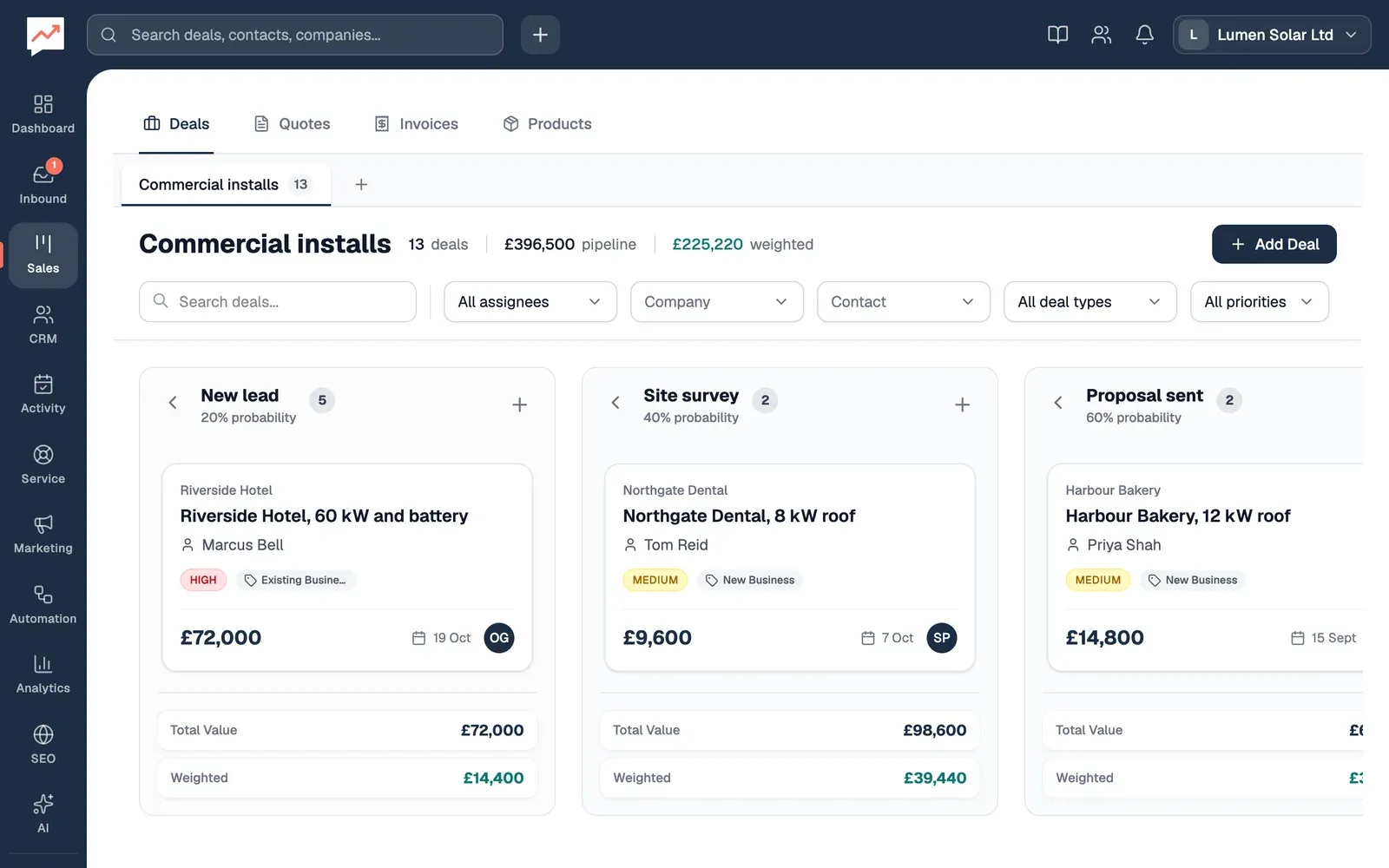
-
Each pipeline has a tab above the board, with the number of deals in it. Choose a tab to see that pipeline. See Switch pipelines.
-
Add Deal adds a deal. See Add a deal.
-
Search deals and the filters beside it narrow down the board. See Find deals.
-
Each column is a stage, with its close probability and the number of deals in it. Its + button (Add a deal to New lead, and so on) adds a deal straight into that stage.
-
Each card is a deal. Choose its name to open the deal’s page.
Each card shows the customer’s company, the deal’s name and main contact, its priority and type if it has them, its amount, the date it was added and who owns it.
At the foot of each column, Total Value adds up its deals, and Weighted adds them up multiplied by the stage’s close probability, as a guide to what you’re likely to win. The same totals for the whole pipeline are beside its name at the top. You set each stage’s close probability in Pipelines and stages.
The arrow beside a stage’s name (Collapse New lead, for example) folds its column away, and Expand New lead opens it again. Your browser remembers which columns you’ve folded.
Add a deal
Section titled “Add a deal”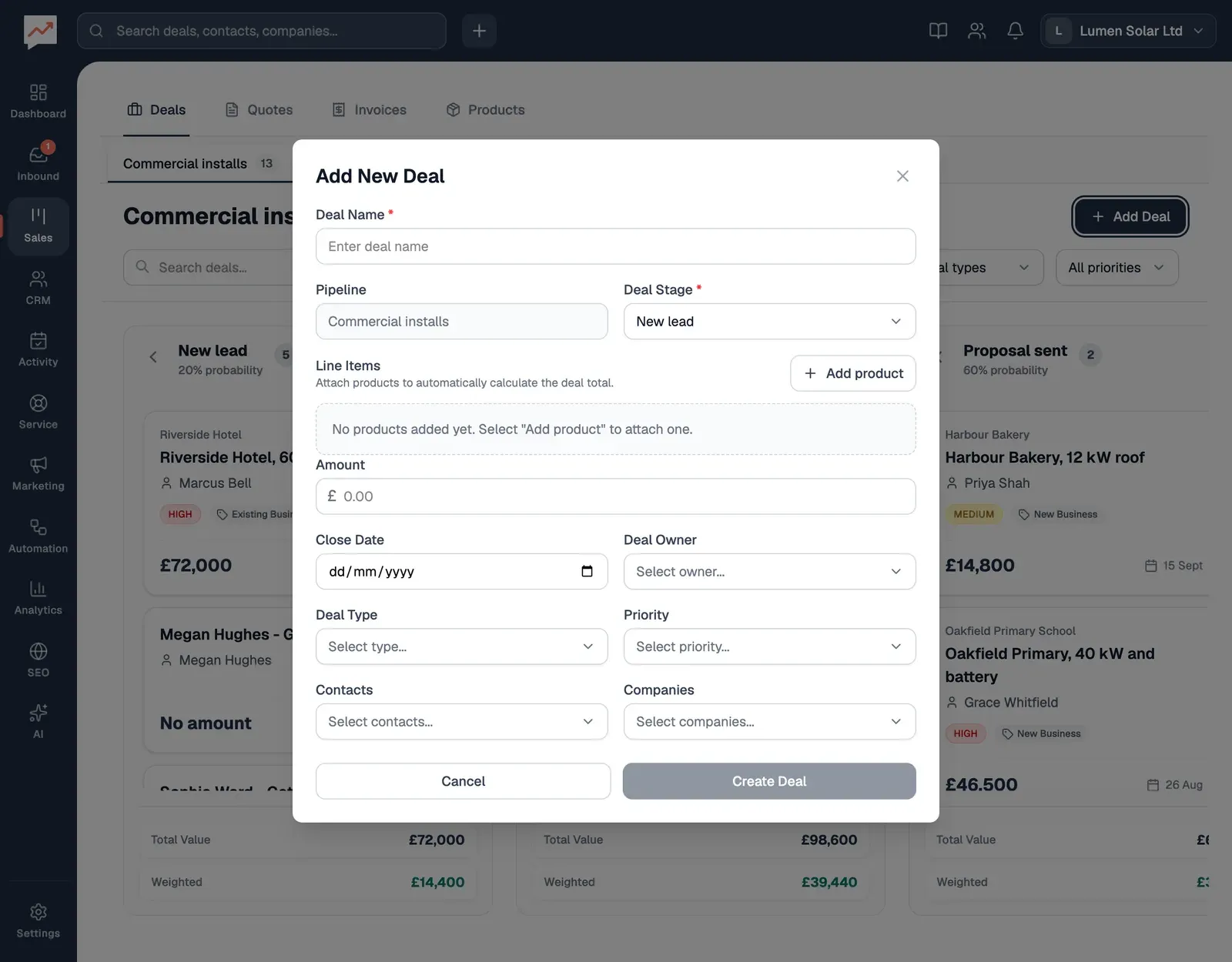
-
Select Add Deal, or the + at the top of a stage, and type the Deal Name, for example “Harbour Bakery, 12 kW roof”.
-
Check the Deal Stage. It starts on the first stage, or on the stage whose + you chose. The deal goes in the pipeline you’re looking at.
-
If the deal is for things in your product list, select Add product for each one, then choose the product and set its quantity and any discount (%). The deal’s amount adds itself up from them. With no products, type the Amount yourself.
-
Choose who the deal is with in Contacts and Companies. The first contact you choose is the main one, and choosing a contact adds their company for you.
-
Select Create Deal. The deal appears on the board straight away.
You can also give the deal a Close Date (when you expect to win it), a Deal Owner from your team, a Deal Type (New Business, Existing Business, Renewal or Upsell) and a Priority (Low, Medium, High or Urgent).
When a deal has products, tick Manual override to type a different amount, for example after a discount on the whole job. The amount then stays as you typed it when you change the products.
A new deal can start a workflow that runs when a deal is created.
Move a deal to another stage
Section titled “Move a deal to another stage”Drag the deal’s card into another column. It moves straight away, and the deal’s activity records the move, such as “Harbour Bakery, 12 kW roof moved to Proposal sent”.
Dragging a deal into a stage can start a workflow, such as Site survey: follow up, which runs when a deal moves to Site survey.
Change or delete a deal
Section titled “Change or delete a deal”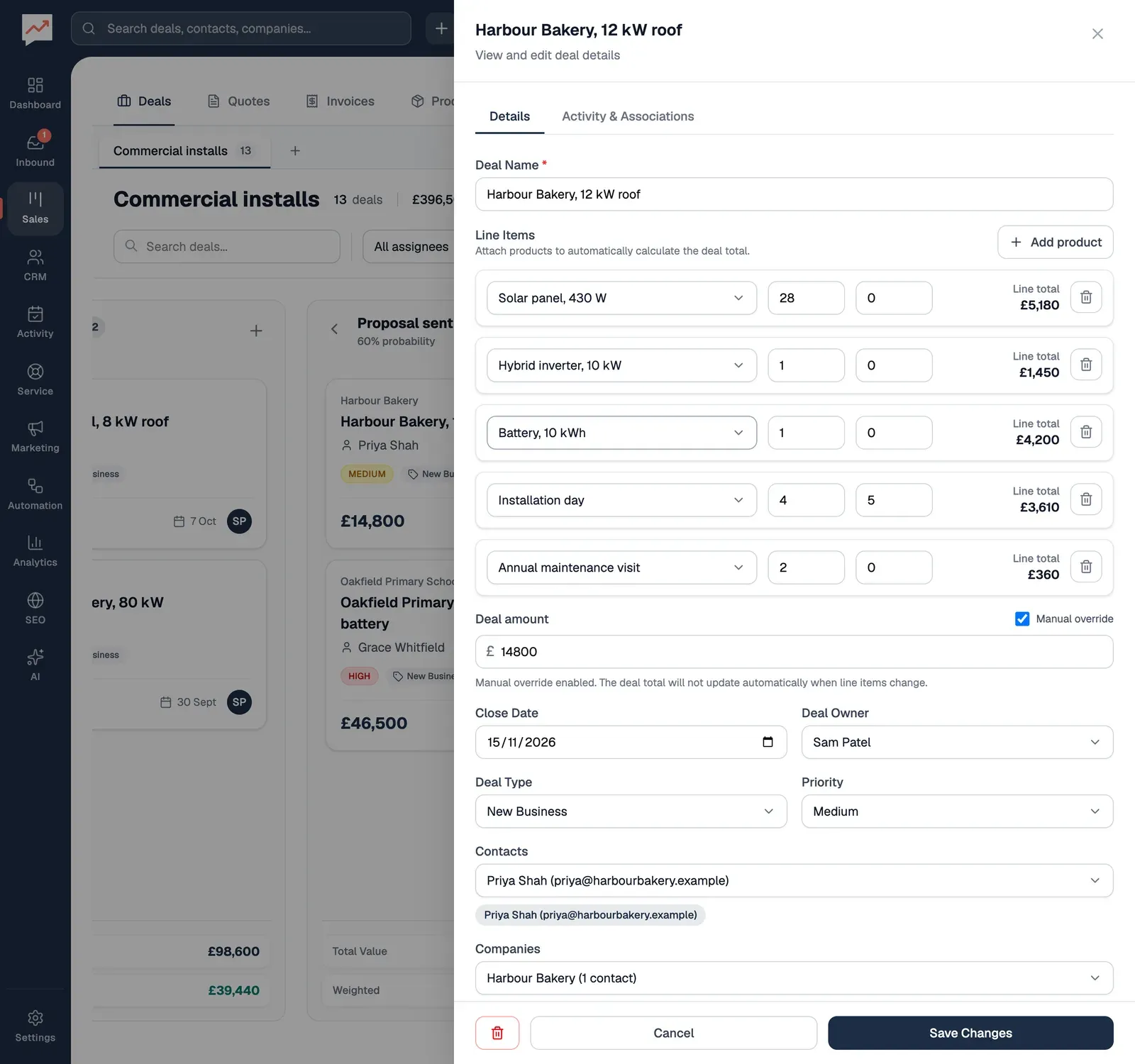
-
On the deal’s card, select its options button (Options for Harbour Bakery, 12 kW roof), then Edit. The deal opens in a panel, where you can change its Deal Name.
-
Add product adds another product, and Remove product takes one off.
-
Change the Contacts and Companies, the owner, the dates and the rest, as when you added it.
-
Select Save Changes.
To change just the owner, select the round badge at the bottom of the card (Assigned to Sam Patel, or Unassigned) and choose someone from your team.
Delete, in the same options menu as Edit, deletes the deal once you confirm. The deal’s products and quote are deleted with it. Its contacts, companies, events and invoices stay.
Find deals
Section titled “Find deals”Search deals finds deals whose name, owner, deal type or priority has the words you type. Beside it:
- Owner shows one person’s deals, or the Unassigned ones.
- Company and Contact show deals with any of the companies or people you choose. If some deals have no company, Company also offers No company.
- Deal type and Priority show deals of one type or priority.
Each list only offers what’s on this pipeline’s deals. The deal counts and totals change to match, and Clear filters shows everything again. On a phone, the filters are behind the Filters button, which says how many are on.
Your search is kept in the page’s address, so you can bookmark it. Switching to another pipeline clears the search and filters.
Switch pipelines
Section titled “Switch pipelines”If you have more than one pipeline, each has a tab above the board, with the number of deals in it. Choose a tab to see that pipeline’s board. Screen readers announce the tab you’re on as pressed.
To add a pipeline, select Create new pipeline (the + after the tabs). See Add a pipeline.
Open the deal page to see everything about a deal, or change your stages in Pipelines and stages.