

Contacts
Your contacts are the people you sell to and look after. Go to CRM, then Contacts, to see everyone, add someone new, or open a person to change their details.
The Contacts page
Section titled “The Contacts page”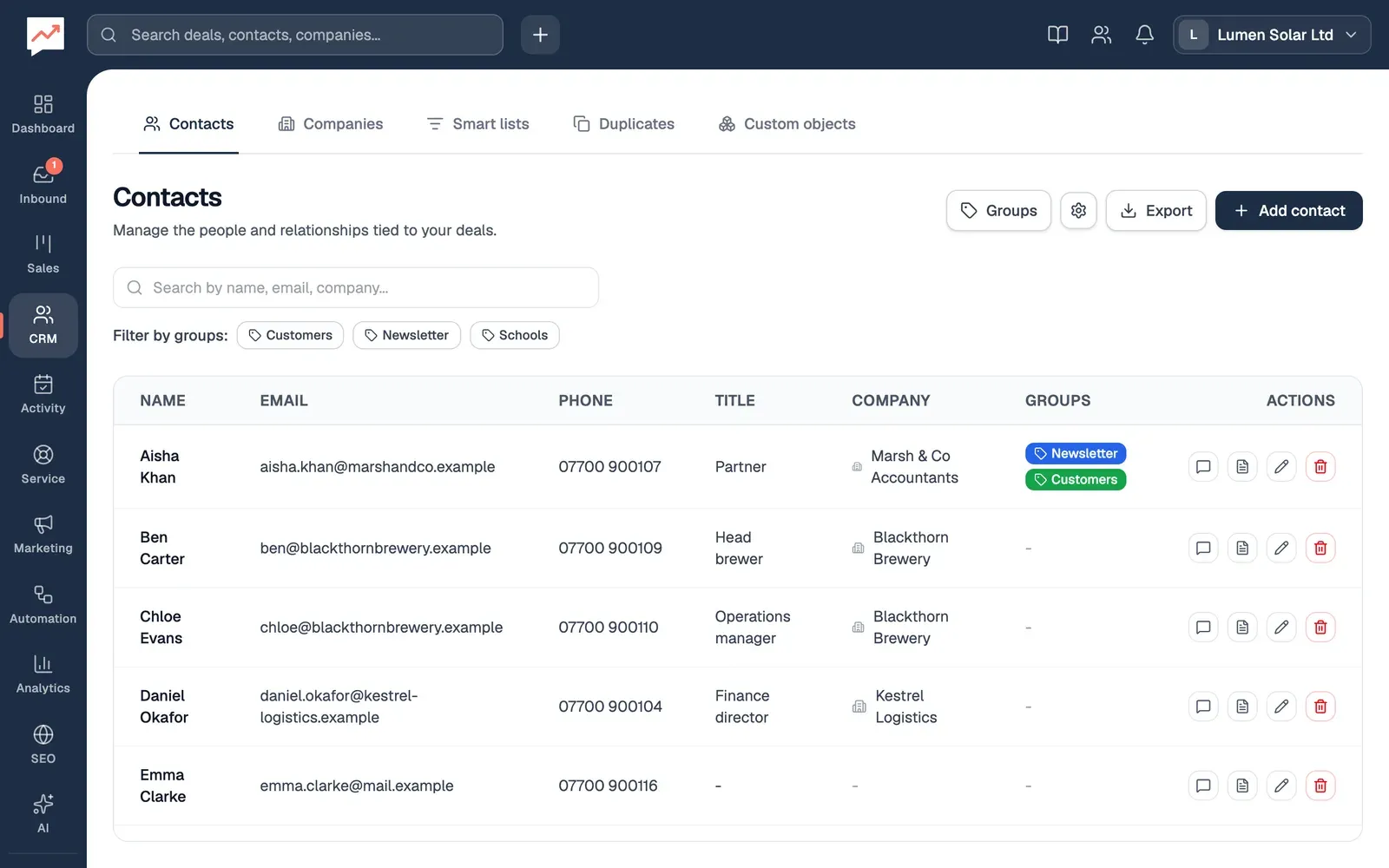
-
Add contact opens the form for a new person. See Add a contact.
-
The search box finds people as you type. It looks at their name, email address, phone number, job title and company.
-
Filter by groups shows only the people in the groups you choose. Choose more than one group to see the people in any of them, and Clear filters to see everyone again. The filters appear once you have some groups.
-
Choose a person’s name to open their details. See A contact’s details.
-
Export downloads all your contacts as a spreadsheet. See Download your contacts.
The table is in order of first name. On a narrow screen some columns are hidden, but the name and the buttons stay.
At the end of each row are buttons for Emails (when the person has an email address), Notes, Edit and Delete. On most screens they show as small icons. With a screen reader, each one is named for the person, such as “Edit Priya Shah”. Each name in the table is a button too, so with a keyboard you can Tab to a name and press Enter to open that person.
Groups and the gear button, Manage custom fields, set up the groups and extra fields everyone in your team uses. See Groups and custom fields.
Add a contact
Section titled “Add a contact”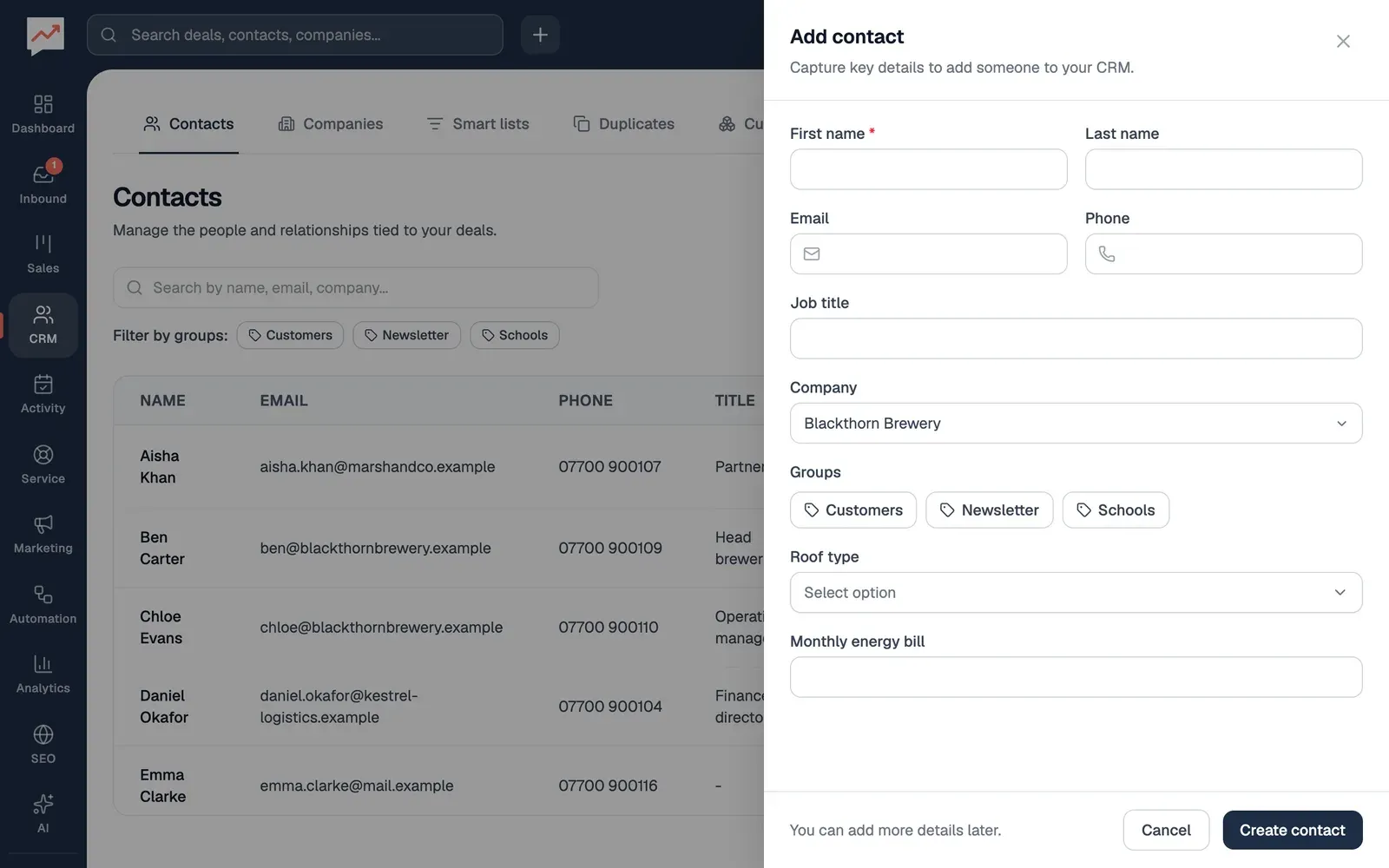
-
Select Add contact, then type their First name. It’s the only thing you have to fill in.
-
Add their Last name, Email, Phone and Job title if you know them. If someone in HeySales already has that email address, a line under it says who, such as “Priya Shah already has this email”, with a link to open them instead. The link leaves the form without saving.
-
Company starts on the first company in your list, so change it to the company they work for. If it isn’t in the list, add it on the Companies tab first.
-
Under Groups, choose any groups they belong in, and fill in any custom fields below. Then select Create contact.
The panel closes and they appear in the table. Adding a contact also starts any workflow that begins with A contact is created, and sends any webhook you have for new contacts.
To bring in a lot of people at once from a spreadsheet, see Import contacts.
A contact’s details
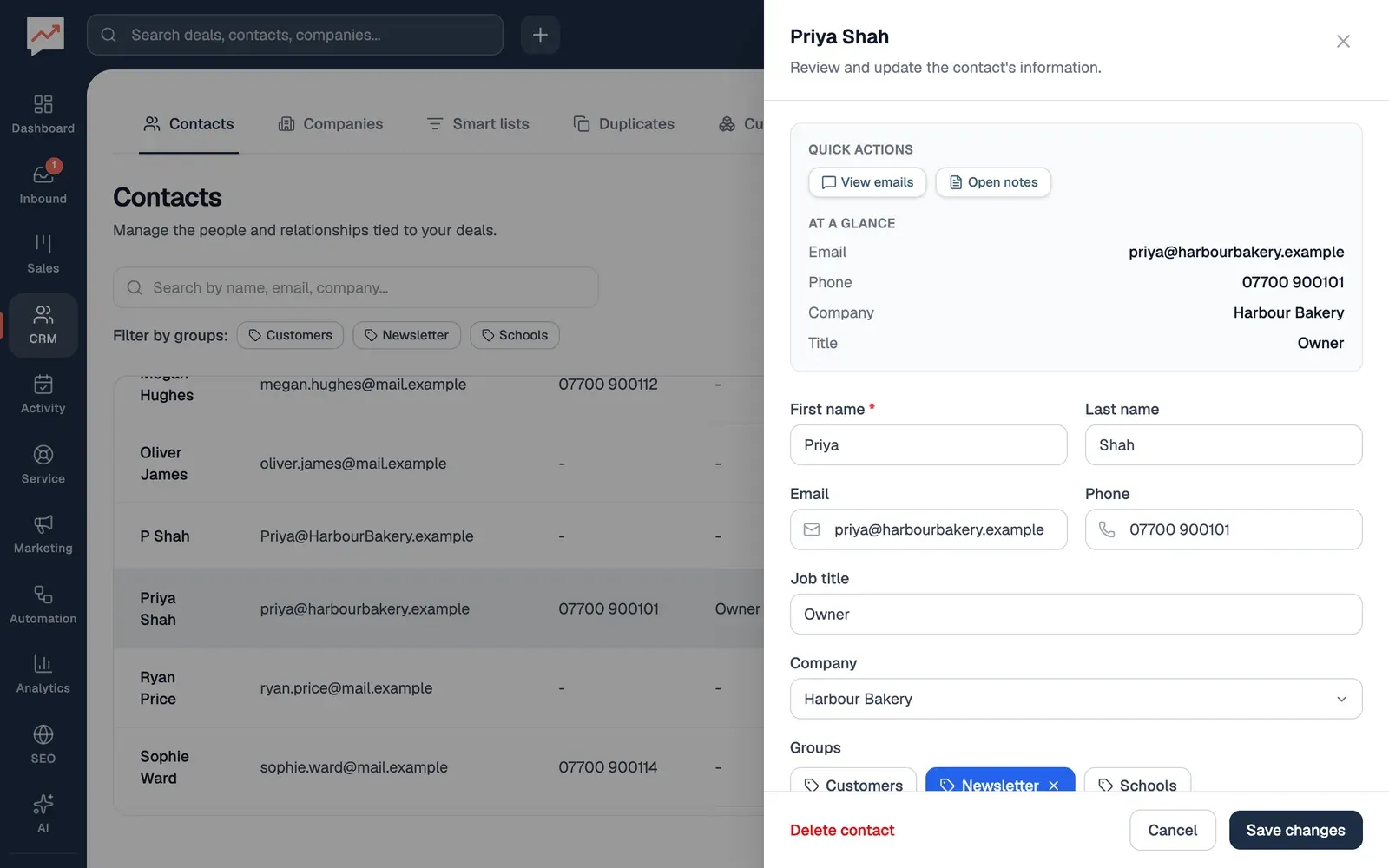
Section titled “A contact’s details”Choose a person’s name, or Edit in their row, to open their panel.
-
View emails opens the emails between you and them. It appears when they have an email address. See Inbox.
-
Open notes opens their notes. See Notes.
-
Change anything in the form: their details, Company, Groups and custom fields. Choose No company under Company to take them off a company. Then select Save changes. Cancel closes the panel without saving.
-
Delete contact deletes them. See Delete a contact.
Further down the panel are their Linked records, if your company uses custom objects, and their Activity: calls, meetings, emails, notes, tasks, deals and more. See The activity timeline.
When the panel opens, keyboard focus moves into it. Press Escape, or select Close panel (the × at the top), to close it, and focus goes back to where you were.
Notes are for anything your team should know about a person, such as when they’re easiest to reach.
-
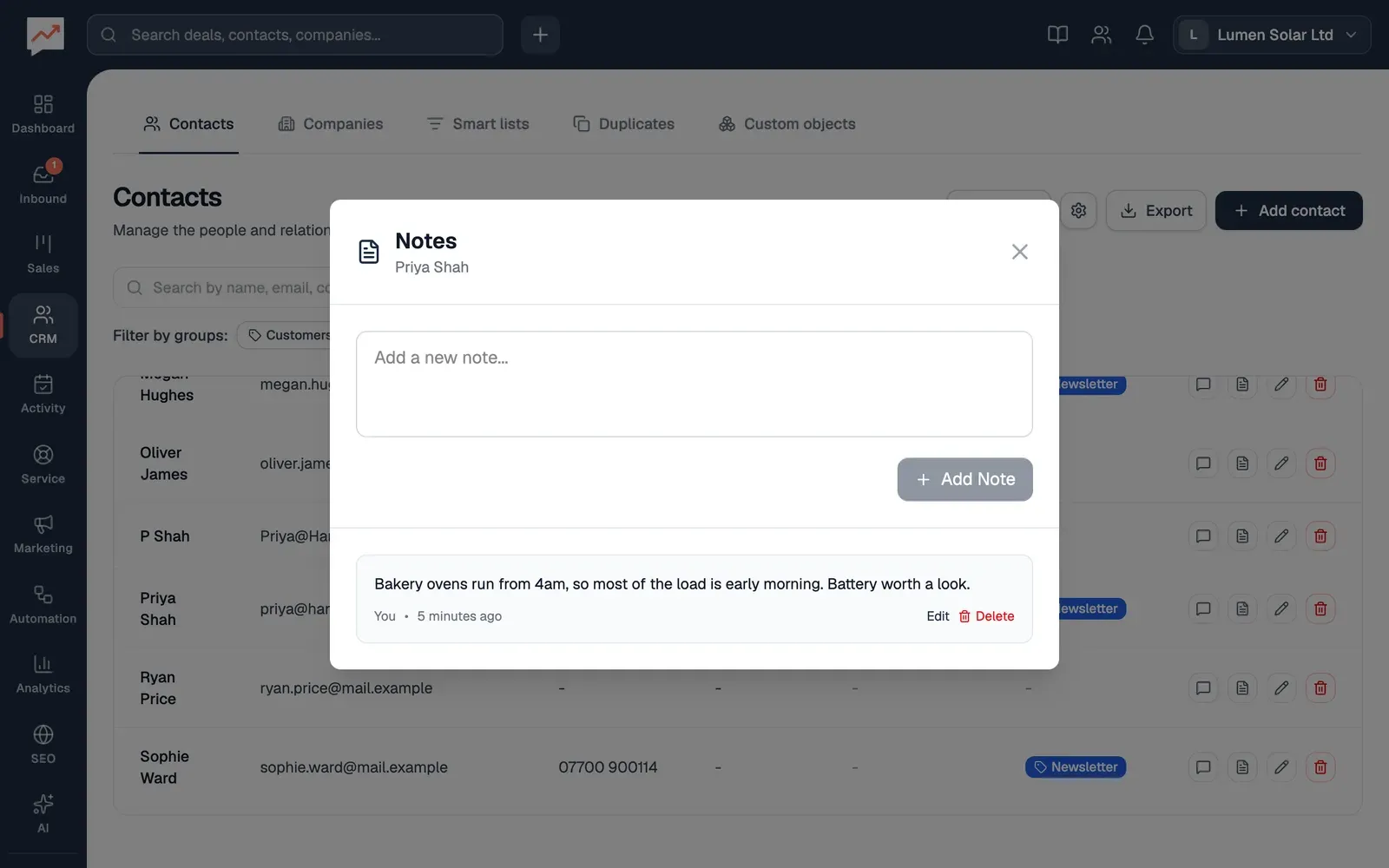
Select Notes in their row, or Open notes in their panel. Type your note in the box at the top, then select Add Note.
-
Notes are listed newest first, with who wrote each one and when. Edit and Delete under a note change or remove it. You can only change or delete the notes you wrote.
Deleting a note asks you to confirm, and can’t be undone. Notes also appear in the person’s activity timeline. Close the notes with the × at the top right.
Delete a contact
Section titled “Delete a contact”-
Select Delete in their row, or Delete contact at the bottom of their panel.
-
Select Delete to confirm.
Download your contacts
Section titled “Download your contacts”Select Export. HeySales downloads a CSV file, named with today’s date, that opens in Excel, Numbers or Google Sheets. It has everyone’s first name, last name, email, phone, job title and company.
The file always has all your contacts, whatever you’ve searched for or filtered. Groups, custom fields and notes aren’t in it. Each download is noted in the audit log.
Companies: the businesses your contacts work for. Or Groups and custom fields, to sort your contacts and keep your own details on them.