

Custom reports
Custom reports answer your own questions, such as what your deals are worth in each stage or how many tickets came in each month. Go to Analytics, then Custom reports.
Build a report
Section titled “Build a report”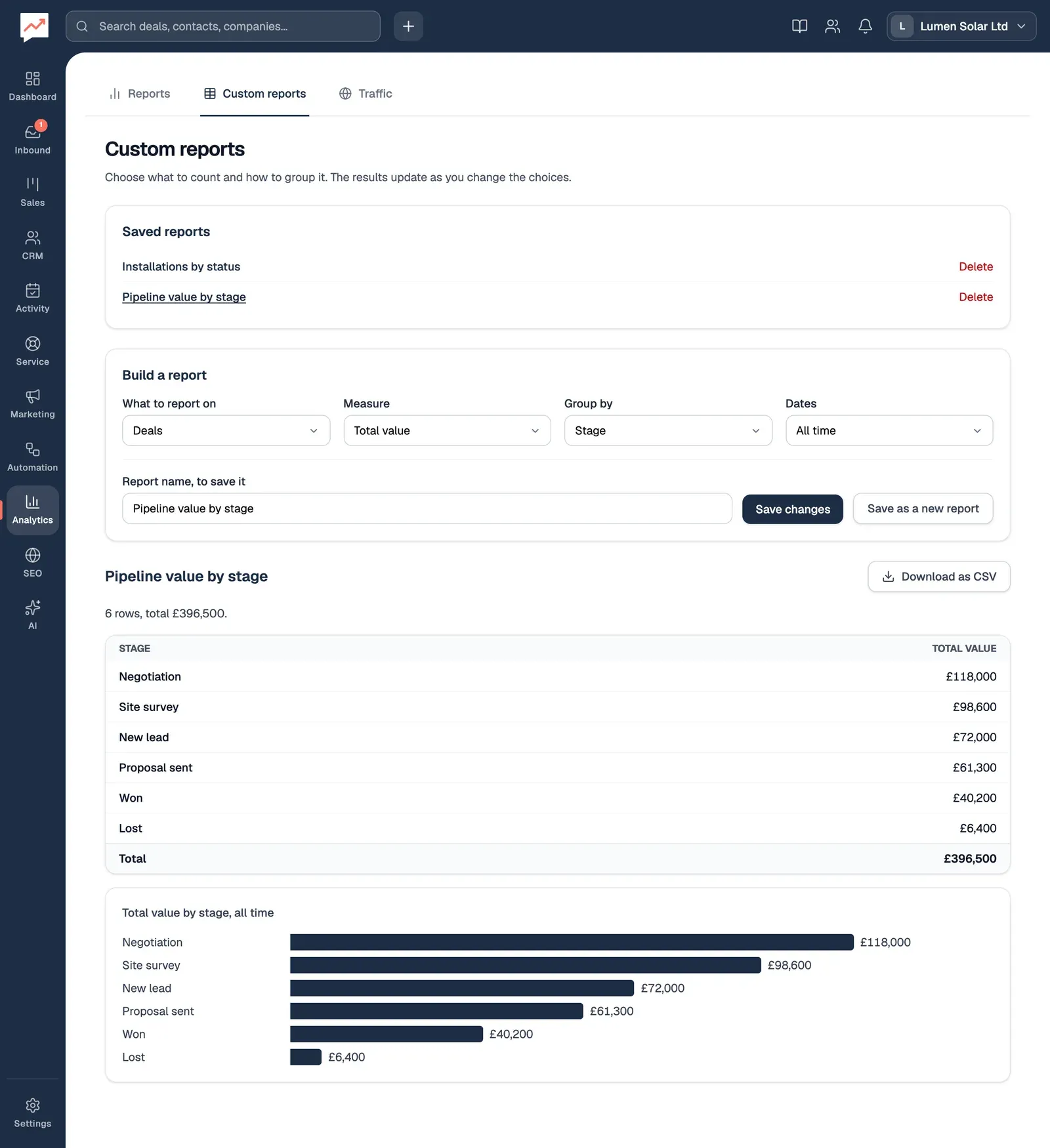
-
What to report on: the kind of record to count, such as Deals, Contacts or Tickets. See What you can report on.
-
Measure: what to work out, such as Number of deals, Total value or Average value.
-
Group by: how to split the results into rows, such as Stage, Owner or Month created. Choose Nothing (one total) for a single figure.
-
Dates: All time, Last 7 days, Last 30 days, Last 90 days, This month, This year or Last 12 months.
-
Download as CSV saves the results as a spreadsheet file. See Download the results.
The results change as soon as you change a choice. The line above the table says Working it out…, then how many rows there are and the total. A screen reader reads this line out each time it changes.
The results
Section titled “The results”- The results are a table with a row for each group, biggest first. Rows grouped by month, week or score are in order instead.
- A Total row at the bottom adds up counts, minutes and total values. There’s no total for averages, or for contacts grouped by Group, since one contact can be in several groups.
- A report shows up to 100 rows.
- Months show as, for example, Mar 2026. Rows with nothing recorded show as Not set, No date or similar.
Under the table, a bar chart draws the same figures, when there are between 2 and 30 rows. Screen readers skip the chart, because the table already has everything in it.
What you can report on
Section titled “What you can report on”| What to report on | Measure | Group by |
|---|---|---|
| Deals | Number of deals, Total value, Average value | Stage, Pipeline, Owner, Priority, Month created, Month it closes |
| Contacts | Number of contacts | Company, Group, Month added, Week added |
| Tickets | Number of tickets, Average hours to first reply | Status, Priority, Assigned to, Where it came from, Month opened |
| Logged calls and meetings | Number logged, Total minutes | Call or meeting, Outcome, Logged by, Month |
| Emails with contacts | Number of emails, Number opened | Sent or received, Whose mailbox, Month |
| Form submissions | Number of submissions | Form, Month |
| Survey answers | Number of answers, Average score | Survey, Score, Month |
| Marketing email recipients | Number of people, Number who opened, Number who clicked | Campaign, Result |
Every kind of record can also be grouped by Nothing (one total).
Dates looks at when each record was created: when a deal or contact was added, a ticket opened, a call or meeting happened, an email was sent or received, a form or survey was answered, or a marketing email went out (or, if it hasn’t gone yet, when the marketing email was made). For deals, that’s when the deal was created, even when you group by Month it closes.
Custom objects
Section titled “Custom objects”Your custom objects are listed under Custom objects in What to report on. For Installations, for example:
- Measure offers Number of records, and a total and an average of each Number or Amount of money field, such as Total System size (kW) and Average Panels.
- Group by offers Nothing (one total), Month added, and each Pick one option or Yes or no field, such as Status.
- Dates looks at when each record was added.
Save a report
Section titled “Save a report”Saved reports belong to your whole team. Anyone in it can open, change or delete them.
-
Type a name in Report name, to save it, such as Pipeline value by stage.
-
Choose Save report. It’s added to Saved reports, at the top of the tab.
-
To open a saved report, choose its name under Saved reports. Its choices are filled in, and focus moves to its results, headed with its name.
-
If you change an open report, choose Save changes to update it, or Save as a new report to keep the original and save a copy under the name in the box.
To remove a saved report, choose Delete next to its name, then Delete to confirm. Only the saved report goes. Your data stays as it is.
Download the results
Section titled “Download the results”Download as CSV appears when the report has at least one row. The file has two columns, the group and the measure, a row for each group, and a Total row when the table has one. Figures are plain numbers, without currency signs. The file is named after the report, such as pipeline-value-by-stage.csv, or report.csv if you haven’t named it.
See the ready-made charts in Reports, or add a custom object to keep track of something else and report on it here.