

Tickets
A ticket is one customer question, from the first message to the answer. Each one has a number, a status and someone looking after it, so nothing gets forgotten. Tickets live on the Service page, on the Tickets tab.
The Tickets tab
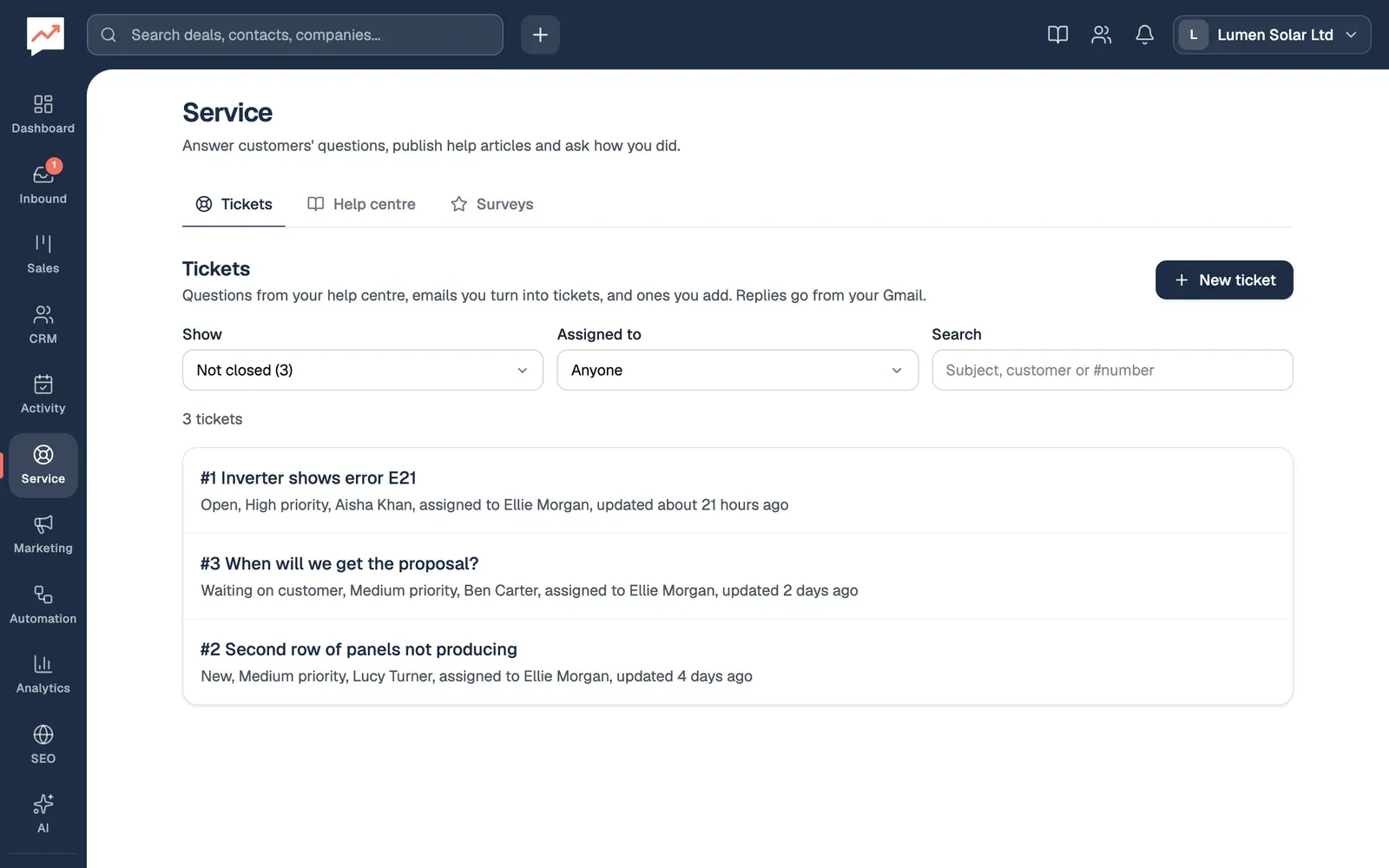
Section titled “The Tickets tab”Go to Service. The Tickets tab opens first.
-
New ticket opens a form to add a ticket yourself. See Open a ticket yourself.
-
Show picks which tickets to list. It starts on Not closed. You can also choose New, Open, Waiting on customer, Closed or All tickets. The number after each one is how many tickets have that status.
-
Assigned to shows only your own tickets (Me), tickets nobody has yet (Nobody), or a teammate’s.
-
Search finds tickets by subject, by the customer’s name or email address, or by number, such as
#4. -
Each ticket in the list says its status, priority, customer, who it’s assigned to and when anything last happened on it. Choose its subject to open the ticket.
The newest activity is at the top. With a keyboard, the left and right arrow keys move between the Tickets, Help centre and Surveys tabs.
Where tickets come from
Section titled “Where tickets come from”- Added by you or your team, for a question that came by phone or in person. The ticket says “Added in HeySales”.
- Your help centre’s contact form. When a visitor sends it, a ticket opens with their message, and they’re added as a contact if they aren’t one already. The ticket says “Help centre form”. See Help centre.
Tickets are numbered in order, starting at #1, separately for each company. Opening a ticket also starts any workflow that begins with A ticket is opened.
Open a ticket yourself
Section titled “Open a ticket yourself”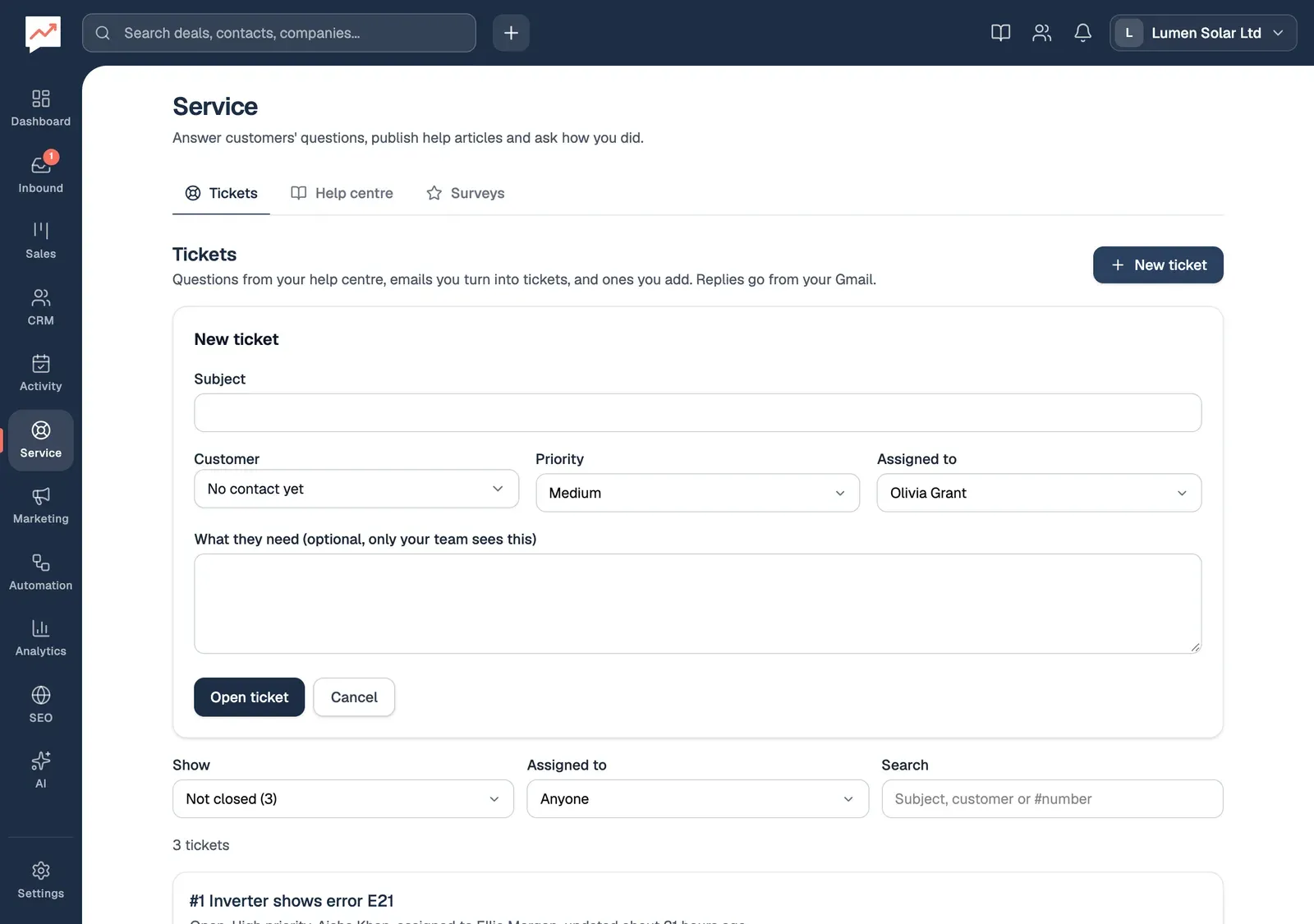
-
Select New ticket, then type a Subject: a few words on what the customer needs. This is the only thing you have to fill in.
-
Choose the Customer. Type part of their name or email address to narrow the list, then choose them. To pick the first match with a keyboard, press Enter in the search box; Escape closes the list. It starts at No contact yet, for when you don’t know who it is.
-
Set the Priority: Low, Medium, High or Urgent. It starts at Medium. Next to it, Assigned to starts with you: choose a teammate, or Nobody yet.
-
Under What they need, write anything your team should know. Only your team sees this: it becomes the ticket’s first note, not an email.
-
Select Open ticket.
The ticket’s page opens, with its new number. Nothing is sent to the customer until you reply.
The ticket page
Section titled “The ticket page”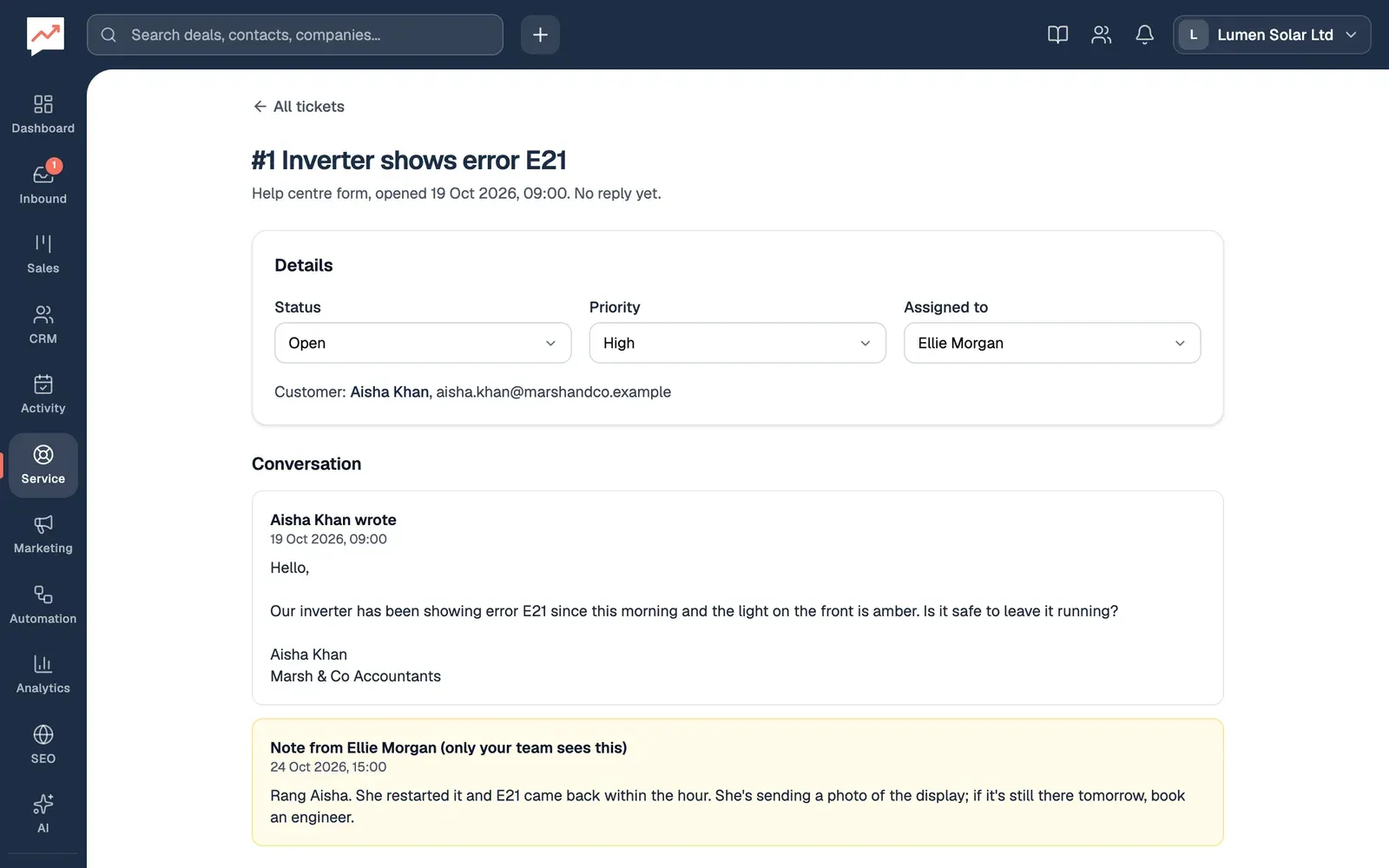
-
Status says where the ticket is. See the table below.
-
Priority shows in the list and on the ticket, so the team can see what’s most pressing. It doesn’t change anything else.
-
Assigned to is the teammate looking after it, or Nobody.
-
Customer links to the contact, with the email address replies go to.
-
Conversation lists everything on the ticket, oldest first: what the customer wrote, your team’s replies, and notes, which are marked “only your team sees this”.
Changes to Status, Priority and Assigned to save as soon as you choose them. Under the ticket’s title, a line says where it came from, when it was opened and how long the first reply took.
| Status | What it means |
|---|---|
| New | Nobody has replied yet. Every ticket starts here. |
| Open | Your team is working on it. A customer’s reply puts a ticket back here. |
| Waiting on customer | You’ve replied and are waiting to hear back. Sending a reply sets this. |
| Closed | Done. Closed tickets drop out of the Not closed list. |
Reply to the customer
Section titled “Reply to the customer”Replies are emailed from your own Gmail, so you need Google connected. See Connect Google.
-
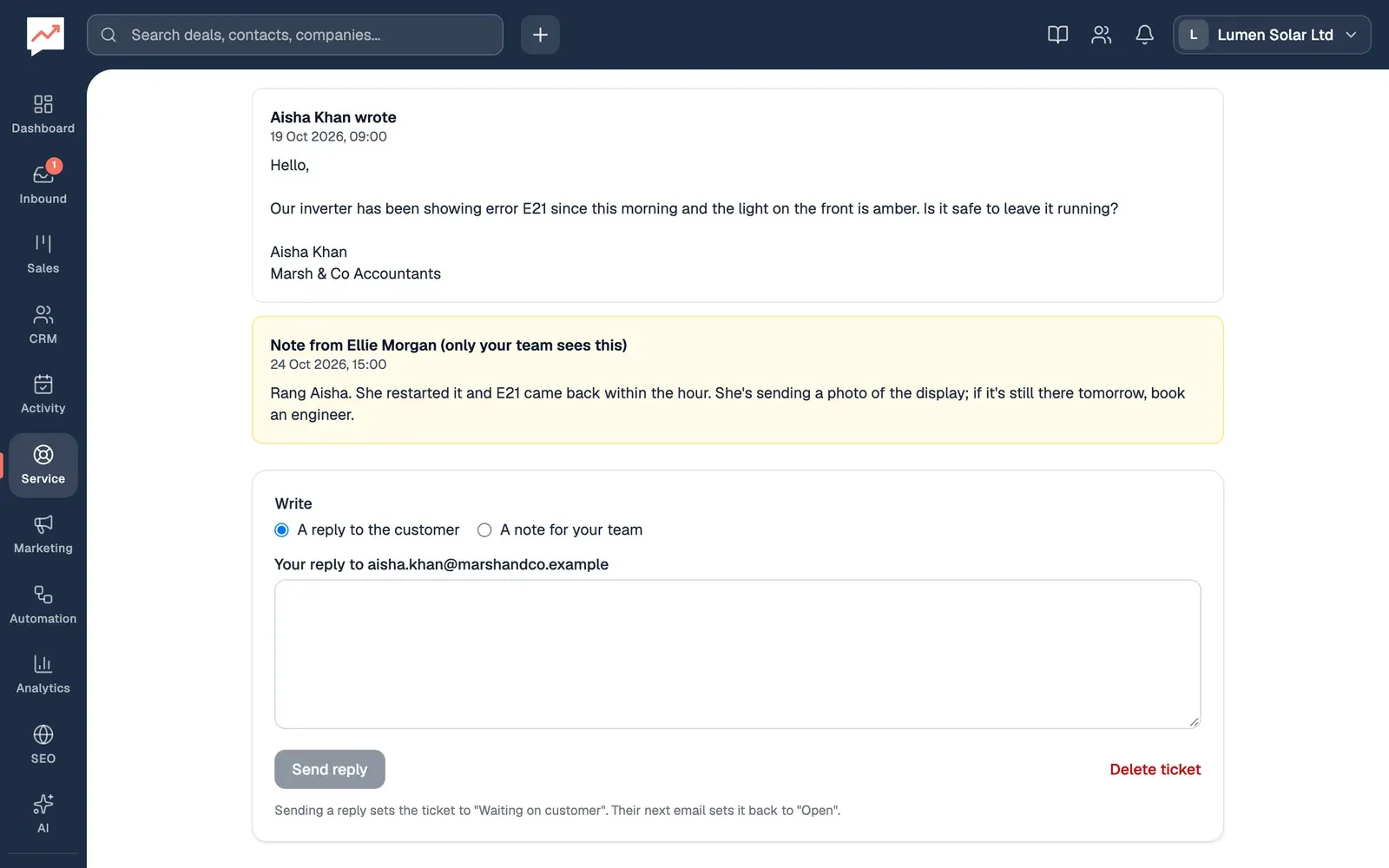
Under Write, choose A reply to the customer.
-
Type your reply in the box. Its label shows the address it goes to.
-
Select Send reply. It stays greyed out until you’ve typed something.
The reply goes from your Gmail to the customer, with your email signature from your account settings under it. The ticket changes to Waiting on customer, and your reply joins the conversation.
Your first reply on a ticket is a new email, with the ticket’s number in the subject, for example “[Ticket #1] Inverter shows error E21”. Your later replies go in the same email conversation.
When the customer replies
Section titled “When the customer replies”When the customer answers your email, their reply is added to the ticket’s conversation. If the ticket was Waiting on customer or Closed, it goes back to Open, so it shows up again in the Not closed list. The earlier messages they quoted are left out, so you see only what’s new.
HeySales picks up new email from your Gmail while you have HeySales open, every 30 seconds. So a customer’s reply appears on the ticket once the person who sent the last reply next has HeySales open.
Anything you send in that email conversation from Gmail itself is added to the ticket as a reply too.
Add a note for your team
Section titled “Add a note for your team”A note is for your team only: the customer never sees it.
-
Under Write, choose A note for your team.
-
Type the note in Your note.
-
Select Add note.
Notes appear in the conversation with the name of whoever wrote them. Adding a note doesn’t change the ticket’s status.
Close a ticket
Section titled “Close a ticket”When the question is answered, set Status to Closed. If the customer writes again in the same email conversation, the ticket opens again by itself.
Once a ticket is closed, an Ask how it went box appears, so you can email the customer a satisfaction survey. See Surveys.
Each ticket also shows on the customer’s activity timeline, when it opened and when it closed.
Delete a ticket
Section titled “Delete a ticket”At the bottom of the ticket, select Delete ticket, then Delete ticket again to confirm.
- Set up a help centre, so customers can find answers and open tickets themselves.
- Ask customers how you did when you close a ticket.