

Custom objects
A custom object is a kind of record that HeySales doesn’t have, with the fields you choose. Lumen Solar keeps its Installations this way: each one has a system size, the number of panels, a status and its dates, and is linked to the customer’s contact, deal and company.
Make a custom object
Section titled “Make a custom object”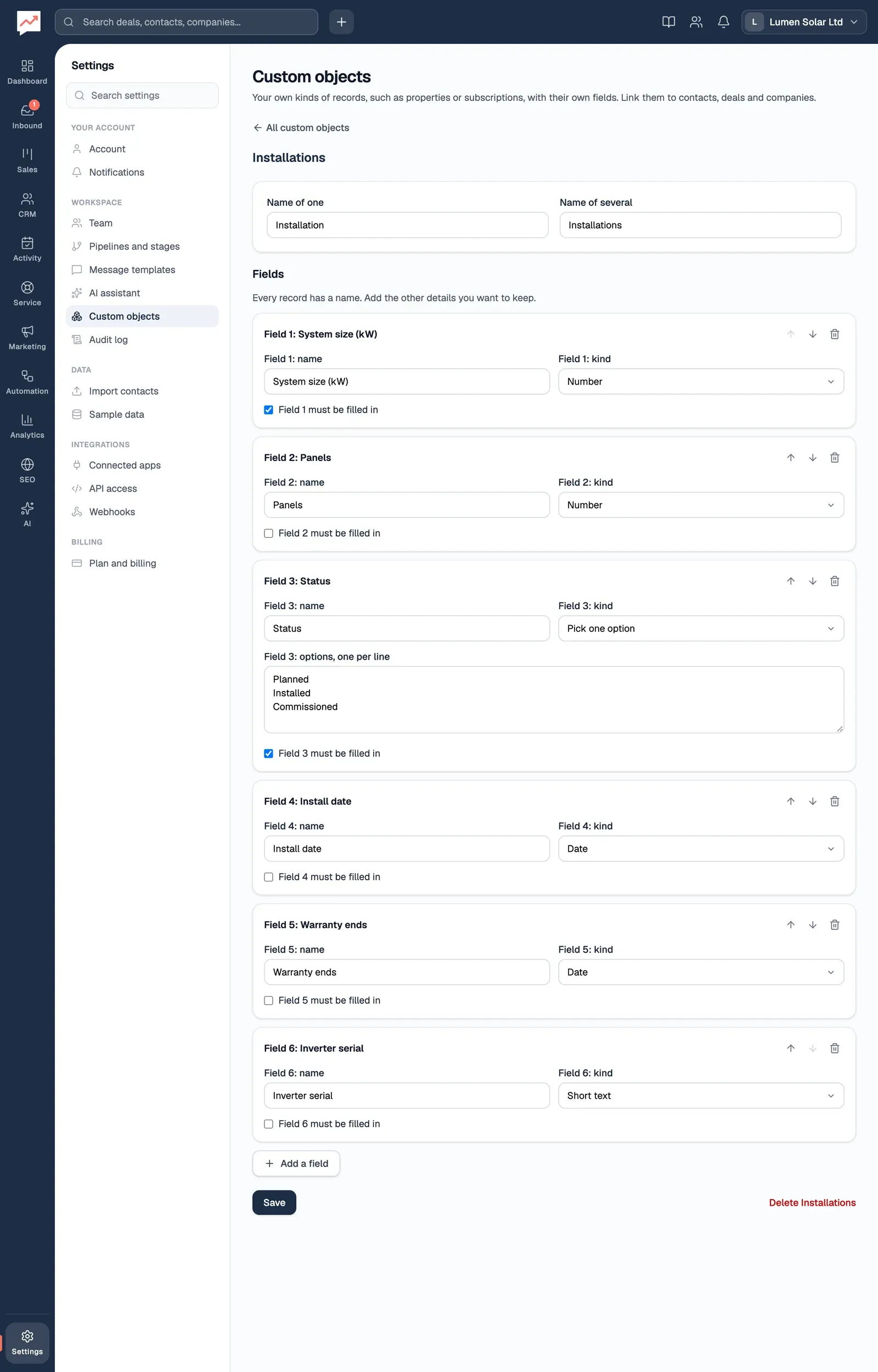
-
Go to Settings, then Custom objects, and select New custom object. Type the Name of one, such as Installation, and the Name of several, such as Installations.
-
Select Add a field for each detail you want to keep. Every record has a name already, so you don’t need a field for that.
-
Each field has a box for its name, such as Field 1: name, and a list for its kind, Field 1: kind. The kinds are Short text, Long text, Number, Amount of money, Date, Pick one option, Yes or no, Web address and Email address. For Pick one option, type the options in the box below it, one per line: you need at least two. Tick must be filled in for a field that every record needs.
-
The arrow buttons move a field up or down the list, such as Move field 2 up, so you can put them in order without dragging. The bin button, such as Remove field 1, takes a field out.
-
Select Save.
An object can have up to 30 fields, and a pick-one field up to 30 options. When you add, move or remove a field, keyboard focus moves to the field’s heading, such as “Field 2: Panels”, so you know where you are.
Once it’s saved, the object is listed in Settings, then Custom objects, with how many fields and records it has, and a link to see its records.
Change or delete an object
Section titled “Change or delete an object”Go to Settings, then Custom objects, and choose the object. Change its names or fields, then select Save. If you remove a field, it no longer shows on any record.
To delete the object, select Delete and its name, such as Delete Installations. HeySales asks you to confirm and says how many records it has. All its records are deleted with it, and this can’t be undone.
Find a record
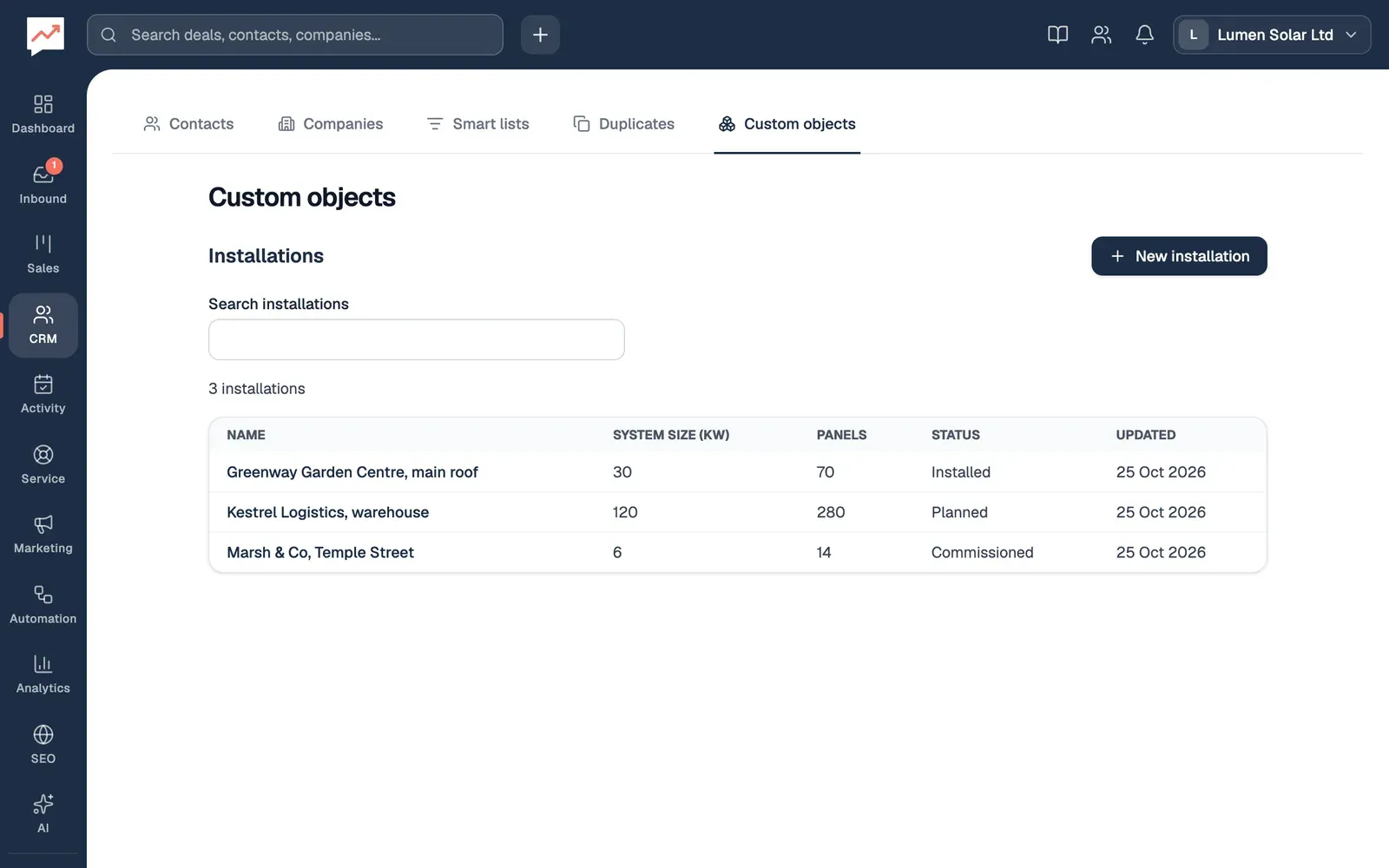
Section titled “Find a record”Go to CRM, then Custom objects. If you have more than one custom object, choose the one you want at the top.
-
New installation adds a record. The button uses your object’s name. See Add a record.
-
Search installations finds records by their name or anything in their fields.
-
Choose a record’s name to open it.
The table shows each record’s name, its first three fields, and when it was last changed, in order of name. If there are more than 100, Previous and Next move between pages. With a screen reader, the number of records found is read out as you search.
Add a record
Section titled “Add a record”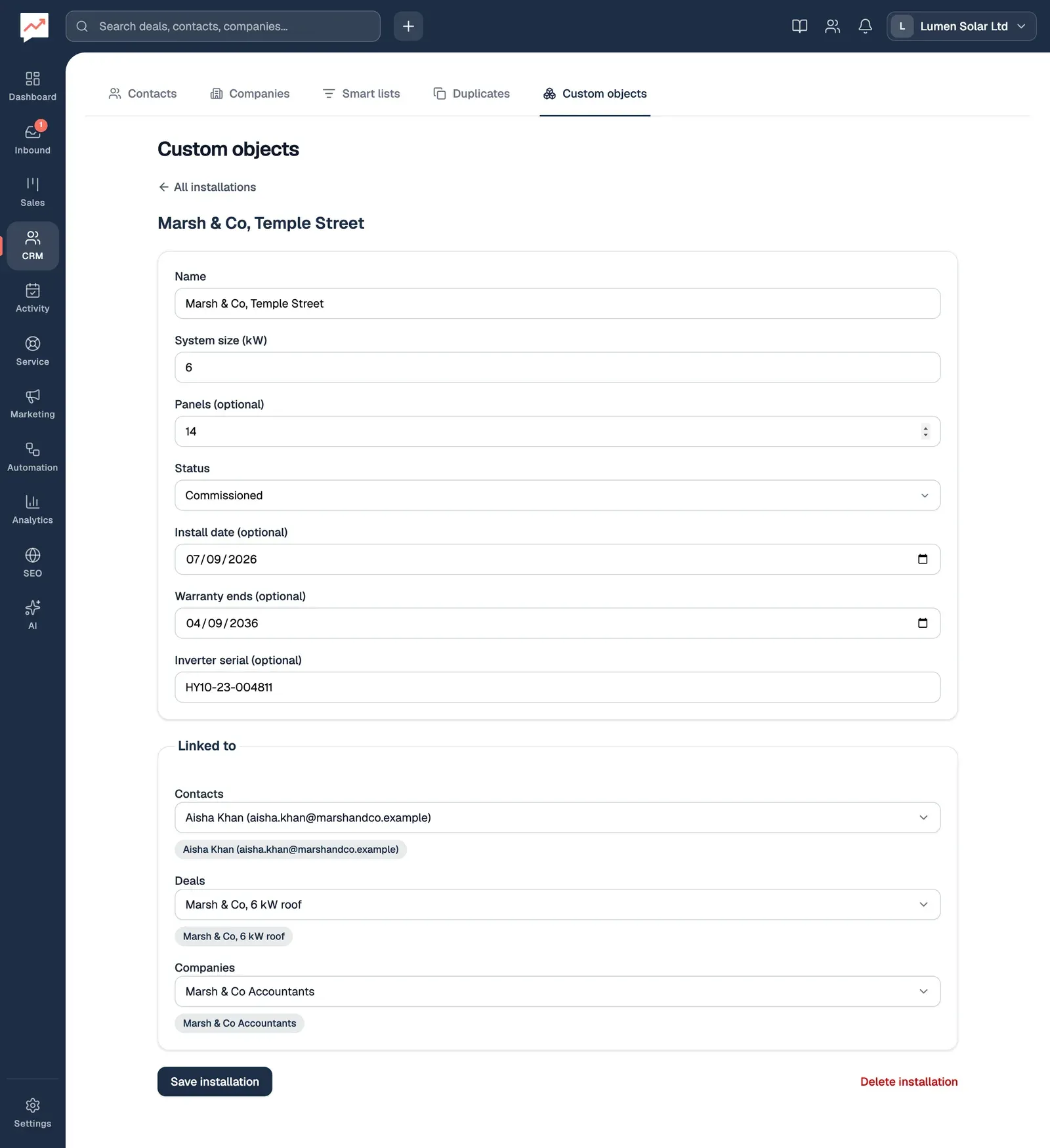
-
Select New installation, or the button for your own object, and type the record’s Name. Then fill in its fields. Fields that don’t have to be filled in say “(optional)”.
-
Under Linked to, choose its Contacts, Deals and Companies. Each one opens a list with a search box: type part of a name and press Enter to add the first match, or choose names from the list. Press Enter on a name again to take it off. Escape closes the list. The button says who’s chosen, so a screen reader reads it out.
-
Select Save installation, or the save button for your own object.
A record can be linked to any number of contacts, deals and companies. To change a record, open it, make your changes, and save it again. Delete installation, or the delete button for your own object, deletes it after you confirm.
Linked records on contacts and deals
Section titled “Linked records on contacts and deals”Each contact and deal lists the records linked to it, under Linked records, grouped by object. Choose a record’s name to open it.
- On a contact: in their panel, on the Contacts tab, below their details. See A contact’s details.
- On a deal: on the deal page’s Overview tab. See The deal page.
Linked records only shows once your company has a custom object. To link a record, open the record itself: you can’t link one from the contact or the deal. Companies don’t list their linked records, so open a record to see which companies it’s linked to.
When you merge two contacts, the records linked to the other contact move to the one you keep.
Pipelines and deals: track the deals you’re working on, from first contact to won.