

Import your contacts
You don’t have to type your contacts in one by one. Import them from a spreadsheet, or from your Google contacts. If you’d rather try HeySales with made-up records first, add sample data, then remove it all in one go when you’re ready.
Import a spreadsheet
Section titled “Import a spreadsheet”Go to Settings, then Import contacts.
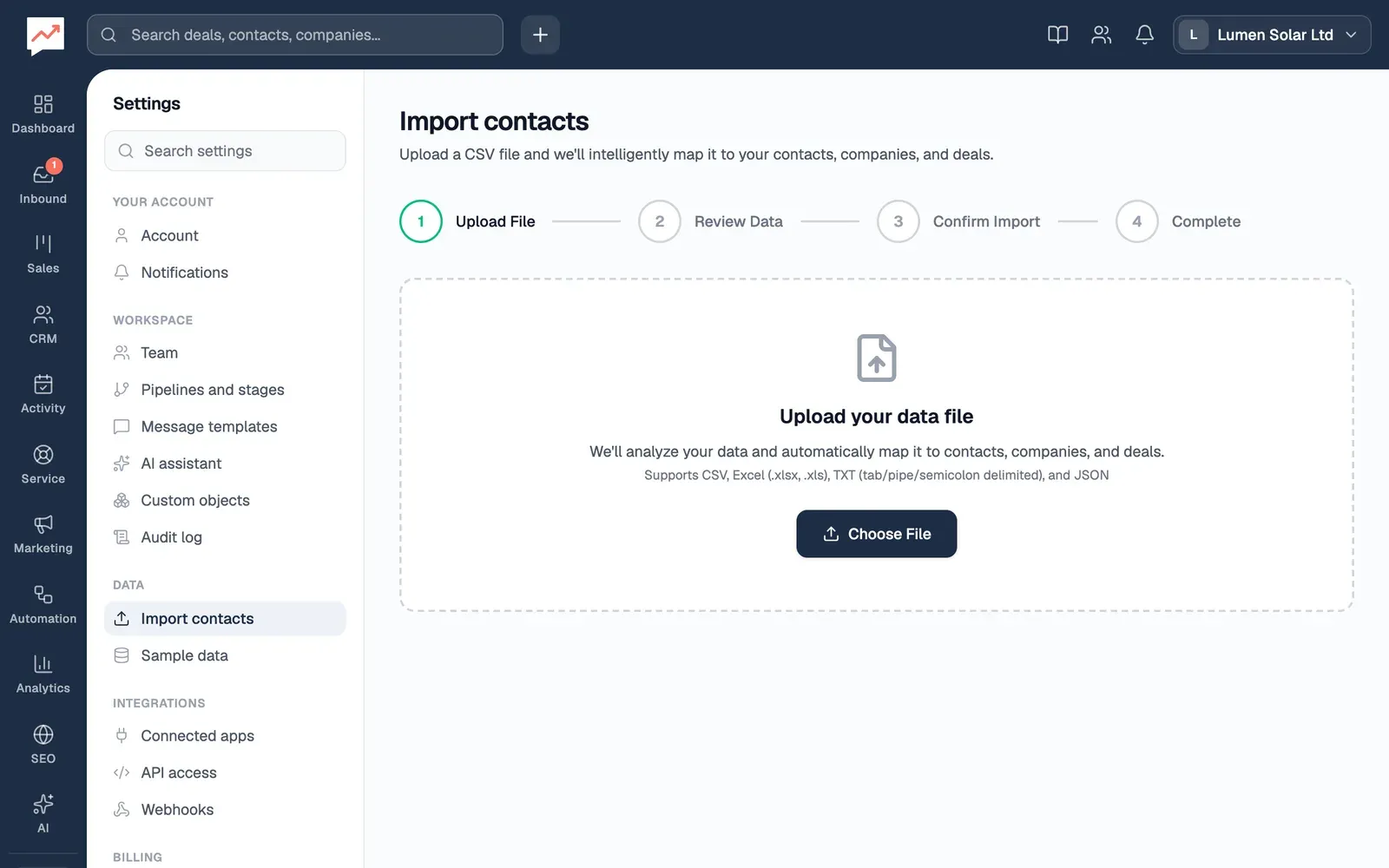
- Choose Choose File and pick your file: a CSV file, an Excel file (.xlsx or .xls), a text file with its columns separated by tabs, pipes (|) or semicolons, or a JSON file. HeySales reads it and works out what each column holds.
Check and import
Section titled “Check and import”-
Under Contacts and Companies, HeySales lists the people and companies it found in your file, all selected. Choose anyone you don’t want, to leave them out. Deselect All and Select All change the whole list.
-
Data preview shows the first rows of your file as they are, up to 20, so you can compare.
-
Choose Import, followed by how many records you’ve selected. Cancel takes you back to choose a different file.
-
Import Complete! says how many contacts and companies were added. View Contacts and View Companies open them, and Import Another File starts again.
How the columns are matched
Section titled “How the columns are matched”- To work out which column is which, HeySales sends your file’s column headings and its first 20 rows to OpenAI, an outside AI company, through Vercel’s AI Gateway. The rest of the file isn’t sent.
- For contacts, it looks for a first name, last name, email, phone number and job title. For companies, it looks for a name, website and phone number. Other columns aren’t imported.
- A row needs a first name to become a contact, and a company name to become a company. A row with both becomes one of each, but they aren’t linked to each other. You can link them afterwards on the contact.
- From an Excel file, only the first sheet is read.
You can’t change the matching yourself. If the names in the lists look wrong, choose Cancel, give your columns clear headings, such as First name, Last name, Email, Phone and Company, and try again.
Import from Google Contacts
Section titled “Import from Google Contacts”First, connect Google.
-
Go to Settings, then Connected apps. On the Google card, choose Sync Contacts.
-
Select Contacts to Import opens, listing your Google contacts with their email, phone number and job title. Everyone is selected.
-
Untick anyone you don’t want. Search contacts narrows the list, and Select / Deselect All ticks or unticks everyone.
-
Choose Import, followed by how many contacts you’ve selected. HeySales says how many new contacts were imported and how many were updated.
With a screen reader, find the list by its heading, Select Contacts to Import.
- HeySales copies up to your first 1,000 Google contacts. People without a first name are left out.
- It copies each person’s name, first email address, first phone number and job title.
- Importing again updates the people you imported before, instead of adding them twice. Their name, email, phone and job title are replaced with what’s in Google.
- Contacts are only copied when you choose Sync Contacts. Changes in Google don’t reach HeySales by themselves.
Try HeySales with sample data
Section titled “Try HeySales with sample data”Sample data fills HeySales with made-up companies, contacts and deals, so you can see how it works before you add your own.
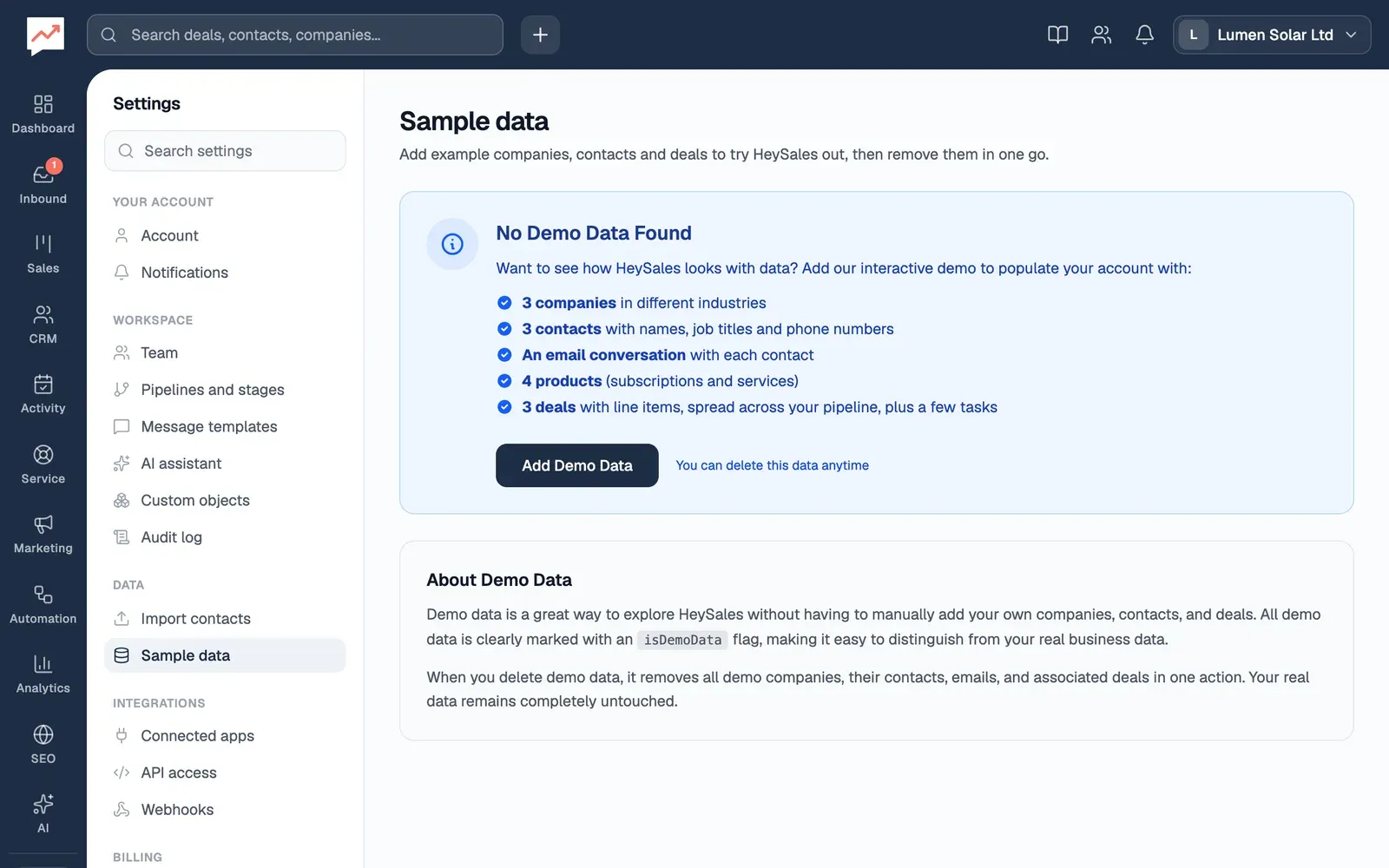
- Go to Settings, then Sample data. Choose Add Demo Data, then Add demo data to confirm.
It adds:
- 3 made-up companies, each with a contact, an email conversation with that contact, a deal and one or two tasks
- 4 sample products
The deals go in your first pipeline, spread across its open stages, with you as the owner and a close date 30 days away. The tasks are assigned to you. A message lists everything that was added, and the page then says Demo Data Active, with focus on that heading.
Remove the sample data
Section titled “Remove the sample data”-
Go to Settings, then Sample data.
-
Choose Delete All Demo Data, then Delete demo data to confirm.
This deletes the sample companies, contacts, emails, deals, tasks and products, with any changes you’ve made to them. Your own records stay. If you linked one of your own records to a sample one, such as your own deal to a sample contact, it stays but loses that link.
See your contacts, then invite your team.