

Website visitors
With one line of code on your website, HeySales shows you who visits, what they read, where they came from, and which visitors are worth a call. Go to Analytics, then Traffic. Everyone in your company sees the same numbers.
Add the script to your website
Section titled “Add the script to your website”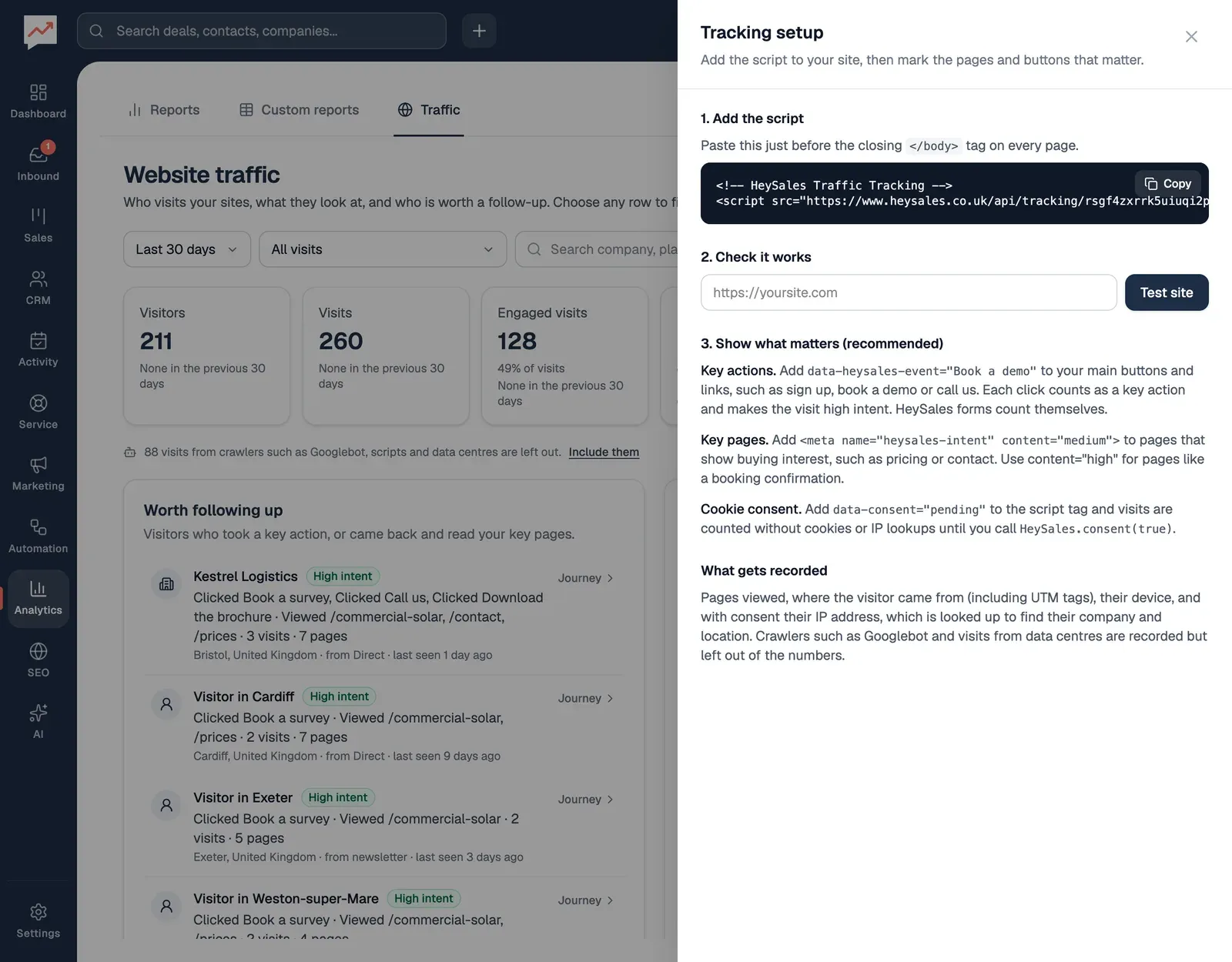
-
On the Traffic tab, select Tracking setup. Under 1. Add the script, select Copy.
-
Paste the script into your website just before the closing
</body>tag, on every page. Most website builders have one place for code that goes on every page, often called the footer code. -
Under 2. Check it works, type your website’s address, starting with
https://. -
Select Test site. HeySales opens the page and looks for the script: “✓ Tracking script found!” means it’s there. Otherwise it says the script isn’t on the page, or that it belongs to a different HeySales account. The test reads the page’s HTML, so it can’t see a script added by a tag manager.
Visits start showing on the Traffic tab as people browse your site. You can put the same script on more than one website: each visit is labelled with the site it was on, and a Site list appears so you can look at one at a time.
Cookie consent
Section titled “Cookie consent”As it comes, the script stores a cookie on each visitor’s device to recognise them when they come back, and looks up their IP address to find their company and location.
If your website asks visitors before setting cookies, add data-consent="pending" to the script tag:
<script src="…/script.js" data-consent="pending"></script>Visits are then still counted, but without a cookie or IP lookup until the visitor agrees:
- Nothing is stored on their device, and their IP address isn’t saved. Their location is their country only.
- They’re recognised only for the rest of that day, so a visitor who comes back tomorrow counts as a new visitor.
When a visitor accepts cookies in your cookie banner, have the banner run HeySales.consent(true). The visit carries on, now with the cookie. If they reject cookies or change their mind, HeySales.consent(false) removes the cookie. If you already know they’ve agreed when the page loads, use data-consent="granted" instead of pending.
Show what matters
Section titled “Show what matters”Out of the box, HeySales counts page views. Two small additions tell it what’s important on your site, so the visits that matter stand out.
- Key actions. Add
data-heysales-event="Book a survey"to your main buttons and links, with your own name for each. Each time a visitor selects one, it counts as a key action and makes the visit high intent. Adddata-heysales-intent="medium"as well to make it count as medium instead. From your own code,HeySales.event("Book a survey")does the same. HeySales forms count themselves, as “Form:” and the form’s name. - Key pages. Add
<meta name="heysales-intent" content="medium">to the head of pages that show buying interest, such as your prices or contact page. Usecontent="high"for pages like a booking confirmation.
Intent
Section titled “Intent”Each visit is Low intent, Medium intent or High intent:
- Medium when the visitor views three or more pages, or a key page marked medium.
- High when they take a key action, or view a page marked high.
Visits that are medium or high count as Engaged visits.
What’s counted
Section titled “What’s counted”- Pages they view, with each page’s title and how long they spent on it.
- Where they came from: the site that linked to you, or your UTM tags (
utm_source,utm_medium,utm_campaign,utm_termandutm_content) if the link had them. Visits with neither count as Direct. - Their device (Desktop, Phone or Tablet), browser and system.
- With consent, their location and company, from their IP address. HeySales can often only tell the network they’re on, such as a home broadband or phone network, and then shows them as a visitor in their town.
A visit is one person’s time on one of your sites. With cookies, it lasts until they close the browser tab; without, page views with less than 30 minutes between them make one visit. Websites that change pages without reloading are counted page by page.
Crawlers such as Googlebot, automated scripts, and visits from cloud and hosting companies are recorded but left out of the numbers. A line under the totals says how many were left out, with Include them to add them back in.
The Traffic tab
Section titled “The Traffic tab”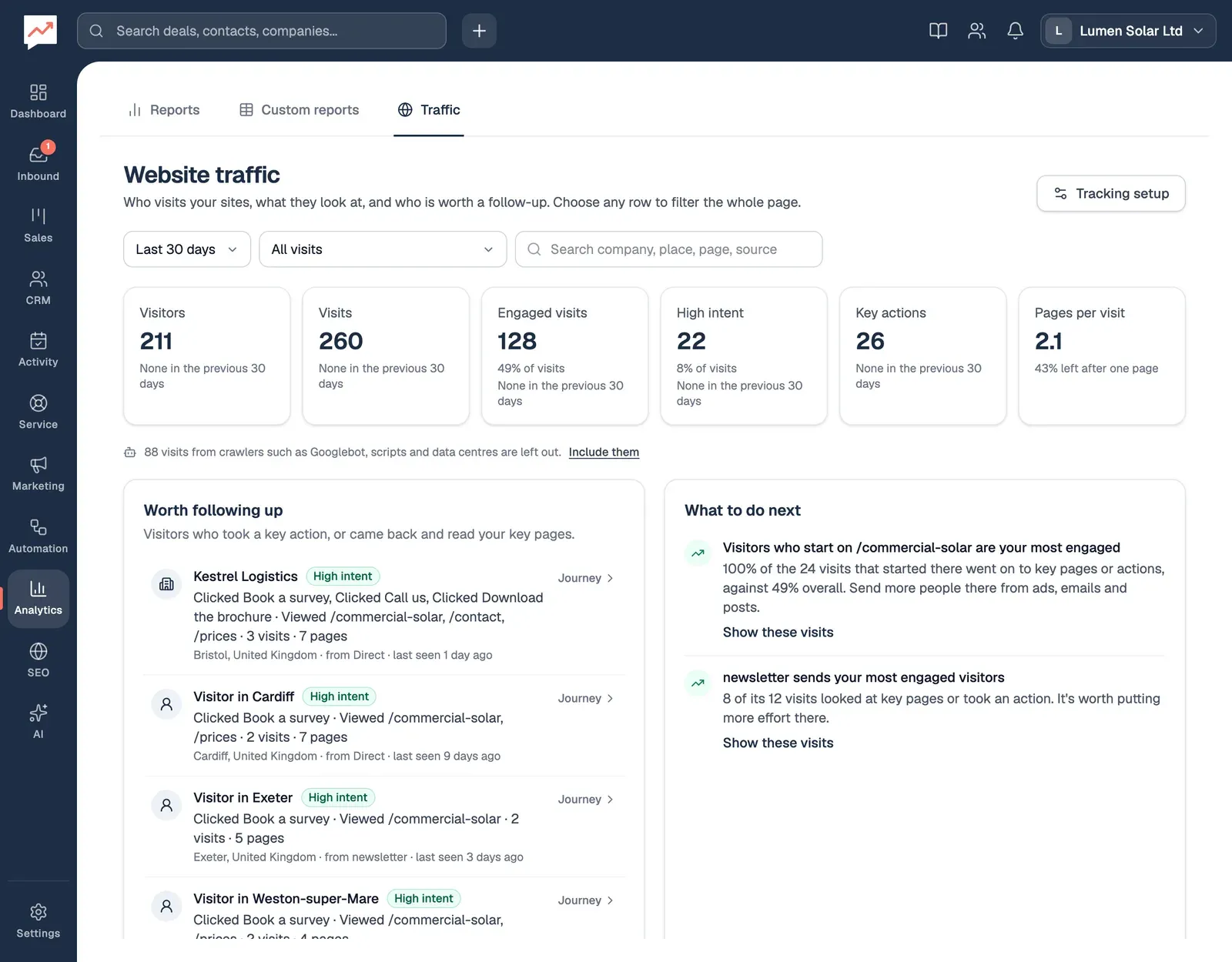
-
Tracking setup has the script and the steps above.
-
Time period chooses Today, Last 7 days, Last 30 days (where it starts), Last 90 days or All time.
-
Intent shows All visits, only Engaged (medium or high intent) visits, or High intent only.
-
The search box finds visits by company, place, page or source.
-
Worth following up lists the visitors who showed the most interest. See Follow up a visitor.
The totals across the top are Visitors, Visits, Engaged visits, High intent, Key actions and Pages per visit, with how many left after one page. Most say how they compare with the period before, such as “Up 12% vs the previous 30 days”, or “None in the previous 30 days” when there was nothing to compare with. Engaged visits and High intent are also buttons that filter the page to those visits.
Further down:
- What to do next points out what stands out, such as the entry page or the source that brings your most engaged visitors, or a page most visitors leave straight away. Show these visits filters the page to them, and How to set it up opens the tracking setup.
- Visits by day (by month for All time, once there are more than three months of visits) is a chart of visits by intent. Show as table shows the same numbers as a table, which is easier with a screen reader.
- Pages, Where visitors come from, Who visits and Key actions list the top pages, entry pages, sources, campaigns, countries, devices, companies and key actions. Cards with more than one list have tabs; with a keyboard, the left and right arrow keys move between them.
- Visits lists each visit, newest first: the visitor, the page they started on, the source, how many pages they viewed and any key actions, the intent and when. Show more visits loads more.
Filter the page
Section titled “Filter the page”Choose any row in Pages, Where visitors come from, Who visits or Key actions, and the whole page shows only those visits: the totals, the chart, the lists and the visits. Each filter appears under Filtered by, with a button to remove it, and Clear all filters removes them all. After each change, screen readers hear how many visits the page now shows and what it’s filtered by.
Follow up a visitor
Section titled “Follow up a visitor”Worth following up lists up to eight visitors who took a key action, or who came back or read several pages and reached medium intent. Each shows their company, or “Visitor in” and their town, their intent, what they did, where they came from and when they were last seen.
Choose a visitor there, or a visitor’s name in Visits, to open their journey.
-
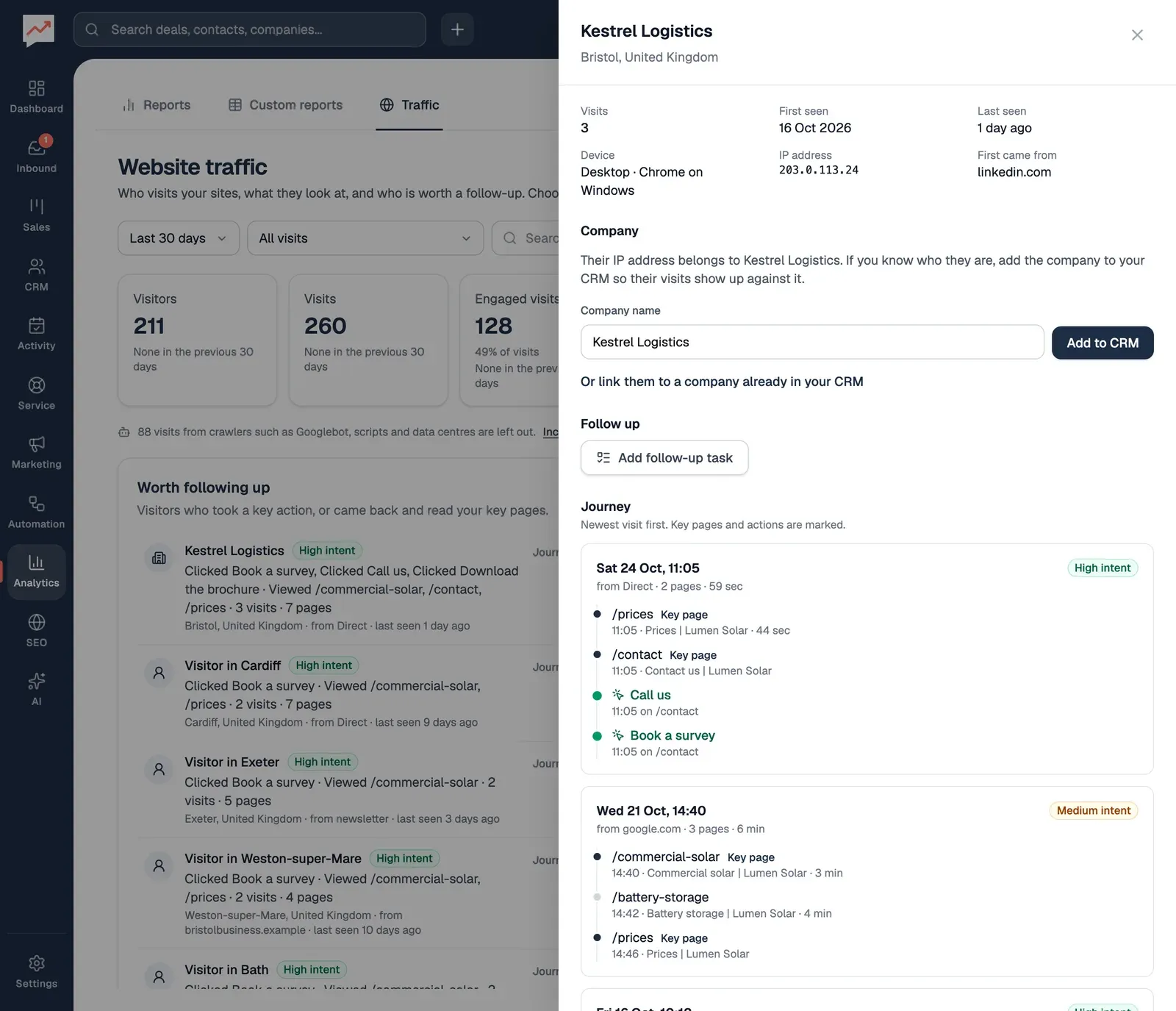
Under Company, check the Company name (HeySales fills it in when it recognised the company), then select Add to CRM to add it to your companies. If the company is already in your CRM, choose Or link them to a company already in your CRM, pick it under Existing company and select Link.
-
Under Follow up, Add follow-up task adds a task due tomorrow at 9 AM, with a summary of their visits in its notes. It’s high priority for a high intent visitor and medium otherwise.
-
Journey shows each visit, newest first: the pages they viewed in order, the time on each, and any key pages and key actions.
At the top of the panel are their number of Visits, when they were First seen and Last seen, their Device, their IP address (or “Not stored (no cookie consent)”) and where they First came from.
Once a visitor is linked to a company, their visits show under that company’s name on the Traffic tab, and Unlink undoes it. Press Escape, or select Close panel, to close the journey.
Turn visitors into leads with Forms, or work through your follow-ups in Tasks.