

Tasks
Tasks are the things you and your team need to do: call a customer back, send a proposal, book a site survey. Everyone in your company sees the same list. Go to Activity, then Tasks.
The Tasks list
Section titled “The Tasks list”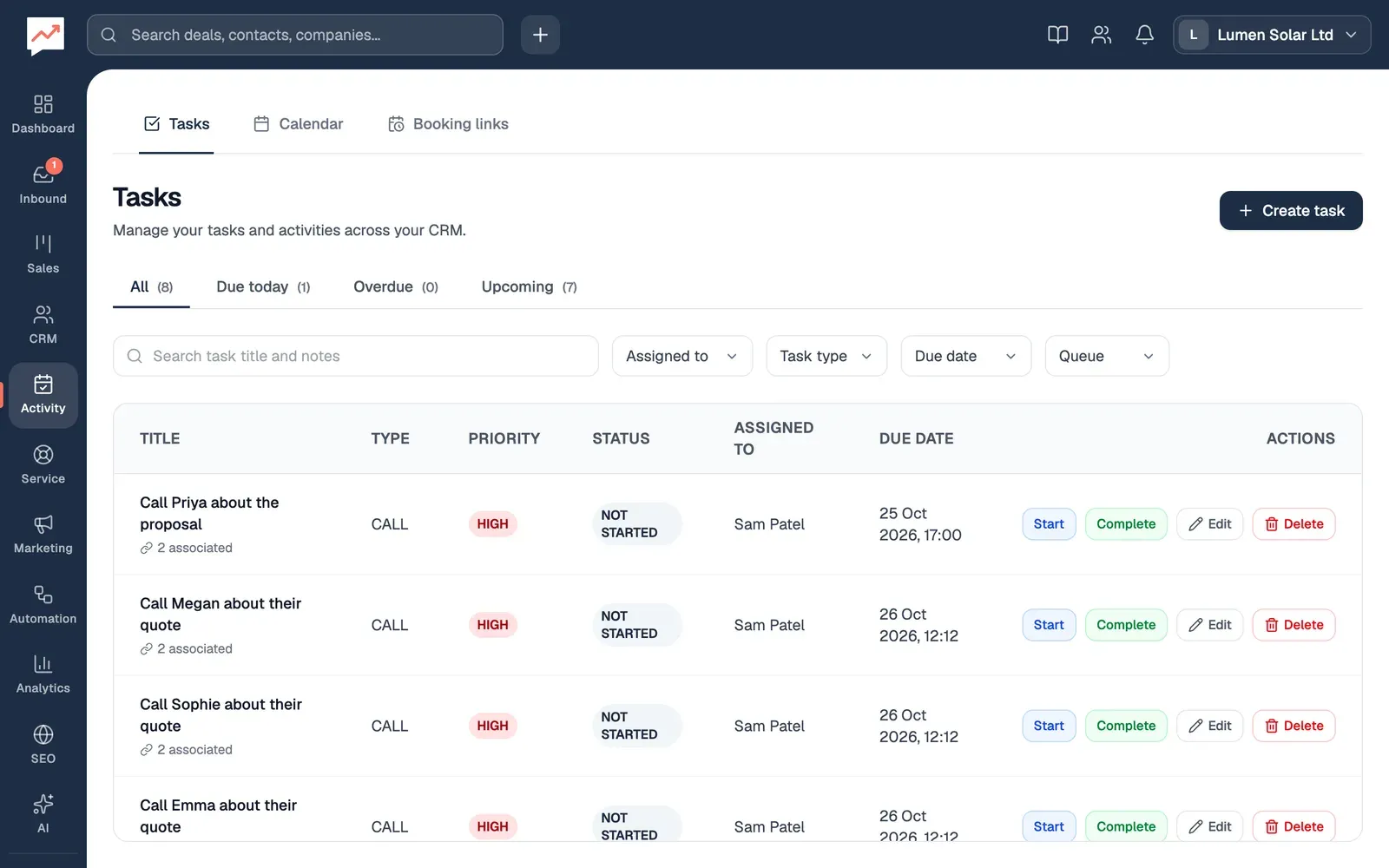
-
Create task adds a task. See Create a task.
-
All, Due today, Overdue and Upcoming narrow the list. The number beside each is how many tasks it has.
-
Search task title and notes finds tasks by their title or notes, or by the name of the person they’re assigned to.
-
Assigned to, Task type, Due date and Queue narrow the list further. Clear all appears when any are set, to show everything again.
What the filters at the top show:
- All: every task.
- Due today: tasks due today, done or not.
- Overdue: tasks due before today that aren’t COMPLETED.
- Upcoming: tasks due tomorrow or later.
In the Due date list, This week and This month mean the next 7 days and the next month from now.
The table shows each task’s Title, Type, Priority, Status, who it’s Assigned To and its Due Date, in order of due date. On a narrow screen some columns hide, and the due date shows under the title. Below the table, Tasks per page sets how many show at once (25 to start with), and Prev and Next move between pages.
Create a task
Section titled “Create a task”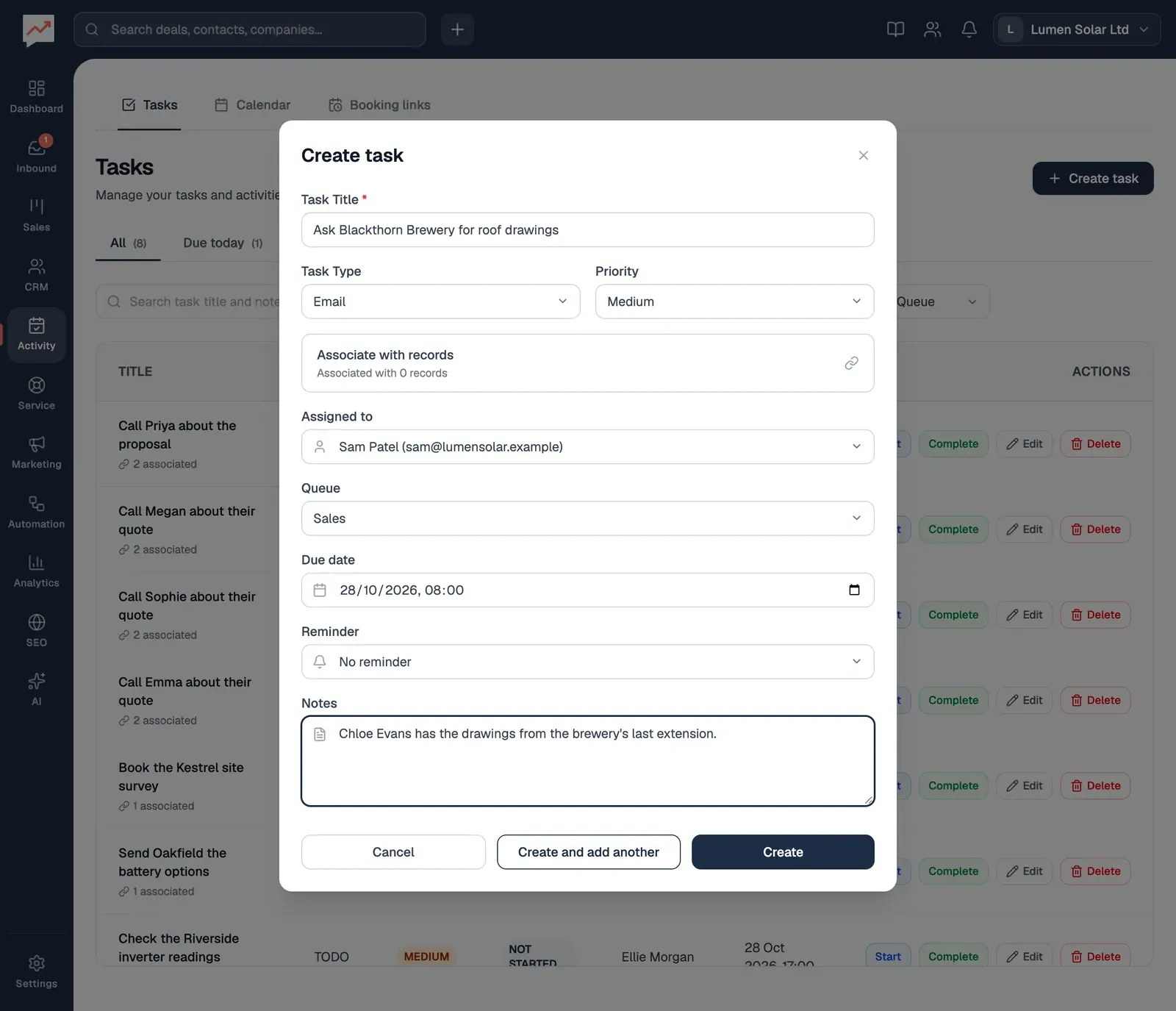
-
Select Create task, then type a Task Title. This is the only thing you have to fill in.
-
Choose the Task Type (Email, Call, To-do or Meeting) and the Priority (Low, Medium or High). New tasks start as an email, at low priority.
-
Choose who it’s for under Assigned to, a Queue if your team uses them (Sales, Support or Follow-up), and a Due date, then add any Notes.
-
Select Create.
If you leave Assigned to on Select user…, the task is assigned to you. The Due date starts three working days from today, so change it if the task is sooner.
Work through your tasks
Section titled “Work through your tasks”Each task has buttons at the end of its row:
- Start changes its status from NOT STARTED to IN PROGRESS.
- Complete marks it COMPLETED. Completed tasks stay in the list, so you can see what’s been done.
- Edit opens the task in the same window as Create task. Make your changes and select Save changes.
- Delete asks you to confirm, then removes the task for good.
Tasks from elsewhere in HeySales
Section titled “Tasks from elsewhere in HeySales”- Tasks with a due date show on the Calendar, in the Tasks row for the day they’re due.
- On a website visitor’s journey, Add follow-up task makes a task due tomorrow morning, with what they looked at in its notes. See Website visitors.
- On Pro, a workflow can create tasks for you, such as a call within a day of someone sending your quote form.
See your tasks next to your meetings on the Calendar.