

Sequences
A sequence is a short series of follow-up emails, such as a thank-you straight away, a check-in three days later and a last nudge a week after that. Each email goes from your Gmail, the later ones as replies in the same email conversation, and the sequence stops for anyone who replies. Sequences are on the Automation page, on the Sequences tab.
The Sequences tab
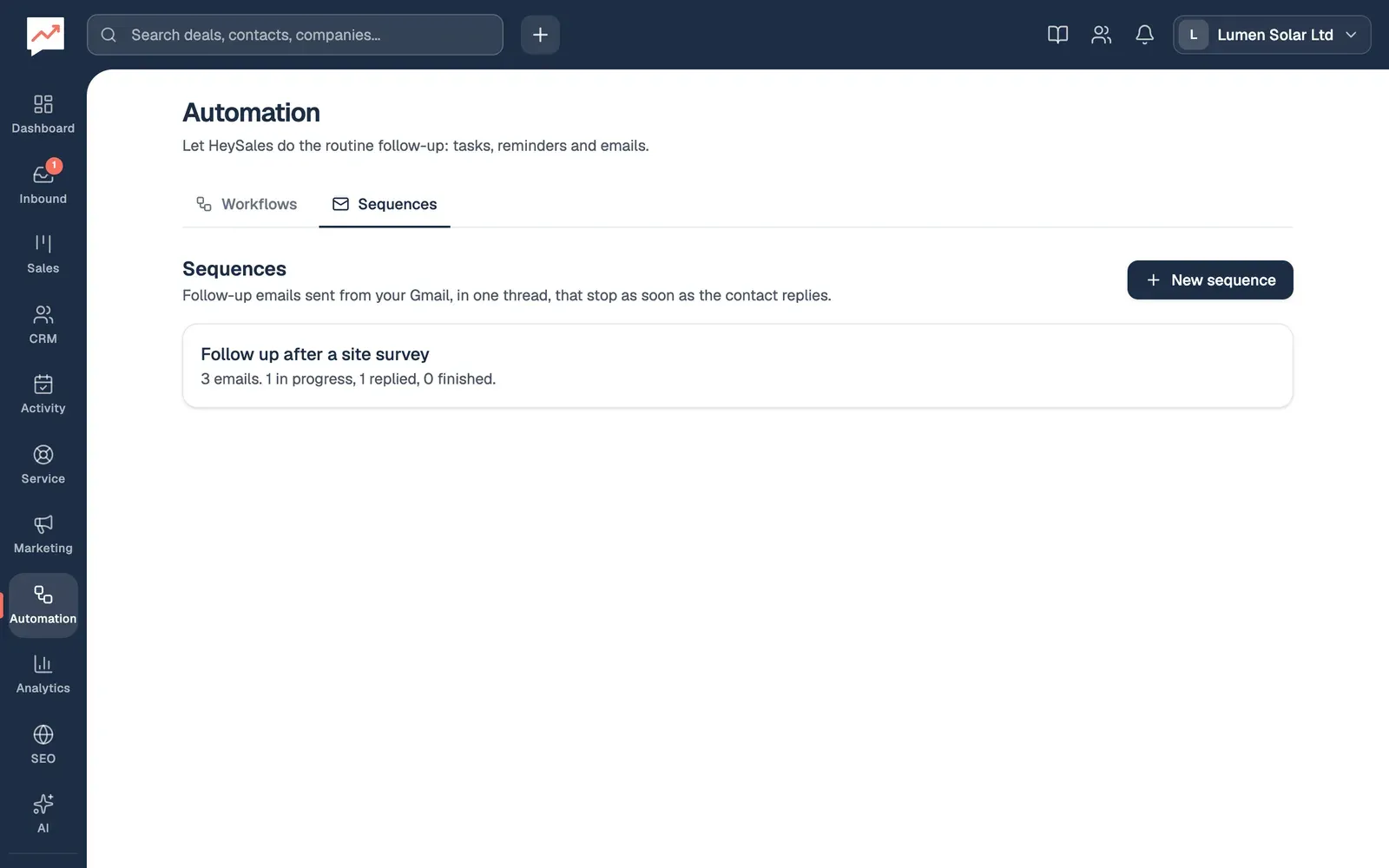
Section titled “The Sequences tab”Go to Automation, then Sequences. With a keyboard, the left and right arrow keys move between the Workflows and Sequences tabs.
-
New sequence starts a new one. See below.
-
Each sequence shows how many emails it has, and how many people are in progress, have replied, have finished, were stopped or couldn’t be sent to. Choose its name to open it.
Write a sequence
Section titled “Write a sequence”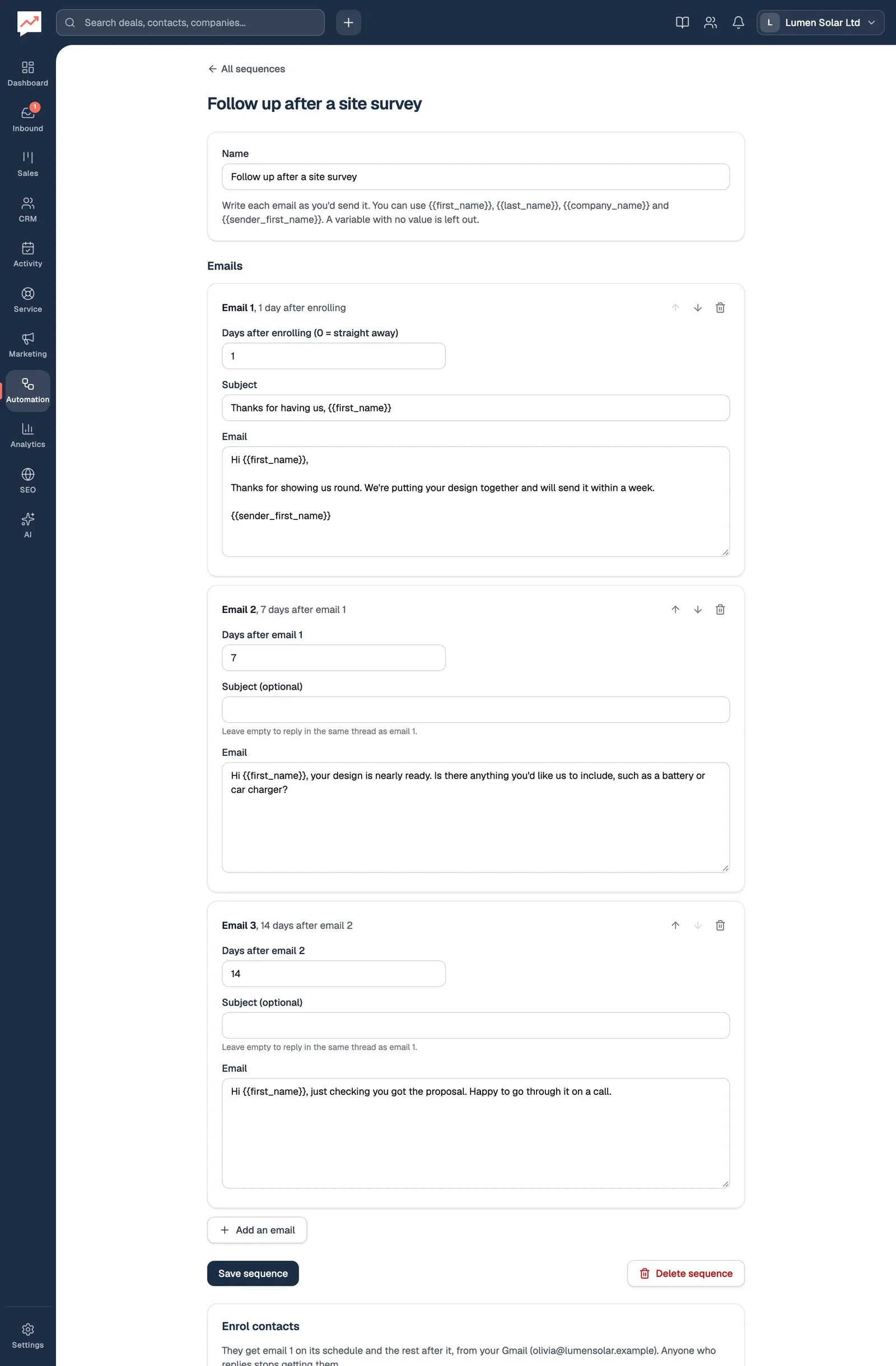
-
Give the sequence a Name. Only your team sees it.
-
For Email 1, set Days after enrolling (0 = straight away), then type its Subject and the Email. The first email needs a subject.
-
For each later email, set how many days after the email before it this one goes: the box is called Days after email 1, Days after email 2 and so on. Its Subject is optional: leave it empty to send the email as a reply in the same thread as email 1.
-
Add an email adds another at the end. A sequence can have up to 10 emails.
-
Select Save sequence.
Each email’s heading says when it goes, such as “Email 2, 7 days after email 1”. Days can be up to 90.
Write each email as you’d send it yourself. It goes as you typed it, without formatting, with your email signature from your account settings underneath. You can use these merge fields in the subject and the email:
| Merge field | Becomes |
|---|---|
{{first_name}} |
The contact’s first name |
{{last_name}} |
The contact’s last name |
{{company_name}} |
The company the contact works for |
{{sender_first_name}} |
The first name of whoever the email is sent from |
A merge field with nothing to fill it is left out.
To change the order, each email has up and down arrow buttons (“Move email 2 up” and so on, for screen readers) and a bin button to remove it. There’s no dragging. Focus moves to the email you moved or added, or to the email that takes a removed one’s place.
Enrol contacts
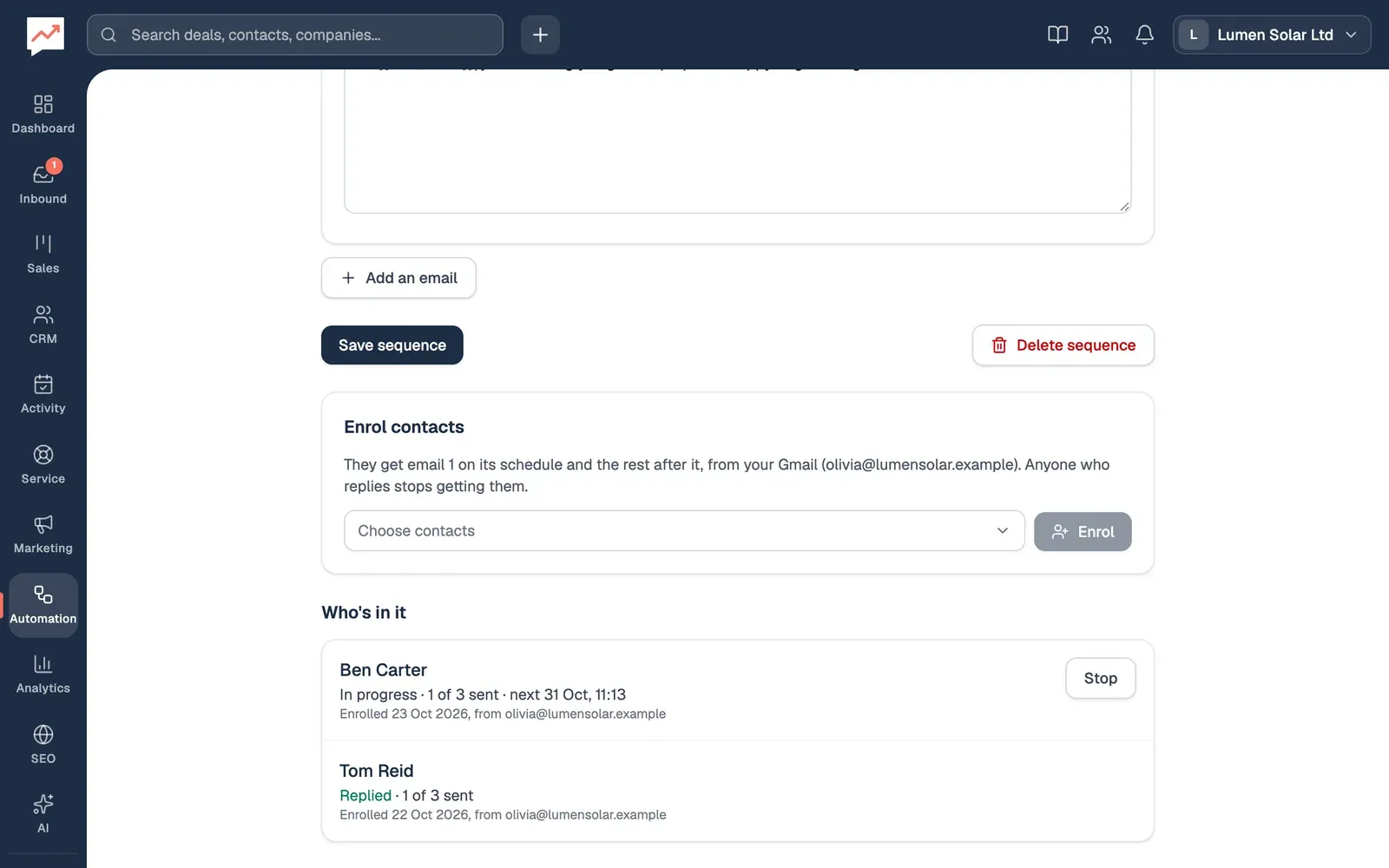
Section titled “Enrol contacts”Once a sequence is saved, its page has an Enrol contacts box and a list of Who’s in it.
-
Choose the Contacts to enrol. Type part of a name or email address to narrow the list, and choose as many people as you like. With a keyboard, Enter in the search box picks the first match, and Escape closes the list. People with no email address say “(no email)”.
-
Select Enrol. It’s greyed out until you choose someone, then shows how many you’ve chosen.
-
Who’s in it lists everyone in the sequence, with their status, how many emails they’ve had, and when the next one goes.
-
Stop ends the sequence for one person. They get no more emails from it.
The emails go from the Gmail of whoever enrols them, and each person in the list says which address theirs come from. If you haven’t connected Google, the box asks you to first. You can enrol up to 200 people at a time.
If someone can’t be enrolled, a message says why: they have no email address, or they’re already in this sequence. They stay chosen in the picker, and everyone else is enrolled. Someone whose sequence has ended can be enrolled again.
You can also enrol people:
- From a smart list. Open the list on the CRM page, under Smart lists. In Use this list, choose a sequence under Enrol everyone in a sequence, then select Enrol. Everyone in the list is enrolled, from your Gmail. See Smart lists.
- From a workflow, with a Start a sequence step. Those emails go from the Gmail of whoever made the workflow. See Workflows.
Enrolling, and the sequence ending, both show on the contact’s activity timeline.
When the emails go
Section titled “When the emails go”Email 1 goes the number of days after enrolling that you set, or straight away for 0. Each later email goes its number of days after the one before it was sent. HeySales checks every minute for emails that are due and sends them a few at a time, so an email goes at about the same time of day as the one before.
Later emails with no subject of their own go as replies in the same Gmail conversation as email 1, so the contact sees them together.
When someone replies
Section titled “When someone replies”The sequence stops for anyone who replies. Before each email goes, HeySales looks for a reply from the contact in the email conversation in the sender’s Gmail, and for any email from them that HeySales has picked up since they were enrolled. If it finds one, they’re marked Replied and get nothing more. HeySales also checks whenever the sender’s inbox updates, which happens while they have HeySales open.
So their reply reaches you in Gmail as usual, and you carry on the conversation yourself.
Who’s in it
Section titled “Who’s in it”| Status | What it means |
|---|---|
| In progress | They’re getting the emails. The next one’s date is shown. |
| Replied | They replied, so the emails stopped. |
| Finished | They’ve had every email. |
| Stopped | Someone selected Stop, or your company left Pro. |
| Couldn’t send | An email couldn’t be sent, for example because the sender’s Google connection stopped working. The reason is shown in red. Fix it, then enrol them again. |
The list updates by itself every 30 seconds.
Change or delete a sequence
Section titled “Change or delete a sequence”Open the sequence, make your changes, and select Save sequence. People already in it get the changed emails from their next one on.
To delete a sequence, select Delete sequence, then confirm.
- Start a sequence from a workflow, for example when someone sends your quote form.
- Make a smart list to enrol a group of people at once.