

Groups and custom fields
Groups sort your contacts and companies, such as your customers or the people who get your newsletter. Custom fields keep details HeySales doesn’t have a place for, such as the kind of roof a customer has. Anyone in your team can set them up, and everyone shares the same ones.
Make a group
Section titled “Make a group”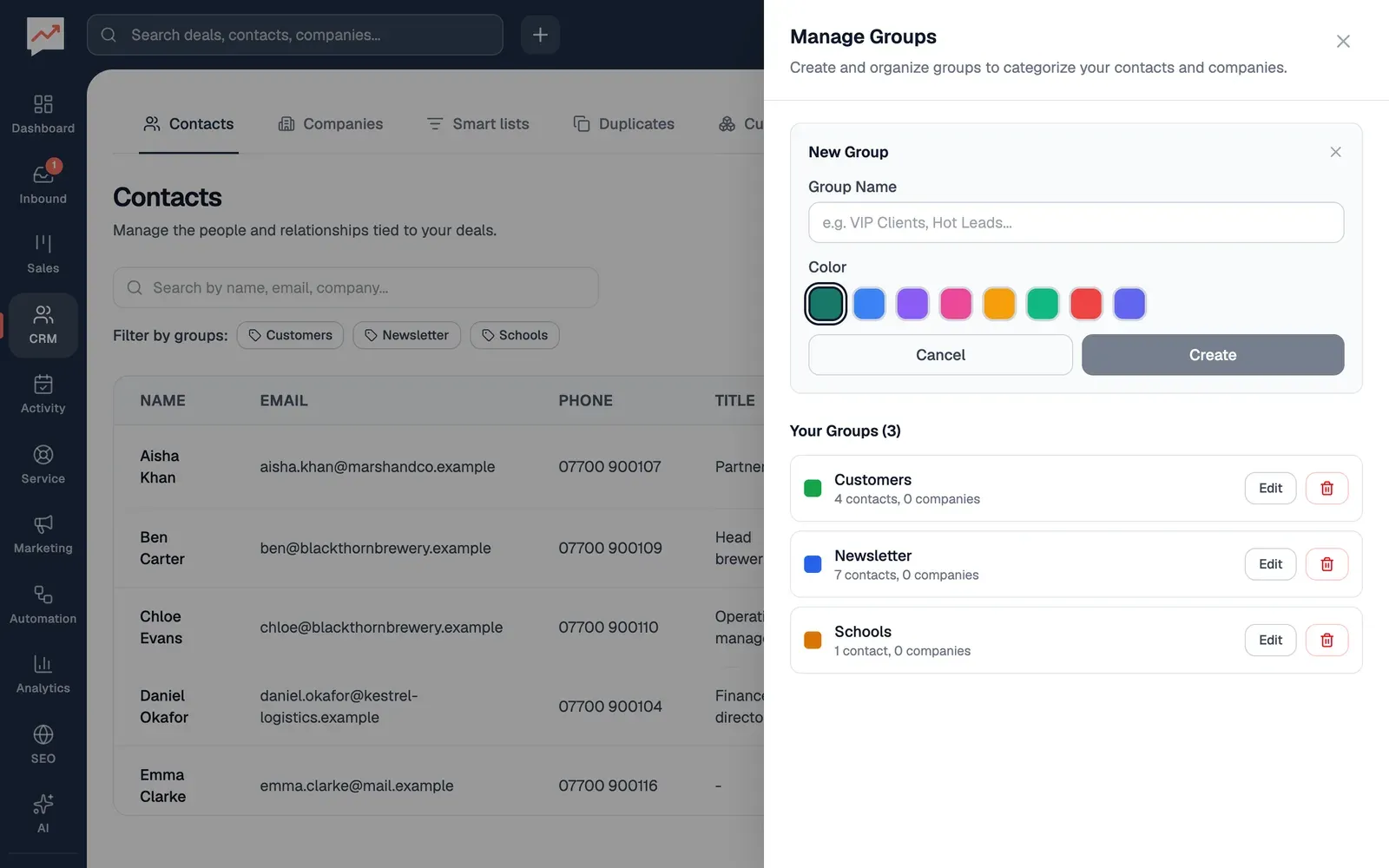
-
On the Contacts or Companies tab, select Groups, then Create New Group. Type the Group Name.
-
Choose a Color. It’s used for the group’s tag in the tables and its button when it’s chosen. With a screen reader, the colours are read out as codes, such as “Select color #177868”. The colour is only for looks, so any one will do.
-
Select Create.
The group appears under Your Groups, with how many contacts and companies are in it. The same groups are used for contacts and companies.
Put contacts in a group
Section titled “Put contacts in a group”-
Open the contact from CRM, then Contacts. Under Groups in their panel, choose each group they belong in. Choose a group again to take them out of it.
-
Select Save changes.
Companies go into groups the same way, from their panel on the Companies tab.
The group buttons change colour when chosen, but a screen reader doesn’t say whether one is chosen. To check someone’s groups in words, read the Groups column in the contacts table, which shows on wide screens.
Use your groups
Section titled “Use your groups”- Filter by groups, above the tables on the Contacts and Companies tabs, shows only the people or companies in the groups you choose.
- A smart list rule can find the contacts who are, or aren’t, in a group.
- A marketing email can go to everyone in a group.
Change or delete a group
Section titled “Change or delete a group”On the Contacts or Companies tab, select Groups. Each group in the list has two buttons:
- Edit opens the group’s name and colour. Change them, then select Update.
- The bin button after Edit deletes the group. HeySales asks you to confirm, then select Delete group. The group is taken off every contact and company in it, but the contacts and companies stay. This can’t be undone.
Add a custom field
Section titled “Add a custom field”Custom fields for contacts and for companies are set up separately. These steps are for contacts. For companies, start from the Companies tab instead.
-
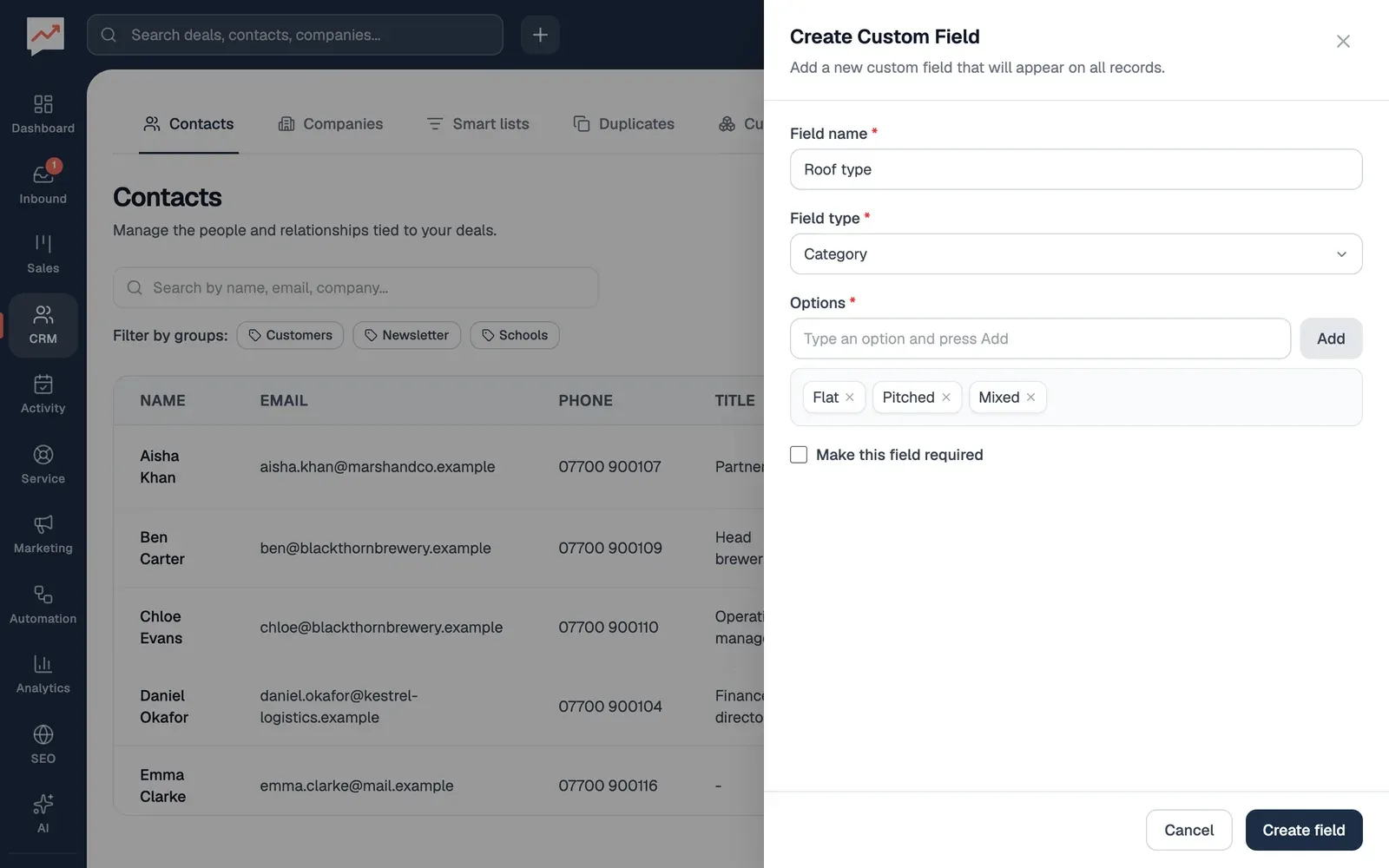
On the Contacts tab, select the gear button, Manage custom fields, then Add custom field. Type the Field name.
-
Choose the Field type:
- Text: anything you type.
- Number: a number, such as a monthly energy bill.
- Category: one choice from a list you set.
- Multi-select: any number of choices from a list you set.
You can’t change the type once the field is made.
-
For Category and Multi-select, type each option in the box under Options and press Enter or select Add. Each option has a × button to take it out again. You need at least one option.
-
Tick Make this field required if every contact should have it filled in.
-
Select Create field.
The field appears on every contact’s panel, below Groups, in the order you added your fields. A required field has a star (*) after its name, and a required text or number field has to be filled in before the contact saves.
Fill in custom fields
Section titled “Fill in custom fields”Open a contact and fill in the fields in their panel, then select Save changes.
- Text and Number fields are ordinary boxes.
- A Category field is a button that opens its list of options, with a search box. Type part of an option and press Enter to choose the first match, or choose one from the list.
- A Multi-select field shows a button for each option. Choose an option to add it, and again to take it off.
Custom fields only show in the panel. They aren’t in the contacts table or the download from Export.
Change or delete a custom field
Section titled “Change or delete a custom field”On the Contacts tab, select Manage custom fields. Each field in the list shows its type and options, with two buttons:
- The pencil button opens the field. You can change its name and options, and whether it’s required, but not its type. Select Save changes.
- The bin button deletes the field. Select Delete to confirm. The field no longer shows on any contact.
Smart lists: save a search of your contacts, such as everyone in a group with no deal yet.