

The deal page
Each deal has its own page with everything about it: what it’s worth, who it’s with, what’s happened so far and its quote. To open it, choose the deal’s name on the deal board.
The deal page
Section titled “The deal page”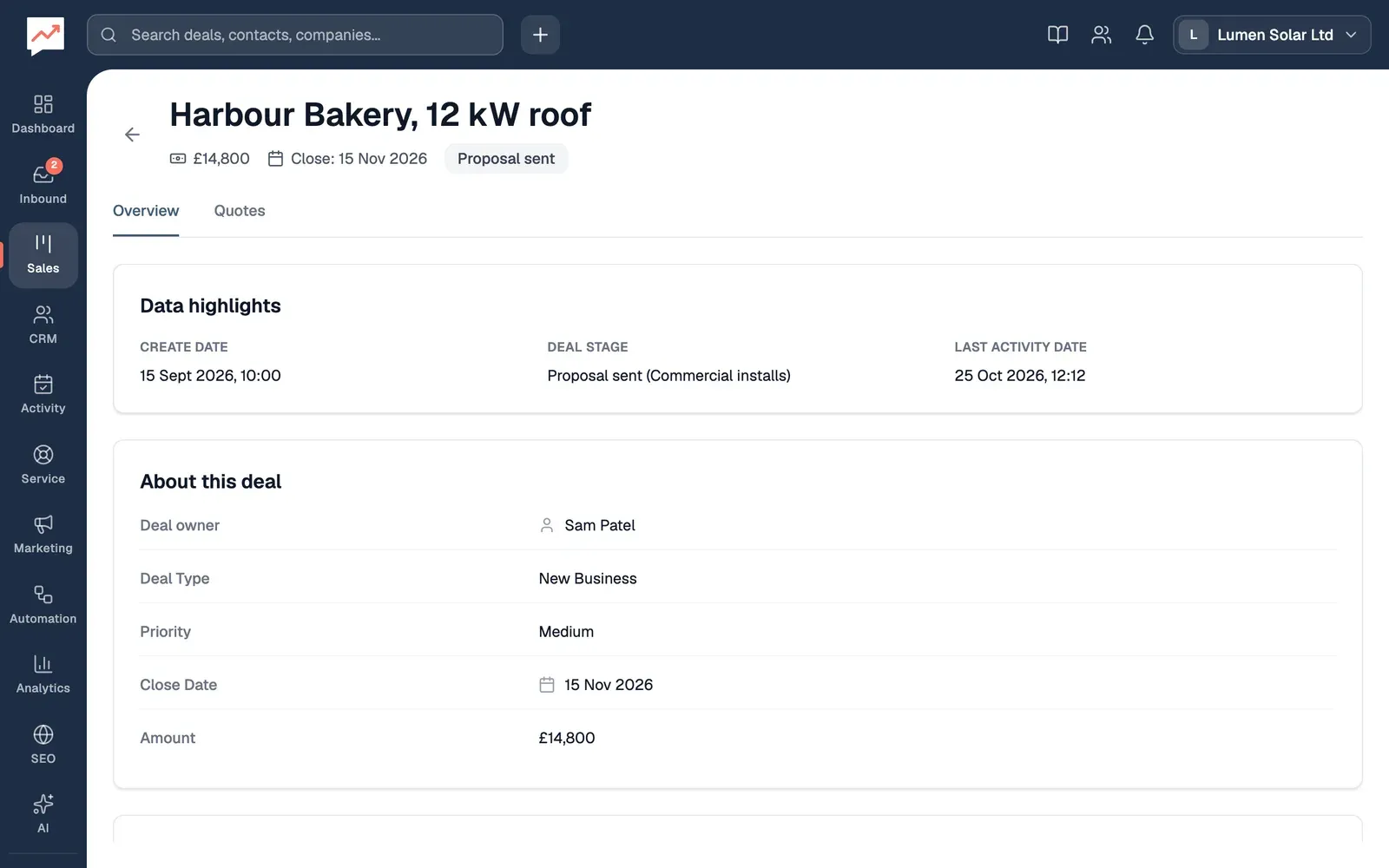
-
Back to deals goes back to your deal board.
-
Overview has the deal’s details, contacts, companies and activity. The page opens on it.
-
Quotes is where you write the deal’s quote. See Quotes.
Under the deal’s name are its amount, close date and stage. Overview then has:
- Data highlights: the Create Date, the Deal Stage with its pipeline, and the Last Activity Date, which is when the deal itself was last changed.
- About this deal: the Deal owner, Deal Type, Priority, Close Date and Amount.
- Contacts and Companies. See Contacts and companies.
- Linked records, if you use custom objects. See Linked records.
- Activity. See Activity.
This page shows the deal but doesn’t change it. To change the deal’s details, people or products, use Edit on its card on the board (see Change or delete a deal). To move it to another stage, drag its card on the board.
Contacts and companies
Section titled “Contacts and companies”Contacts lists the people the deal is with, with their job title, email and phone. Companies lists the businesses, with their website and phone.
The main contact and main company are marked Primary: they’re the first ones chosen when the deal was added or last edited. The deal’s activity includes emails with its main contact, and its quote starts with them as the buyer.
To change who’s on the deal, use Edit on its card and change Contacts or Companies.
Activity
Section titled “Activity”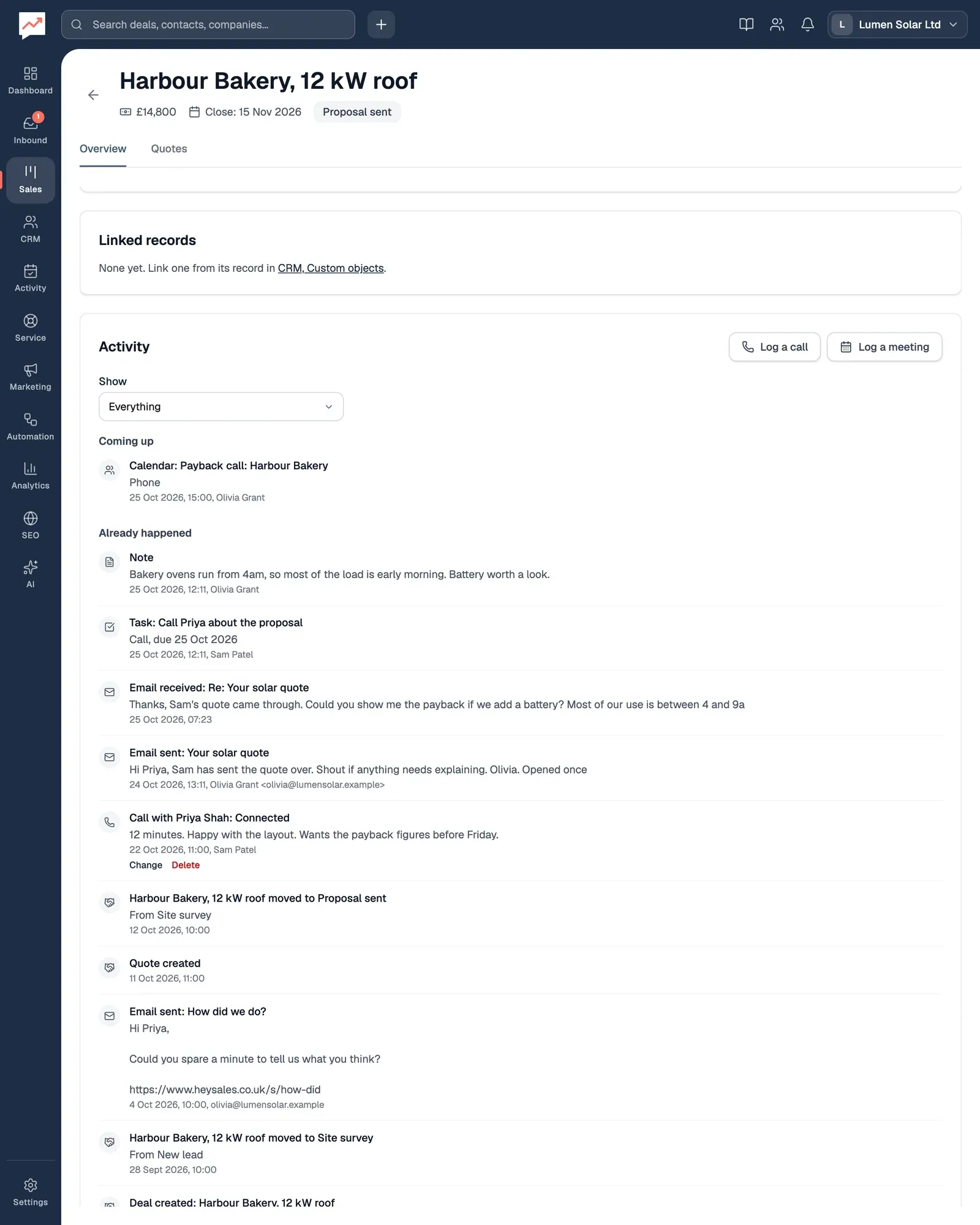
-
Log a call records a call with one of the deal’s contacts. See Log a call or meeting.
-
Log a meeting records a meeting in the same way.
-
Show narrows the list to one kind of thing, such as Calls, Tasks or Deals.
The activity has, newest first:
- calls and meetings logged on this deal, and any logged with its main contact
- emails with the main contact, and notes on them
- tasks linked to the deal
- calendar events for the deal
- form submissions linked to the deal
- when the deal was created, and each time it moved stage
- when its quote was created.
Anything dated in the future, such as a meeting next week, is listed first, under Coming up.
Log a call or meeting
Section titled “Log a call or meeting”Log a call and Log a meeting appear once the deal has at least one contact.
- Select Log a call or Log a meeting.
- Choose What happened on the call (such as Connected or Left a voicemail) or How it went at the meeting (such as Completed or No-show), and check When it was.
- For a call, choose Who called: You called them or They called you. You can add its Length in minutes (optional).
- Choose who it was With, from the deal’s contacts, and add any Notes (optional).
- To be reminded to follow up, tick Add a follow-up task for me and set how many days until it’s due.
- Select Save call or Save meeting.
A follow-up task is called “Follow up with” and the contact’s first name, such as “Follow up with Priya”. It’s yours, and it’s linked to the contact and the deal, so it shows in your tasks and in the deal’s activity.
Logged calls and meetings have Change and Delete buttons for whoever logged them, and for owners and admins. Contacts have an activity timeline too: see Activity timeline.
Stage history
Section titled “Stage history”Each time the deal moves to another stage, its activity gets an entry such as “Harbour Bakery, 12 kW roof moved to Proposal sent”, with the stage it came from underneath: “From Site survey”. Moves are recorded however they’re made: on the board, by a workflow, through the API or by the AI assistant. Each entry keeps the stage names as they were, so the history still reads right after you rename or delete a stage.
To see the deal’s own history on its own, choose Deals in Show: when the deal was created, each move and its quote.
Linked records
Section titled “Linked records”If your company uses custom objects, the page has a Linked records section. It lists the records linked to the deal under each object, such as a deal’s Installations. Choose a record to open it.
To link a record to the deal, open the record in CRM, then Custom objects.
The Quotes tab
Section titled “The Quotes tab”Quotes is where you write the deal’s quote, and print it or save it as a PDF. See Quotes.
Write a quote for the deal, or see how the activity timeline works on a contact.