

Connect Google
Connecting your Google account lets HeySales show your emails with contacts in the Inbox, send email from your Gmail, keep your calendar in step with Google Calendar, and import your Google contacts. Each person in your team connects their own Google account.
Connect your Google account
Section titled “Connect your Google account”Google and Zoom are the apps you can connect to HeySales.
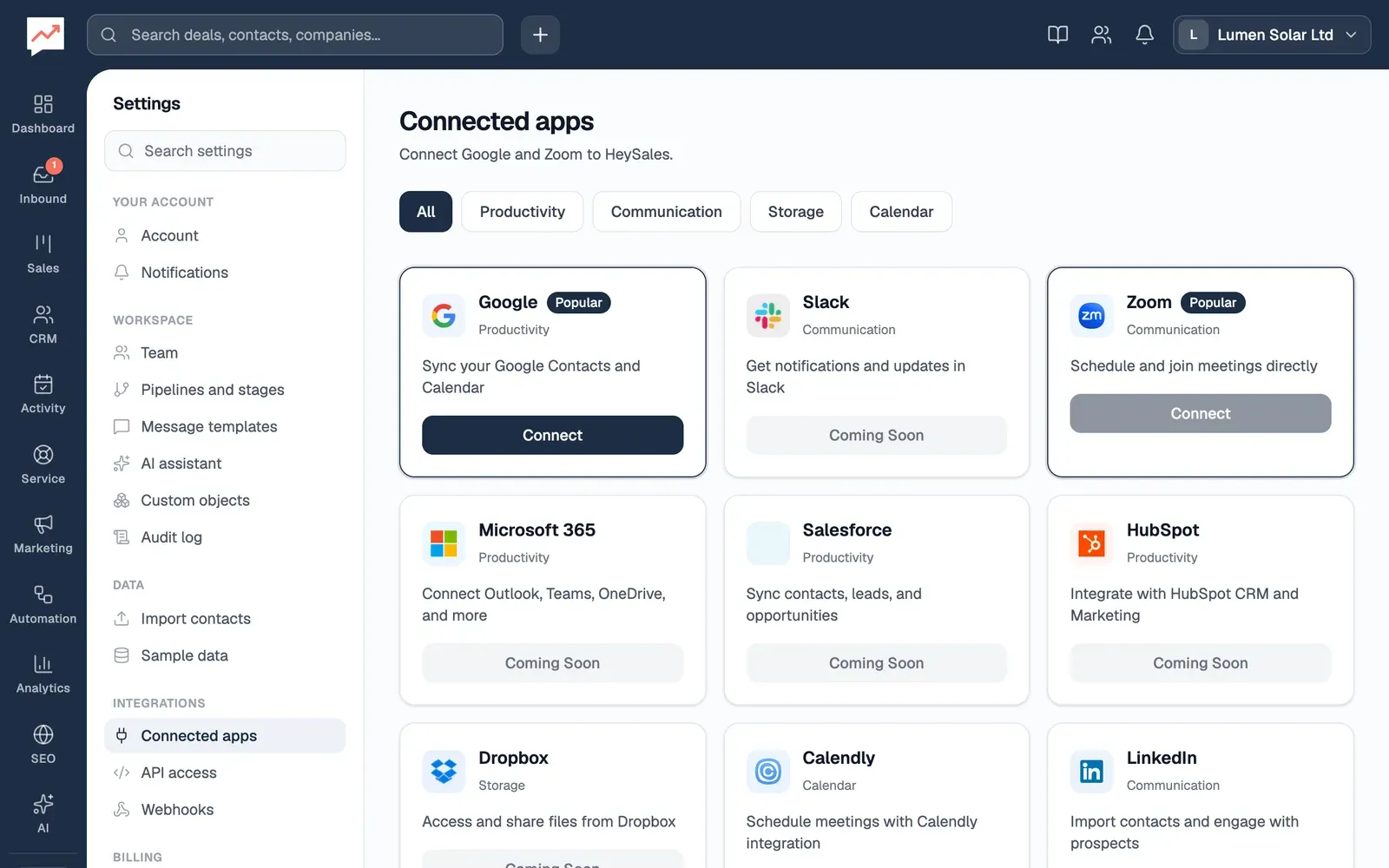
- Go to Settings, then Connected apps. On the Google card, select Connect.
Google opens. Choose your Google account, and Google lists what HeySales is asking to do. Allow it, and Google brings you back to Connected apps, where the Google card now has Sync Contacts, Sync Calendar and Disconnect Google.
If it doesn’t work, a message at the top of the page says Sync failed, with the reason. Select Connect to try again.
You can also connect Google while you set up HeySales, on the Connect your email step. See Create your account.
What HeySales can see and do
Section titled “What HeySales can see and do”| In Google | What HeySales does |
|---|---|
| Gmail | Reads your email, to show your conversations with contacts in the Inbox. Sends the emails you write in HeySales from your Gmail. It can’t delete or change the emails in your Gmail. |
| Calendar | Reads the events in your main calendar. Adds, changes and deletes the events you make in HeySales, and can add Google Meet links to them. |
| Contacts | Reads your contacts, only when you choose to import them. It can’t change your contacts in Google. |
Google also tells HeySales your Google email address.
Your email
Section titled “Your email”- HeySales checks your Gmail every 30 seconds while you have HeySales open, on any page. The first check after you connect goes back 14 days. For which emails come in and which are left out, see Which emails show up.
- Everyone in your team sees the emails with your contacts, whichever teammate’s Gmail they came from. People who email you but aren’t contacts are only shown to you.
- Emails you send from HeySales go from your Gmail, so they’re in your Gmail’s sent mail, and replies come back to your Gmail. That includes new emails and replies from the Inbox, replies to tickets, and sequence, survey and marketing emails.
Your calendar
Section titled “Your calendar”Your Google Calendar events show on the Calendar in HeySales, and events you add there go into your Google Calendar. See Google Calendar.
Sync contacts and calendar
Section titled “Sync contacts and calendar”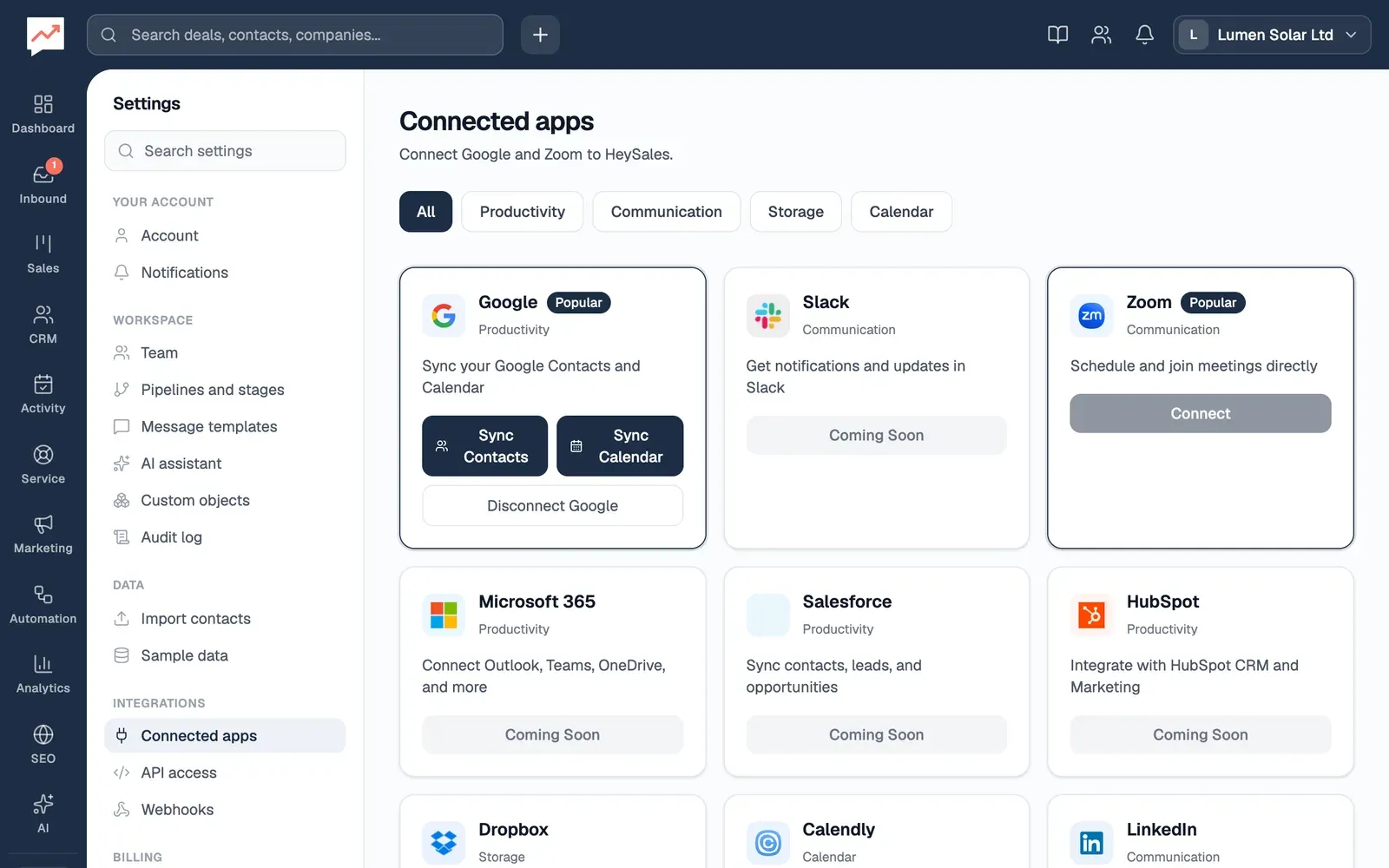
-
Sync Contacts lists your Google contacts, so you can choose who to import. See Import from Google Contacts.
-
Sync Calendar brings in the events in your main Google Calendar from the last 30 days to 90 days ahead. You don’t usually need it: the Calendar brings in your events by itself while you have it open.
-
Disconnect Google stops HeySales using your Google account. See Disconnect Google.
-
Connect on the Zoom card connects Zoom, where it’s available. See Zoom.
After either sync, a message at the top of the page says how many were brought in and how many updated. Screen readers don’t announce it, so move to the top of the page to read it. Once you’ve imported contacts, the Google card says when you last did.
If HeySales says your Google authentication has expired, select Disconnect Google, then Connect again.
Disconnect Google
Section titled “Disconnect Google”-
Go to Settings, then Connected apps, and select Disconnect Google.
-
Disconnect Google? asks you to confirm. Focus starts on Cancel. Select Disconnect Google to go ahead.
HeySales stops reading your Gmail and calendar, and can’t send email for you until you connect again. Contacts, calendar events and emails already in HeySales stay. Attachments in those emails won’t open, because they come from your Gmail.
Disconnecting doesn’t take HeySales off the list of apps with access in your Google Account. To remove it there too, do it in your Google Account’s settings.
The Zoom card connects a Zoom account, so meetings you add to the calendar can have Zoom links. Zoom only works once HeySales has set it up, so it may not be available to you yet: if the Zoom card’s Connect button can’t be selected, it isn’t. Until Zoom is connected, the calendar shows Zoom (Not connected).
To disconnect Zoom, select Disconnect Zoom, then Disconnect Zoom again to confirm. New calendar meetings won’t get Zoom links, and events already in HeySales stay.
Import your contacts, from Google or a spreadsheet. Or see your email in the Inbox.