

Find your way around
Every page in HeySales sits in the same frame: a menu down the left side, and a bar along the top with search and your account. This page shows what’s where, then what’s on your dashboard.
The menu and the top bar
Section titled “The menu and the top bar”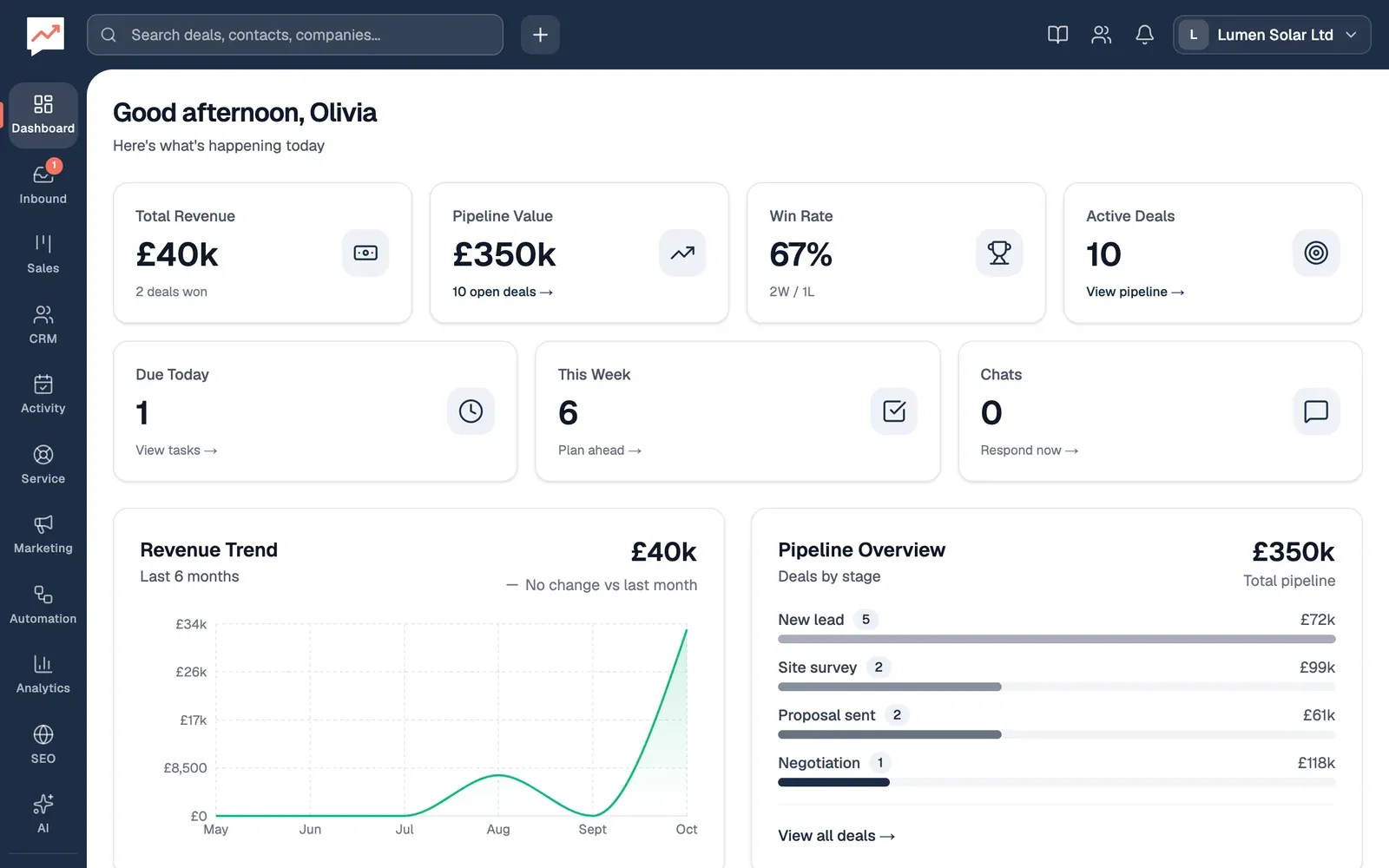
-
The menu down the side takes you to each part of HeySales. The part you’re in is highlighted. See What’s in the menu.
-
The search box finds deals, contacts and companies. See Search.
-
Create new (the plus) lists Deal, Contact, Company and Quote. Each opens the page where you add one: Contact opens your contacts, where you then select Add contact. On the Free plan, Deal opens the Upgrade page instead, so add deals from Sales.
-
Guide (the book) opens this guide in a new tab. Team chat (the people beside it) opens a chat window for messages with your team.
-
Your company’s name opens the account menu. See The account menu.
The HeySales logo at the top left always brings you back to the dashboard.
What’s in the menu
Section titled “What’s in the menu”- Dashboard: your figures at a glance. See The dashboard.
- Inbound: your forms and your Inbox. A number on it is how many unread emails are in your Inbox.
- Sales: your deals, quotes, invoices and products.
- CRM: contacts, companies, smart lists, duplicates and custom objects.
- Activity: tasks, the calendar and booking links.
- Service: tickets, the help centre and surveys.
- Marketing: marketing emails.
- Automation: workflows and sequences.
- Analytics: reports, custom reports and your website traffic.
- SEO: checks on your website’s pages.
- AI: the AI assistant.
- Settings: see Settings.
On the Free plan, Service, Marketing, Automation and AI have a Pro label, and take you to the Upgrade page. See Free and Pro.
Settings
Section titled “Settings”Settings has its own list of pages down its left side, with a Search settings box that narrows the list as you type:
- Your account: Account and Notifications
- Workspace: Team, Pipelines and stages, Message templates, AI assistant, Custom objects and Audit log
- Data: Import contacts and Sample data
- Integrations: Connected apps, API access and Webhooks
- Billing: Plan and billing
On a phone, the list is hidden: select Settings › All sections at the top of the page to show it, and Close settings menu to hide it again.
Search
Section titled “Search”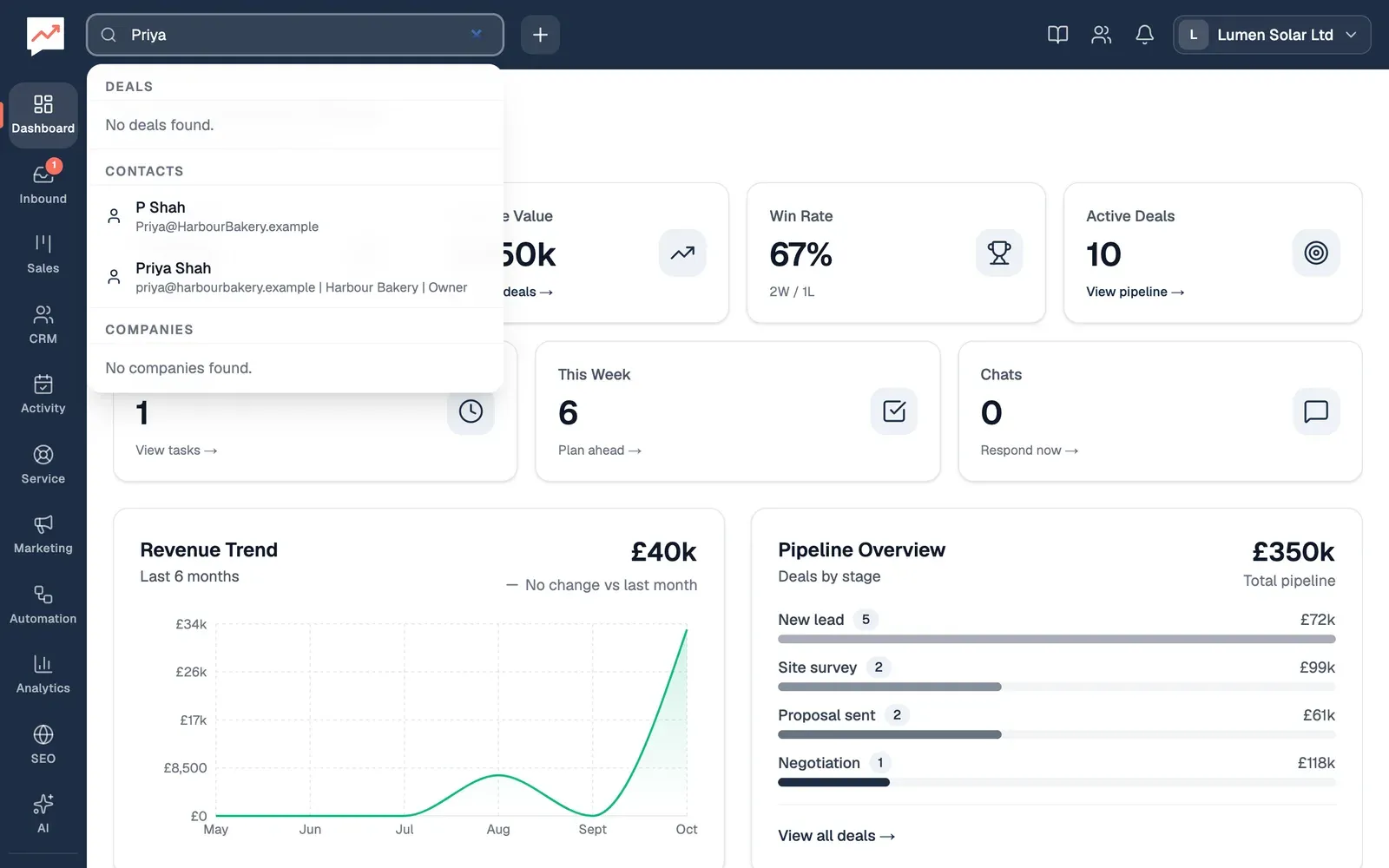
-
Type at least two letters in the search box at the top. HeySales looks for deals by name, contacts by first name, last name, email address, phone number or job title, and companies by name or website. It shows up to five of each.
-
Choose a result. A contact or a company opens your contacts or companies, searched for that name. A deal opens your deals, searched for its name.
- Press Enter without choosing a result to search your deals for what you typed. Escape empties the box.
- Contacts are matched on one name at a time, so type Priya or Shah, not both.
- On the Free plan, deals open on the Upgrade page instead. Use the search on Sales to find a deal.
- On a phone, the search box is hidden.
With a keyboard, press Tab from the search box to move into the results. Each one is a button that reads its name and details. The up and down arrow keys also move through the results, and Enter opens the one highlighted, but screen readers don’t announce the highlight, so Tab is the surer way.
The account menu
Section titled “The account menu”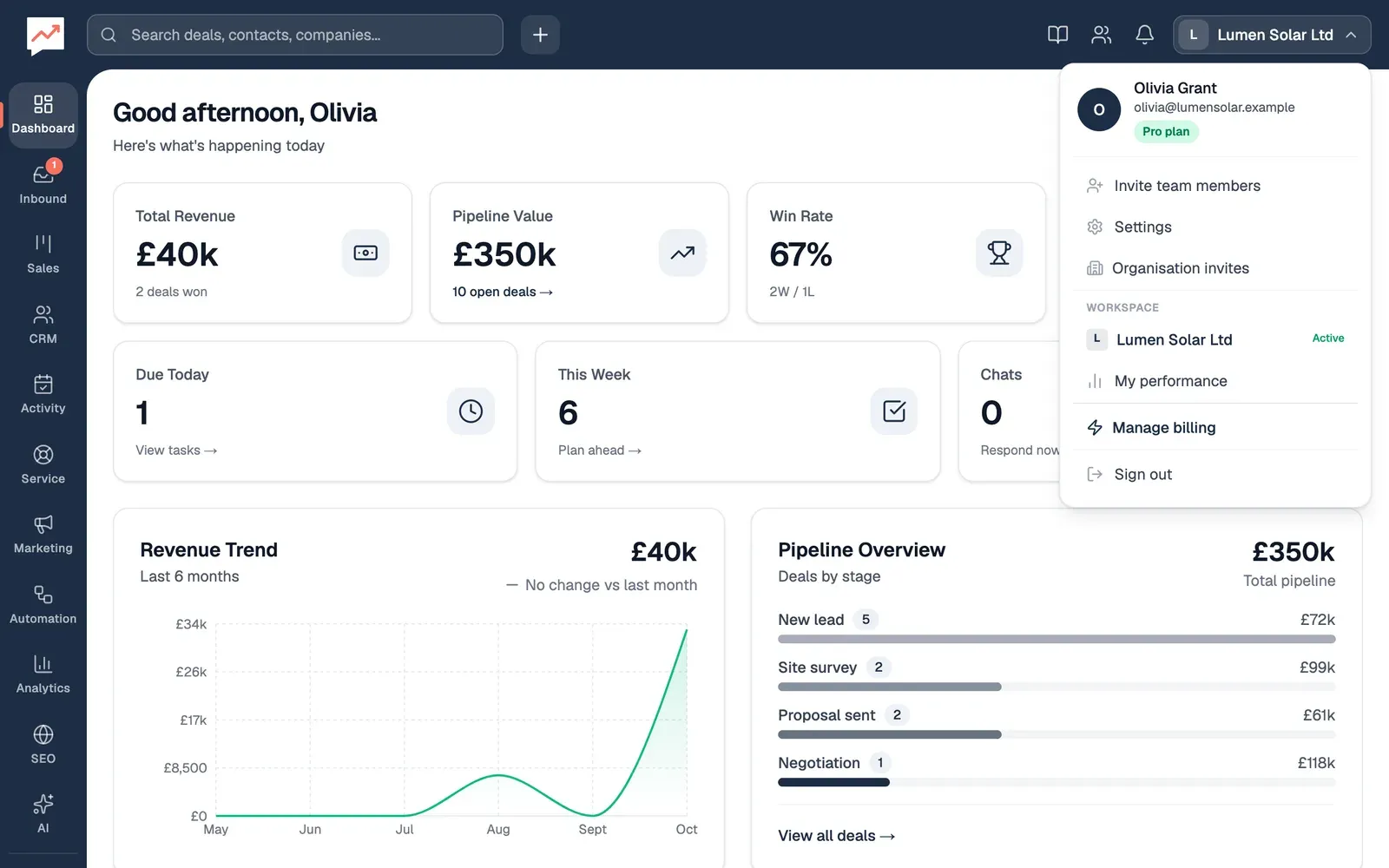
-
Settings opens your settings. See Settings.
-
Organisation invites lists any invitations for you to join another company’s HeySales. A number on your company’s name, and here, says how many are waiting. See If you’re already in another company.
-
My performance opens Personal Statistics: your own deals, goals and performance reviews.
-
Upgrade to Pro, or Manage billing once you’re on Pro, opens Stripe, where you pay for Pro or manage your subscription. See Free and Pro.
-
Sign out signs you out.
At the top of the menu are your name, your email address and your plan: Free plan, Pro trial or Pro plan. Under Workspace is your company. If you’ve joined more than one company, the heading says Switch workspace: choose a company to move to it.
To invite people, go to Settings, then Team. See Invite your team.
The menu on a phone
Section titled “The menu on a phone”On a phone or in a narrow window, the menu down the side is hidden. Select Open menu (three lines, top left) to show it as a list, with each part’s name, then choose where to go. Close menu (the × at its top) or Escape closes it.
On a phone, the search box, Create new, Guide and Team chat are hidden too. The account menu stays at the top right.
The dashboard
Section titled “The dashboard”The dashboard is the first page you see when you sign in. To come back to it, choose Dashboard in the menu.
-
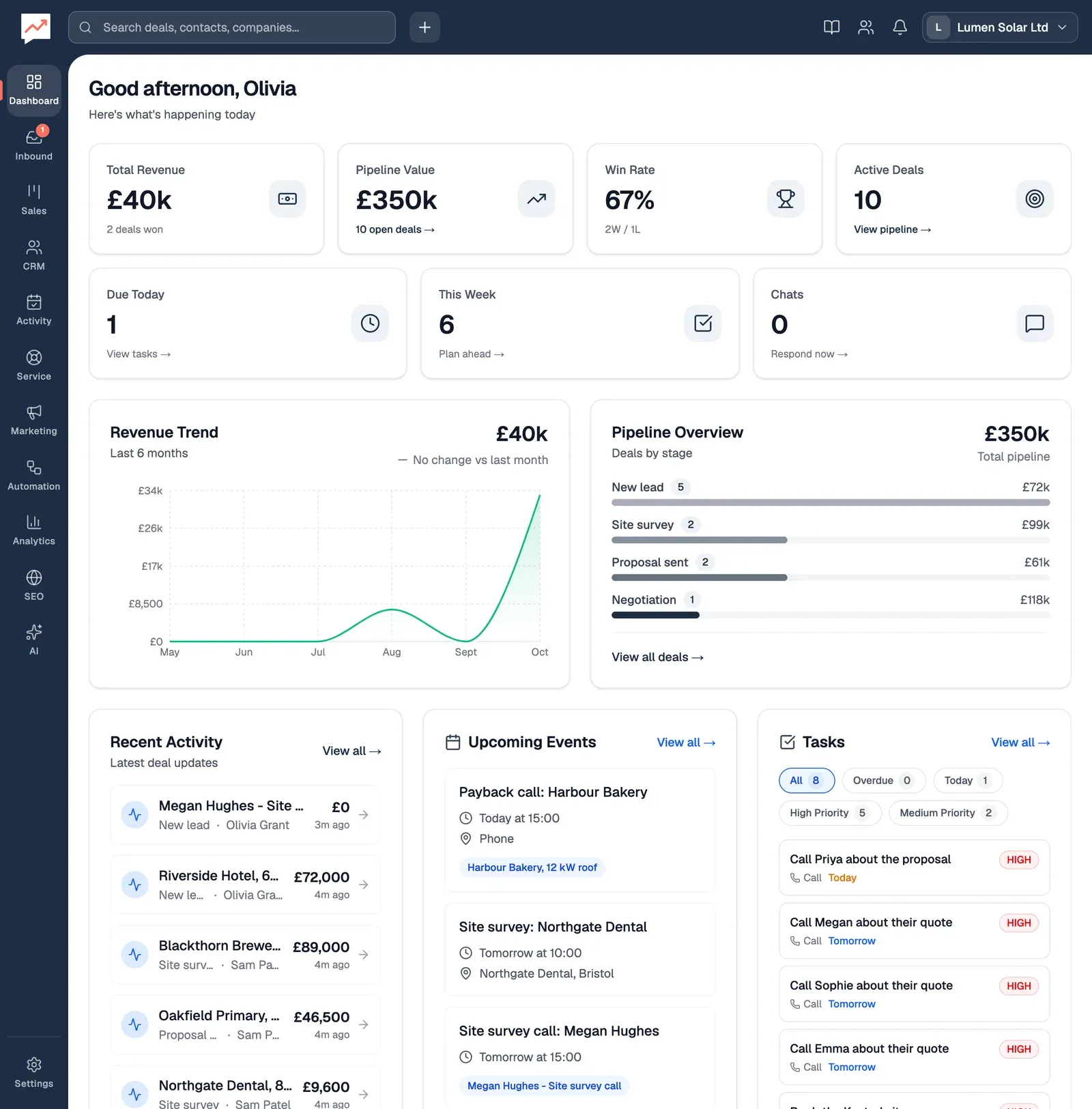
The four figures at the top cover your whole company’s deals. Total Revenue adds up your won deals, and Pipeline Value your open ones. Win Rate is how many deals you’ve won out of all those won and lost. Active Deals counts the open ones.
-
Revenue Trend shows what you’ve won in each of the last six months, by the deals’ close dates, with the total and the change since last month.
-
Pipeline Overview lists each open stage, with how many deals are in it and what they’re worth, and the total.
-
Recent Activity lists the five deals changed most recently. Beside it, Upcoming Events shows your next five calendar events in the coming week, and View all opens the calendar.
-
Tasks lists up to ten open tasks for your whole team, the soonest due first. All, Overdue, Today, High Priority and Medium Priority narrow the list.
Under the four figures, Due Today and This Week count your team’s open tasks due today and in the next three days. To see the tasks themselves, go to Activity, then Tasks.
On Pro, choosing Pipeline Value, Active Deals or a deal in Recent Activity opens your deals or that deal’s page. On the Free plan, they open the Upgrade page.
Amounts are in the currency you chose when you set up. The big figures shorten amounts of 10,000 or more, such as £118k for £118,000.
With a keyboard or screen reader
Section titled “With a keyboard or screen reader”- Landmarks: the menu down the side is a navigation landmark called Main, and each page’s content is the main landmark. There’s no skip link, so to go straight to the content, move to the main landmark with your screen reader. In Settings, the list of settings pages is a landmark called Settings.
- Order: Tab goes through the top bar first, then the menu down the side, then the page. During and after a free trial, a banner sits above the top bar, and its link comes first.
- Headings: each page has a main heading, such as the greeting on the dashboard, and each part of a page has its own heading below that.
- Where you are: the menu marks the part you’re in as the current page. Parts that need Pro are read with “Pro” after their name, such as “Service Pro”. Each page has its own title in the browser tab, such as Dashboard | HeySales.
- Named buttons: the buttons and links that only show a picture have names, such as Create new, Guide (read as “Guide (opens in a new tab)”), Team chat, Open menu and Close menu. The number on Inbound is read as, for example, “3 unread”.
- Menus: the account menu and Create new open under their buttons, and say whether they’re open. Tab moves through their items. Escape doesn’t close them: select the button again.
- The phone menu: when it opens, focus stays on Open menu. The menu comes after the top bar’s other buttons, so move forward to reach it. Escape closes it.
- Messages: the short messages that appear after you do something, such as “Role updated.”, are read out. Questions that need an answer, such as “Disconnect Google?”, open as alert dialogs and take focus. Escape cancels them.
For the parts that don’t work well with a keyboard or screen reader yet, and ways round them, see Accessibility.
Connect Google, to bring your email and calendar into HeySales. Or see what’s in each plan in Free and Pro.