

Invite your team
Everyone in your company works in the same HeySales, with the same contacts, deals and settings. Invite each person by email, and choose their role: owner, admin or member.
Invite people
Section titled “Invite people”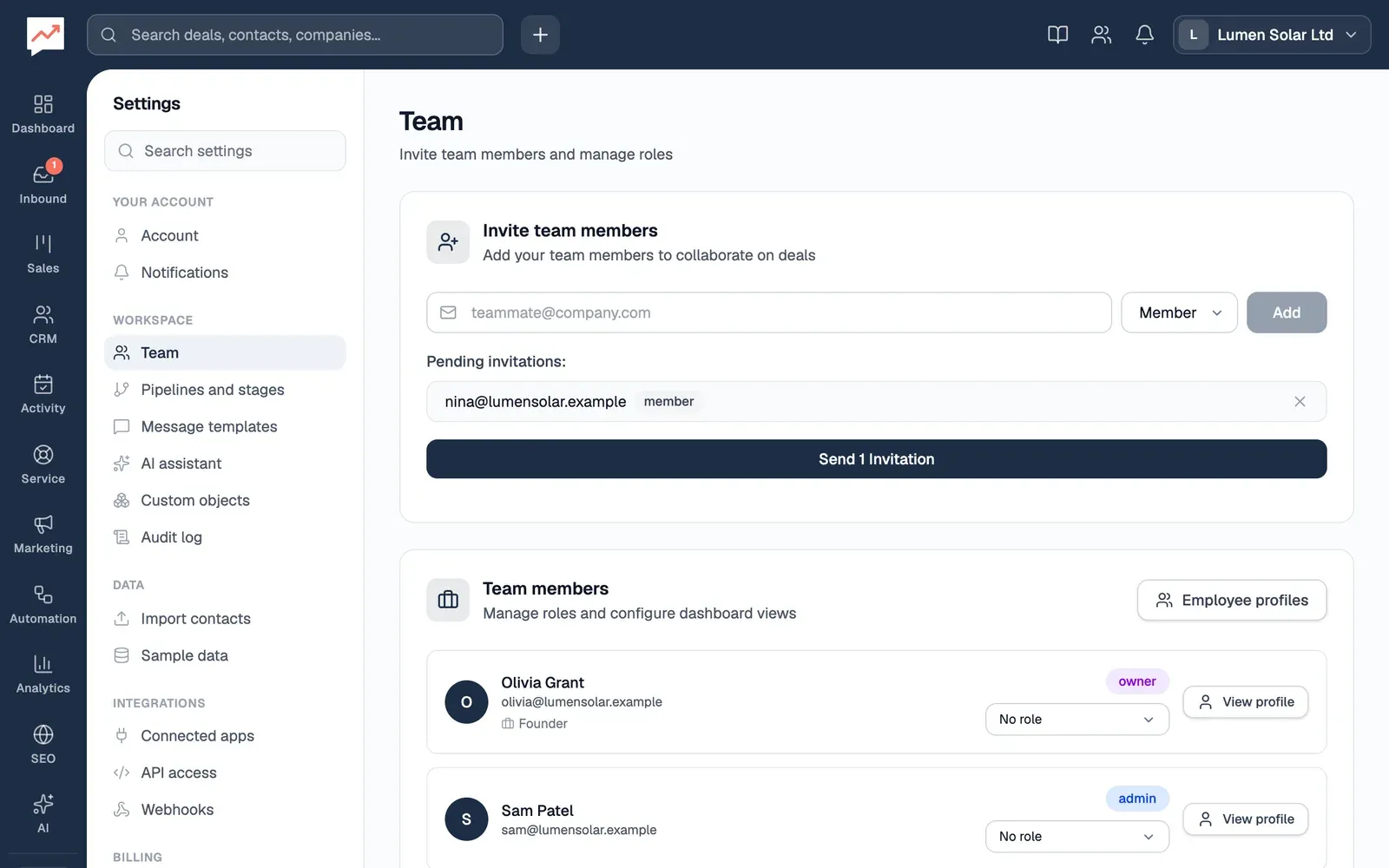
-
Go to Settings, then Team. Type the person’s email address in the email box (Teammate’s email address).
-
Choose their Role: Member or Admin. Owners can also choose Owner. See Owners, admins and members.
-
Select Add. They join Pending invitations below. Add anyone else the same way. To take someone off the list before sending, select the × after them.
-
Select Send 1 Invitation. The number is how many people are on the list. HeySales says Invitation sent.
Each person gets an email from HeySales saying you’ve invited them, with an Accept Invitation button. The invitation works for 7 days, and only for the email address you typed. Once they accept, they appear under Team members.
There’s no list of the invitations you’ve sent, and you can’t take one back. If someone’s invitation runs out, invite them again.
You can also invite people while you set up HeySales, on the Invite your team step. See Create your account.
Accept an invitation
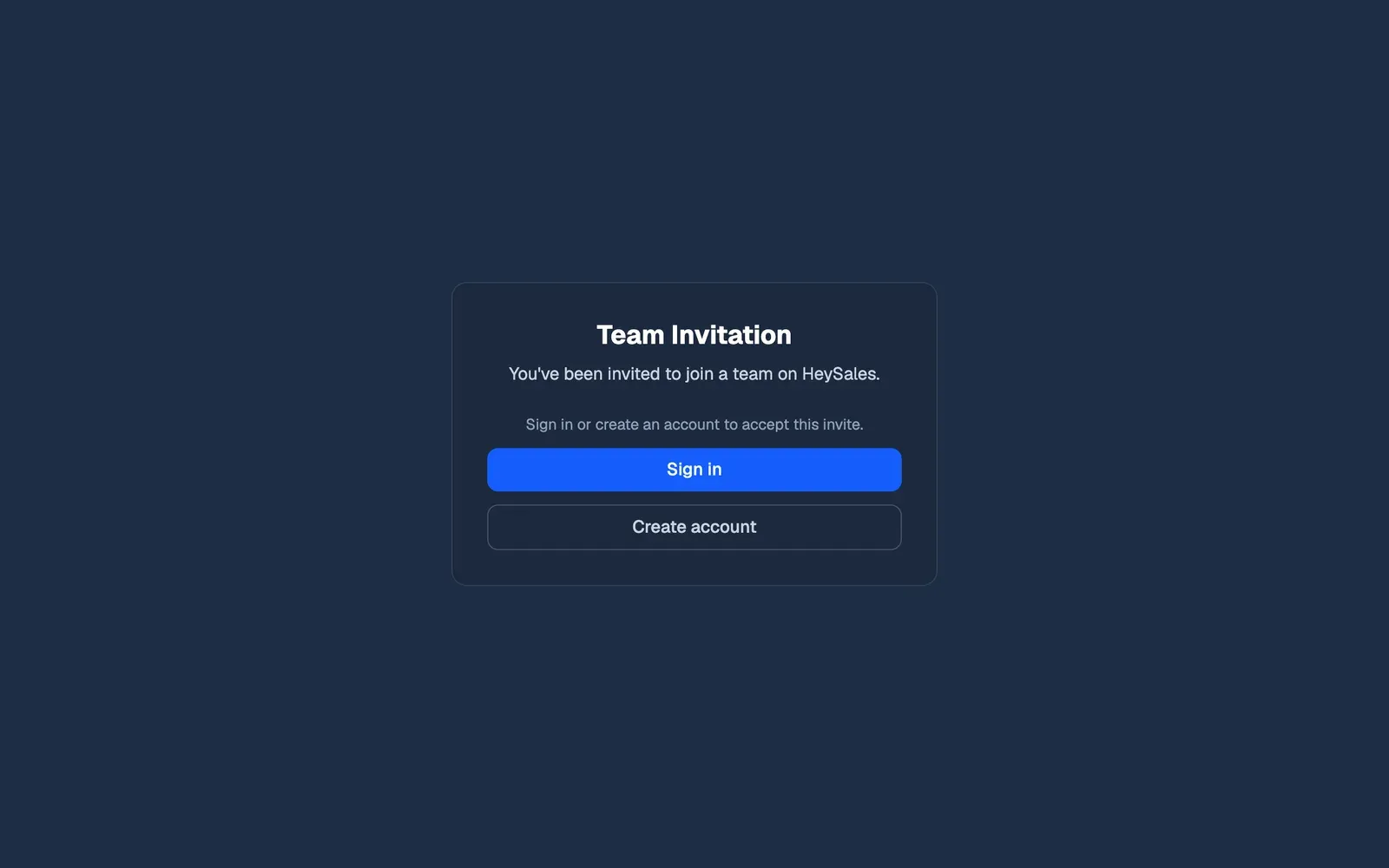
Section titled “Accept an invitation”If someone has invited you, open their email and select Accept Invitation. The Team Invitation page opens.
-
If you already have a HeySales account, select Sign in, and sign in with the email address the invitation was sent to.
-
If you don’t, select Create account, and sign up with that email address. HeySales then shows its setup steps. Don’t fill them in: they’d set up a separate company of your own.
Signing in or signing up doesn’t bring you back to the invitation by itself. Go back to the email and select Accept Invitation again. Now that you’re signed in, the page has an Accept Invitation button. Select it, and your colleague’s company opens on its dashboard.
If the page shows a message instead:
- This invite was sent to a different email address: sign out, then sign in with the address the email was sent to.
- Invite has expired: ask your colleague to invite you again.
- Invite is no longer valid: it’s been used or turned down. Ask for a new one if you need it.
If you’re already in another company
Section titled “If you’re already in another company”If your HeySales account already belongs to another company, invitations also wait for you in the account menu. A number on your company’s name, at the top right, says how many there are.
-
Choose your company’s name, then Organisation invites. Each invitation shows the company’s name, your role there and how long it has left.
-
Join accepts it and moves you into that company. Decline (the × button) turns it down.
To move between companies afterwards, choose your company’s name, then a company under Switch workspace. It lists the company you’re in and the ones you’ve joined by invitation.
Owners, admins and members
Section titled “Owners, admins and members”The person who sets up HeySales for a company is its owner. Everyone else has the role they were invited with.
| What they can do | Owner | Admin | Member |
|---|---|---|---|
| Use contacts, deals, email, tasks and the rest of HeySales | Yes | Yes | Yes |
| Invite people as members or admins | Yes | Yes | No |
| Invite another owner | Yes | No | No |
| Start the free trial, subscribe and manage the subscription on the Upgrade page | Yes | No | No |
| Manage the API key and webhooks, and read the audit log | Yes | Yes | No |
| Make and change custom objects | Yes | Yes | No |
| See employee profiles | Yes | Yes | No |
| Change or delete calls and meetings someone else logged | Yes | Yes | No |
| Change someone else’s booking link | Yes | Yes | No |
| Change someone else’s sales role | Yes | Yes | No |
Everyone can change the calls and meetings they logged themselves, their own booking links and their own sales role. All other settings, such as pipelines and stages, custom fields and message templates, are open to everyone.
The Team page
Section titled “The Team page”Under Team members, each person shows their name, email address and role: owner, admin or member.
- Sales role is the list beside each person, with job titles such as Sales Manager and Account Executive. It’s shown under their name, and doesn’t change what they can do. Choose one, and HeySales says Role updated. You can set your own. Owners and admins can set anyone’s. If someone’s role isn’t one of the list’s, such as Olivia’s Founder, or CEO chosen during setup, the list says No role, but their role still shows under their name.
- Employee profiles and each person’s View profile, for owners and admins, open their figures, goals and performance reviews.
Change a role or remove someone
Section titled “Change a role or remove someone”There’s no way in HeySales to change whether someone is an owner, admin or member, or to remove someone from your company. If you need either, get in touch. Until someone is removed, they can still sign in and use your company’s HeySales.
Connect Google: each person connects their own Google account. Or Find your way around.