

Forms
A form collects enquiries on your website, such as a quote request. Each time someone sends it, HeySales adds or updates the contact, can start a deal, and emails your team.
Go to Inbound. The Forms tab opens first.
Your forms
Section titled “Your forms”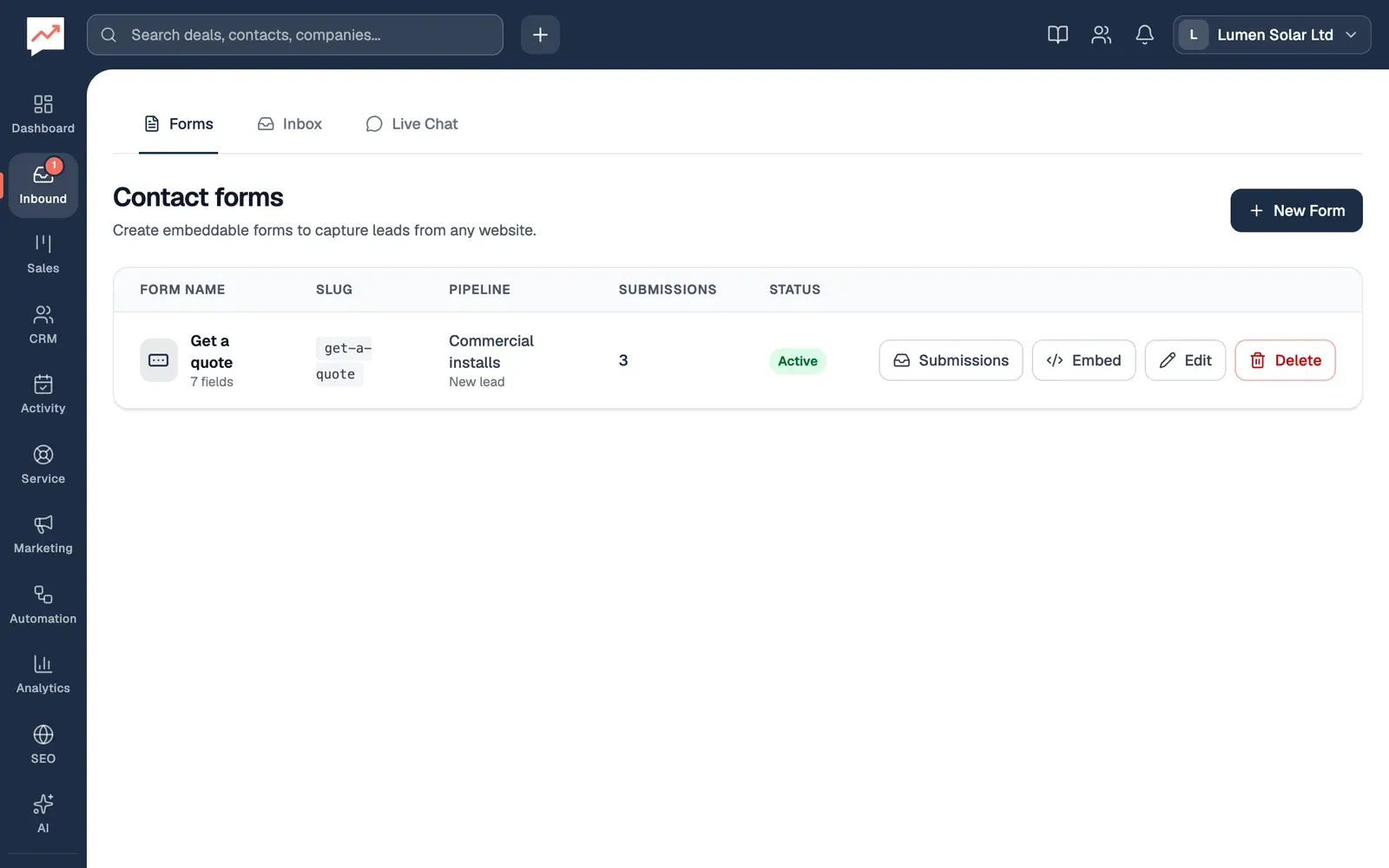
-
New Form opens the form builder for a new form. See Build a form.
-
Submissions lists everything sent with the form. The number in the Submissions column opens the same list. See Submissions.
-
Embed gives you the code to put the form on your website. See Put a form on your website.
-
Edit opens the form in the form builder.
-
Delete removes the form, after you confirm.
The table also shows each form’s number of fields, its Slug, the Pipeline and stage its deals go to, and its Status. On a narrow screen the buttons show only an icon; screen readers hear the button and the form’s name, such as “Edit Get a quote”.
Build a form
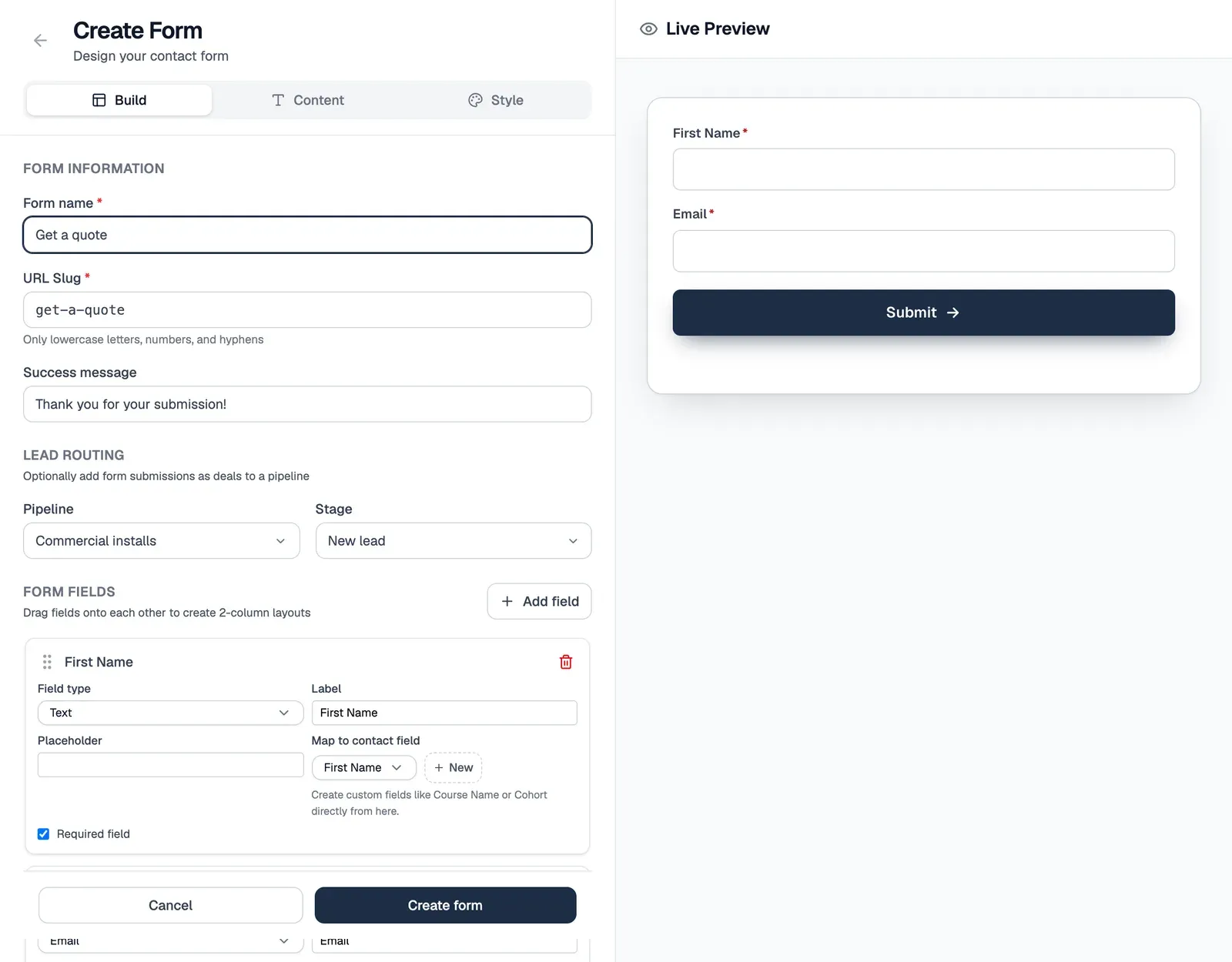
Section titled “Build a form”The form builder fills the window. Its settings are on the left, in three tabs, Build, Content and Style. On the right, Live Preview shows the form as visitors will see it, and changes as you work. On your website, the form uses your site’s font.
-
Type a Form name. For a new form, the URL Slug is made from it; it can only have lowercase letters, numbers and hyphens, and no other form in HeySales can have the same one. The Success message is what people see after sending the form.
-
To add a deal for each submission, choose a Pipeline and a Stage under Lead routing. Leave it on No pipeline if you don’t want deals.
-
Add field adds a question at the end of the form. See Fields.
-
Content and Style change the words and colours around the questions. See below.
-
Select Create form (or Update form when you’re changing one). You go back to your forms.
A new form starts with First Name and Email, both required. Cancel, or the back arrow at the top, leaves without saving.
Fields
Section titled “Fields”Each field has:
- Field type: Text, Email, Phone, Number, Text Area (several lines), Select (choose one), Multi-select (choose several), or Checkbox.
- Label: the question, such as “Monthly energy bill”.
- Placeholder: example text shown inside an empty box. For a Checkbox, the placeholder is shown beside the box instead of the label, if you give one.
- Map to contact field: where the answer is saved on the contact: First Name, Last Name, Email, Phone or Title, or one of your custom fields that suits the field type. New makes a custom contact field and maps the answer to it. None keeps the answer on the submission only.
- Options, for Select and Multi-select: type an option and press Enter, or select Add. Each needs at least one option.
- Required field: people can’t send the form without answering it.
The bin button at the top of each field deletes it.
Answers in a field of type Email, or mapped to Email, have to be a real-looking email address; the same goes for phone numbers and numbers.
Arrange the fields
Section titled “Arrange the fields”Fields appear in the order you add them. To move a field, drag it by the handle beside its name. Drop it onto another field to put the two side by side, two to a row; drop it on Drag a field here to make it single-column to give it a row of its own.
Content
Section titled “Content”- Header: a Title and Subtitle above the questions.
- Badge: a small label at the top corner of the form, such as “Free survey”, with its Badge color.
- Submit button: the Button text (Submit to start with) and Button color. Without a button colour, it uses the primary colour.
- Footer: small print under the button, in Footer text.
- Theme: choose Light, Dark or Navy for a ready-made set of colours, then change any of them below.
- Colors: Primary Color, Button Text, Background, Text Color and Input Borders. Pick a colour or type its code, such as
#047857. - Shape & Spacing: Border Radius sets how rounded the corners are, from square to rounded.
If your colours make text or the button hard to read, a warning says “Some visitors may struggle to read this”, so you can change them.
Put a form on your website
Section titled “Put a form on your website”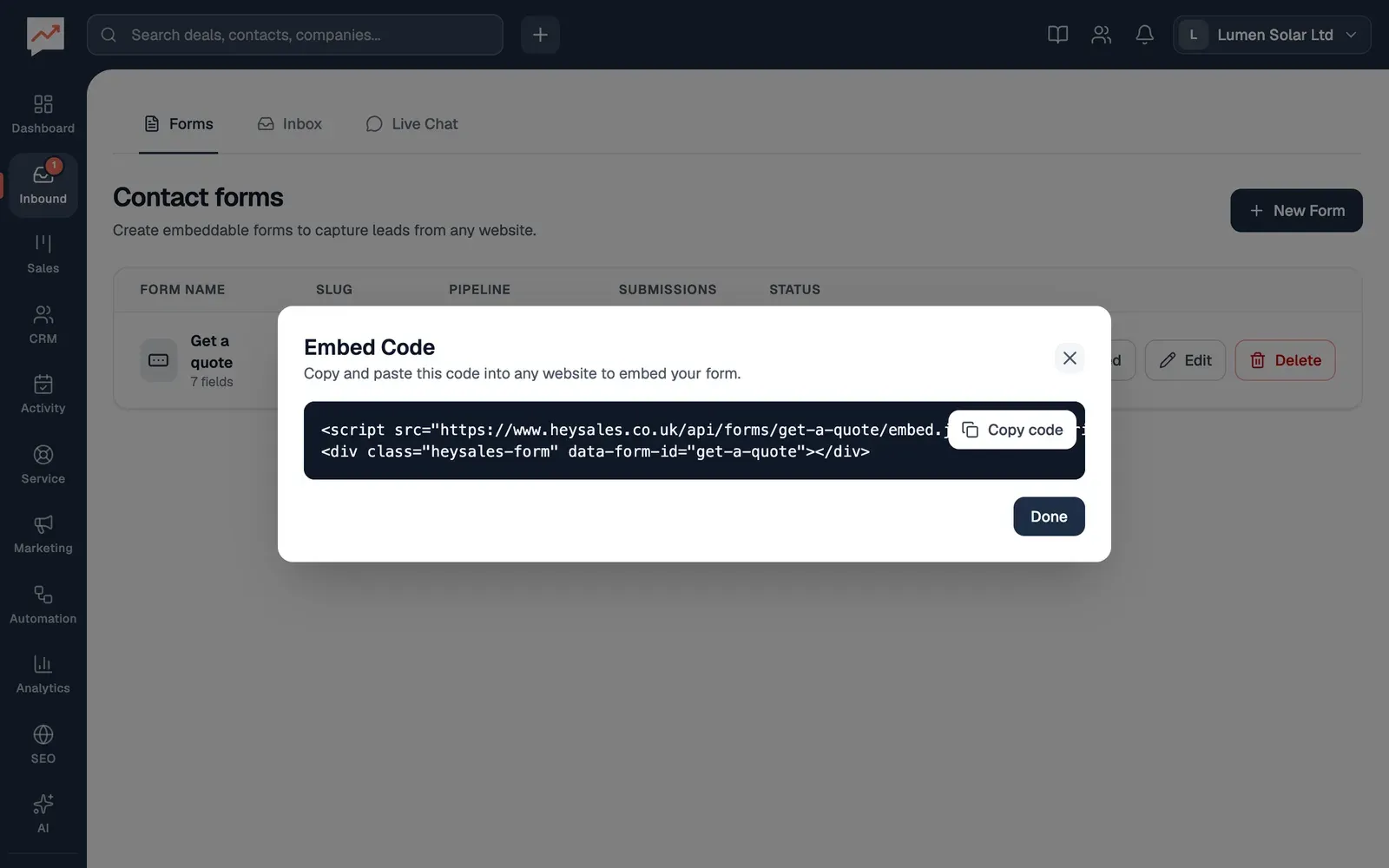
-
Beside the form, select Embed, then Copy code. The button says Copied!.
-
Paste the code into your website’s HTML where the form should appear, then select Done.
The code is a script line and an empty box that the script fills with your form. It works on any website where you can add HTML, including sites that change pages without reloading. You can put the same form on several pages.
After you change a form, it can take a few minutes for your website to show the change. If you change the URL Slug, the old code stops showing the form, so copy the new code onto your website.
What visitors see
Section titled “What visitors see”Visitors fill in the form and select its button. Required questions are marked with an asterisk, and screen readers announce them as required. If something’s missing or wrong, a message says what, and the cursor moves to that question. When it’s sent, the form is replaced by “Thank you!” and your success message, and focus moves to it.
What a submission does
Section titled “What a submission does”- The contact: if a contact in your company has the same email address, their name, phone and job title are updated with any new answers. Otherwise a new contact is added. Answers mapped to custom fields are saved on the contact.
- The deal: if the form has a pipeline and stage, a deal is added there, called after the person and the form, such as “Megan Hughes - Get a quote”.
- Emails to your team: everyone in your company with Form Submissions turned on gets an email, “New Form Submission:” and the form’s name, with the answers, and a link to the deal if one was added. It’s on to start with; each person can turn it off under Settings, then Notifications.
- Workflows: on Pro, any workflow that begins with A form is sent starts, and so do those for a new contact or deal.
- Website visitors: if the tracking script is on the same page, sending the form counts as a key action called “Form:” and the form’s name.
Submissions
Section titled “Submissions”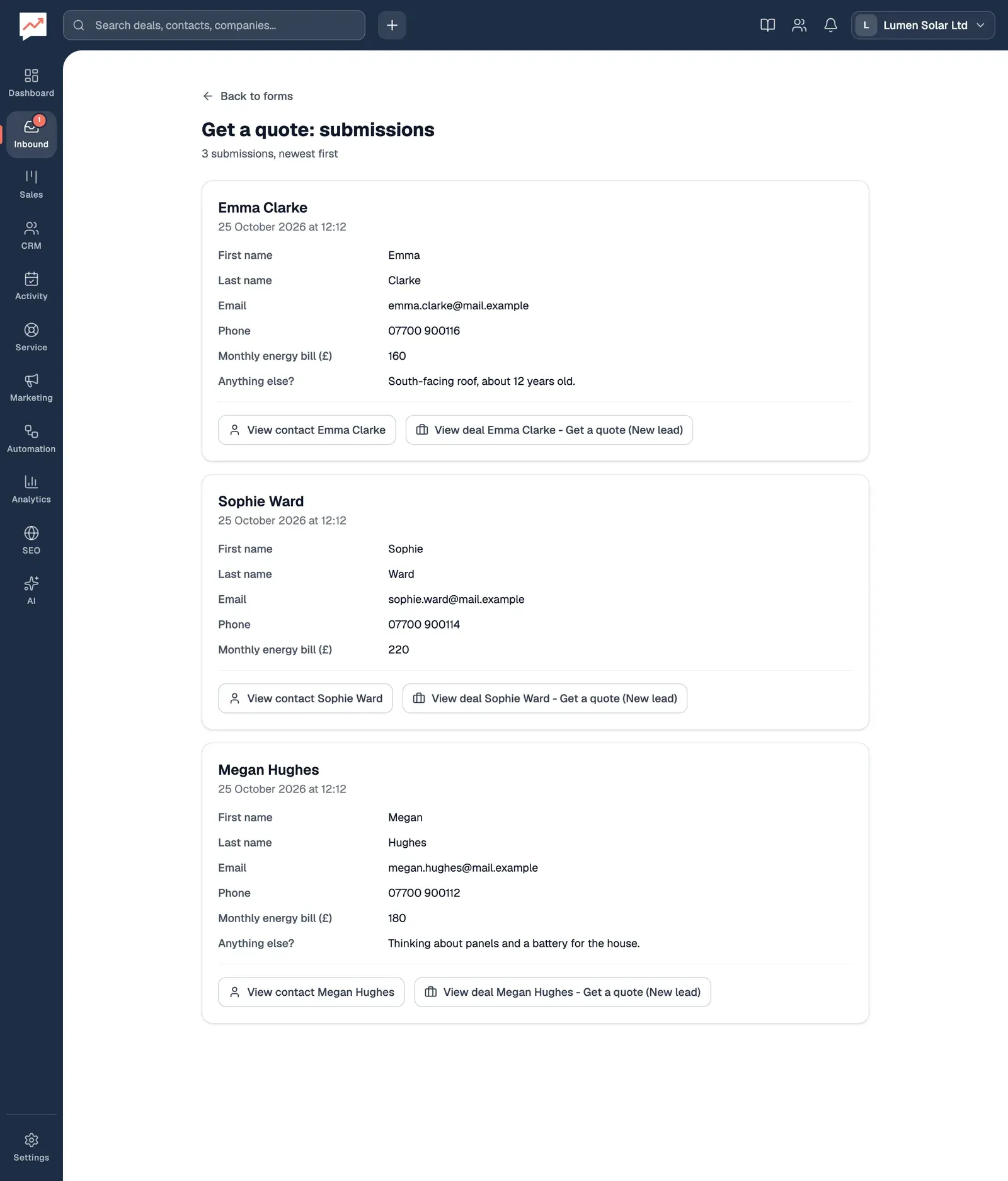
Select Submissions beside a form to see everything sent with it, newest first. Each one shows who sent it and when (in UK time), then each question with its answer. Answers to questions you’ve since removed from the form are labelled “Removed field”.
View contact and View deal open the contact and the deal it created. Back to forms returns to the list.
See who visits your website before they fill in a form: Website visitors.