

The activity timeline
Every contact has an Activity list of everything that’s happened with them, newest first: calls, meetings, emails, notes, tasks, deals and more. Each deal has one too. Log your calls and meetings here, so everyone in your team knows where things stand.
Find the timeline
Section titled “Find the timeline”- On a contact: go to CRM, then Contacts, and choose their name. Activity is at the bottom of their panel, below their details.
- On a deal: open the deal. Activity is on its Overview tab. See The deal page.
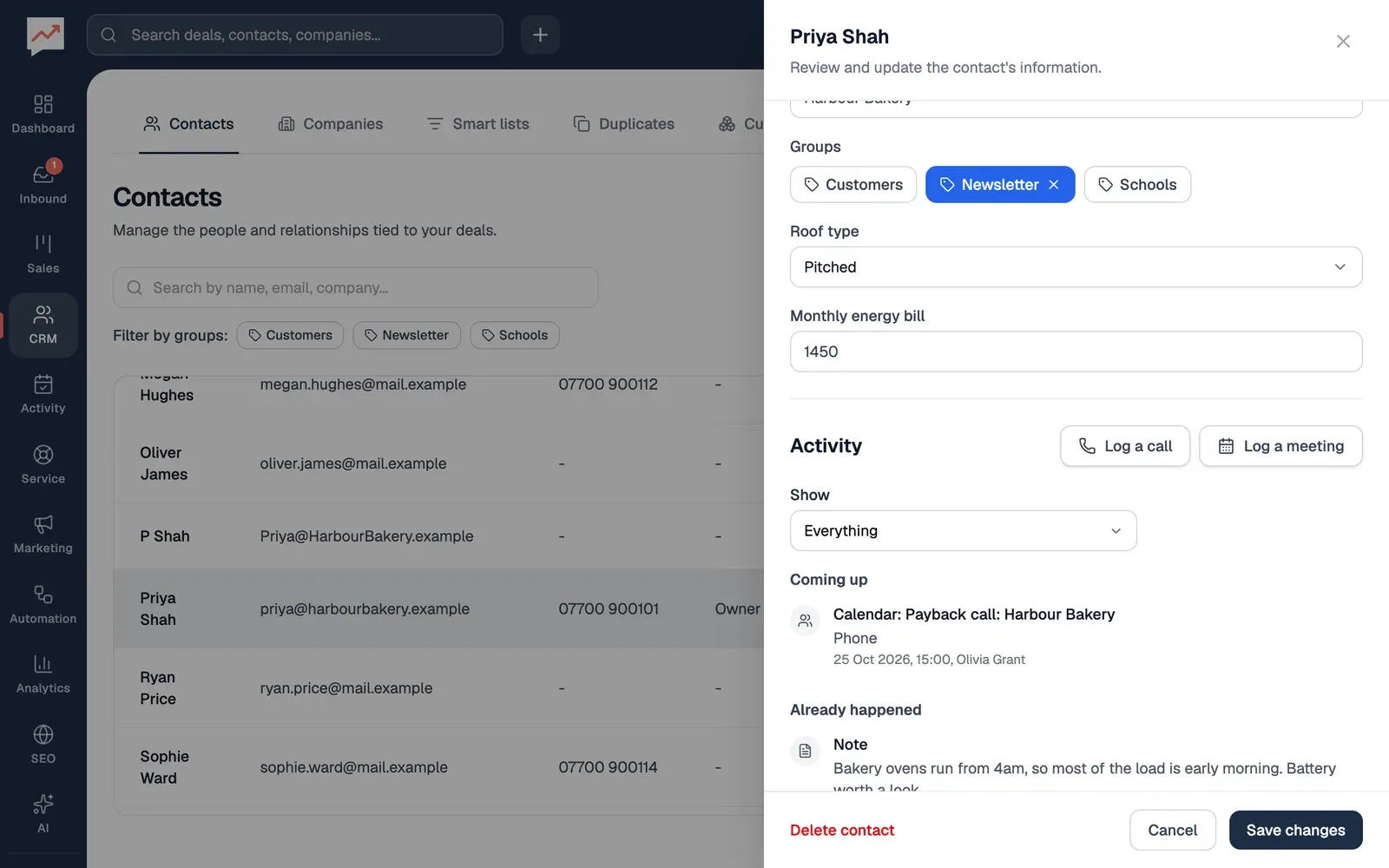
-
Log a call adds a call you’ve had with them. See Log a call.
-
Log a meeting adds a meeting. See Log a meeting.
-
Show lists just one kind of thing, such as Calls or Notes. Choose Everything to see it all again.
Each entry says what happened, any details, such as the notes from a call, and when it happened and who by. An entry that has its own page, such as a deal, a task or an email, is a link to it. If anything is in the future, such as a calendar event, it’s listed first under Coming up, and the rest under Already happened.
What’s in a contact’s timeline
Section titled “What’s in a contact’s timeline”- Calls and meetings your team has logged.
- Emails between your team and them, and how many times they opened the ones sent to them, if they did. See Inbox.
- Notes about them.
- Tasks linked to them, and when each one was done. See Tasks.
- Their deals: when each one was made and each time it moved to a new stage. This includes deals where they’re one of the contacts but not the main one.
- Forms they’ve sent you.
- Sequences they’ve been put in, and how each one ended.
- Calendar events they’re invited to, or that are on one of their deals.
- Meetings they’ve booked through a booking link.
- Their tickets: when each one was opened, and when it was closed.
- Their survey answers, with the score they gave.
- If they’ve unsubscribed from marketing emails.
- When they were added to HeySales. This only shows when Show is on Everything.
In the Show list, bookings and calendar events count as Meetings, and unsubscribing counts as Emails.
Log a call
Section titled “Log a call”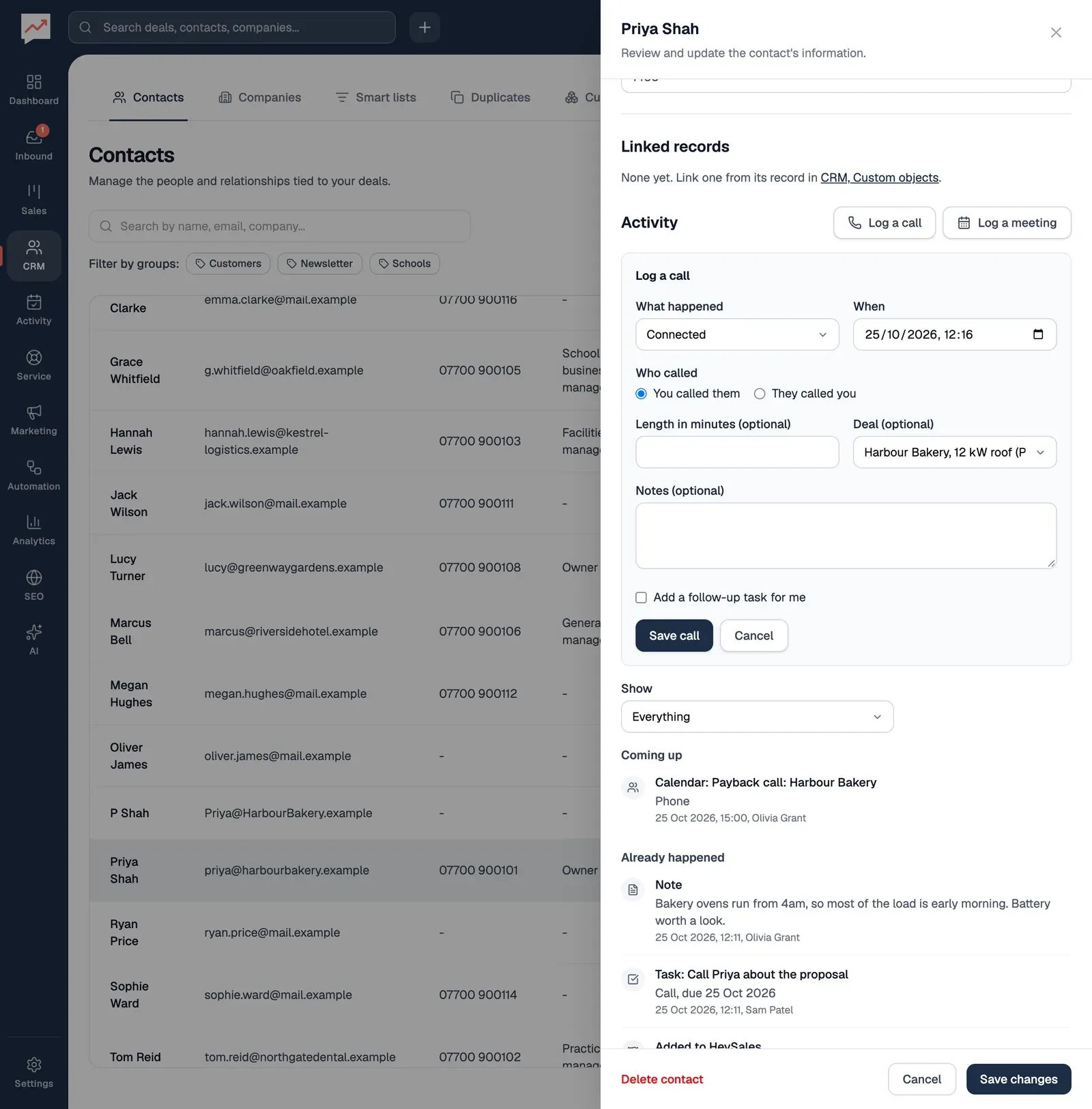
-
Select Log a call. Under What happened, choose Connected, Left a voicemail, No answer, Busy or Wrong number. When starts at the time now: change it if the call was earlier.
-
Under Who called, choose You called them or They called you.
-
Add the Length in minutes and any Notes if you like. If they’re on a deal, choose it under Deal (optional), so the call shows on the deal’s timeline too.
-
To remind yourself to get back to them, tick Add a follow-up task for me and set how many days until it’s due. It starts at 3.
-
Select Save call.
The call goes on the timeline straight away, with your name. You don’t need to select Save changes on the contact for it. A follow-up task is called “Follow up with” and their first name, is assigned to you, is linked to them and to the deal you chose, and has your notes from the call. It’s on your Tasks list.
When the form opens, keyboard focus moves to its heading. After you save or select Cancel, focus goes back to the Log a call button, and a screen reader announces “Call logged”.
Log a meeting
Section titled “Log a meeting”Select Log a meeting. It works like logging a call, with How it went instead of What happened: Completed, No-show, Rescheduled or Cancelled. There’s no Who called. Then select Save meeting.
You don’t need to log meetings booked through your booking links, or calendar events they’re invited to: those appear on their own.
Change or delete a call or meeting
Section titled “Change or delete a call or meeting”Under each call and meeting you logged are Change and Delete. Owners and admins see them on everyone’s calls and meetings.
- Change opens the call or meeting in the same form, called Change this call or Change this meeting. Make your changes, then select Save changes.
- Delete asks you to confirm. Select Delete to take it off the timeline. This can’t be undone.
With a screen reader, each button says which entry it’s for, such as “Change: Call with Priya Shah: Connected” and the date and time.
The other entries can’t be changed from the timeline. Change them where they came from: notes in the person’s notes, tasks on your Tasks list, and so on.
A deal’s timeline
Section titled “A deal’s timeline”A deal’s timeline has:
- calls and meetings logged on the deal, or with its main contact
- the main contact’s emails and notes
- tasks linked to the deal
- when the deal was made, and each time it moved to a new stage
- its quotes: when each one was made, sent, viewed, accepted or declined
- forms sent in with this deal
- calendar events on the deal.
Log a call and Log a meeting appear when the deal has at least one contact. The form has a With list instead of Deal (optional): choose the deal’s main contact or anyone else on the deal.
Smart lists: find contacts by what’s happened with them, such as everyone you haven’t been in touch with for 30 days.