

Message templates
A template is an email you write once and reuse, such as a follow-up after a site survey. Merge fields fill in each contact’s name, company and deal for you. Everyone in your company shares the same templates.
Go to Settings, then Message templates.
The Message templates page
Section titled “The Message templates page”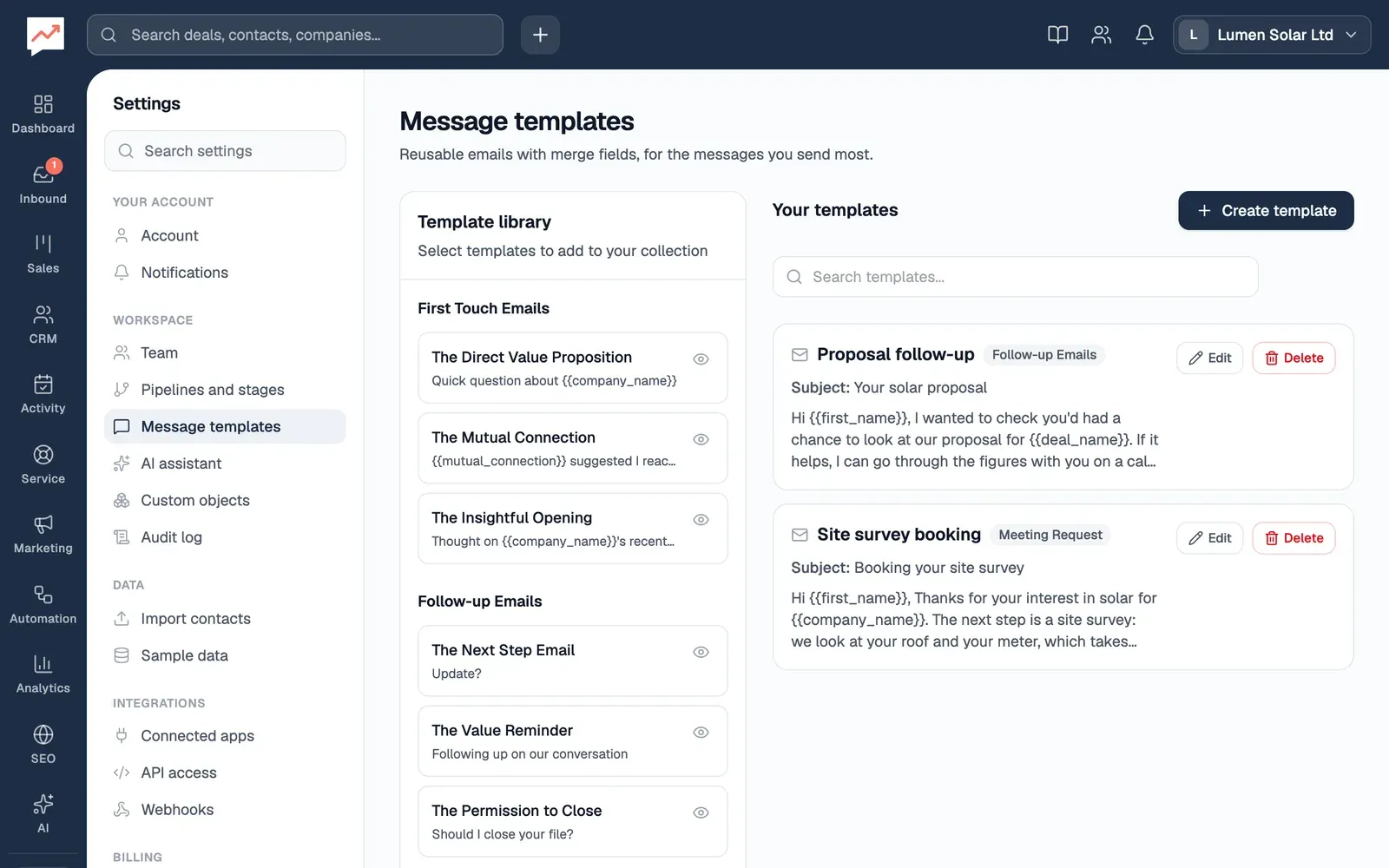
-
The Template library has ready-made sales emails, grouped by what they’re for: First Touch Emails, Follow-up Emails, Meeting Request, Value Proposition and Case Study. Choose any you want, and a button appears at the top of the library to add them, such as Add 2 templates. The eye button beside each one, Preview template, shows the whole email first, with Add to selection to pick it.
-
Create template opens a blank template. See below.
-
Search templates finds your templates by name, subject or anything in the email.
Under Your templates, each template shows its category, subject and the start of the email, newest first, with Edit and Delete buttons. Templates you add from the library are your own copies, so you can change them.
Create a template
Section titled “Create a template”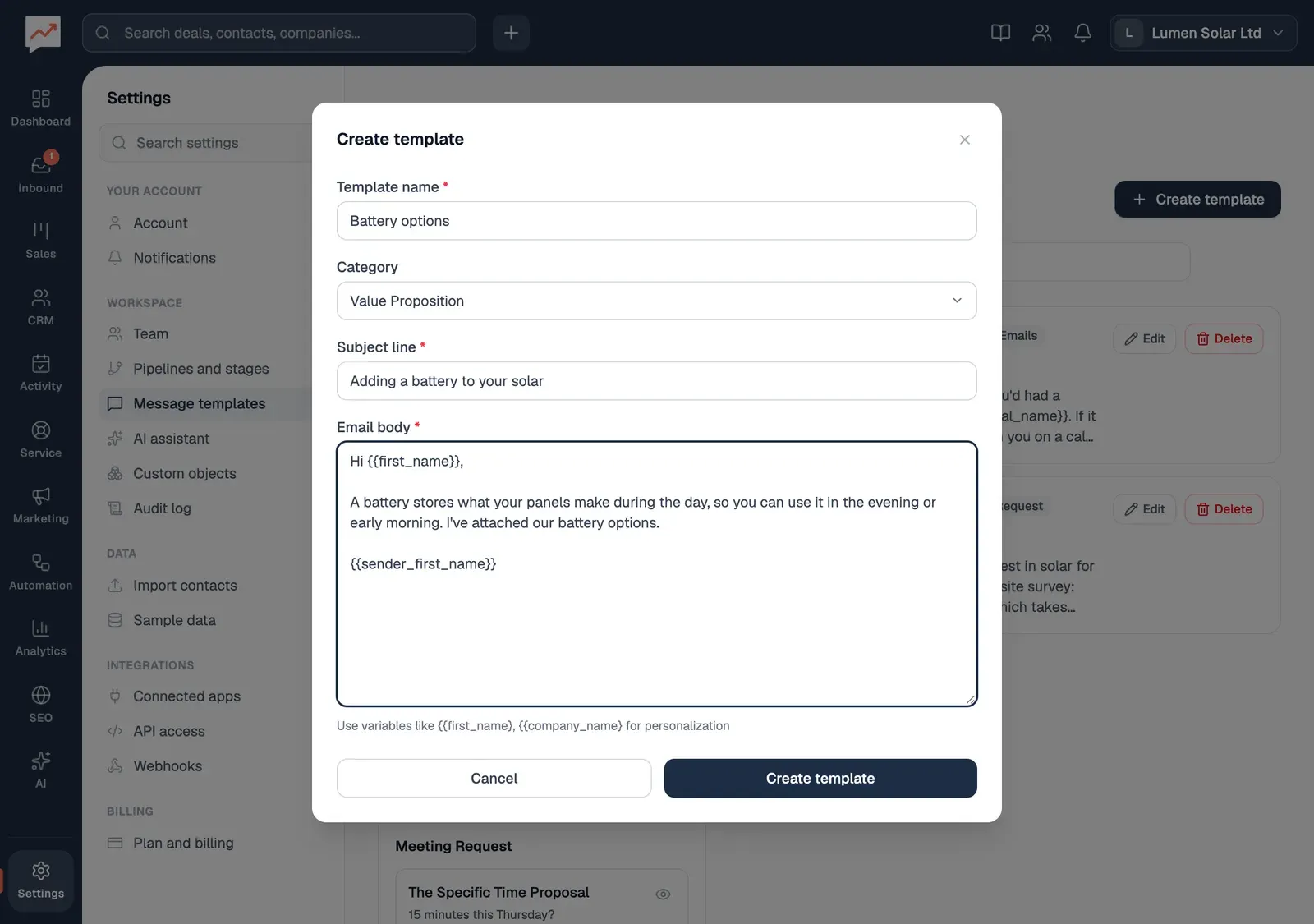
-
Give it a Template name. This is what you’ll pick from the list when you write an email.
-
Choose a Category. It starts on Custom.
-
Type the Subject line.
-
Write the Email body, as plain text. Add merge fields such as
{{first_name}}where the contact’s details should go.
Then choose Create template. All three boxes have to be filled in first.
To change a template, choose Edit beside it, make your changes and choose Save changes. Delete asks you to confirm, then removes it for everyone.
Merge fields
Section titled “Merge fields”Type these into a template’s subject or email, with the double curly brackets. When you choose the template for a contact, each one is replaced with their details. Capital letters don’t matter.
| Merge field | Becomes |
|---|---|
{{first_name}}, {{last_name}}, {{full_name}} |
The contact’s name |
{{email}}, {{phone}} |
The contact’s email address and phone number |
{{title}} |
The contact’s job title |
{{company_name}} or {{company}} |
The company the contact works for |
{{deal_name}}, {{deal_value}}, {{deal_stage}}, {{pipeline_name}} |
The contact’s newest deal: its name, value in pounds, stage and pipeline |
{{product_name}}, {{product_price}} |
The first product on that deal, and its price |
{{group_name}} |
The first group the contact is in |
{{sender_name}}, {{sender_first_name}}, {{sender_email}} |
You: your name, first name and email address |
If a contact doesn’t have that detail, the merge field stays as you typed it, and HeySales points it out before sending.
Use a template
Section titled “Use a template”Templates are there when you write to a contact in the Inbox, and on a contact’s own email page.
-
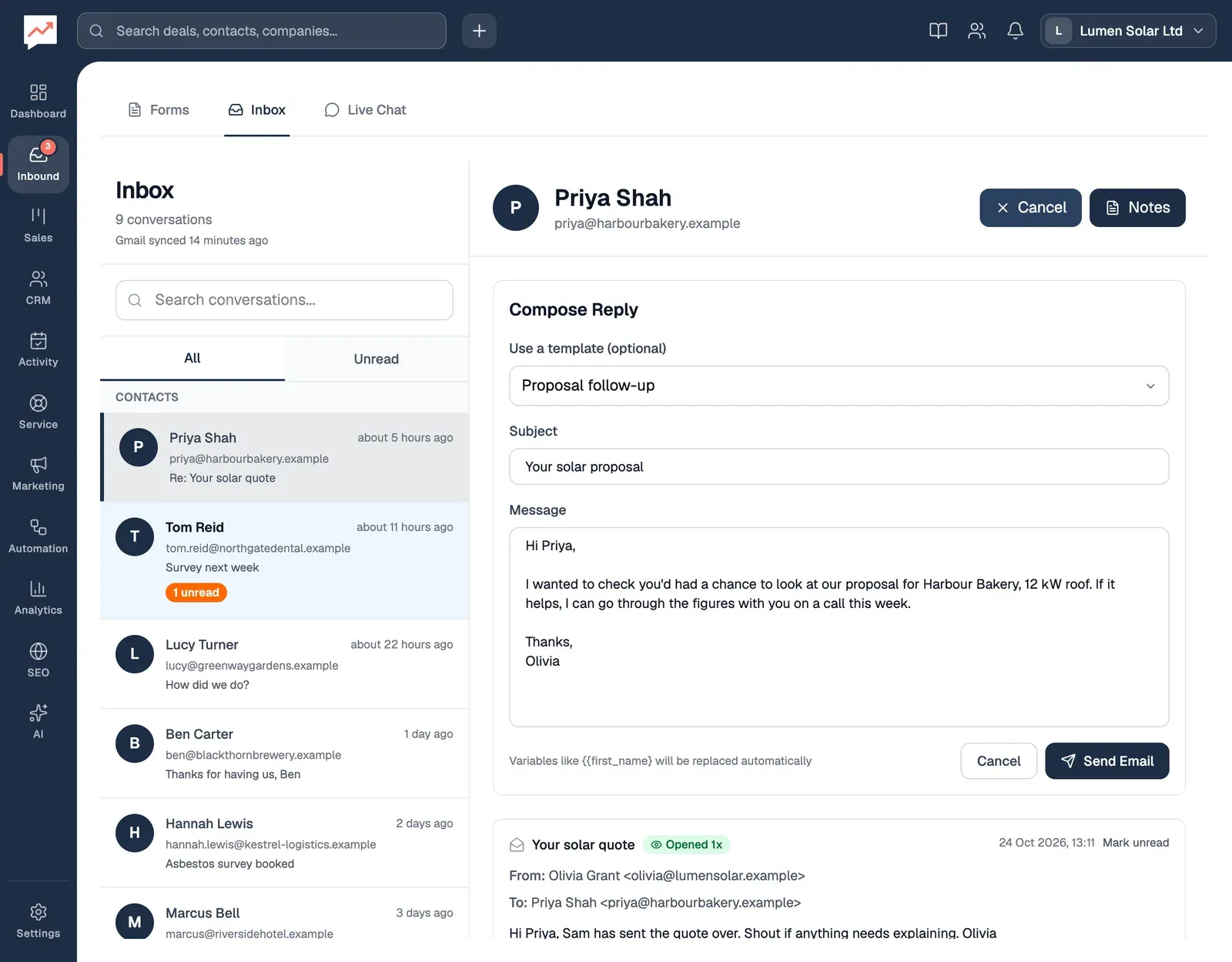
In Inbound, then Inbox, open a contact’s conversation and choose Reply at the top. In Compose Reply, choose a template from Use a template (optional). The Subject and Message fill in, with the contact’s details in place of the merge fields.
-
Read it through, change anything you like, then choose Send Email.
Any merge field that couldn’t be filled in is highlighted, and a count such as “1 unfilled variable” shows beside the buttons. With a mouse, you can choose a highlighted merge field to open Quick Edit. For the contact’s own details, such as their phone number or job title, type the missing detail and choose Save: it’s saved to the contact and filled into your email. Deal, product and group details can’t be filled in this way. If you send with merge fields still in it, Unfilled Variables Detected lists them and asks you to choose Send Anyway or Cancel.
On a contact’s email page, which you open with Emails beside them in your contacts list, Use a template (optional) works the same way when you write a new email or a reply.
For more on writing and sending emails, see Inbox.
Your email signature
Section titled “Your email signature”Your signature is added to the end of the emails you send from HeySales through your Gmail: replies and emails from the Inbox, ticket replies, survey invitations and sequence emails. It isn’t added to marketing emails. Each person in your team has their own.
Go to Settings, then Account.
-
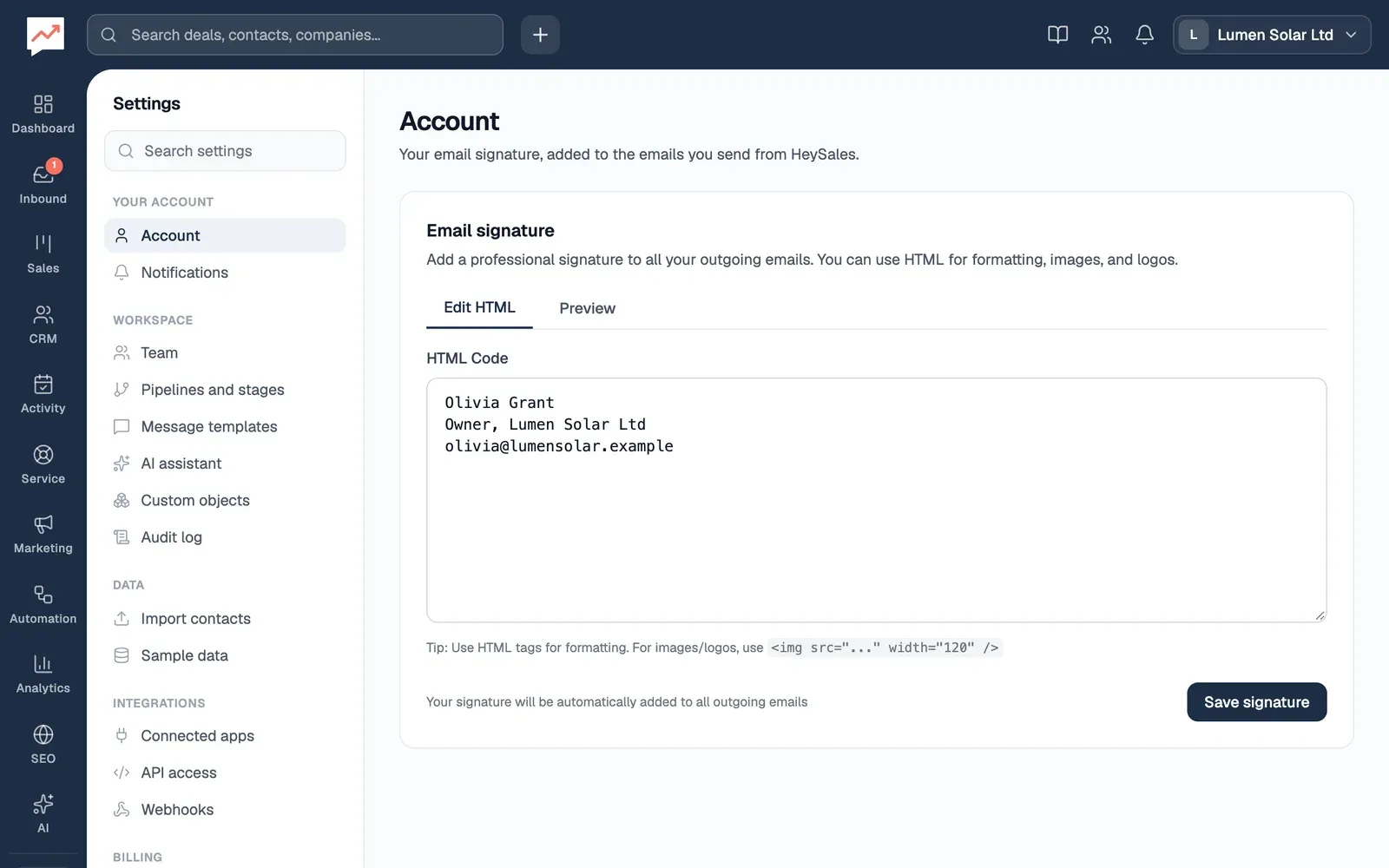
With Edit HTML chosen, type your signature in the HTML Code box. Plain text works, and each new line stays a new line. You can also use HTML, such as
<b>for bold, a link, or a logo with<img src="…" width="120" alt="…">. -
Preview shows how your HTML looks. Choose Edit HTML to go back to the box.
-
Choose Save signature.
Put your templates to work in the Inbox, or send a series of emails automatically with Sequences.