

Inbox
The Inbox shows the email between you and the people you sell to, straight from your Gmail, so you can read and reply without leaving HeySales. Go to Inbound, then Inbox.
The Inbox needs your Google account connected. If it isn’t, the Inbox says “Gmail isn’t connected” with a Connect Google link. See Connect Google.
The Inbox
Section titled “The Inbox”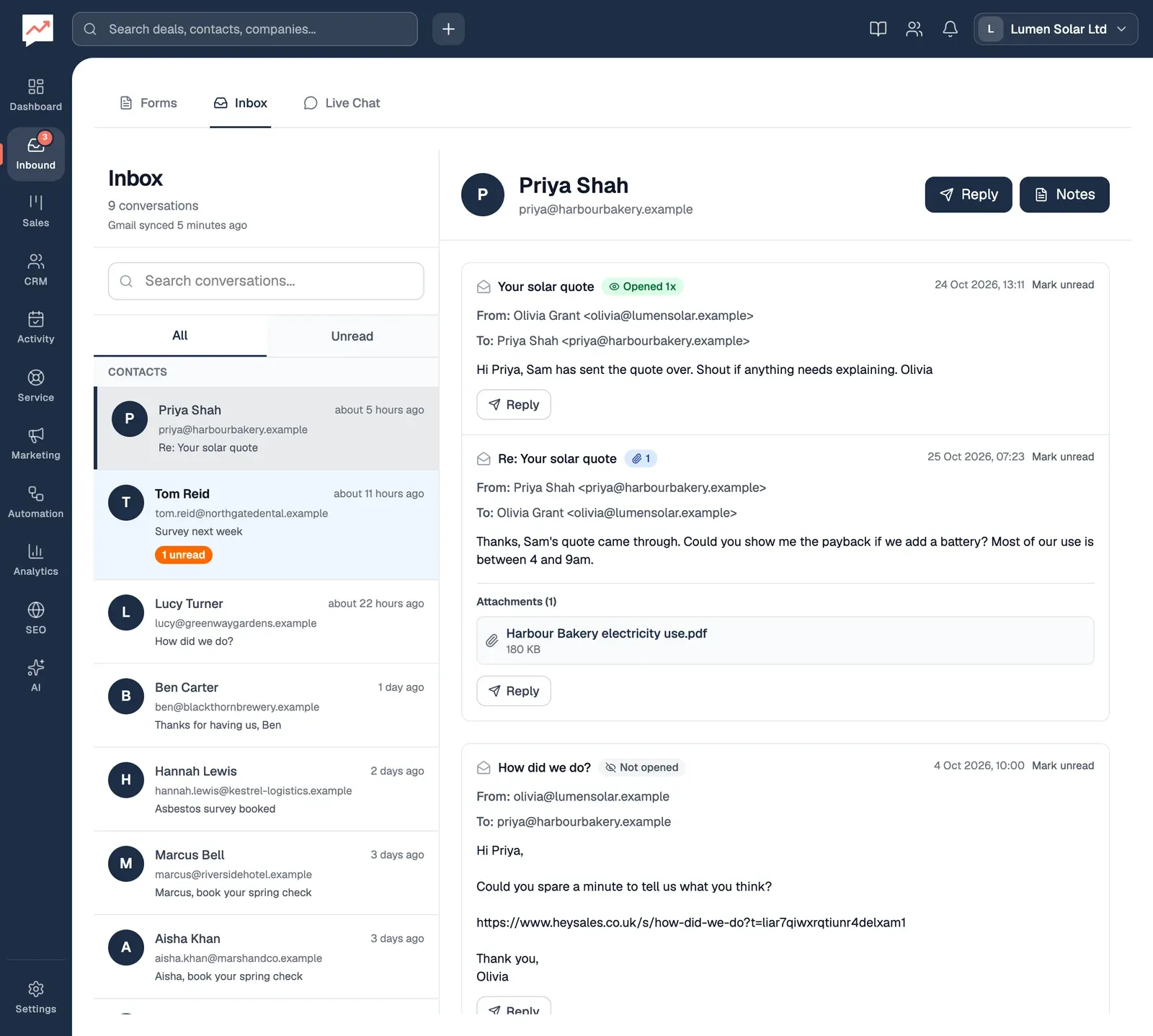
-
Search conversations finds people by name or email address, or by the subject of their latest email.
-
All shows every conversation. Unread shows only the ones with emails you haven’t read.
-
The list has two parts. Contacts are people already in your CRM. Not in your CRM are people in your Gmail who aren’t contacts yet. Each entry shows the person, the subject of their latest email, how long ago it came, and how many emails are unread. Choose one to open the conversation.
-
Reply writes a new email to the contact, with a template if you like. See Write to a contact.
-
Notes opens the notes about the contact in a window over the Inbox.
Under the Inbox heading, a line says how many conversations there are and when Gmail last synced.
When you open a conversation, its emails are grouped into Gmail threads, and any unread emails in it are marked as read. Keyboard and screen reader focus moves to the person’s name at the top of the conversation. On a phone, the list hides while a conversation is open; Back to conversations brings it back.
The number on Inbound in the main menu is how many unread emails are in your Inbox.
Which emails show up
Section titled “Which emails show up”- HeySales checks your Gmail every 30 seconds while you have HeySales open in your browser, on any page. Nothing is fetched while it’s closed: the next time you open it, it catches up, up to 25 emails every 30 seconds.
- The first check after you connect Google goes back 14 days.
- Emails you send and receive come in, including ones you sent from Gmail itself and ones you’ve archived. Left out are drafts, chats, spam, the bin, and Gmail’s Promotions, Social, Updates and Forums tabs.
- An email is linked to a contact when one of your contacts sent it, or it was sent or copied to them.
- Everyone in your team sees the emails with your contacts, whichever teammate’s Gmail they came from. Not in your CRM is different: only you see the people from your own Gmail.
- Automatic senders, such as no-reply, notifications and bounce addresses, aren’t listed under Not in your CRM.
- When you add a contact anywhere in HeySales, emails you already have with their address join them at the next check.
Read an email
Section titled “Read an email”Each email shows its subject, date and time, who it’s From and To, then the message. Unread emails have a tinted background, and screen readers hear “Unread” before the subject.
Emails written in HTML, such as newsletters and most emails with a signature, show in a frame. Screen readers name the frame “Email:” followed by the subject. Links in an email open in a new tab.
Badges beside the subject tell you more:
- Opened 2x: the email was opened twice. See Open tracking.
- Not opened: you sent it and it hasn’t been opened yet.
- A paperclip and a number: how many attachments it has.
Attachments
Section titled “Attachments”Under the message, Attachments lists each file with its size. Choose a file’s name to open it in a new tab. PDFs, pictures (PNG, JPEG, GIF and WebP), plain text and CSV files open in the browser; other files download.
The file comes from the Gmail account the email arrived in. For an email in a colleague’s Gmail, their Google account has to be connected to HeySales for the file to open.
Reply to an email
Section titled “Reply to an email”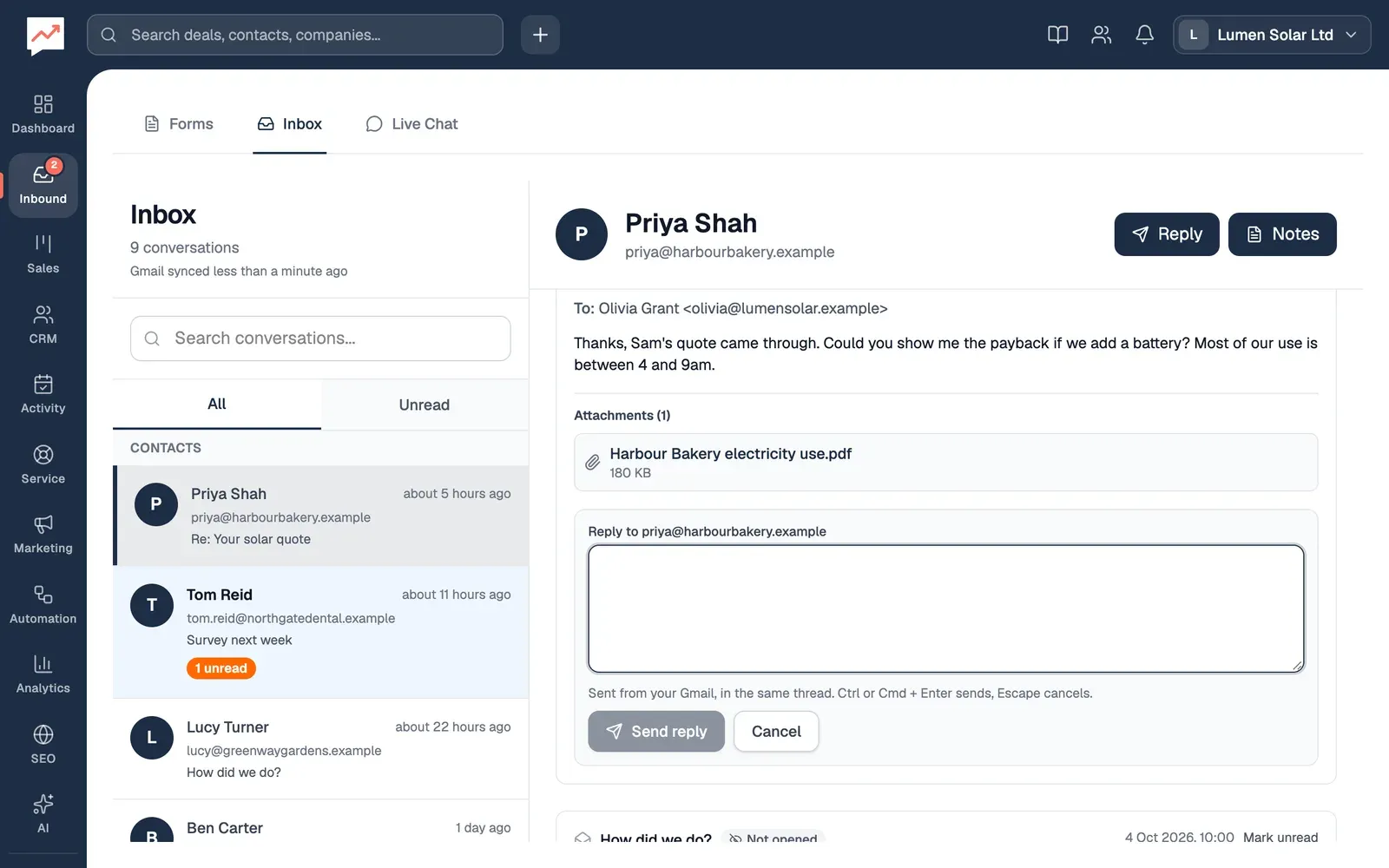
-
Under the email, choose Reply. A box opens, labelled with the address the reply goes to.
-
Type your reply, then choose Send reply. Ctrl + Enter (Cmd + Enter on a Mac) sends it too, and Escape closes the box without sending.
The reply goes from your Gmail, in the same thread, with “Re:” and the original subject. Your email signature is added at the end. Your reply shows in the conversation straight away.
You can reply to anyone this way, including people under Not in your CRM. If the email is in a colleague’s Gmail, your reply is sent from your own Gmail as a new conversation, as it can’t join a thread that isn’t in your mailbox.
Write to a contact
Section titled “Write to a contact”The Reply button at the top of a contact’s conversation opens Compose Reply, where you can start from a template.
-
Choose Reply at the top of the conversation.
-
To start from a template, choose one from Use a template (optional). It fills in the Subject and Message with the contact’s details. See Message templates.
-
Write or check the Subject and Message. Both are needed.
-
Choose Send Email.
The email goes from your Gmail to the contact, in your latest conversation with them when that conversation is in your Gmail. If anything in double curly brackets is left in it, such as {{phone}} for a contact with no phone number, Unfilled Variables Detected lists them first. Choose Send Anyway, or Cancel to change the email.
Choose Reply again (it now says Cancel) to close Compose Reply without sending.
Open tracking
Section titled “Open tracking”Every email sent from HeySales carries a tiny invisible picture. When the person’s email app loads it, HeySales counts an open, and the email shows Opened 1x, Opened 2x and so on.
- Opens are only counted on emails sent from HeySales. An email you sent from Gmail itself always shows Not opened, even if it was read.
- Email apps that block pictures don’t count as opens, and some apps load pictures without the person reading the email. Treat the count as a guide.
Add a sender as a contact
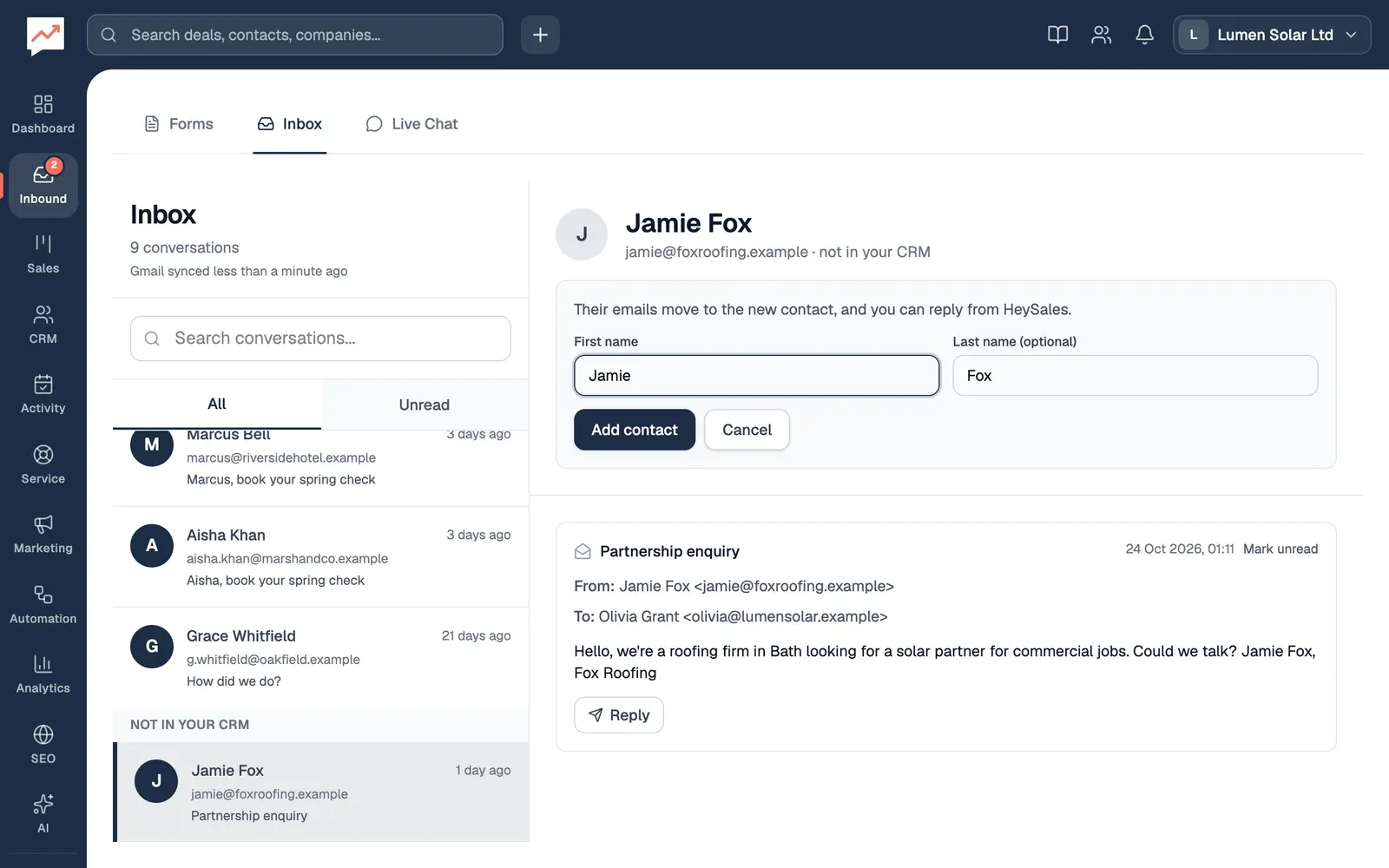
Section titled “Add a sender as a contact”When someone new emails you, they appear under Not in your CRM. You can read and reply to their emails there, and add them to your CRM in one step.
-
Choose the person under Not in your CRM, then Add as contact.
-
Check the First name. It’s filled in from the name on their emails.
-
Check the Last name (optional).
-
Choose Add contact.
They’re added to your contacts with their email address, their emails move to them, and the conversation opens under Contacts. If someone in your company already added a contact with that address, the emails join that contact instead, and HeySales says “Linked to the contact with this address”.
On Pro, adding a contact also starts any workflow that begins with A contact is created.
Save templates for the emails you send most, or see everything about a person in Contacts.