

Workflows
A workflow does routine follow-up for you. It starts when something happens, such as someone sending your quote form, then does its steps in order: create a task, email a teammate, wait, start a sequence, or move a deal. Workflows are on the Automation page, on the Workflows tab.
The Workflows tab
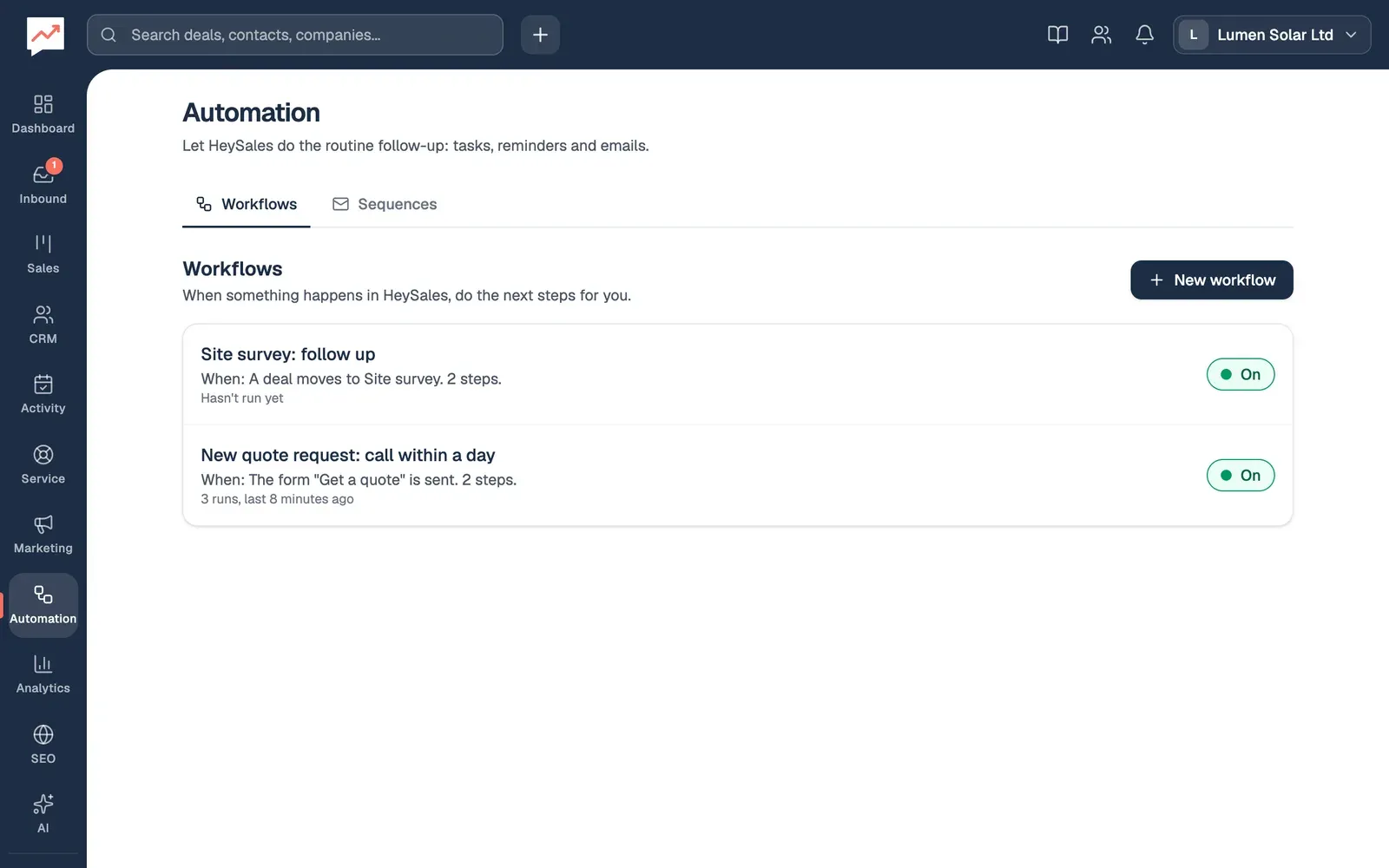
Section titled “The Workflows tab”Go to Automation. The Workflows tab opens first. With a keyboard, the left and right arrow keys move between the Workflows and Sequences tabs.
-
New workflow starts a new one. See below.
-
Each workflow shows what starts it, how many steps it has, how many times it has run, how many runs failed, and when it last ran. Choose its name to open it.
-
The On and Off button turns the workflow on or off straight away. Screen readers announce it as a switch called “Run” and the workflow’s name.
Make a workflow
Section titled “Make a workflow”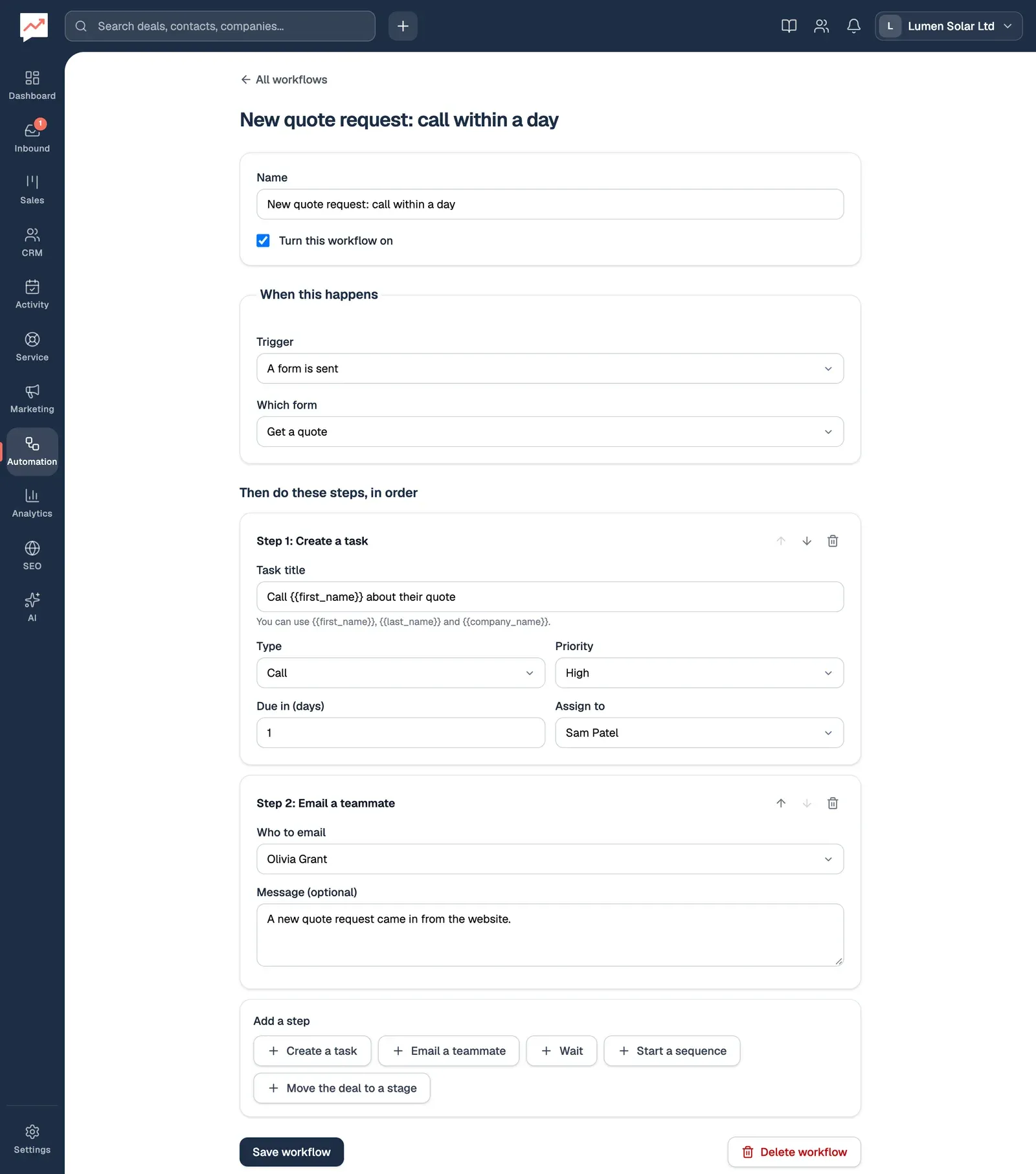
-
Give the workflow a Name that says what it does. Tick Turn this workflow on when it’s ready: a new workflow is off until you do.
-
Under When this happens, choose the Trigger. Some triggers then ask which form, booking link, pipeline or stage. See What can start a workflow.
-
Under Then do these steps, in order, fill in each step. A new workflow starts with one Create a task step. See What a workflow can do.
-
Under Add a step, choose the kind of step to add at the end: Create a task, Email a teammate, Wait, Start a sequence or Move the deal to a stage. A workflow can have up to 20 steps.
-
Select Save workflow.
To change the order, each step has up and down arrow buttons (“Move step 2 up” and so on, for screen readers) and a bin button to remove it. There’s no dragging. Focus moves to the step you moved or added, or to the step that takes a removed one’s place.
Workflows only run from when they’re turned on. They don’t run for things that happened before.
What can start a workflow
Section titled “What can start a workflow”| Trigger | Starts when |
|---|---|
| A form is sent | Someone sends one of your website forms. Choose Which form, or leave it at Any form. |
| A contact is created | A contact is added by your team, from your inbox, through the API, or by a form or booking from someone who wasn’t a contact yet. Importing contacts doesn’t start it. |
| A deal is created | A deal is added in HeySales, by a form or booking, or through the API. Choose Which pipeline, or leave it at Any pipeline. |
| A deal moves to a stage | A deal is moved into the Stage you choose, such as Site survey or Won. You have to choose a stage. |
| Someone books a meeting | Someone books a time through one of your booking links. Choose Which booking link, or leave it at Any booking link. |
| A ticket is opened | A ticket is opened by your team or through your help centre’s contact form. |
Each run is about the contact and deal that started it: the person who sent the form or booked, the deal and its contact, or the ticket’s customer. Steps use them: a task is linked to them, and an email to a teammate names them.
What a workflow can do
Section titled “What a workflow can do”Create a task
Section titled “Create a task”Adds a task, linked to the contact and the deal.
- Task title: you can use
{{first_name}}and{{last_name}}to put in the contact’s name, such asCall {{first_name}} about their quote. - Type: Call, Email, Meeting or To-do.
- Priority: High, Medium or Low.
- Due in (days): 0 for the same day.
- Assign to: a teammate, or The deal’s owner. If there’s no deal, or the person has left your team, the task goes to whoever made the workflow.
Email a teammate
Section titled “Email a teammate”Sends a teammate an email from HeySales saying the workflow ran, with the contact’s name and email address, the deal’s name, your Message if you wrote one, and a link to open the deal or contact. Choose Who to email. Only choose The deal’s owner for workflows that start with a deal, or the step fails.
Pauses the workflow before the next step. Set Wait for and the Unit: Minutes, Hours or Days, up to 365. When the wait is over, the run carries on with the next step.
Start a sequence
Section titled “Start a sequence”Puts the contact into a sequence of follow-up emails. Choose the Sequence. The emails go from the Gmail of whoever made the workflow, so that person needs Google connected. The step fails if they haven’t, or if the contact has no email address or is already in that sequence.
Move the deal to a stage
Section titled “Move the deal to a stage”Moves the deal to the Stage you choose. The stage must be in the deal’s own pipeline. A deal moved by a workflow doesn’t start other workflows, so two workflows can’t keep moving a deal back and forth.
Turn a workflow on or off
Section titled “Turn a workflow on or off”Use the On and Off button on the Workflows tab, or tick or untick Turn this workflow on in the workflow and select Save workflow.
While a workflow is off, nothing starts it. Runs that are waiting stop when their wait ends, and show as “Stopped”.
Run history
Section titled “Run history”Open a workflow and scroll to Recent runs, under Save workflow.
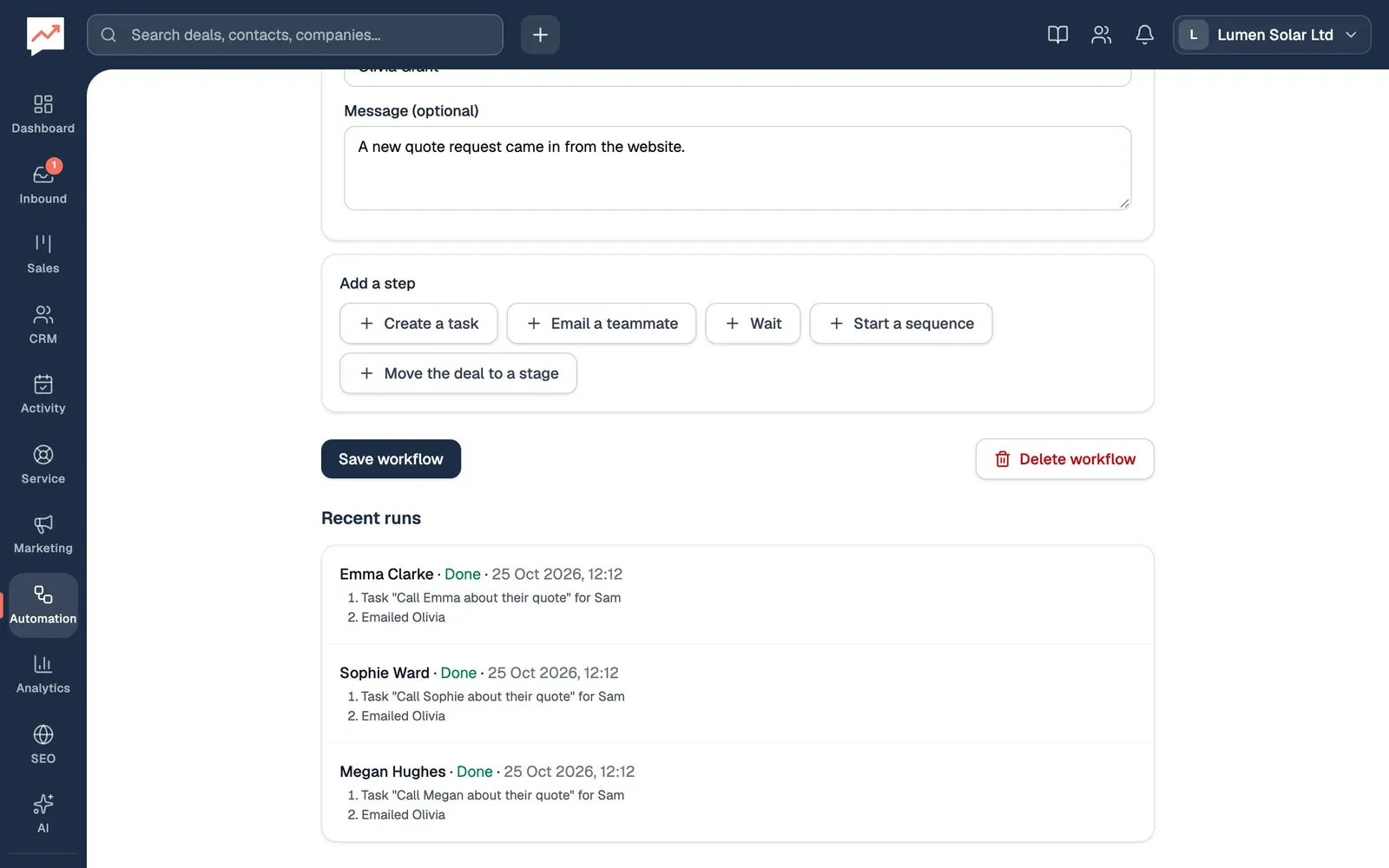
Each run shows who it was about, its status and when it started, then a line for each step it did, such as the task it created. The newest are first, up to the last 30.
| Status | What it means |
|---|---|
| Done | Every step worked. |
| Waiting | It’s on a Wait step, and says when it carries on. |
| Running | It’s doing its steps now. |
| Failed | A step didn’t work. The line for that step starts “Failed:” and says why. Later steps weren’t done. |
| Stopped | The workflow was turned off while the run was waiting, or your company left Pro. |
A failed run isn’t tried again. Fix what it says is wrong, so the workflow’s next runs don’t fail the same way.
Delete a workflow
Section titled “Delete a workflow”Open it and select Delete workflow, then confirm.
- Write a sequence for a workflow to start.
- Set up a website form to start workflows from.