

Help centre
Your help centre is a public website of help articles that you write in HeySales. Customers can search it for answers, and if they can’t find one, send you a message that opens a ticket. It’s on the Service page, on the Help centre tab.
Set up your help centre
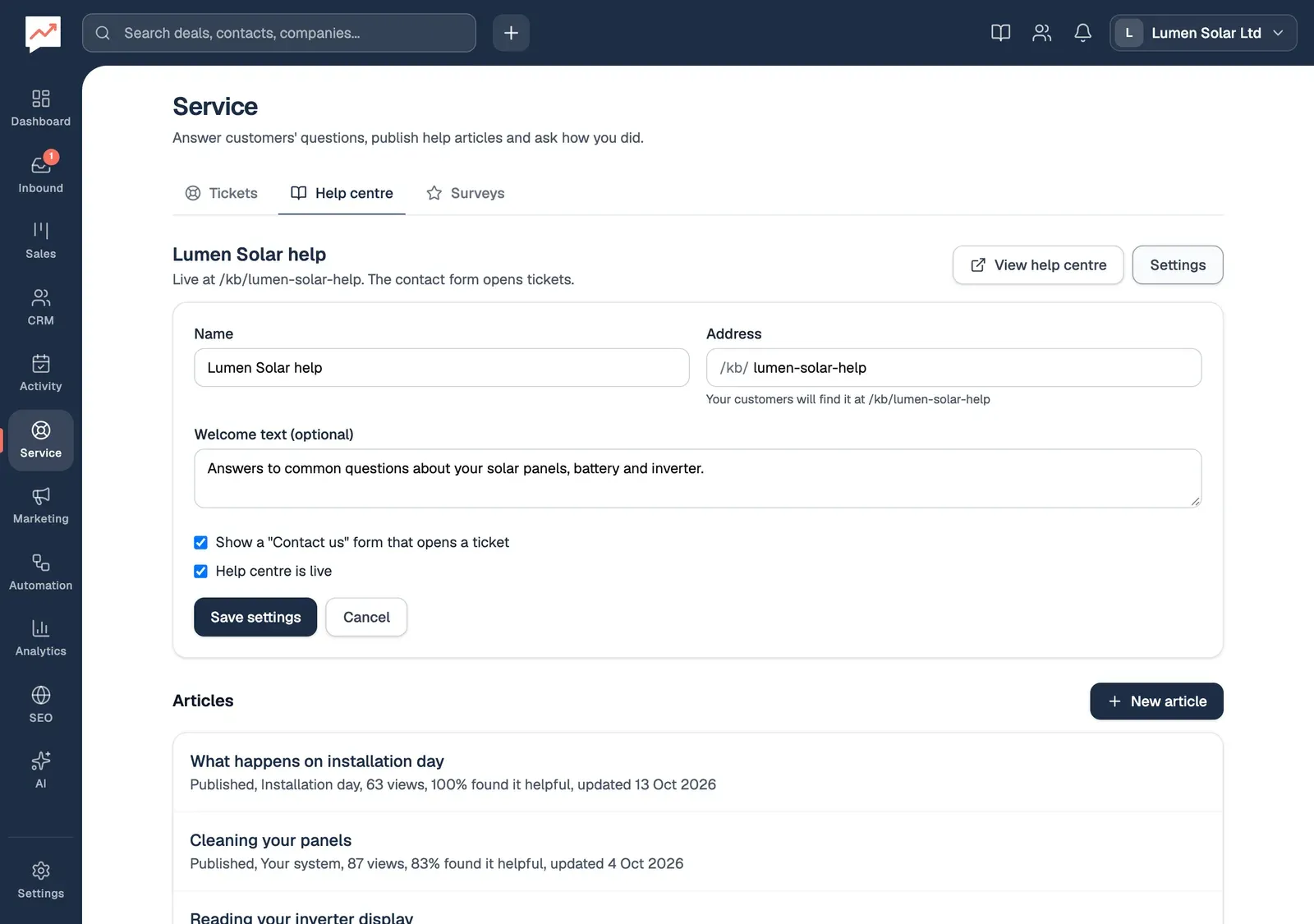
Section titled “Set up your help centre”The first time you open the Help centre tab, it shows the settings form, with Create help centre at the bottom. Afterwards, the same form opens from Settings on the tab.
-
Name is what your customers see at the top of every page, such as “Lumen Solar help”.
-
Address is the end of your help centre’s web address: www.heysales.co.uk/kb/ followed by what you type. It fills in from the name until you change it. Use lowercase letters, numbers and single hyphens. Each address can only be used once in HeySales; if yours is taken, you’re asked to try another.
-
Leave Show a “Contact us” form that opens a ticket ticked to let visitors message you. See The contact form. Untick Help centre is live, under it, to take the whole help centre offline: while it’s off, its address shows a “not found” page, even to your team.
-
Select Create help centre the first time, or Save settings after that.
Welcome text is optional. It shows under “How can we help?” on the help centre’s home page.
The Help centre tab
Section titled “The Help centre tab”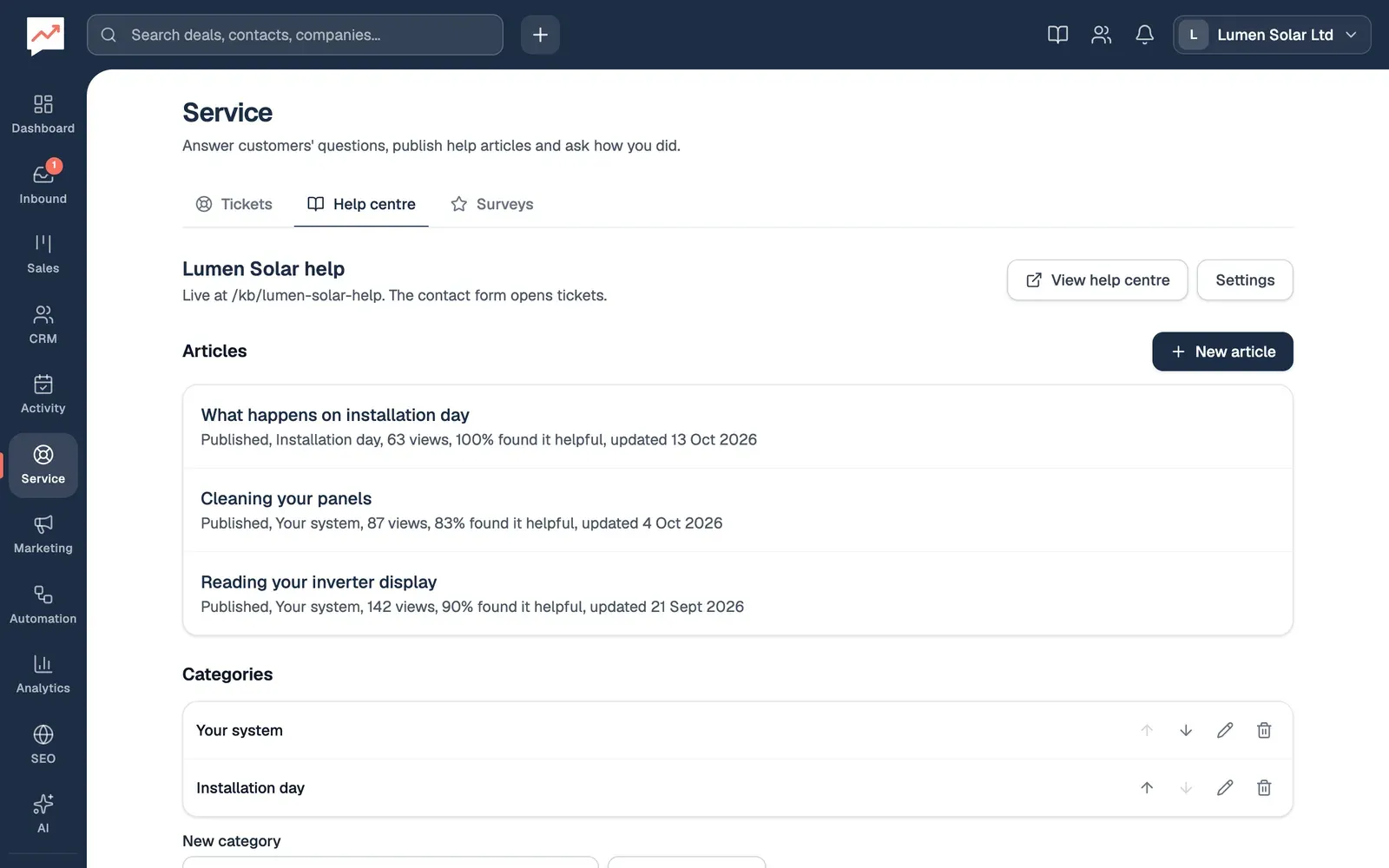
-
View help centre opens your public help centre in a new tab, to see it as customers do.
-
Settings opens the settings form above.
-
New article starts a new article. See below.
-
Each article shows whether it’s Published or a Draft, its category, how many times it’s been viewed, what share of readers who answered found it helpful, and when it was last changed. The most recently changed is first. Choose its title to edit it.
Your Categories are listed under the articles. See Group articles into categories.
Write an article
Section titled “Write an article”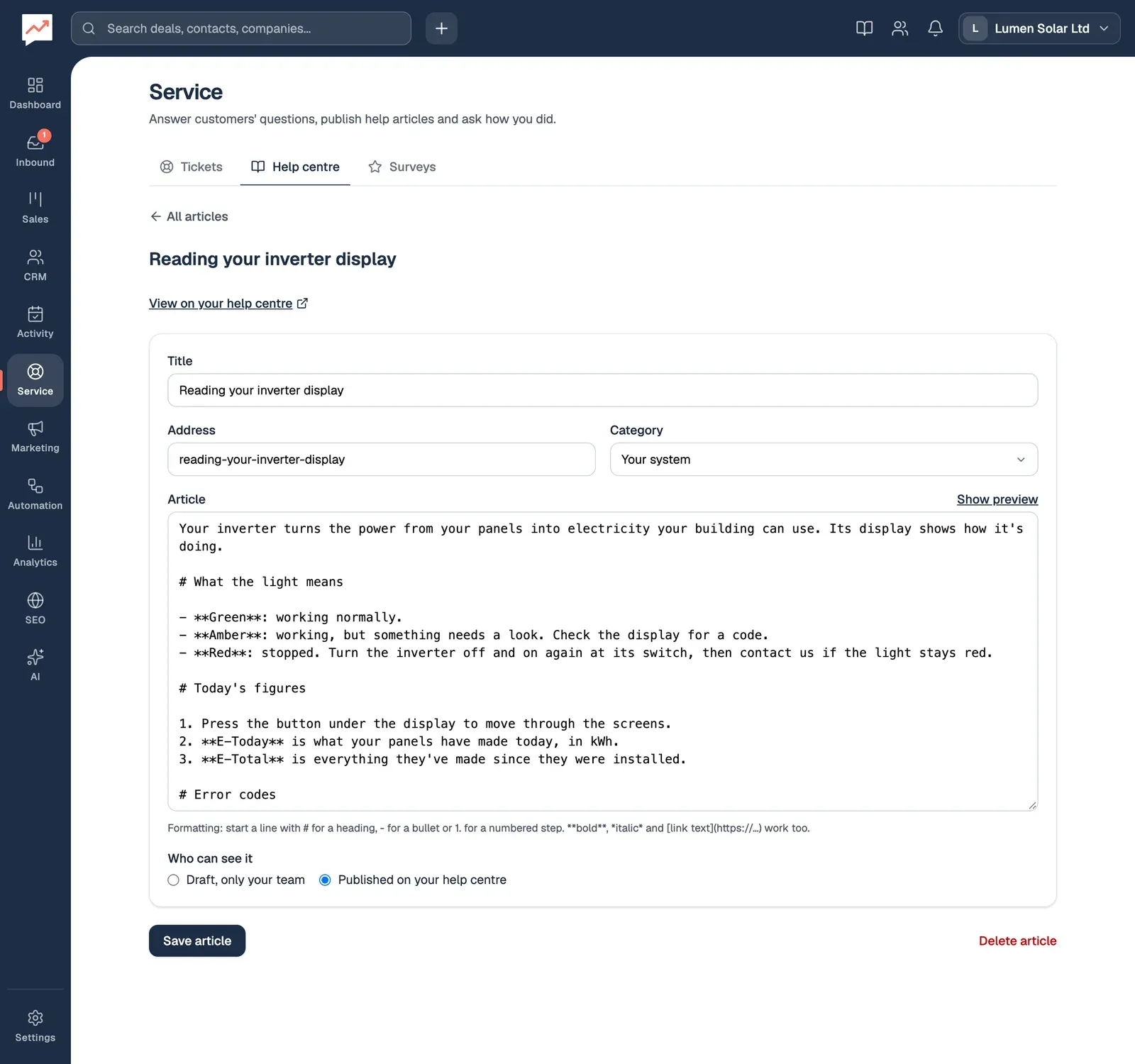
-
Type a Title. The article’s Address, the last part of its web address, fills in from the title until you change it. Every article needs its own address, and “contact” is kept for the contact form.
-
Choose a Category, or leave it at No category.
-
Write the Article. See Formatting below. Show preview shows how it will look, under the box.
-
Under Who can see it, choose Draft, only your team while you’re working on it, or Published on your help centre to put it live.
-
Select Save article.
You see “Draft saved” or “Article published”. Once an article is published, a View on your help centre link opens it in a new tab. To take an article down without deleting it, choose Draft, only your team and save it again.
To delete an article, open it and select Delete article, then confirm. It comes off your help centre straight away.
Formatting
Section titled “Formatting”Articles are plain text, with a few marks for formatting, written straight into the text:
| To get | Type |
|---|---|
| A heading | # and a space at the start of a line. ## and ### make smaller headings. |
| A bulleted list | - and a space at the start of each line |
| Numbered steps | 1. and a space at the start of each line |
| Bold | **words** |
| Italic | *words* |
| A link | [link text](https://example.com) |
| A picture | . The picture must be online already, at an address starting https://. |
| A quote | > and a space at the start of the line |
| A line across | --- on a line of its own |
Leave an empty line between paragraphs. HTML isn’t allowed: it shows as typed.
Write what’s in a picture in the square brackets. That’s what people who can’t see it hear or read instead.
Group articles into categories
Section titled “Group articles into categories”Categories group articles on your help centre’s home page, under a heading each, in the order you set. Articles with no category appear last, under “More articles”. A category with no published articles doesn’t show.
-
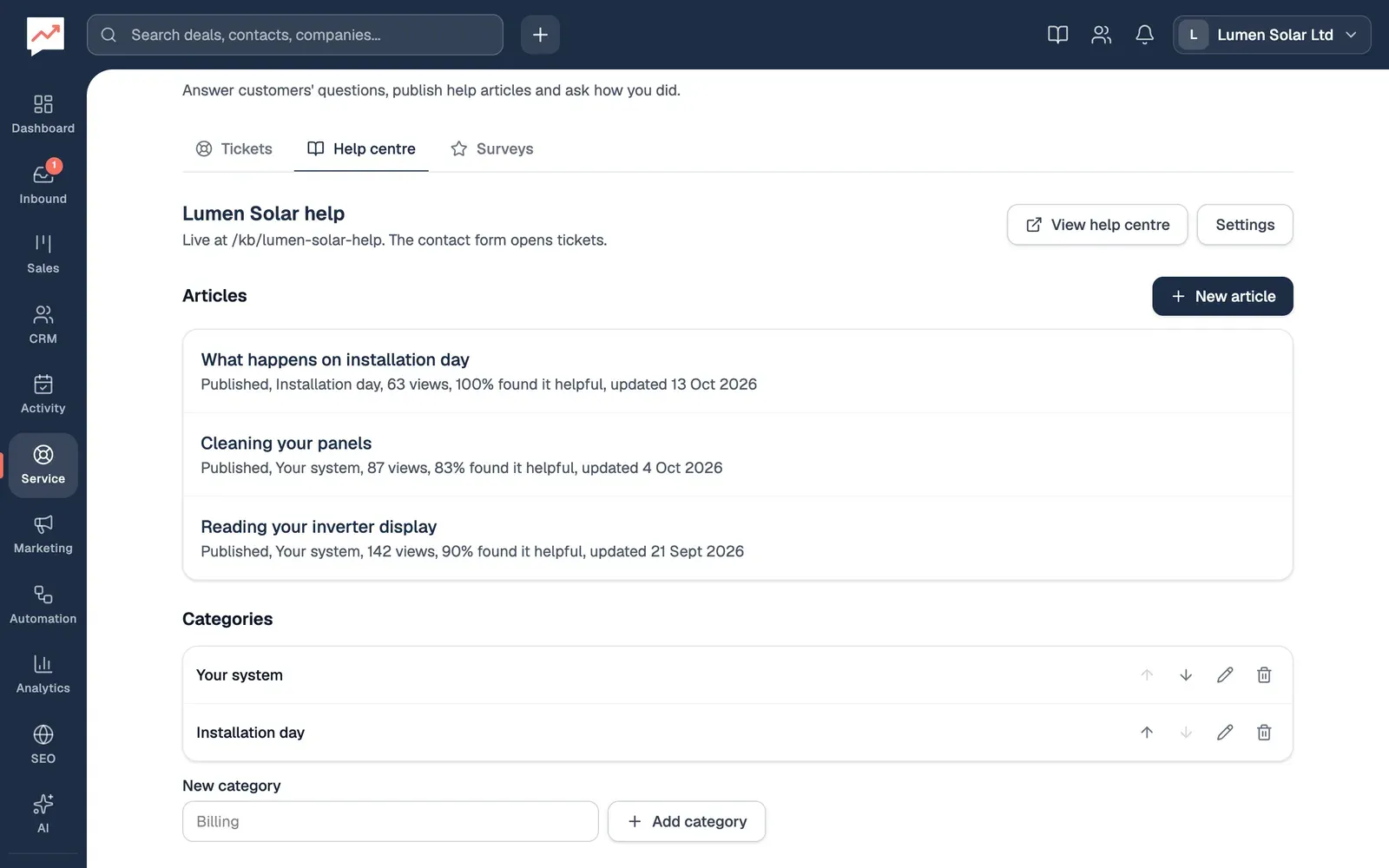
Type a name under New category and select Add category.
-
Each category’s row ends in four buttons. The up and down arrows move it one place up or down the list; there’s no dragging. The pencil renames it: type the new name and select Save. The bin deletes it, after you confirm, and its articles stay, with no category. For screen readers, each button’s name includes the category, such as “Move Installation day up”.
What visitors see
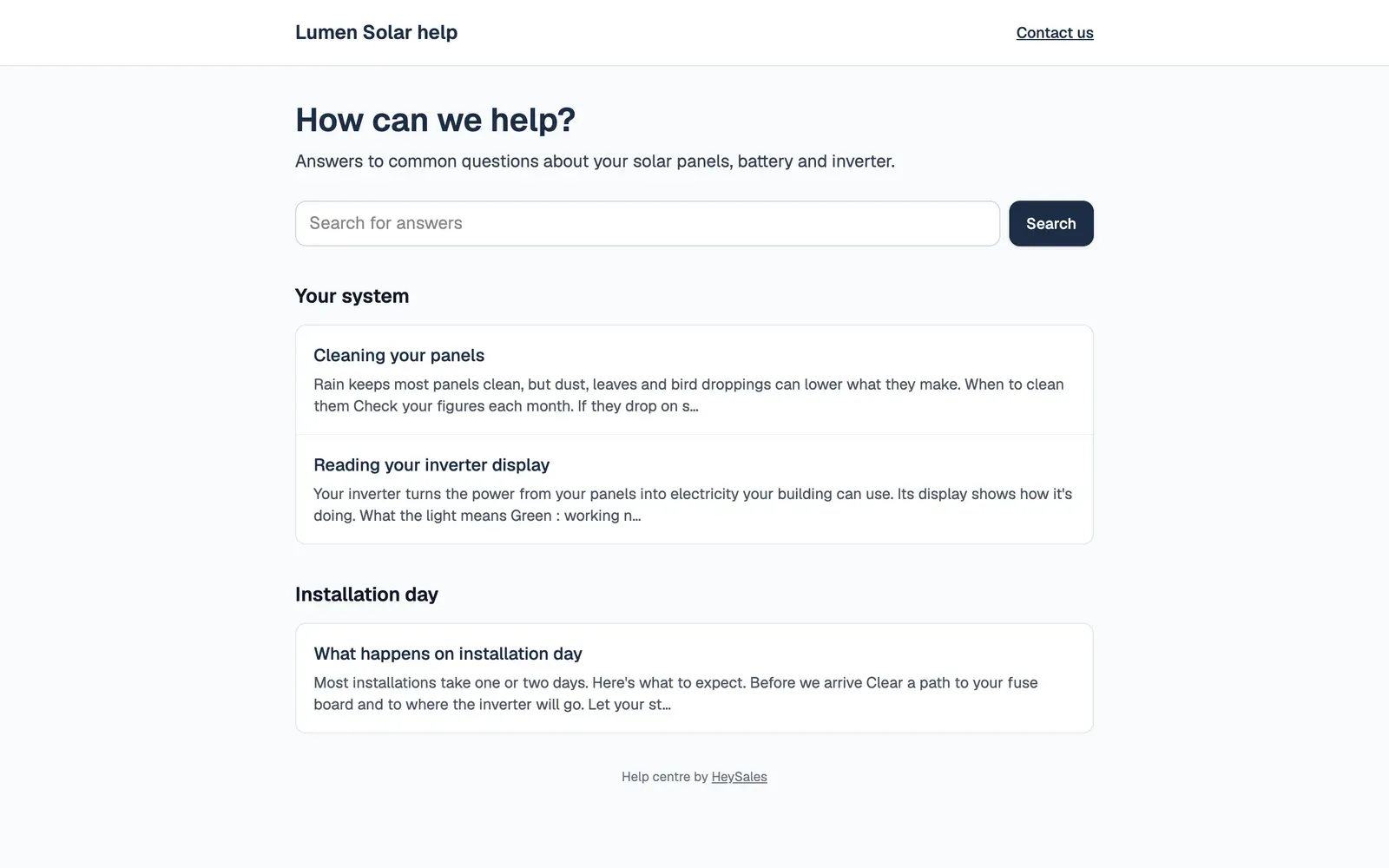
Section titled “What visitors see”Your help centre is at www.heysales.co.uk/kb/ followed by its address. Share that link on your website and in your emails.
-
The search box finds published articles with the words in their title or text. Articles with the words in their title come first.
-
Each category lists its published articles, with the start of each one. Visitors choose a title to read it.
-
Contact us opens the contact form, when it’s switched on.
Each article page shows when it was last updated, and asks “Was this helpful?” with Yes and No. Answers are counted on the Help centre tab, as a percentage. Someone who answers No is offered the contact form. Each time someone opens an article counts as a view.
The pages show your help centre’s name, not HeySales’s, apart from a small “Help centre by HeySales” line at the bottom. Drafts never show. The search, the “Was this helpful?” buttons and the contact form all work without JavaScript.
The contact form
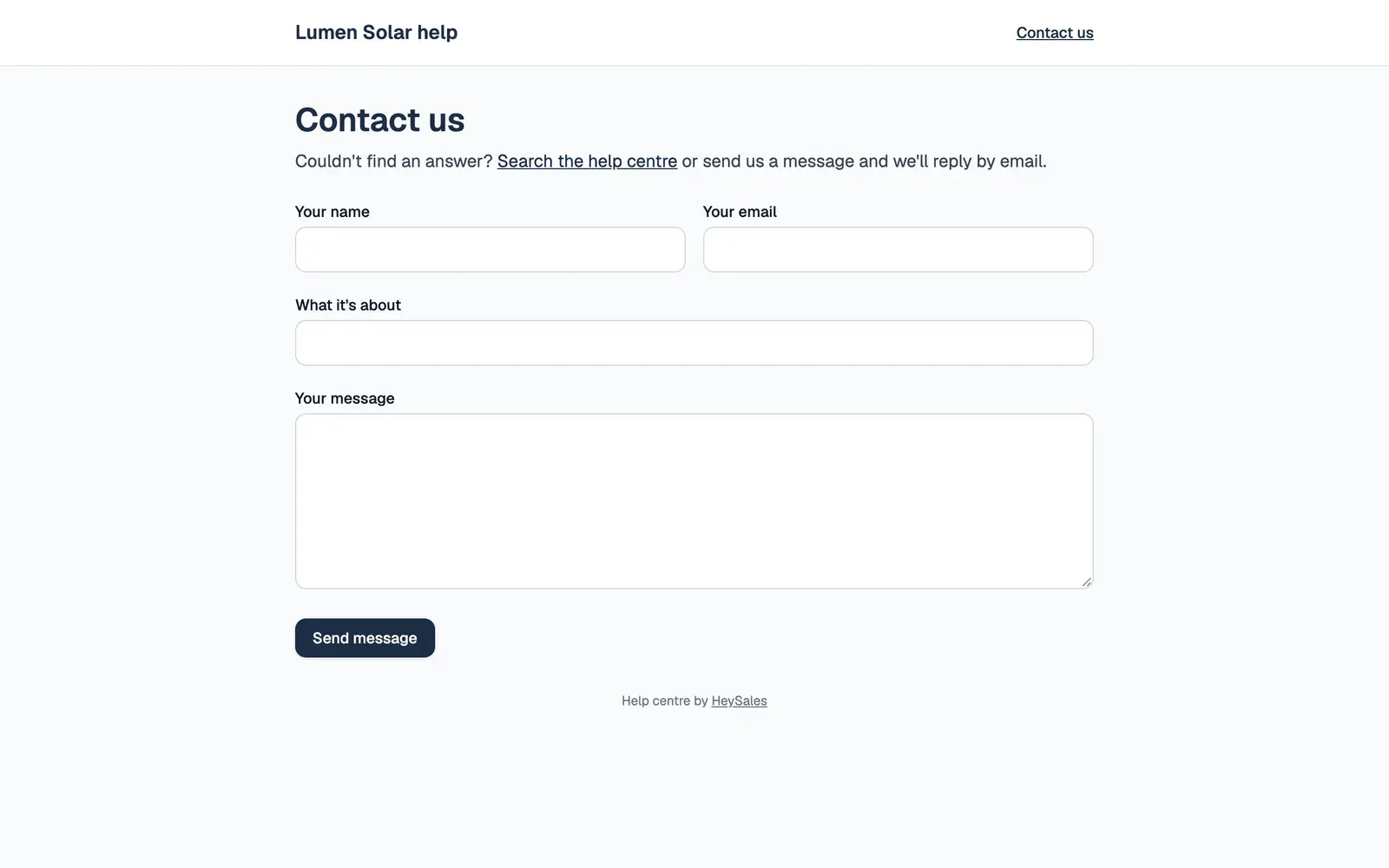
Section titled “The contact form”When Show a “Contact us” form that opens a ticket is ticked, every help centre page has a Contact us link.
-
Visitors fill in Your name, Your email, What it’s about and Your message. All four are needed.
-
They select Send message, and see “Message sent”.
Each message opens a ticket, numbered like the rest, with priority Medium and assigned to nobody. If nobody in your contacts has that email address, the visitor is added as a new contact.
Everyone on your team who gets Form Submissions emails is also sent an email about the new ticket, with a link to it. Each person can turn these on or off in Settings, then Notifications.
To reply, open the ticket and reply to the customer. Your reply goes from your Gmail to the address they gave.
- Answer the tickets your contact form opens.
- Ask customers how you did.