

Create your account
Signing up takes a minute. Then HeySales walks you through five setup steps that make your company’s workspace and your first pipeline. You can leave inviting your team and connecting your email until later.
Sign up
Section titled “Sign up”Go to www.heysales.co.uk/auth/sign-up.
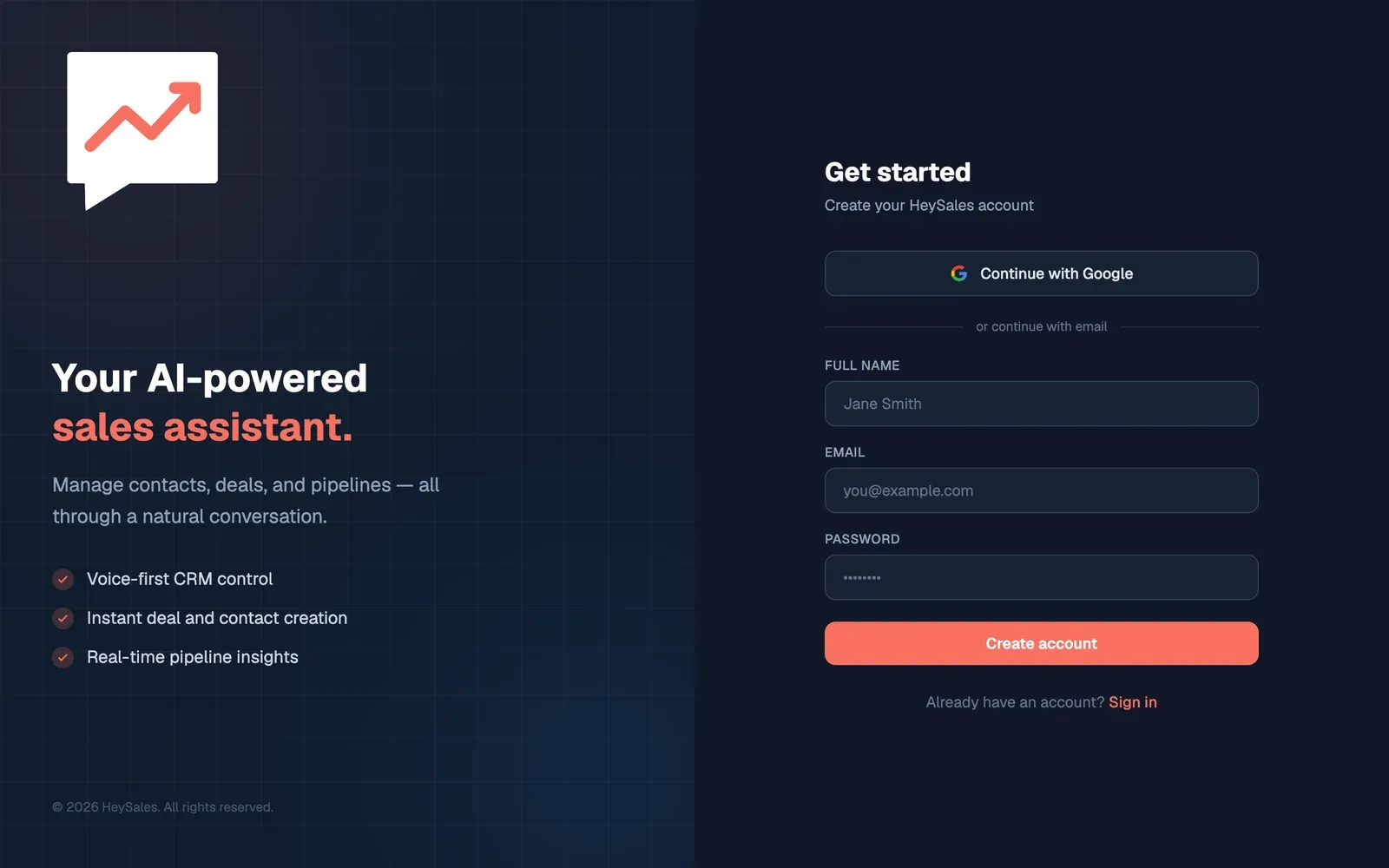
-
Continue with Google signs you up with your Google account, so you don’t need a password. Choose your Google account, and the setup steps open.
-
To sign up with a password instead, type your Full name.
-
Type your Email address. It’s the address you’ll sign in with.
-
Choose a Password of at least 8 characters.
-
Select Create account.
You’re signed in straight away, and the setup steps open. There’s no email to confirm first.
Signing up with Google doesn’t connect your Gmail or calendar to HeySales. That’s a separate step, Connect your email.
Sign in next time
Section titled “Sign in next time”Go to www.heysales.co.uk/auth/sign-in, or choose Sign in at the top of the HeySales website. Then choose Continue with Google, or type your Email and Password and select Sign in. On a computer other people use, untick Remember me for 30 days first.
If you’ve forgotten your password, choose Forgot password?, type your email address and select Send reset link. HeySales emails you a link to set a new one. The link works once, within an hour. Setting a new password signs you out on every other device.
The setup steps
Section titled “The setup steps”After you sign up, HeySales opens the setup steps. At the top, Step 1 of 5 and a bar show how far you’ve got. When each step opens, keyboard focus moves to its heading, so a screen reader starts reading from there.
| Step | Can you skip it? | What it does |
|---|---|---|
| Tell us about yourself | No | Makes your company’s workspace, with you as its owner |
| Set up your workspace | No | Makes your first pipeline and its stages, and sets your currency |
| Invite your team | Yes | Emails an invitation to each person you add |
| Connect your email | Yes | Connects your Google account for Gmail, Calendar and Contacts |
| Ready to launch! | No | Finishes setup and opens your dashboard |
Until you finish, every HeySales page brings you back to the setup steps, at the last step HeySales saved.
Tell us about yourself
Section titled “Tell us about yourself”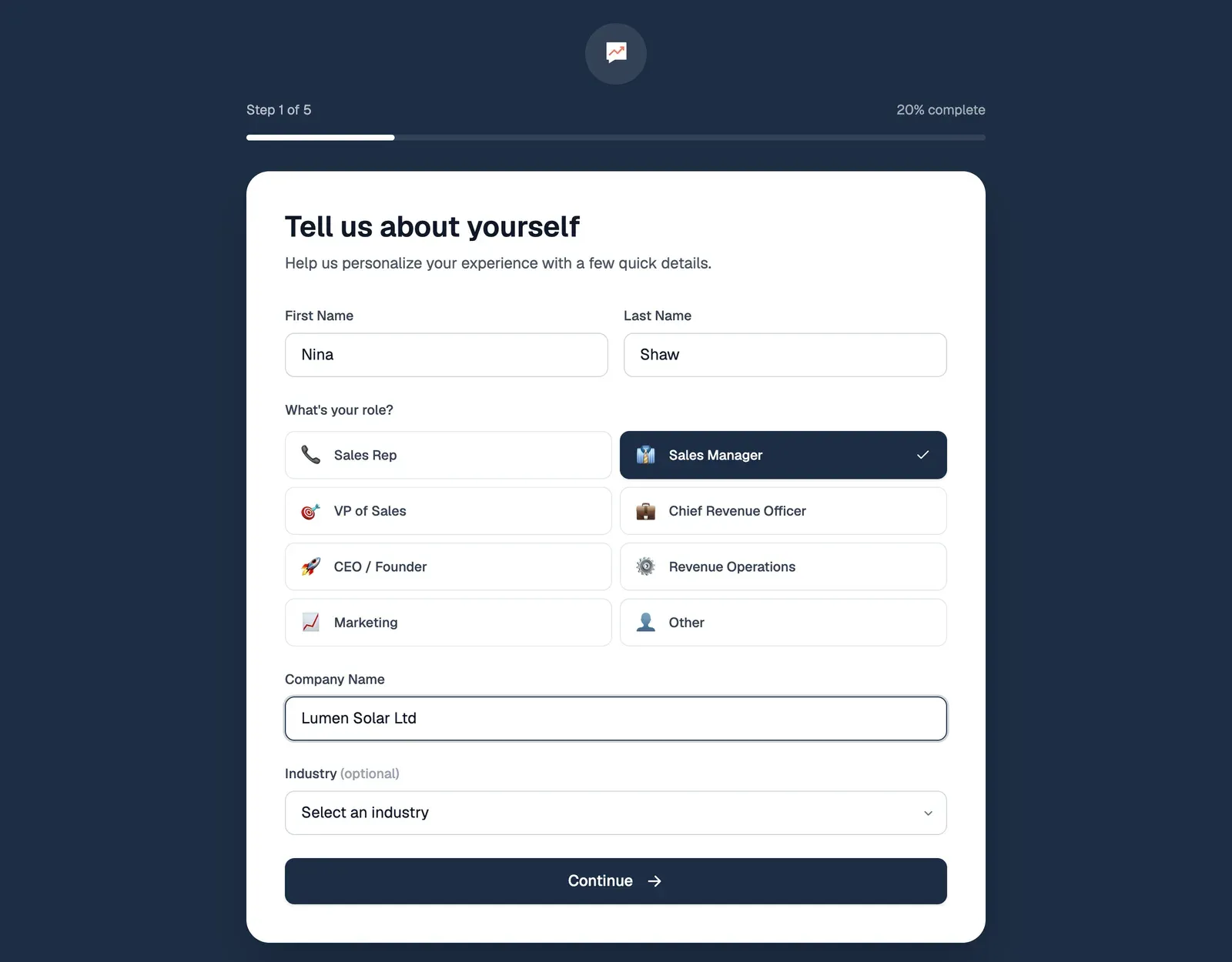
-
First Name and Last Name start with the name you signed up with. Change them if you need to. Both are needed.
-
Under What’s your role?, choose the one nearest your job, such as Sales Manager or CEO / Founder. A screen reader says which one is pressed.
-
Type your business’s name in Company Name. It becomes the name of your workspace, shown at the top right of every page.
-
Industry is optional. Choose one from the list if you like.
-
Select Continue. You can select it once your name, role and company name are filled in.
This makes your company’s workspace in HeySales, with you as its owner. See Owners, admins and members.
Set up your workspace
Section titled “Set up your workspace”A pipeline is the set of stages a sale goes through, from a new lead to won or lost. This step makes your first one.
-
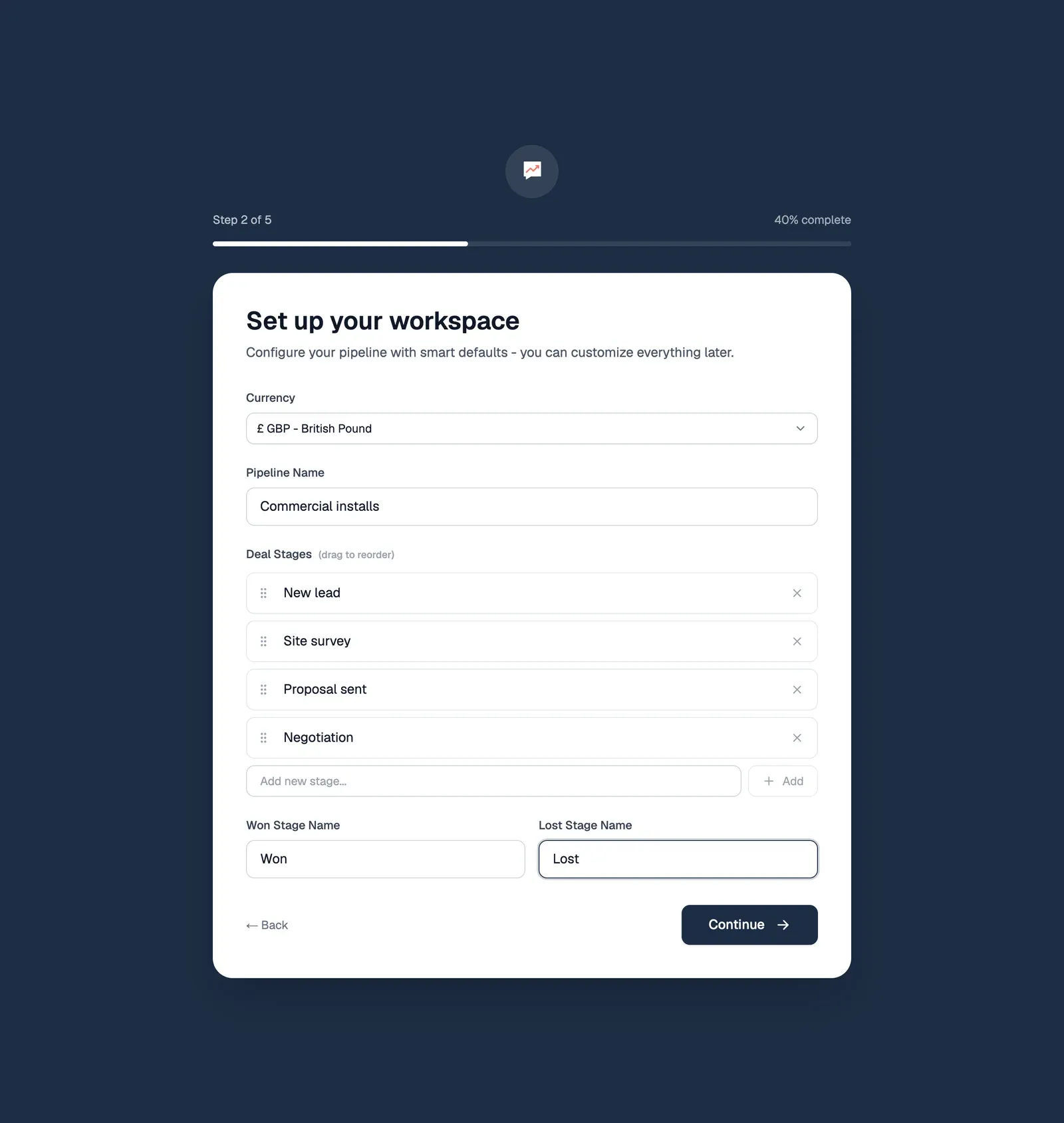
Currency is the currency HeySales shows your amounts in. It starts as pounds (GBP). To change it, select Currency, type part of the currency’s name or code, such as EUR, and press Enter to take the first match, or choose it from the list. There’s no setting to change it afterwards, so check it now.
-
Type your pipeline’s name in Pipeline Name, such as Commercial installs. It starts as Client Acquisition pipeline.
-
Deal Stages are the steps between a new lead and a decision. HeySales suggests Lead, Qualified, Proposal and Negotiation. Type over a name to change it, and use the × after a stage (Remove, followed by its name) to delete it. You need at least one. To change the order, drag a stage by its handle. With a keyboard, Tab to the stage’s Move button, such as Move New lead, press Space to pick it up, the up and down arrow keys to move it, and Space again to put it down.
-
To add a stage, type its name in the box under the stages (New stage name), then press Enter or select Add. It goes at the end.
-
Won Stage Name and Lost Stage Name are the stages a deal ends in. They start as Closed won and Closed lost. Then select Continue.
HeySales makes the pipeline with your stages in order, then the won and lost stages at the end. Each stage gets a close probability: 100% for won, 0% for lost, and rising along the pipeline for the others (with four stages, 20%, 40%, 60% and 80%). You can rename, reorder and add stages, and make more pipelines, at any time. See Pipeline settings.
Invite your team
Section titled “Invite your team”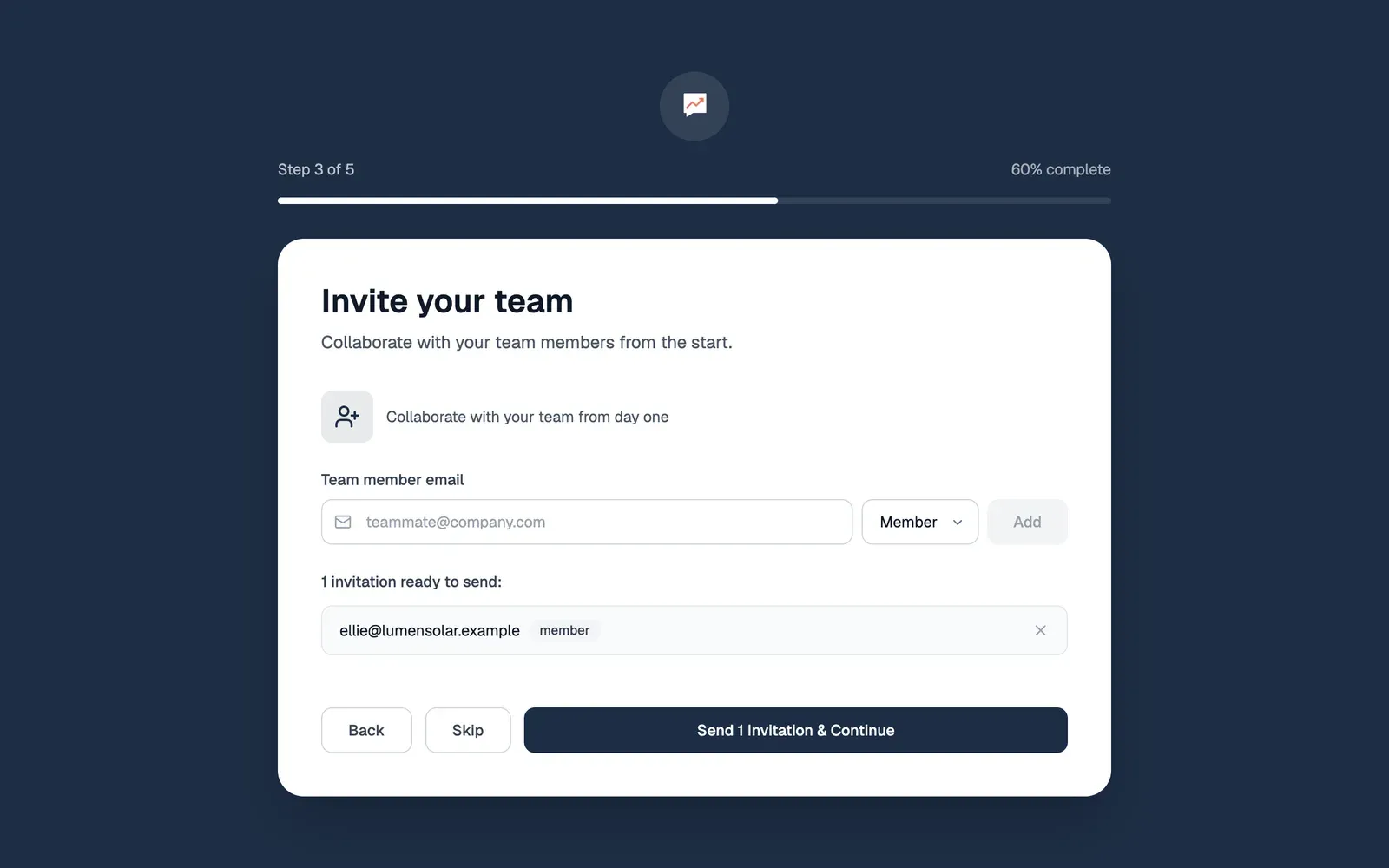
-
Type a colleague’s email address in Team member email.
-
In the list beside it, choose their role: Member, Admin or Owner. See Owners, admins and members.
-
Select Add. They join the list below, ready to send, and the box empties for the next person. To take someone off the list, select the × after them.
-
Skip moves on without inviting anyone. Continue does the same while the list is empty.
-
When the list is ready, select Send 1 Invitation & Continue. The number is how many people you’ve added.
Nothing is sent until you select that button. Each person then gets an email with a link to join your company, which works for 7 days. See Invite your team.
Connect your email
Section titled “Connect your email”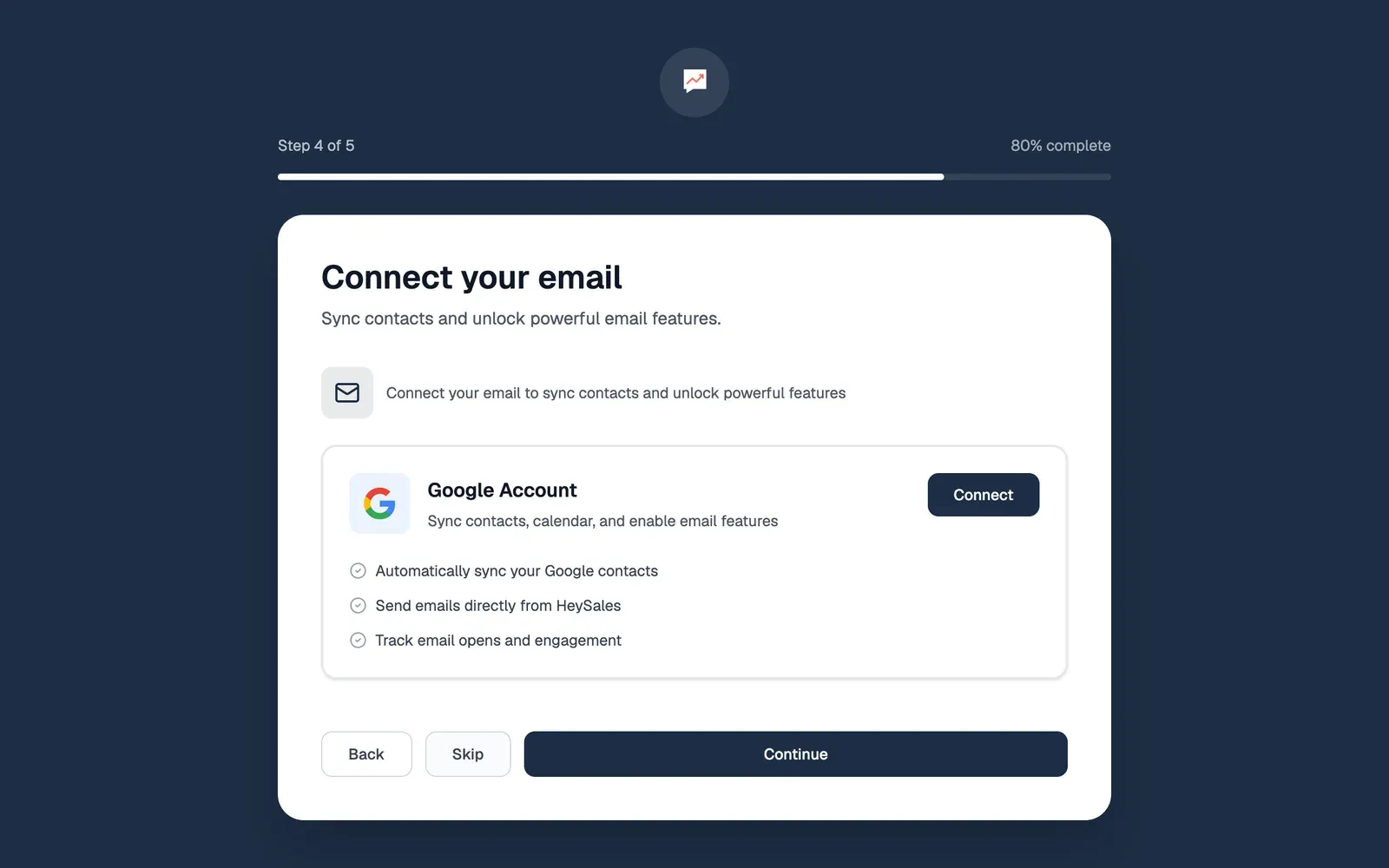
-
Connect opens Google. Choose your Google account and allow what HeySales asks for: reading and sending your Gmail, seeing and changing your calendar, and reading your contacts. Google brings you back, and the card says Google account connected.
-
Skip moves on without connecting. You can connect any time from Settings, then Connected apps.
-
Select Continue.
If you chose Skip on Invite your team, Google brings you back to that step instead. Select Skip again to come back here, where your Google account shows as connected.
Connecting doesn’t copy your Google contacts into HeySales. You choose who to import afterwards. See Connect Google for what HeySales reads and sends, and Import your contacts.
Ready to launch!
Section titled “Ready to launch!”The last step says You’re all set!. Select Go to Dashboard. Setup is finished, and your dashboard opens.
To add your deals, go to Sales. See Pipelines and deals.
Find your way around. If you skipped connecting your email, Connect Google next.