

AI assistant
The AI assistant is a chat that looks things up in HeySales and makes changes for you, such as adding a contact or moving a deal to another stage. Choose AI in the main menu.
Chat with the assistant
Section titled “Chat with the assistant”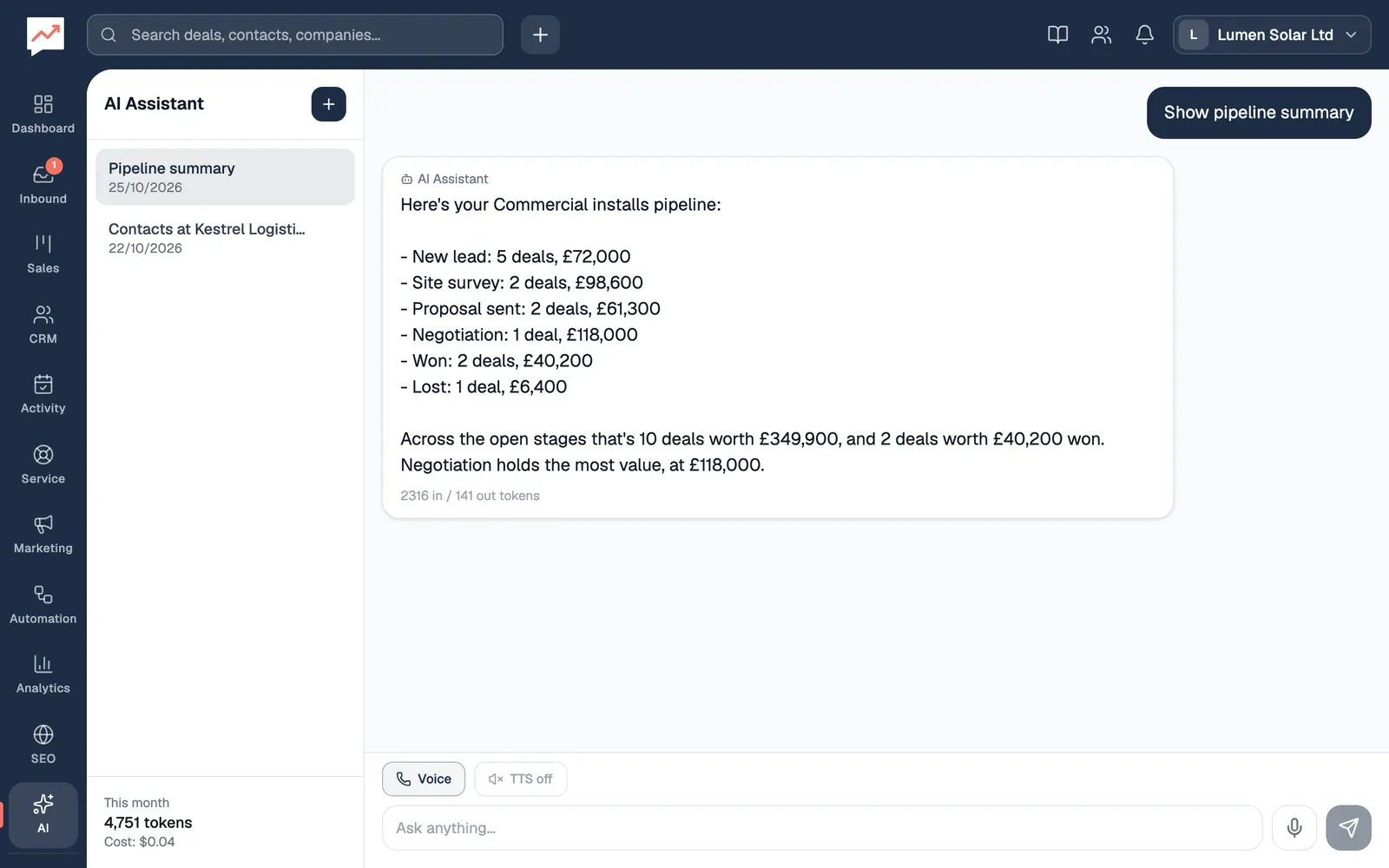
-
New Chat, the plus button at the top of your chats, starts a new chat. If you have no chats yet, Start New Chat does the same.
-
Your chats are listed with the one you used last at the top, and that one opens when you open the page. Choose another to open it.
-
Type your question in Ask anything and press Enter to send it. Shift and Enter starts a new line. The assistant shows Thinking… while it works.
-
Voice starts a spoken conversation. See Talk to it.
-
TTS off turns to TTS on when you choose it, and the assistant’s answers are then read aloud in your browser’s voice.
A new chat suggests a few things to ask, such as List my contacts and Show pipeline summary. Choose one to send it. After your first message, the chat gets a short title based on it.
Your chats are your own. Nobody else in your team can see them.
To delete a chat, choose the bin button next to it, named Delete and the chat’s title, then Delete chat. The button appears when you point at the chat or reach it with the Tab key. Its messages are deleted too, and this can’t be undone.
What it can do
Section titled “What it can do”Ask in your own words. The assistant can:
- find contacts by name, email or phone, or list them
- add a contact, and change a contact’s name, email or phone
- list deals, add a deal, and move a deal to another stage
- sum up a pipeline: how many deals are in each stage and what they’re worth
- list invoices, look at one, create a draft invoice, change an invoice’s status, due date or notes, and send an invoice
- add a task
- add a note to a contact
It can’t delete anything. It doesn’t see the contacts added as sample data.
Talk to it
Section titled “Talk to it”-
Choose Voice. The first time, your browser asks whether HeySales can use your microphone.
-
Speak. The assistant answers out loud, and what you both say appears as text above the chat while you talk.
-
Choose End call to stop. End, above the words, does the same.
By voice, the assistant can find and add contacts, list and add deals, sum up a pipeline, list and create invoices, add tasks and add notes to contacts. Voice conversations aren’t saved: the words on screen go when you end the call.
If your browser can turn speech into text, there’s also a microphone button, Speak, next to Ask anything. Choose it, say your question, and it’s sent as a message when you stop. Some browsers, such as Chrome, use their maker’s own speech service to do this.
What goes to OpenAI
Section titled “What goes to OpenAI”- Typed chats: each time you send a message, HeySales sends it to OpenAI with the chat so far and the records the assistant looks up or changes to answer it. Your first message in a chat is also sent to make the chat’s title. HeySales keeps your chats so you can come back to them.
- Voice: your voice goes from your browser straight to OpenAI, and so do the records the assistant looks up.
Switch it on or off
Section titled “Switch it on or off”Go to Settings, then AI assistant. The switch next to AI Assistant turns the assistant on or off for everyone in your company. While it’s off, the assistant won’t answer typed messages. It’s on to start with, and anyone in your team can change it.